My flash drive suddenly stopped opening after I moved important photos, work documents, and backup files onto it. Now my computer says the USB drive is corrupted and asks me to format it, but I really need to recover the data without losing anything. I’m looking for safe flash drive data recovery tips, software suggestions, or steps to fix a corrupted USB drive.
I’ve run into this a few times, and the first screen from Windows usually looks worse than the damage. You plug in the USB, it says the drive needs to be formatted, shows up as RAW, or won’t open at all. I’ve still pulled files off sticks in that state.
First thing, don’t format it. Don’t run random repair tools yet either. Those steps sometimes bring the drive back, but they also make file recovery messier. If your files matter, pull the data first. Fix the drive later.
The cause matters a lot. If this started after unsafe removal, a transfer got interrupted, the file system broke, malware touched it, or some app wrote bad data, you still have a fair shot doing it yourself. If the USB plug is bent, the drive gets hot, keeps disconnecting, isn’t detected at all, or holds stuff you cannot lose, I’d stop there and go to a recovery shop. I learned this one the hard way with a thumb drive that kept reconnecting every few seconds. It went downhill fast.
If the drive is still visible, I’d start with Disk Drill.
Why this one. Because it doesn’t rely fully on the file system being readable. I’ve used it on USB drives Windows called inaccessible, and it still scanned the raw device data underneath. It also tends to keep folders in better shape than some other tools I tried, and the preview helps a ton. You get to check whether the recovered file opens before wasting time saving junk.
The part I’d use first is the Byte-to-Byte Backup feature. Corrupt flash drives are flaky. One day they mount. Next boot, gone. If you make an image right away, you get a full snapshot of the USB in its current state. Then you work from the image instead of hammering the failing stick over and over.
What I would do
- Install Disk Drill on your PC. Not on the damaged USB.
- Plug in the USB drive.
- Open Disk Drill and go to Byte-to-Byte Backup.
- Select the USB and make a full image backup.
- After the image finishes, mount or attach the image inside Disk Drill.
- Scan the image for recoverable files.
- Preview the files. Check a few important ones, photos, docs, whatever matters most.
- Recover them to a different drive.
Working from the image is the safer route. If the USB decides to die mid-process, you still have the captured copy and you’re not rereading a bad device again and again.
After the files are safe
Only then would I mess with repairs:
- Run Windows Error Checking or CHKDSK.
- Give it a new drive letter if Windows is acting weird about mounting it.
- Reinstall the USB drivers if detection is inconsistent.
- Format it, then test with throwaway files only.
If corruption comes back after formatting, I’d toss the drive in the spare-parts drawer and stop trusting it. Same if files vanish again, writes fail, or it drops connection during normal use. Flash storage wears out. Once a USB starts acting off twice, I’m done with it. Not worth losing your stuff over a $10 stick.
23 Likes
Do not format it.
I agree with @mikeappsreviewer on one part, get your files off first. Where I differ is CHKDSK. I would not run it early on a flash drive with important data. CHKDSK often fixes the file system by removing broken entries. That is fine for repair, bad for recovery.
What I’d do first:
- Try a different USB port, then a different PC.
- Check Disk Management. If the drive shows the right size, recovery odds are still decent.
- If it appears as RAW, unallocated, or asks to format, stop writing to it.
- Use Disk Drill to scan the USB and recover files to your internal drive or another external drive.
- Preview photos and docs before saving them. Corrupt names are common, but file content might still be fine.
If the drive disconnects, gets hot, or reads as 0 bytes, stop. That points more toward hardware failure than file system damage. Repeated scans on a dying stick sometmes make it worse.
If you want a quick visual guide, this short helps: USB flash drive data recovery video tutorial
After recovery, throw the flash drive away if it fails a full format and copy test. USB sticks fail more often than people think. I’ve had two die with no warning, so yeah, I dont trust them for backups anymore.
Don’t click Format. That prompt is Windows being lazy, not helpful.
I mostly agree with @mikeappsreviewer and @nachtschatten about avoiding writes to the stick, but I’d add one thing they didn’t really stress: check whether the problem is just the partition table, not the files themselves. Open Disk Management and see exactly how the USB is listed. If it shows the correct capacity but the partition is missing or marked unallocated, the data may still be sitting there mostly intact.
At that point, I’d avoid “repair” and go into recovery mode first. Disk Drill is a solid option here because it can scan beyond the broken file system and pull back photos, docs, and other common file types from a corrupted flash drive. If the drive is stable enough to stay connected, scan it once, recover only the most important stuff first, and save to a different disk. Not the same USB, obviously.
One mild disagreement: I don’t love repeatedly testing it across 5 machines and 12 ports if it’s acting unstable. If it’s disconnecting, making you wait forever, or showing 0 bytes, stop poking it. That can make a dying flash drive worse.
Also, if you want a clearer walkthrough before doing anything, this easy Disk Drill review and USB recovery walkthrough is actually pretty useful.
If you do recover the files, retire the drive. Seriously. USB sticks fail for dumb reasons all the time, and ppl keep trusting them way too much.
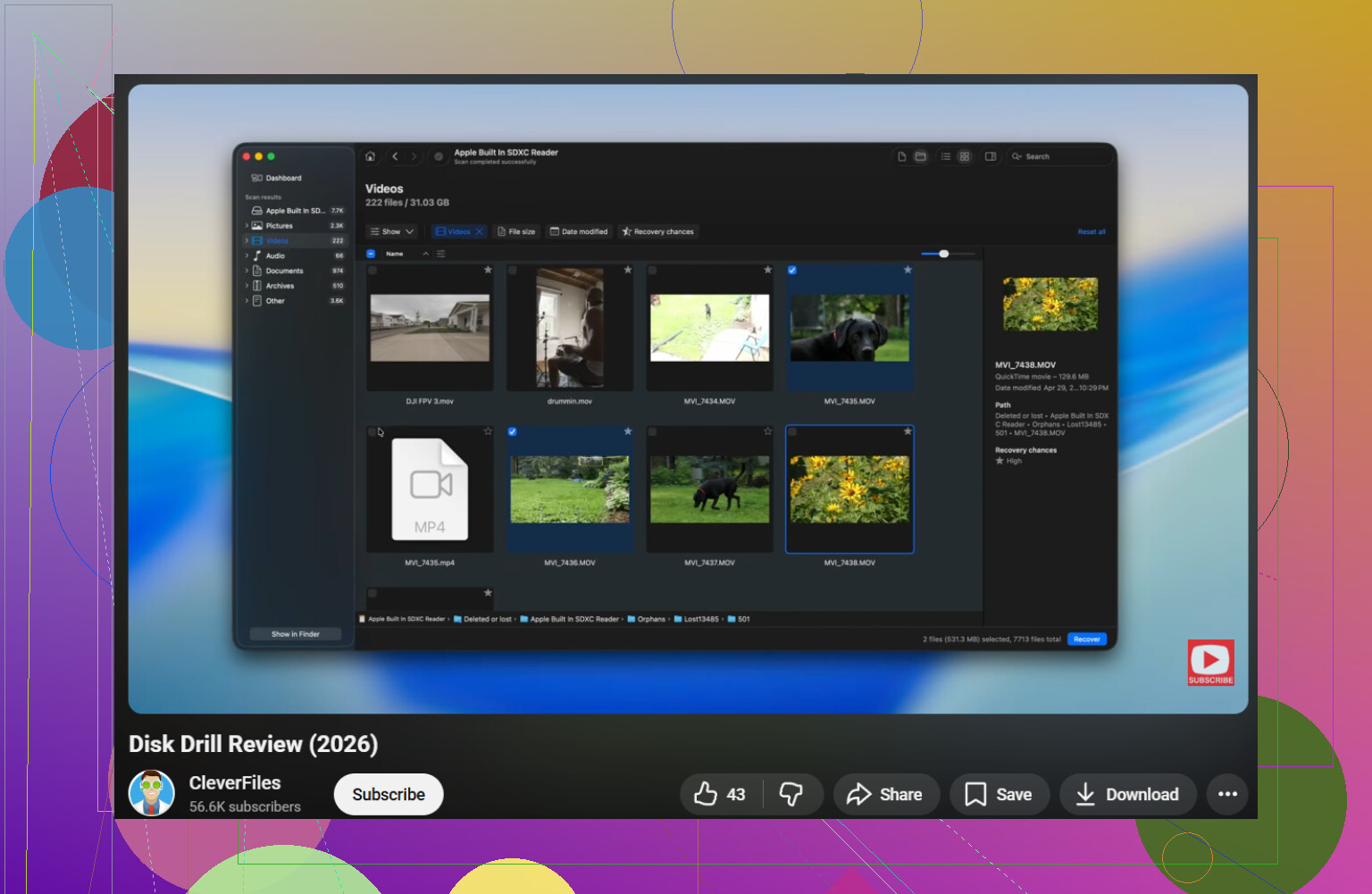
I’m with @nachtschatten, @suenodelbosque, and @mikeappsreviewer on the big rule: do not format first. Where I slightly disagree is the “scan it right away” approach if the drive is acting weird. If the USB is making disconnect sounds, freezing Explorer, or showing capacity incorrectly, I’d first check SMART-like behavior isn’t available on most flash drives, so your only clue is stability. If it cannot stay mounted for even a few minutes, software recovery may just waste your chance.
A couple things not mentioned enough:
- Try reading it on a Linux live USB. Sometimes Linux mounts a damaged stick read-only when Windows refuses.
- Use USBDeview or Device Manager to remove stale USB device entries if Windows keeps misidentifying it.
- If the files are irreplaceable, make a sector image with something like HDD Raw Copy Tool or USB Image Tool before experimenting further.
About Disk Drill: good choice if the drive is still readable enough to scan.
Pros
- Easy preview for photos/docs
- Can recover from RAW/corrupt file systems
- Interface is much friendlier than a lot of old-school recovery tools
Cons
- Deep scans can take a while
- File names/folder structure are not always preserved
- Less useful if the flash drive has true hardware failure
If Disk Drill doesn’t find much, I’d cross-check with PhotoRec or R-Studio just to compare results. Different tools sometimes recover different sets. Recover to another drive only, then retire that flash drive permanently.