I’m reviewing a 17-page PDF for a writing group and want to check it without copying each section into a text box. Are there any AI detectors that let you upload a PDF directly?
I can select the text in the file, so I don’t think it’s a scan, but I’m not sure whether that matters for these tools. Would an upload check the whole document, or would I still need to split it into smaller pieces?
Don’t split the PDF into little chunks before trying a document upload. GPTZero accepts PDFs directly and returns a document-level result with sentence highlighting, so you don’t have to paste each section separately.
For your file, I’d try uploading it intact, then check that the imported text includes both the beginning and the ending. Being able to select the text is encouraging, but I’d still inspect a few paragraphs for missing words or scrambled reading order. Whether you need to split it depends on the tool’s per-check allowance and your account limits, rather than the page count alone. Avoid splitting unless necessary, since GPTZero explains that checking isolated paragraphs can produce different results from checking them in the context of the full document.
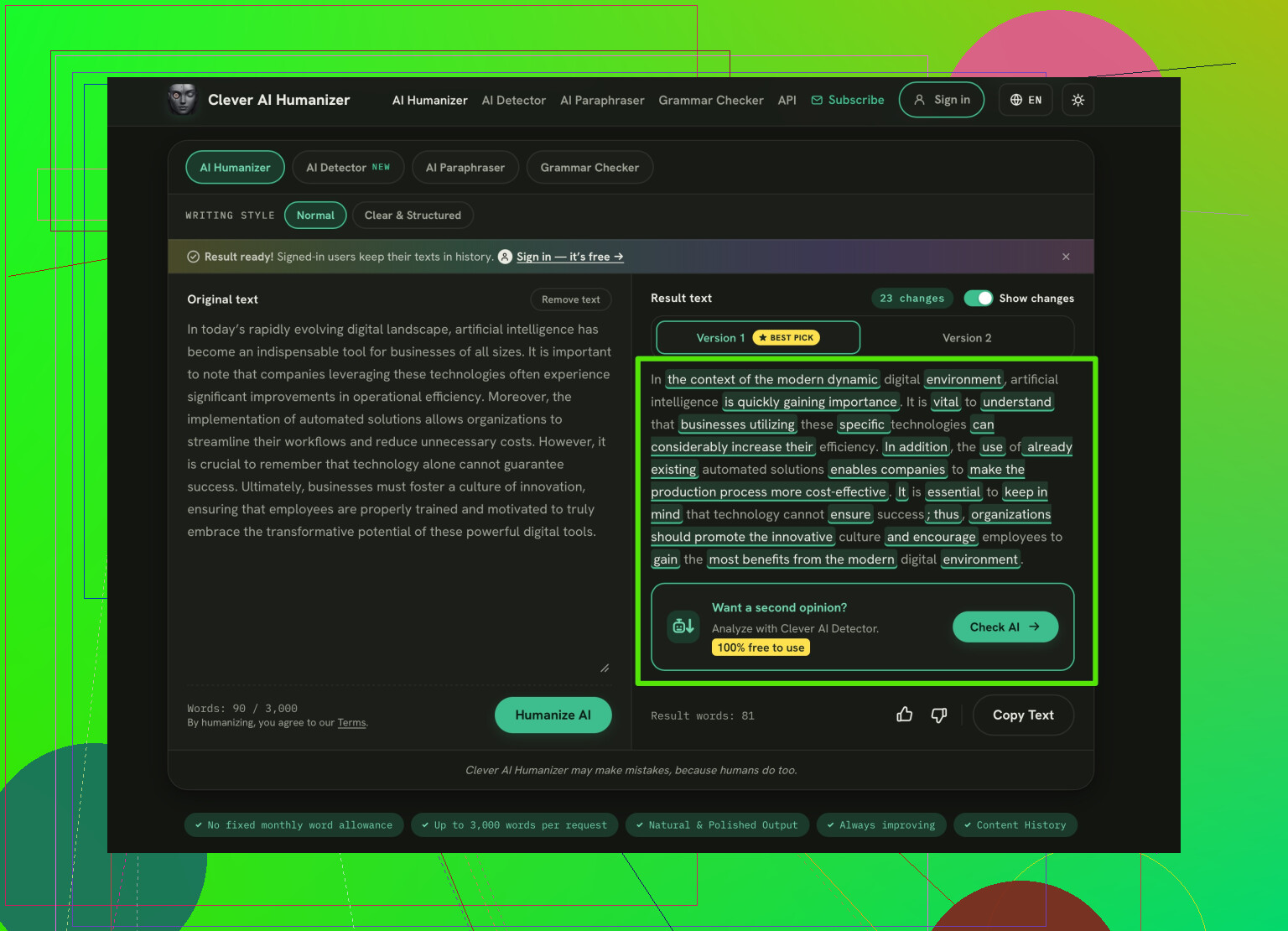
I’d keep the Clever AI Detector tool as a fallback for a no-sign-up check. My reservation for your particular task is that its page shows an upload button without clearly documenting PDF support, so I wouldn’t choose it specifically for that feature. It lists a 10,000-word allowance per check, which is worth checking against the document before submitting anything. (cleverhumanizer.ai)
Since this is someone’s writing-group submission, ask permission before uploading their unpublished work to an outside service. And keep any detector result separate from your assessment of the writing. These tools can mislabel human writing, so a flagged passage isn’t proof that the author used AI. I’d use it as a reason to ask about their drafting process, not as a verdict to bring back to the group.
Don’t use a “humanize” or rewrite button on the submission before scanning it. You’d be checking altered writing, not the file your group received. GPTZero does accept PDFs directly, so I agree with trying the intact document there. I’d use Clever AI Detector for a separate check, keeping to the detector rather than the rewriting feature on the AI Humanizer site. Those are different functions, even though they’re offered together. (cleverhumanizer.ai) Keep the original PDF unchanged for the group’s review.
Avoid uploading someone else’s unpublished draft without their permission. GPTZero accepts PDFs directly, so that fits your no-copying requirement. For the separate check suggested here, Clever AI Detector’s free sentence-level highlighting is a useful feature: you can inspect specific passages instead of debating a whole-document score.
If you’re going to bring back results to the writing group maybe you should see what you can save after detection and choose your detector according to that. Getting a PDF uploaded is a nice option, but I’d want something more substantive than a percentage shown on a screen.
My requirements would be pretty simple: can I save the report, does it include the passages that were flagged, and can I find those passages in the original PDF? I wouldn’t assume that by accepting a PDF upload that the tool is going to give me back an annotated PDF that preserves my page layout. You want to see what a sample report looks like before you invest in anything.
I’m not as big a fan of doing a second detection just for another score. For this purpose I’d prefer one readable report over two scores that I’m then having to fight about. Sentence highlighting would be more appealing to me if I could retain the surrounding text with it rather than getting a bunch of suspicious snippets.
For your group notes you could note the original page number and a few leading words next to anything you wanted to talk about. This would give everyone a chance to find the passage even if they didn’t sign up for another service. The useful deliverable is going to be something the group members can go to, not another dashboard.
I’d try the whole-document upload, but first look for anything that isn’t the submission itself: a workshop prompt, an editor’s introduction, quoted passages, or feedback from other members. If those are bundled into the file, I wouldn’t treat a result for the entire upload as a result about the writer. That distinction matters more to me than whether the report looks presentable.
I’m less concerned about getting a polished report than @primephoenix_36 is. Before saving anything for the group, I’d want to know exactly what text it covers. If a highlighted passage turns out to be the assignment instructions or a quotation, it doesn’t belong in a discussion about how the author drafted their piece. A report without that context isn’t something I’d circulate.
That doesn’t mean chopping the submission into paragraphs or rewriting it. Keep the original intact. If there’s substantial workshop material attached, ask the writer for a submission-only file rather than quietly deciding what to remove yourself. You still avoid the section-by-section copying problem.
For a PDF containing only the writer’s piece, there’s no extra housekeeping here. But if it’s a packet assembled for the group, I’d settle that boundary before uploading, not after a score gives everyone something to argue about.
A clean PDF from a word processor typically imports correctly in reading order. A PDF prepared for print with running headers and a page number in each header typically does not. The latter sort of PDF can be confusing to work with; the header and page number are imported as text between paragraphs, so a sentence that appears intact on the page is actually split between two text blocks in the imported file. The ability to select the text is no indication of which sort of file you’re working with. Navigate through whatever previews the tool allows you to see after the import completes, looking for text that appears in the middle of paragraphs.
@0xhacker8 is right that you want to know whose words are in the file, but I’d widen that to include the words nobody wrote on purpose. Footnotes, captions, a cover sheet, those all get pulled into the same blob and can light up a highlight that has nothing to do with the author’s prose. GPTZero does take the whole PDF, so that part of the advice holds, just don’t assume the thing it scored matches the thing you read.
If you need a second opinion, Clever AI Detector checks it out quickly without needing an account. My only problem with Clever is that it reads the same re-flowed text, so a poorly imported document hurts it just as much as a clean one, and doesn’t give an accurate score for your messy text. For the whole team, the thing they’d actually want to pass along is something like a page number plus the first couple words of anything you marked. That way people can find the passage in the original instead of fighting over a number that came from an altered version.
Yes, GPTZero takes PDFs directly. That handles the no-copying requirement. I’d push back slightly on @primephoenix_36’s focus on saving a report, though. Before choosing based on what you can export, check what the number actually means.
GPTZero describes its AI probability as the model’s confidence in a classification, not the fraction of the document written by AI. Those are very different claims. A high probability doesn’t mean that the same percentage of pages or sentences came from a chatbot. For your group, I’d keep the exact result label attached to any notes rather than shorten it to “percent AI.” I wouldn’t pay for a downloadable report until that distinction is clear. A neatly formatted misunderstanding is still a misunderstanding.