I accidentally permanently deleted important files on my Mac and realized too late that they were not in the Trash or backed up in Time Machine. I’m trying to find a free way to recover deleted files on Mac without paying for expensive software. If anyone knows safe Mac file recovery methods that actually work, I’d really appreciate the help.
I still wouldn’t write the files off.
Emptying Trash kills the easy undo path, sure. It does not mean the bytes vanished on the spot. A deleted file often sits there until macOS writes something else over the same space. The catch is SSDs. Newer Macs use them, and SSDs tend to purge deleted blocks fast because of TRIM. I’ve seen people recover stuff after a delete, and I’ve seen the same thing fail an hour later. Timing matters.
First move, stop using the Mac.
No app installs. No downloads. No syncing giant folders. Don’t edit video, don’t run updates, don’t do cleanup tools. Every write to the internal drive chips away at your odds. If the file matters, treat the Mac like it’s on thin ice.
Before you throw recovery apps at it, I’d go through the built in options first.
1. Time Machine
If Time Machine was on before the delete, this is the cleanest path by far.
- Open the folder where the file used to live.
- Start Time Machine.
- Jump back to a backup from before you deleted it.
- Pick the file and restore it.
When this works, it tends to work properly. You get the original filename, folder, and metadata back, not some half-broken recovered copy with a random name.
2. APFS snapshots
This one catches people off guard. Even if you never plugged in a Time Machine drive, macOS often makes local APFS snapshots before updates and some system changes. I’ve had luck with these when there was no regular backup at all.
Open Disk Utility, select the system volume, and see if snapshots exist from before the deletion. If you find one from the right date, you might be able to mount it and copy the missing files out by hand.
3. Recovery software
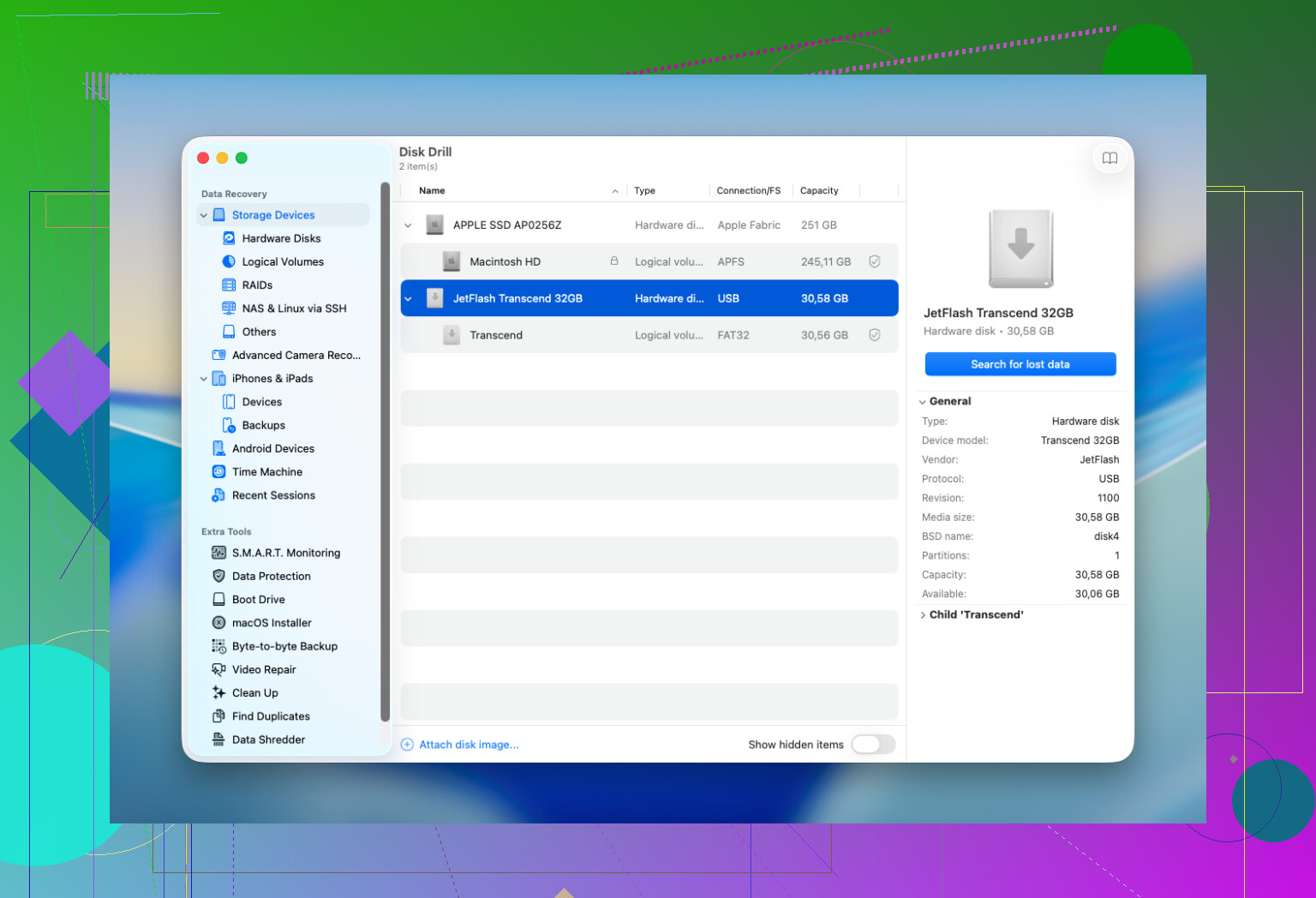
If backups and snapshots come up empty, I’d move to recovery software. Disk Drill is usually where I’d start on a Mac. It rolls multiple scan methods into one pass, works with current macOS versions, and the preview feature matters more than people think. If a file previews fine before recovery, your odds are usually better.
A few rules I’d stick to:
- Put the recovery app on a different drive if you have one.
- Restore recovered files to another drive, never back onto the same one.
- Check previews carefully. If the preview is broken, the recovered file often is too.
4. When I’d stop and send it to a lab
For a plain accidental delete, I usually wouldn’t jump straight to a recovery service. I’d only go there if one of these is true:
- The files matter enough where a failed home attempt is not worth the risk.
- The drive shows hardware trouble, odd noises, disconnects, read errors, or it doesn’t show up in macOS.
- The Mac took liquid damage, a power hit, or some other physical damage.
- The recovery tool won’t finish a scan or cannot read the drive at all.
Labs do work home users don’t have access to, but the bill gets ugly fast. A few hundred dollars is common, and it climbs from there.
One part people miss, there’s no fixed timer like “you have 7 days.” I wish it worked like that. The real issue is overwrite activity and whether TRIM already cleared the deleted blocks. So the people I’ve seen do well are the ones who stop using the Mac right away, check backups first, then scan before more writes happen.
If it were my machine, I’d go in this order. Time Machine first. APFS snapshots second. Recovery scan third. On Macs, most good outcomes I’ve seen came from one of those three.
23 Likes
Free is tough on modern Macs. Honest answer.
If your Mac uses an SSD, recovery odds drop fast after permanent deletion. I agree with @mikeappsreviewer on stopping writes, but I’d add one thing first. Check cloud trash bins. A lot of people forget this.
Look in:
iCloud Drive, Recently Deleted
Photos, Recently Deleted
Notes, Recently Deleted
Mail trash on the server
Google Drive, Dropbox, OneDrive web trash
I’ve seen files “gone” on the Mac but still sitting in the cloud for 30 days.
Also check app autosaves and temp copies:
Word, Excel, Pages, Preview, Photoshop
Open the app, then File, Open Recent or browse AutoRecovery folders
If none of thsoe hit, free recovery options are limited. TestDisk and PhotoRec are free, but rough on Mac and file names often come back mangled. Disk Drill is easier to use for Mac file recovery, especially for previews, even if the free part is more for scanning than full recovery on some versions.
This video gives a decent Mac file recovery tools overview:
best Mac file recovery tools explained on YouTube
Short version. Check cloud trash, app recovery folders, and synced services first. If no luck, scan from an external drive, save results to another drive, and move fast. SSDs are brutal.
I’d add one more free angle that neither @mikeappsreviewer nor @nachtschatten really leaned on: version history inside the app itself.
A lot of Mac apps quietly keep older copies even when the actual file is deleted. Try this before doing deep scans:
- Pages, Numbers, Keynote: File > Revert To > Browse All Versions
- Microsoft 365 apps: look for AutoRecovery / Document Recovery
- Preview sometimes keeps temp versions of PDFs and images
- Adobe apps can leave autosave or recovery data in Library folders
Also check these hidden spots with Finder > Go > Go to Folder:
~/Library/Containers/~/Library/Autosave Information/~/Library/Application Support//private/var/folders/
You’d be surprised how often “deleted” stuff is still sitting in a temp cache because the app was never cleaned up proeprly.
One tiny disagreement with the usual advice: people jump to PhotoRec/TestDisk because they’re free, but on a modern Mac they’re kinda brutal unless you already know terminal tools. If you want something easier to verify files with previews, Disk Drill for Mac is usually the more practical choice, even if the truly free recovery part can be limited depending on version.
Also, if Spotlight still remembers the file name, search for it in Terminal:
mdfind 'filename'
Sometimes the original is gone but a duplicate, exported copy, or cached attachment still exists.
And if you want more community examples, this thread on recovering newly deleted data on a MacBook is worth skimming.
So yeah, free is possible, but usually through leftovers, app history, or temp storage. Pure undelete on SSD Macs is kinda a coin flip tbh.
One extra place I’d check that @nachtschatten, @hoshikuzu, and @mikeappsreviewer only touched indirectly: email attachments and chat apps. If the deleted file was ever sent through Mail, Messages, Slack, WhatsApp, Telegram, or Discord, there may be a local cached copy or the original still sitting in a conversation export/downloads area. Same idea for AirDrop receipts in Downloads.
I’d also slightly disagree with the “scan immediately” advice if the Mac is a newer Apple silicon laptop with heavy SSD/TRIM activity. In some cases, the smarter free move is to shut it down first, then boot from an external macOS drive later so you are not constantly writing logs, caches, and swap data to the same internal disk.
For actually recovering:
Free options
- Terminal check for snapshots:
tmutil listlocalsnapshots / - Mount/read from another Mac in Target Disk Mode or Share Disk mode
- PhotoRec/TestDisk if you can tolerate ugly output and lost filenames
Disk Drill pros
- Easy UI
- Good previews
- Better for sorting recoverable files fast
Disk Drill cons
- Free recovery can be limited depending on version
- Not magic on TRIMmed SSDs
- Deep scans can return lots of junk
So yes, free is possible, but on modern Macs the best “free recovery” is often finding a duplicate copy, not true undelete.