I have an external hard drive formatted as exFAT, and some important files disappeared after it was disconnected unexpectedly. The drive still shows up, but I’m afraid to write anything to it and make recovery harder. What reliable data recovery software works best for recovering files from an exFAT hard drive?
First thing: stop touching the drive. If this is an exFAT external drive and the files were just deleted, there’s a decent chance they’re still recoverable, but every new write to that drive can make things worse.
When files get deleted on exFAT, the data usually isn’t wiped right away. The file system mostly marks that space as reusable. So the files may still be sitting there until something else gets written over them.
So for now, don’t copy anything to the drive, don’t format it if Windows asks, don’t run CHKDSK yet, and don’t install recovery software onto that same drive. If it’s an external HDD, also pay attention to weird behavior like clicking, grinding, or constant disconnects. That changes the situation.
Check the easy stuff first
Before assuming the worst, I’d do a couple quick checks from a Windows PC:
- Search for the missing folder or file name in File Explorer.
- Turn on Show hidden files.
- If you’re comfortable using Command Prompt, check whether the files were marked hidden and remove that with the
attribcommand.
It sounds basic, but I’ve seen people think a drive was wiped when Windows was just not showing the files normally.
If the files were really deleted
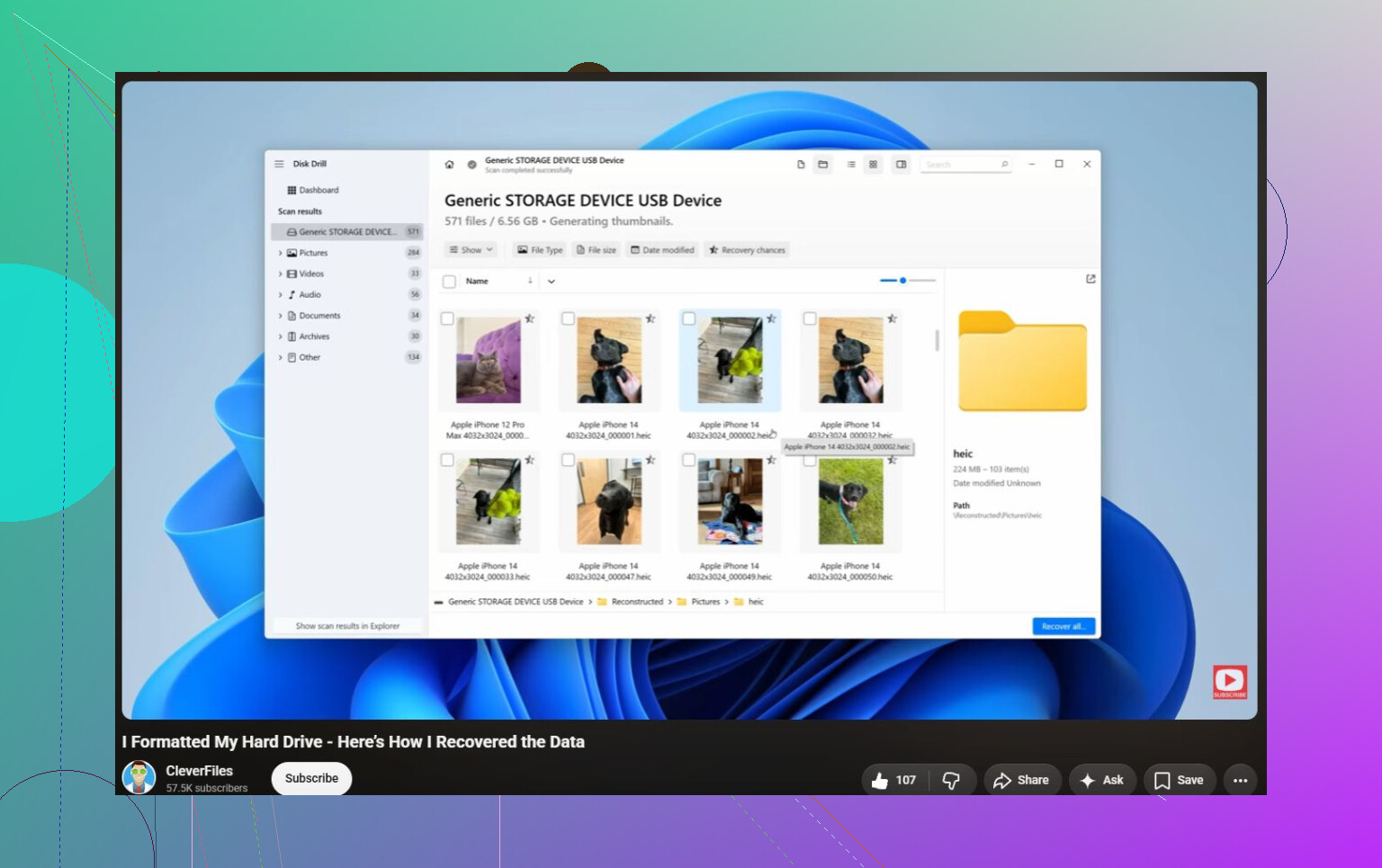
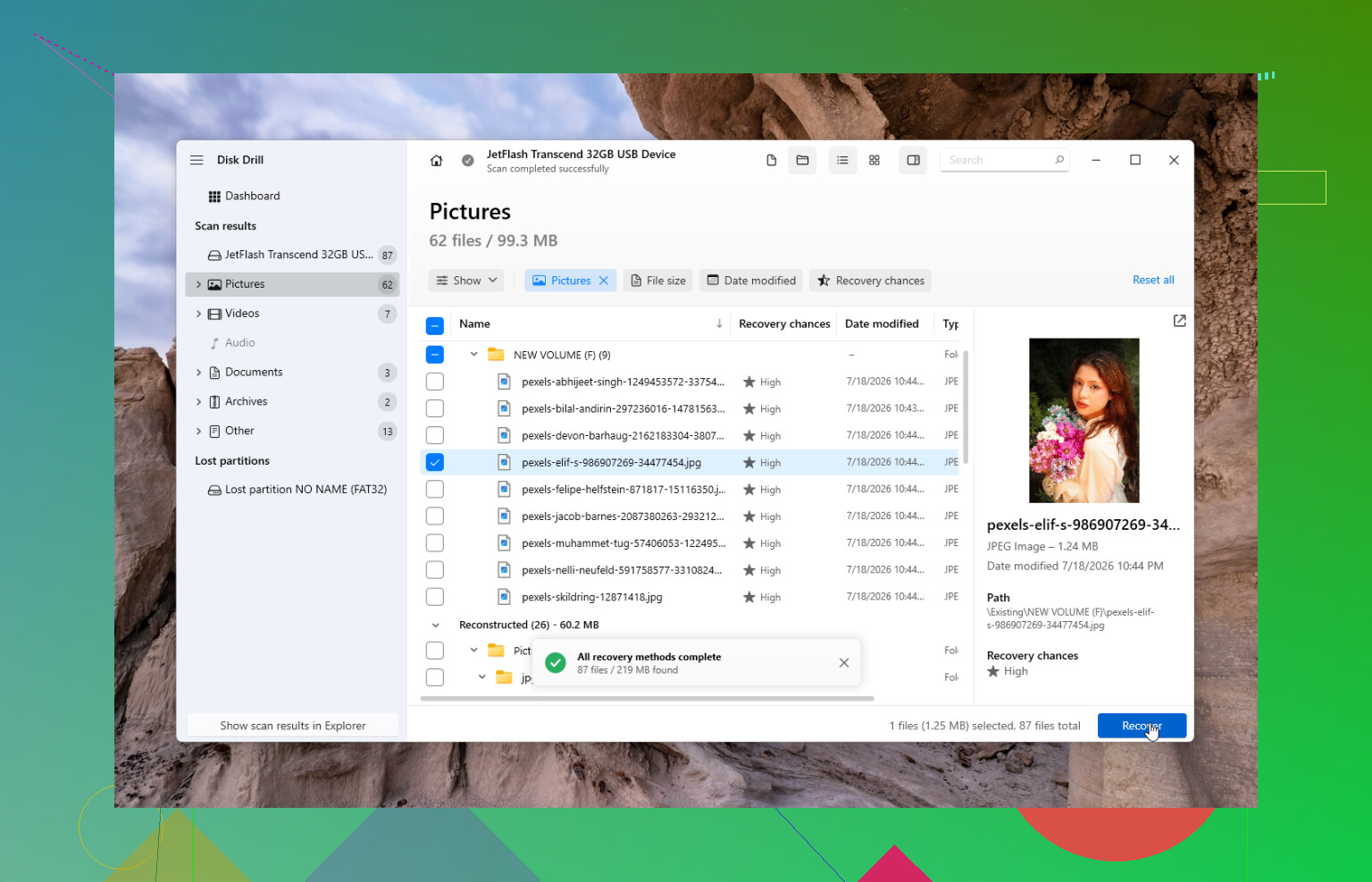
That’s when I’d use recovery software. In my case, Disk Drill was the easiest option and it got back almost everything from an exFAT external drive after I deleted a folder I thought I had already backed up.
The safer way to do it is:
- Install Disk Drill on your main system drive, not the affected external drive.
- If the drive seems unstable, make a disk image first and scan that instead of hammering the original drive over and over.
- Choose the exFAT drive or the image you created.
- Run Universal Scan.
- Let the scan complete instead of stopping early.
- Preview the files you care about.
- Recover them to a different drive, never back to the one you’re recovering from.
Disk Drill also lets you recover up to 100 MB for free on Windows, which is useful for checking whether it can actually find your files before paying for anything.
Other options
If this is more of a damaged partition problem than a normal deleted-files problem, TestDisk is worth looking at. It’s free and has been around forever, but it’s not exactly beginner-friendly. You need to be more careful with it.
Also, if you have File History, OneDrive, or any other recent backup, use that first. Restoring from a backup is usually faster and less stressful than recovery scans.
If Windows says the drive needs to be formatted
Don’t format it yet.
If the drive still shows up in Disk Management with the correct size, the issue may just be file system corruption. Recovery tools can often read data from a drive even when Windows refuses to open it.
But if the drive is clicking, grinding, vanishing during scans, showing the wrong capacity, or not being detected on multiple computers, I’d stop the DIY attempts. That usually points more toward hardware failure than a simple exFAT issue.
When software isn’t the right move
If the drive was dropped, got wet, won’t spin properly, or keeps disconnecting, a recovery lab is the safer route. A lot of reputable labs will evaluate it for free and work on a “no data, no fee” basis. Depending on what’s wrong, it can run from around $300 to well over $1,000, which hurts, but it may be worth it for family photos, work files, or anything you can’t replace.
Best case, this is just accidental deletion or logical corruption. Those are usually much more recoverable, as long as you stop using the drive before the deleted data gets overwritten.
16 Likes
“Best software” is the wrong first question here; the first question is whether this is an actual spinning hard drive or an external SSD. If it’s an SSD with TRIM support, deleted files may already be gone no matter what recovery app you use. If it’s a normal HDD, your odds are better. Disk Drill is fine for a beginner because previewing files is easy, but I wouldn’t treat it as the only option. DMDE is cheaper and very good for exFAT if you can tolerate the ugly interface, and R-Studio is stronger if the file system is messy. PhotoRec is free, but expect recovered files with bad/missing names, which is painful if you had lots of documents. Whatever you try, scan an image if possible and save recovered files somewhere else. Never “repair” the exFAT drive before you’ve copied the data off.
The drive showing up is not the same as the drive being healthy enough to scan over and over.
Since the files disappeared right after an unexpected disconnect, I’d treat this less like “which app has the nicest recovery button” and more like “how do I avoid turning a recoverable exFAT mess into a worse one.” exFAT is pretty easy to upset because it is not a journaling file system. A bad unplug can leave directory entries or allocation info in a weird state even though the actual file contents are still sitting there.
My order would be:
- Do not run CHKDSK yet.
- Do not let Windows “repair” it.
- Do not copy anything onto it.
- Do not recover files back to that same external drive.
- If the drive disconnects even once during a scan, stop and make an image first.
The missing piece in a lot of these threads is the USB side. If the original problem was an unexpected disconnect, the enclosure, cable, hub, or power supply may be part of the problem. A flaky USB cable can make every recovery tool look bad. Plug it directly into the computer, skip front-panel ports and cheap hubs, and use another known-good cable if possible. If it is a 3.5’ external drive, make sure the power brick is solid too.
For software, I’d separate “easy” from “best.”
Disk Drill is fine if the drive is stable and you want something beginner-friendly with previews. That matters, because staring at thousands of found files with no idea what they are is miserable. But I would not assume it is automatically the best at rebuilding a damaged exFAT structure.
DMDE is probably where I’d start if you are comfortable being careful. It is not pretty, but it is very capable and often good at showing the existing folder tree when the file system is only partly damaged. The danger is that it exposes more low-level options, so don’t click anything that writes changes to the disk unless you really know why you’re doing it.
R-Studio is the one I’d pick when the file system is more scrambled or the directory tree matters. It costs more, but it tends to be stronger for ugly cases. UFS Explorer is in the same general “serious tool” category. PhotoRec is the fallback when the file system is too far gone and you just want raw file carving, but expect ugly results: filenames gone, folders gone, duplicates, and a lot of sorting by hand.
If the files are mostly photos and videos, raw carving may be tolerable. If they are project folders, spreadsheets, documents with meaningful names, code, or anything where the folder layout matters, use a tool that can scan the file system structure first before falling back to carving.
The safest workflow is to image the whole drive to another disk, then scan the image. That means you need enough spare space for the full size of the external drive, not just the used space. A 4 TB drive needs a 4 TB image target. Annoying, but it protects you if the drive is starting to fail or keeps dropping off USB.
If you cannot image it because you do not have another large disk, then at least make your first scan count. Pick one tool, let it finish, preview what matters, and recover only to a different physical drive. Don’t bounce between five programs doing full scans on the original if the drive is acting strange.
Small detail people forget: check the recovered files before declaring victory. Open a few documents, play a few videos past the first few seconds, check file sizes, and make sure the important stuff is not corrupted. A recovery program listing a file name does not always mean the contents are intact.
So my practical answer would be: Disk Drill if you want the easiest first attempt on a stable drive, DMDE if you want a cheaper and more technical option, R-Studio if the folder structure matters and the file system looks damaged. But if the drive clicks, vanishes, shows the wrong capacity, or disconnects during reads, stop shopping for software and deal with the hardware problem first.