My WD external hard drive suddenly stopped opening, and my computer is telling me it needs to be formatted before I can use it. It has important files on it that I haven’t backed up, so I’m trying to figure out if there’s a safe way to recover the data first. I need help with WD external hard drive recovery options before I do anything that could make things worse.
I’ve dealt with a few busted WD My Passport drives, and yeah, it gets ugly fast. Most of mine were fine for years, then one day they went weird with no warning. If yours is acting up, stop using it now. Don’t copy files to it. Don’t run random fixes. Don’t keep unplugging and plugging it back in hoping it snaps out of it. If files were deleted, or the file system is damaged, more activity raises the odds of overwriting stuff you still want.
On Windows, I’d check Disk Management first. Right click Start, open Disk Management, and look for the Passport there. If it shows the right size, you still have a decent shot at doing this yourself. If it’s missing there, or you hear clicking, grinding, or repeated spin-up noises, I’d stop right there. That starts to look more like hardware trouble, and home attempts tend to end badly.
What I’d do first
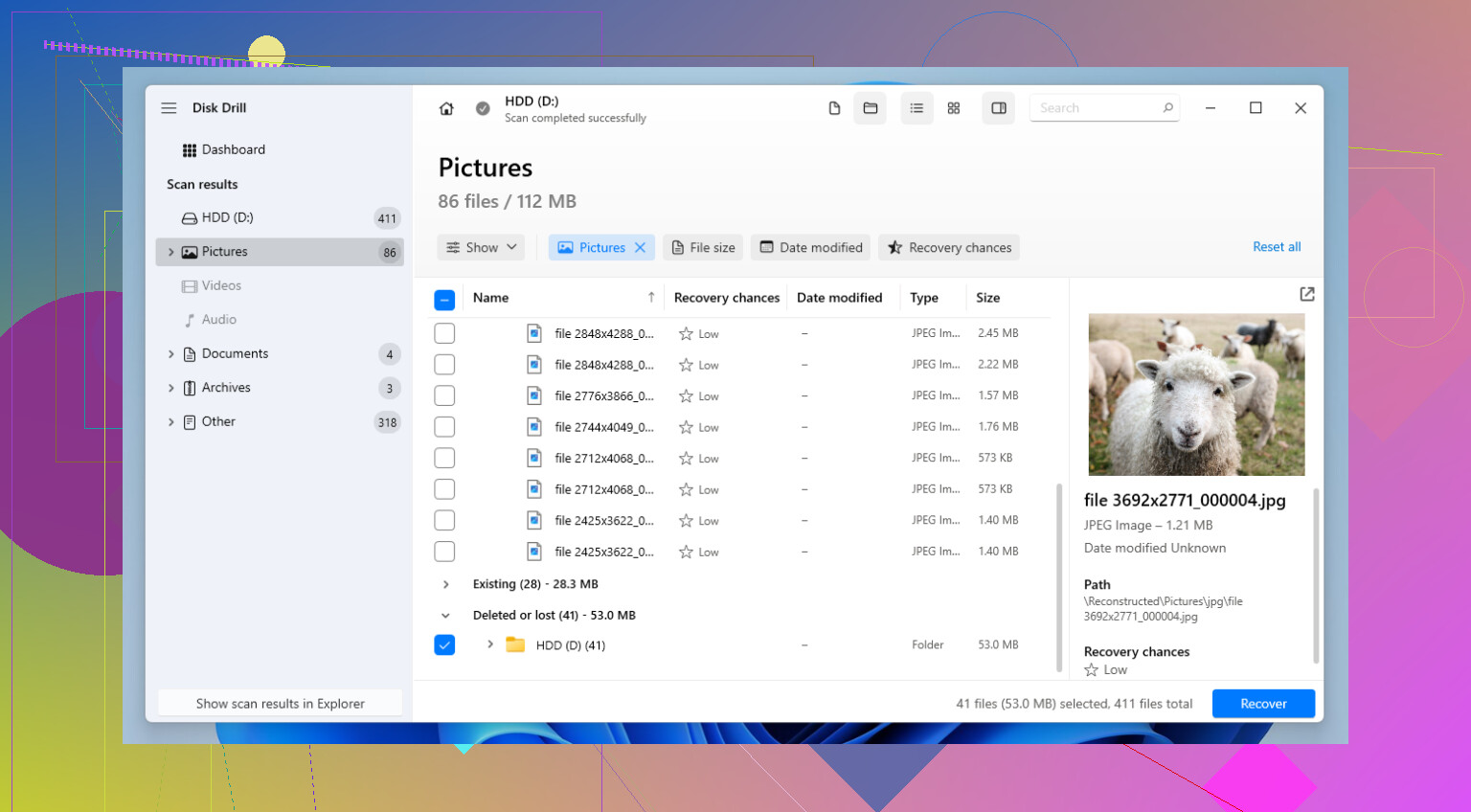
If the drive still shows up and your computer sees it, I’d go with recovery software before trying repair tools. On these WD drives, I had the best luck with Disk Drill. I used it on NTFS and exFAT volumes without much drama, which matters because My Passport drives often ship formatted one of those ways.
- Install the recovery app on your PC, not on the WD drive.
- Open it, then connect the My Passport.
- Select the drive and start the scan with 'Search for lost data.'
- Pick 'Universal Scan' if you want the widest sweep.
- While it scans, check the file groups it builds. I usually look in 'Deleted or lost' and 'Reconstructed' first.
- The preview tool matters more than people think. If a photo, PDF, or doc opens in preview, I treat it as a solid sign the file content is still there.
- Recover the files you need to a different disk. Never back onto the same Passport.
Other stuff people try
If you deleted a handful of files and the drive is otherwise normal, Recuva is still worth a shot. It looks old, and it shows. Still, for plain accidental deletion, I’ve seen it pull files back fast enough.
If your issue is a lost partition, or Windows suddenly marks the disk uninitialized, TestDisk is the one a lot of forum people bring up for good reason. It’s free. It’s also easy to mess up if you rush. I used it once on a damaged partition table and got the volume back without doing a full file recovery, but I had to move slow and read each screen twice. If command line tools make you sweat, skip it.
The WD My Passport trap people run into
This part catches a lot of people. Don’t pull the drive out of the enclosure unless you already know what you’re dealing with. Many My Passport models use hardware encryption on the USB bridge board. So even if the bare drive inside is fine, removing it and plugging it in with some random SATA adapter often gives you garbage data, a RAW volume, or an empty looking disk. I saw this once and thought the file system was dead. It wasn’t. The enclosure board was part of the whole setup.
- If the case USB port is damaged, a board level repair is often the safer move than bypassing the enclosure.
- If you enabled a password in WD Security, you need that password. Without it, recovery software won’t do much because the data is encrypted before your PC ever sees it.
One more thing. After you get your files back, set up some kind of backup, even a boring one. Copy your important folders to another external drive. Use OneDrive. Use Google Drive. Use both if the files matter. I started doing this after losing a batch of family photos and I wish I’d done it earlier. It takes less time than dealing with recovery tools at 1:30 a.m. while a drive makes bad noises on your desk.
7 Likes
Do not format it.
First, check if the drive shows the correct capacity in Disk Management. If Windows sees the full size, your odds are better. If it shows 0 bytes, keeps disconnecting, or makes clicks, stop. At that point, DIY often makes it worse.
I slightly disagree with @mikeappsreviewer on one thing. I would avoid CHKDSK early on even if the drive seems stable. CHKDSK is for repair, not recovery. On a damaged file system, it can rewrite metadata and make later recovery harder.
Best move is this:
- Try a different USB cable and a different USB port.
- If it works at all, make a byte for byte image first with something like HDD Raw Copy Tool or ddrescue.
- Run recovery on the image, not the WD drive.
- Use Disk Drill on the image or the original drive if imaging fails. It does well with RAW, lost partitions, and damaged NTFS/exFAT in a lot of home cases.
- Save recovered files to another disk.
Also, if this is a WD My Passport, keep it in its original enclosure. A lot of those use USB board encryption. Remove the disk and the data looks broken, even when it isnt.
For a simple walkthrough, this Western Digital data recovery guide is easy to follow:
watch this WD external hard drive recovery walkthrough
If the drive is slow, freezes Explorer, or drops offline mid-scan, stop messing with it. That points to failing hardware, and clean room recovery is the safer path.
Do not hit format, even if Windows keeps nagging you.
I agree with the main point from @mikeappsreviewer and @kakeru: treat the drive like it’s on thin ice. My only slight disagreement is that people jump to full scans a little too fast sometimes. Before any recovery app, check the SMART health with something like CrystalDiskInfo if the drive will stay connected long enough. If it shows bad sectors, caution flags, or the drive keeps vanishing, scanning it hard can push it over the edge.
What I’d do:
- Try a new cable first. WD externals are annoyingly picky sometimes.
- Check Disk Management and Device Manager.
- If detected normally, make a clone/image before recovery. This is huge because recovery work stresses a failing drive. Better explanation here: why creating a drive image before data recovery can save your files
- Then run recovery software against the image, not the original disk if possible.
If you need a user-friendly option, Disk Drill is one of the better choices for a WD external hard drive recovery situation, especially when the partition suddenly shows as RAW or asks to be formatted. Just recover to a different drive, not back onto the WD.
One more thing people miss: if Explorer freezes when you click the drive, that’s often a bad sign. Not always dead, but not “just a windows glitch” either. If you hear clicking or it disconnects over and over, stop DIY stuff. That’s where poeple turn a recoverable drive into a very expensive lesson.
One thing I’d add to what @kakeru, @viajeroceleste, and @mikeappsreviewer already covered: check the partition style/state before you do anything heavy. In Disk Management, if the WD shows up as Unallocated or Not Initialized, that points more to partition damage than simple file system corruption. Different problem, different risk.
My slight disagreement with the “scan ASAP” approach is this: on flaky USB externals, sometimes the enclosure or power delivery is the real issue, not the disk platters. If the drive powers up inconsistently, try it on a powered USB hub or another PC before launching a long recovery session. A weak port can make a healthy-ish drive look dead.
About Disk Drill: good option if the drive is visible and stable enough to read.
Pros
- Easy preview, which helps you judge whether files are actually recoverable
- Handles RAW/external drives pretty well in normal home-use cases
- Much simpler than TestDisk for most people
Cons
- Deep scans can take a long time on big WD drives
- Not ideal if the hardware is physically failing
- Free recovery limits may be a dealbreaker depending on how much data you need back
If the disk stays online, I’d use Disk Drill only after confirming the drive is at least consistently detected. If it drops every few minutes, don’t force it. That’s when even decent software becomes the wrong tool.