My Windows 10 PC has been freezing, running slow, and showing hard drive errors. I’m trying to figure out if I can safely repair the drive with built-in Windows tools or if the drive is failing and should be replaced before I lose data.
You can sometimes fix a hard drive in Windows 10, but don’t start with CHKDSK or formatting if there are files on it you care about. Those steps can help in the right situation, but they can also make recovery harder if the file system is already messed up.
The first thing to figure out is whether this is a software/file system problem or the drive itself is dying.
If it’s something logical, like a corrupted partition, RAW file system, crash, bad shutdown, or power loss, Windows tools may be enough to get it working again. If the drive is clicking, dropping offline, showing more and more bad sectors, or disconnecting randomly, that’s a hardware problem. No Windows repair command is going to fix that.
Check how the drive shows up
Open Disk Management with Win + X → Disk Management, then look at what Windows reports.
You might see something like:
- the drive shows the right size but won’t open,
- Windows asks you to format it,
- the partition shows as RAW,
- or the drive doesn’t appear at all.
If the capacity still looks correct, that’s a decent sign. It usually means Windows can at least still talk to the drive.
Get the important files off first
Before repairing anything, recover the data you actually need. That matters because repair tools often write changes to the disk.
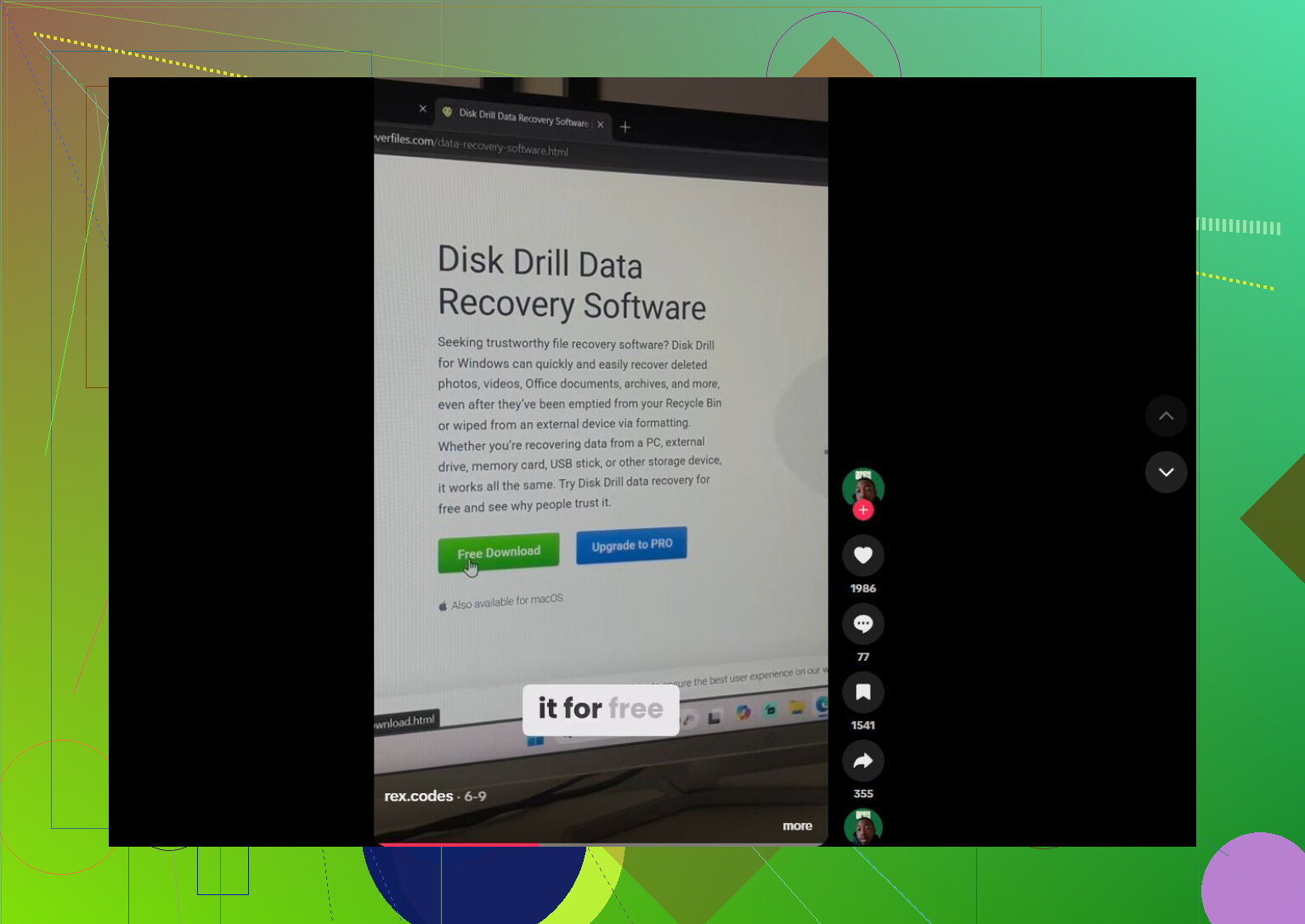
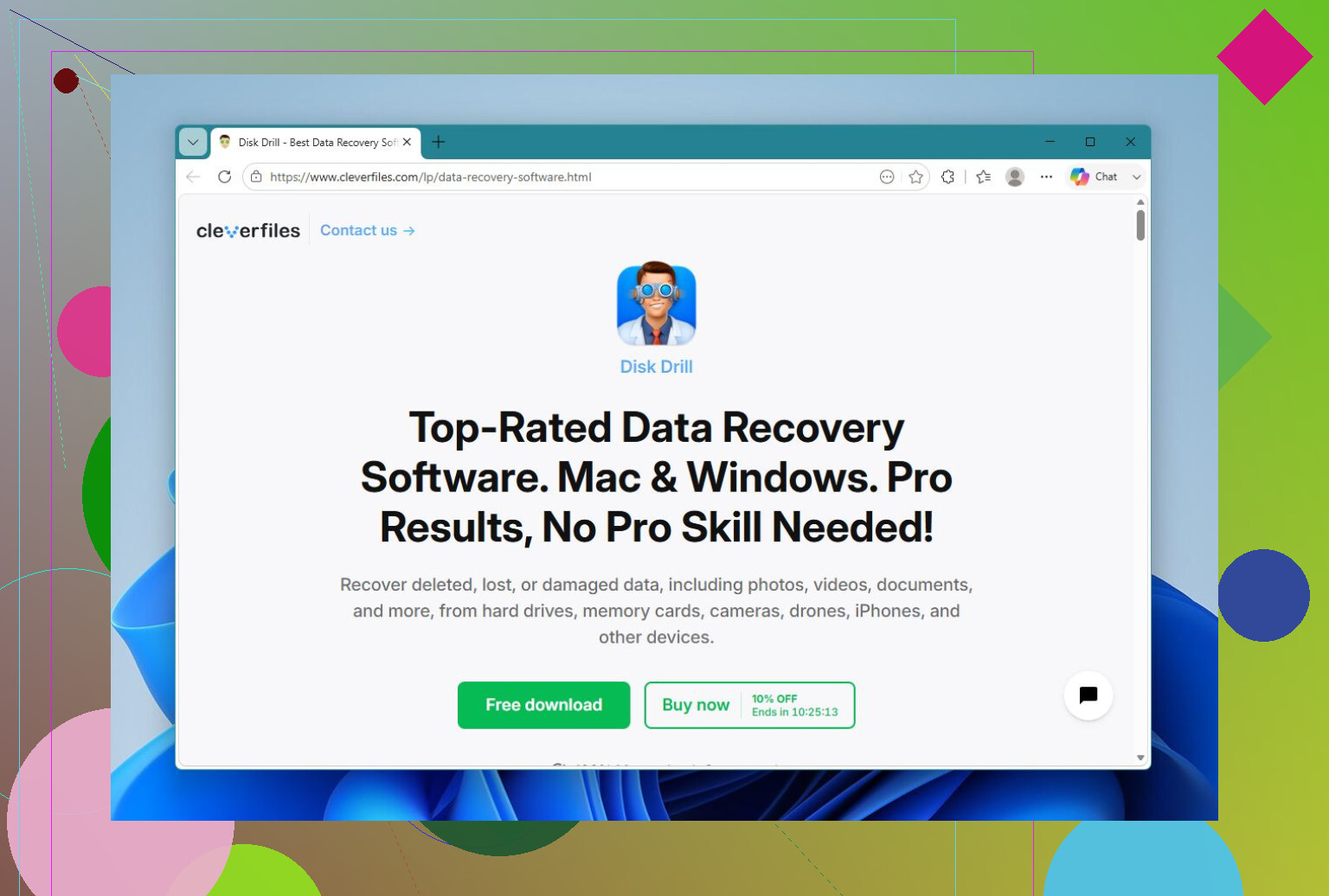
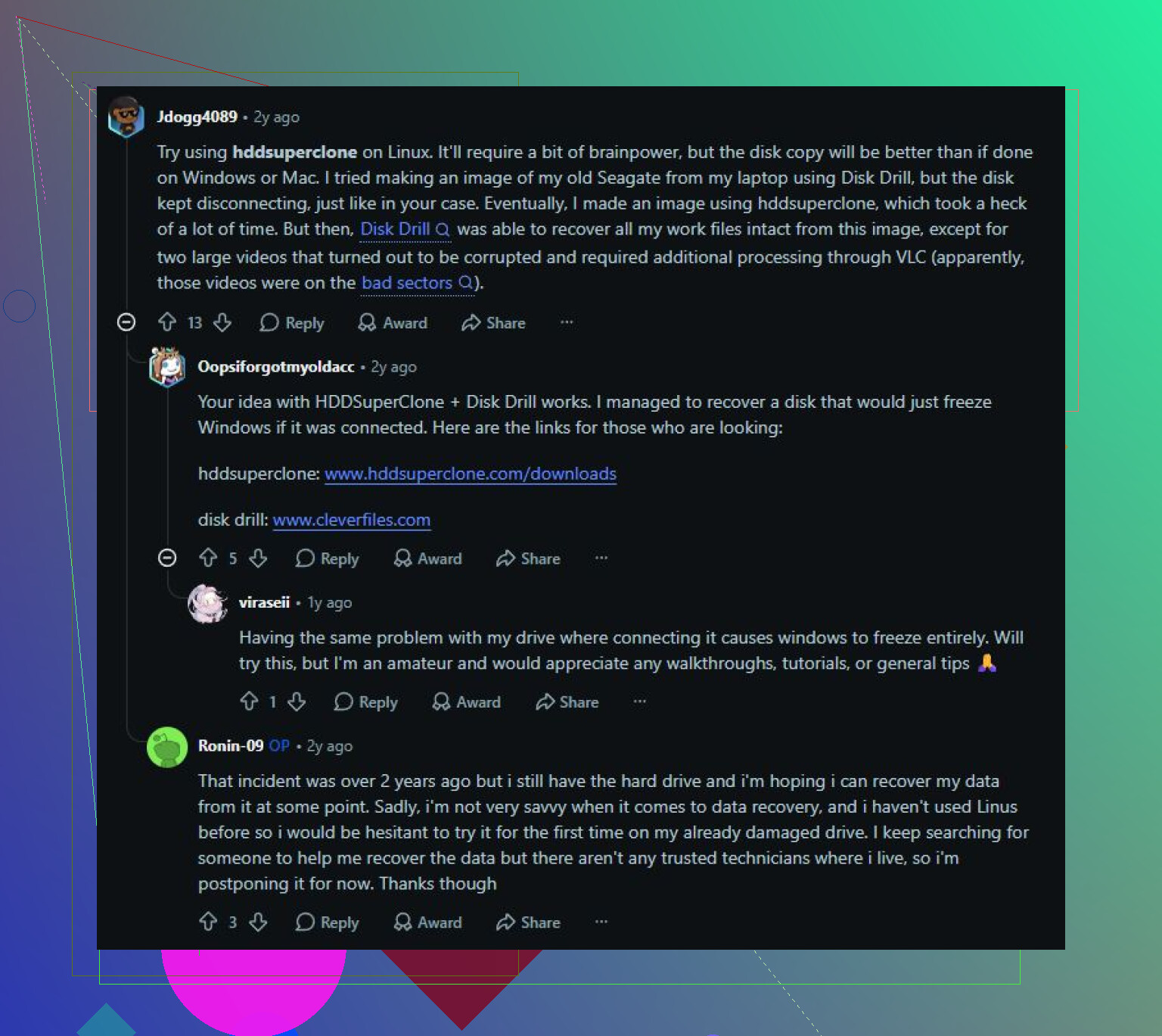
For Windows 10, Disk Drill is a reasonable option because it can do both recovery and drive imaging. The better approach is to make a full image of the problem drive first, then scan the image instead of hammering the original drive over and over. That’s especially important if the drive is acting unstable.
A basic workflow would be:
- Install Disk Drill on a different drive, not the damaged one.
- Create an image of the corrupted drive.
- Load that image in Disk Drill.
- Run Universal Scan.
- Preview the files it finds.
- Recover them to another drive.
The preview part is worth using because it lets you check whether the files are actually readable before you spend time recovering everything. The free Windows version also allows up to 100 MB of recovery, which can be enough to test the scan or save a few important documents.
Then try repairing it
Once the files are safe somewhere else, then it makes sense to try repair tools.
CHKDSK
If the drive still has a readable file system, run Command Prompt as Administrator and use:
chkdsk X: /r
Replace X with the correct drive letter.
This checks the file system, fixes logical errors, and tries to recover readable data from bad sectors. The catch is that CHKDSK modifies the file system, so it’s not something I’d run first on a drive with unrecovered files.
TestDisk
If the partition turned RAW or the partition table is damaged, TestDisk can be a better fit. In some cases it can restore the partition structure without formatting the drive.
SFC and DISM
If this is your Windows 10 system drive and the issue started after a bad update, crash, or system corruption, you can also try Windows repair commands:
- SFC for damaged Windows system files.
- DISM if SFC can’t repair everything because the component store is damaged.
Those don’t really repair the hard drive itself. They repair Windows, but they’re still worth trying if the OS has become unstable.
Format
If recovery is done and none of the repair options work, formatting is often the cleanest fix for logical corruption. A quick format creates a new file system. If the drive corrupts again after that, I’d stop trusting it because that points more toward failing hardware.
When to stop repairing and replace it
I’d replace the drive if you’re seeing any of this:
- clicking or grinding sounds,
- random disconnects,
- the drive vanishing from Disk Management,
- bad sectors increasing,
- or the same corruption coming back after repairs.
Those are usually signs the drive is wearing out, not just a one-time Windows problem.
If the drive is physically failing and the data matters, don’t keep experimenting with it. A professional recovery lab is the safer route. They can work from a full copy of the failing drive using specialized equipment, and many reputable labs have a “no data, no fee” policy, so you generally only pay if they recover something.
So yes, Windows 10 can repair some hard drive problems. Just do it in the right order: recover the files first, repair afterward. That gives you a much better chance of avoiding permanent data loss.
18 Likes
Don’t keep booting from that drive every day “to see if it gets better.” If it’s your Windows drive and it’s freezing plus throwing disk errors, treat it as failing until proven otherwise: copy what matters, check SMART health, then replace it if there are reallocated/pending sectors or the errors come back. Repairs are fine for a spare drive, but I wouldn’t trust a questionable system drive again.
Do not run a “repair” on the only copy of your files unless you are already fine with losing them. A lot of Windows repair advice assumes the drive is basically healthy, and that is a bad assumption when the PC is freezing and throwing disk errors.
The missing cheap check here is the boring hardware stuff: if this is a desktop, try a different SATA cable and a different SATA port before declaring the drive dead. A flaky cable or port can cause weird disk errors and stalls that look like drive failure. If it is a laptop, that is harder to test, but you can still check whether the drive behaves the same from a USB adapter or another machine. If the errors follow the drive, it is the drive.
I agree with @stellacadente on not trusting it as a system drive again. Even if CHKDSK makes Windows boot cleanly, I would treat that as a chance to clone or copy out, not as proof that the drive is “fixed.” For a Windows 10 boot drive, replacement is usually the sane option, especially if it is an old spinning HDD. Put in an SSD, reinstall or clone if the source drive is stable enough, then use the questionable drive only for non-important testing if SMART comes back clean. If SMART shows pending sectors, reallocated sectors, or uncorrectable errors, skip the heroics and replace it.