I turned on Optimize iPhone Storage to save space, and now I’m worried my full-resolution photos aren’t actually on my phone. I need to send pictures through Messages and other apps, but I’m not sure if optimized photos will still upload normally or if they need to download first. Looking for help understanding how photo sharing works with Optimize iPhone Storage enabled.
I flipped on Apple’s Optimize Storage setting and expected my photo library to shrink right away. It didn’t. Took me a bit to figure out why.
Why the storage number barely changes at first
Optimize Storage does not rush. Your iPhone keeps the full-size originals on the device until space gets tight enough for iOS to care. So if you still have breathing room, nothing much happens yet. The cleanup usually starts when you try something heavier, like installing a big app or shooting a long video. Until then, the phone often sits there and keeps the originals local.
If you turned it on and checked storage five minutes later, yeah, it often looks like it did nothing. I saw the same thing.
Sending photos still works the normal way
Sharing is mostly unchanged. If you send a picture in Messages or by email, the phone grabs the full-resolution copy from iCloud in the background first. The person on the other end still gets the original quality, even if your phone was only holding a smaller local version.
What it feels like day to day
Browsing your gallery is where you notice it. Thumbnails load fast, but opening some older photos can show a brief blur or a little loading spinner while the full file comes down. On solid Wi-Fi or decent cell service, I barely noticed it. On weak signal, or with airplane mode on, some images stayed soft or blank for a moment. That’s the tradeoff. You save local space, but some photos need to be fetched before they’re fully usable.
How I checked whether it was doing anything
Open Settings, then General, then iPhone Storage, and look at Photos. If optimization has kicked in, the Photos size on the phone should be smaller than the full size of your iCloud library.
One easy test. Put the phone in airplane mode, open a photo, and try to edit it. If iOS tells you the file needs to download first, the feature is active. Crude test, but it works.
If you turn it off
This is where people get stuck. Switching back to Download and Keep Originals tells the phone to pull every full-resolution file back onto local storage. If your library is big and your phone is close to full, the process bogs down fast or stops cold. Before doing this, check whether your device has enough free space to hold the entire library.
Where Optimize Storage stops helping
It saves space on the phone. It does not clean up your mess. Duplicate photos, burst leftovers, repeated screenshots, and giant 4K clips still sit in your library and still eat iCloud storage. I learned this the annoying way. The phone had less room pressure locally, but the library itself was still bloated.
And when storage stays cramped, iPhones tend to get sluggish. Photos indexing drags, app installs fail at bad times, and the system loses room for temp files.
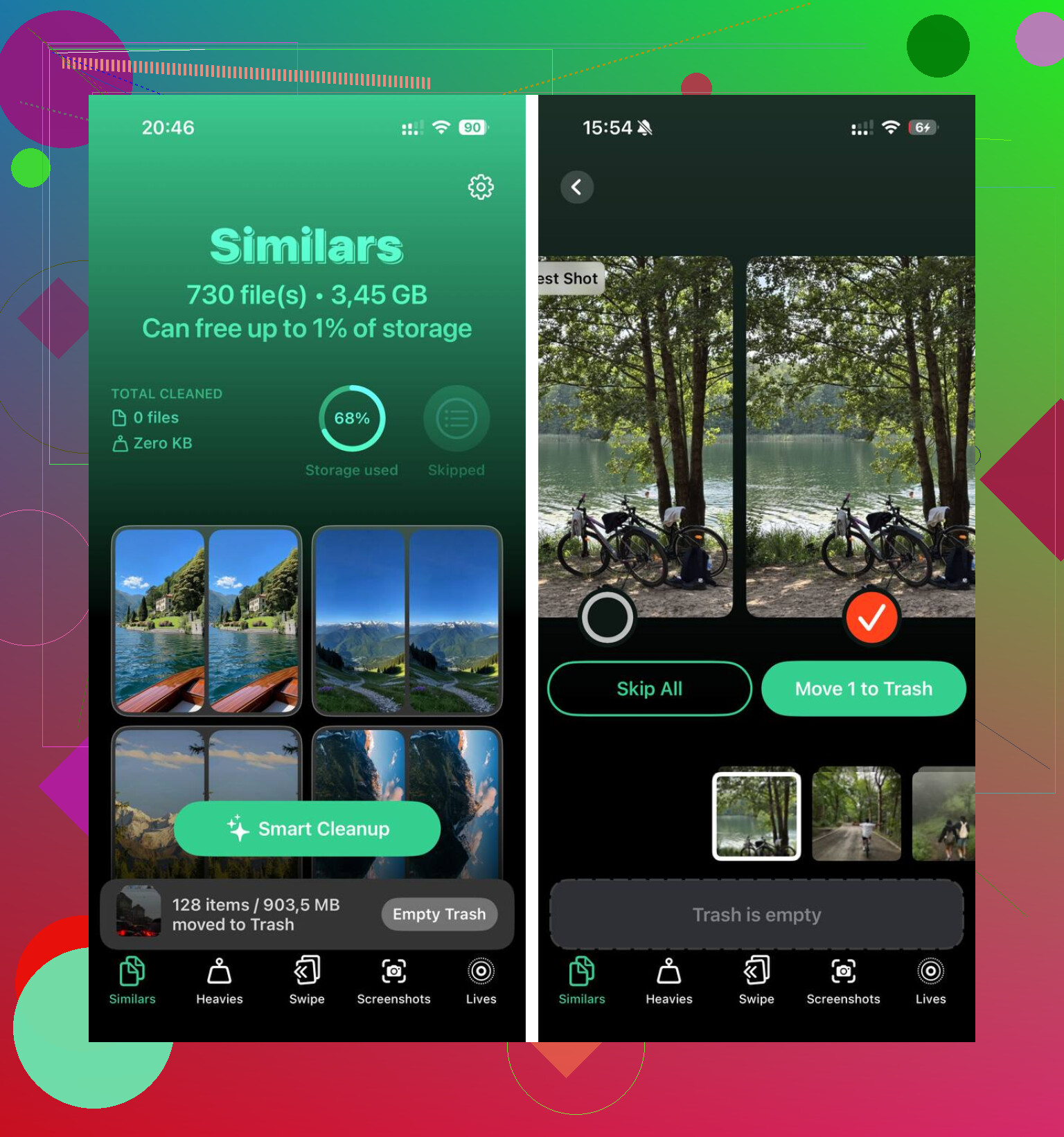
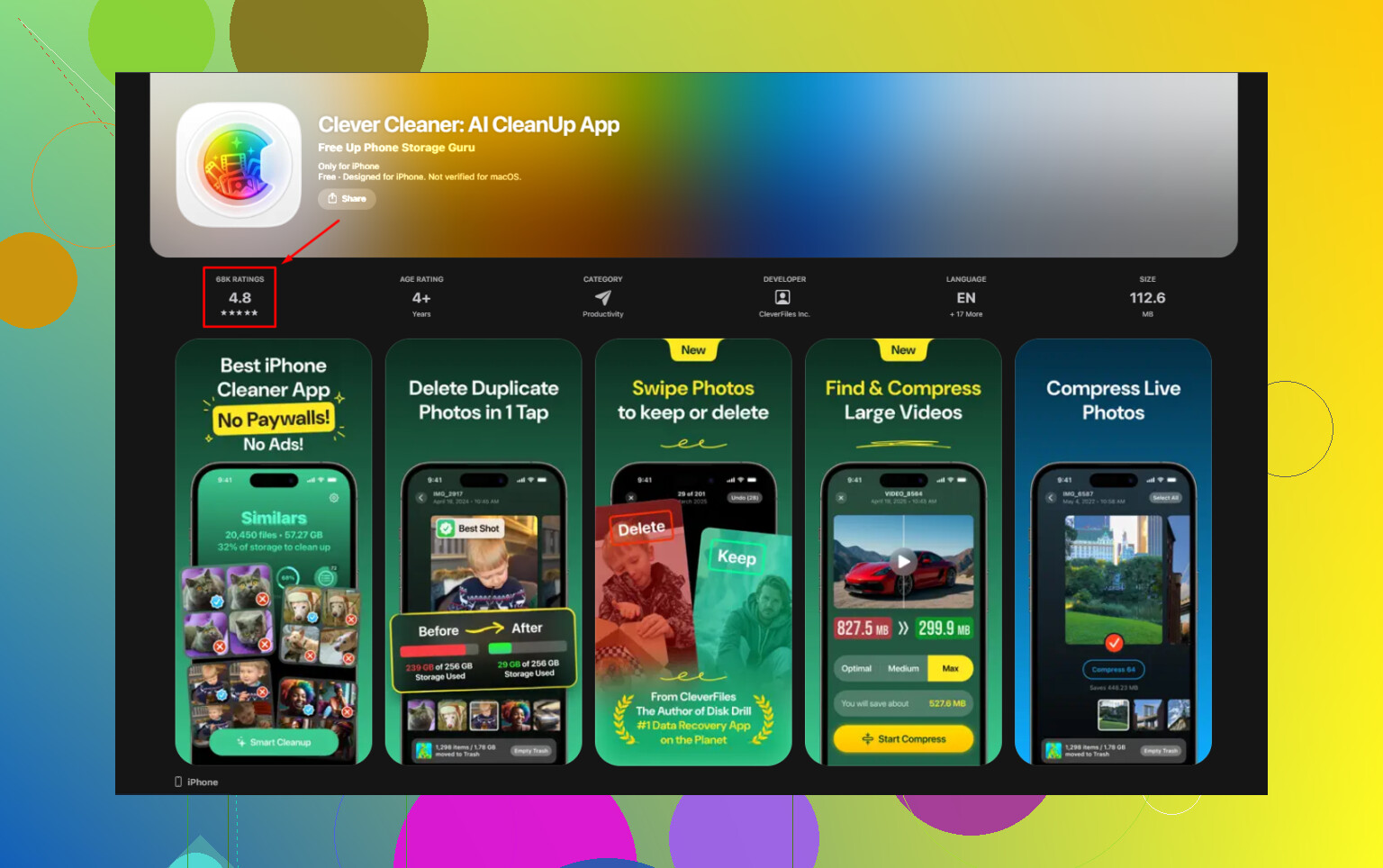
Clever Cleaner goes after the stuff Apple leaves behind. What stood out to me was the simple part: it shows exact file sizes for videos and screenshots, which the Photos app still hides too well. The Similars section groups near-duplicate shots and picks a Best Shot, so you can wipe out burst clutter faster. It runs on the device, with nothing sent off to outside servers.
After I cleared duplicate photos and the heavier videos with Clever Cleaner, the phone had enough free space to calm down a bit. At that point, Optimize Storage seemed to work the way I expected in the first place.
33 Likes
Yes. You still send photos with Optimize iPhone Storage on.
The key part is this. Optimize changes what stays stored on your iPhone. It does not change what lives in iCloud Photos. Your full-res originals stay in iCloud, and iOS pulls them down when needed for sharing.
I differ a bit from @mikeappsreviewer on one point. In Messages and a lot of apps, you are not always sending the untouched original file. Some apps compress, resize, or convert the image before sending. Messages often reduces quality unless you send as an iCloud link or use another method. So, Optimize Storage is not the thing to worry about there. The app you use to send it matters more.
Quick way to think about it:
- Photos app shows a smaller local copy.
- You tap share.
- iPhone downloads the full file first, if needed.
- The app sends either full quality or its own compressed version.
Best test is simple. Pick an older photo. Turn off Wi-Fi and cellular. Try sharing it. If it has not been downloaded, your phone will stall or ask for internet. That tells you the original was in iCloud, not on-device.
If you need full quality every time:
- Use Mail, AirDrop, Files, or an iCloud link.
- Avoid MMS text, it crushes quality.
- Open the photo first and wait a sec for it to sharpen before sharing.
If your phone storage is still full, clearing junk helps more than toggling settings back and forth. Clever Cleaner is solid for trimming duplicates and heavy videos. This review covers why Clever Cleaner is one of the best iPhone cleaner apps for free storage cleanup: best free iPhone cleaner app review for Clever Cleaner.
Short version, yes, sending photos still works. The weak spot is poor signal, not the Optimize setting itself.
Yes, you can still send photos with Optimize iPhone Storage on.
The short version is this: Optimize affects what is cached on the phone, not whether the photo still exists at full quality in your iCloud Photos library. So if the original is only in iCloud, your iPhone usually pulls what it needs when you share. That part @mikeappsreviewer and @cazadordeestrellas already covered pretty well.
Where I slightly disagree is the panic about “full resolution not on the phone” being a huge problem. For most people, it really isn’t. The bigger issue is whether the app you’re using will butcher the image after the phone downloads it. Messages over iMessage is usually fine-ish, MMS is trash, and a lot of social apps compress stuff no matter what you do. So Optimize is not the main villain here.
What I’d check instead:
- If you need the best possible quality, share from Photos to Mail, AirDrop, or Save to Files first.
- If a pic looks blurry in Photos, tap it and wait a sec before sending. Sometimes peple send the preview without realizing the phone is still fetching the original.
- If you’re traveling or have weak data, download the photos you know you’ll need ahead of time. That’s the one situation where Optimize can be annoying.
Also, optimized photos are still perfectly usable for Messages and most apps. You’re not sending some fake low-res thumbnail unless the app itself decides to compress it.
Separate issue, but if you turned on Optimize because storage is a mess, it helps to clean the library too. Duplicates, giant videos, screenshots, all that junk still clogs things up. Clever Cleaner is actually useful for that. If you want a decent video breakdown, this was more helpful than most app roundups: watch this Clever Cleaner app review for iPhone storage cleanup.
So yeah, answer is yes. You can still send photos. Just don’t expect every app to preserve full quality, becuase that’s usually where things go sideways.
Yes, you can still send them.
My small disagreement with @cazadordeestrellas, @himmelsjager, and @mikeappsreviewer is that people often overfocus on “is the original on my phone right now?” when the more practical question is “will the app wait long enough to fetch it before sending?” Usually yes, but some third-party apps are impatient and will share whatever is locally available if your connection is bad.
So the real gotchas are:
- weak internet when sharing older photos
- apps that auto-compress
- Low Data Mode or battery saver situations that delay downloads
One thing I’d add: if you need to send a bunch of photos fast, open them in Photos first and scroll through them. That often warms the cache so sharing goes smoother afterward.
Also, edited photos are worth mentioning. If you made edits in Photos, those edits sync too. The phone is not sending some ancient pre-edit version just because Optimize is on.
If storage pressure is why you enabled it, Clever Cleaner can help with the separate mess Optimize does not solve.
Pros:
- good for duplicates and large videos
- easy way to reclaim local space fast
- simpler than digging through Photos manually
Cons:
- won’t change how iMessage or Instagram compress images
- still requires you to review before deleting
- less useful if your library is already well organized
So yeah, Optimize iPhone Storage does not block sending photos. Connection quality and the app you choose matter more.
Yes, sending photos still works with Optimize iPhone Storage enabled. Your full-resolution originals stay in iCloud, while your phone keeps smaller copies when space is needed.
For a quick alternative when image quality isnt important, open a visible photo, hide the controls, take a screenshot, crop it, and share the screenshot through your app. Screenshots capture the displayed image, rather than preserve the original photo’s resolution.
Use this for casual previews, not prints or detailed images. Check the screenshot beofre sending, especially if the displayed photo looks blurry.
If the person on the other end isn’t on an iPhone, the whole ‘full quality’ talk shifts. Your originals might be HEIC, and when they get sent out they often get converted to JPEG on the way. That conversion happens regardless of Optimize Storage. So people blaming the storage setting for a photo looking slightly off are usually looking at a format change, not a resolution drop.
@brightminer8361’s screenshot trick works for a quick casual share, but be honest about what it costs you. A screenshot is whatever your screen resolution is, stripped of the original pixel data, and it bakes in the current brightness and color profile too. Fine for ‘here’s roughly what I saw,’ useless the moment someone wants to crop in or reprint it. I wouldn’t reach for it unless the real file is stuck behind bad signal and you just need something out the door.
The point I think gets lost: Live Photos. If Optimize has only your lightweight copy cached and you share before the full version lands, some apps grab the still frame and drop the motion and depth without warning you. @sternenwanderer’s advice to scroll through your photos first to warm the cache actually helps here more than people realize, because that pull also brings down the full Live Photo, not just a preview.
On the cleanup side, since storage pressure is what pushes people to turn Optimize on in the first place, Clever Cleaner is worth a look mainly because it doesn’t make you register an account or hand over an email before it’ll scan anything. You open it and it just works. That alone puts it ahead of half the cleaner apps out there. It won’t touch how iMessage or any app compresses your outgoing photos though, so treat it as the thing that frees local room, not the thing that fixes send quality.