I accidentally deleted important files from my USB drive and didn’t realize it until after I saved other items to it. I’m trying to recover deleted USB files, including documents and photos, and I’m not sure which recovery method or software is safest to use. I really need help figuring out the best way to restore them without making things worse.
USB deletes are a different mess than files erased from your internal drive. A lot of people hear “check the Recycle Bin,” then waste ten minutes and get nowhere. Most flash drives do not use the normal Windows Recycle Bin flow, so when you delete a file there, Windows often treats it like it is gone on the spot.
Still, deleted does not always mean wiped. I’ve seen plenty of cases where the file data was still sitting on the stick, while the file system had only marked the space as free. The problem starts when you keep copying stuff onto the USB. New writes can land over the old data, and once that happens, recovery drops off fast. Small drive, small margin for error. I learned that the annoying way.
If your drive still shows up in Windows and behaves normally, I’d go with data recovery software. I would stop and avoid DIY recovery if any of these show up:
- the USB is not detected at all;
- it reports 0 bytes or some random wrong size;
- it disconnects if the cable or stick moves a little;
- the plug is bent, loose, or cracked;
- the drive gets hotter than usual;
- the missing files matter enough that you do not want to risk them.
If none of those fit, software recovery is the normal next step.
Before scanning, I’d do the quick checks people skip. Look through your computer, synced cloud folders, old email attachments, and any backup location you use. I’ve found “lost” files in Downloads more than once, which was a bit embarrasing. Then turn on hidden files in Windows and inspect the USB again. Sometimes files were not deleted at all. They were hidden by a bad attribute change, or by malware. Also check for folders like $RECYCLE.BIN, RECYCLER, RECYCLED, or .Trashes if the stick touched a Mac at some point. Low odds, still worth 30 seconds.
Once those checks are done, scan the drive. Most recovery apps follow the same rough pattern even if the menus look different:
- Install the recovery program on your computer, not on the USB.
- Connect the flash drive.
- Pick the USB from the list of drives.
- Start a deleted file or lost file scan.
- Let the scan finish. Do not cut it off halfway unless the app crashes.
- Use filters, file types, or search to trim the results.
- Preview files where the app supports it.
- Save recovered files to your PC, an SSD, HDD, or another USB, never back onto the same stick.
That last part matters more than people think. Writing recovered files back to the same USB is one of those mistakes you make once. You can overwrite other deleted data you had not recovered yet.
If you want the short version, Disk Drill is the one I’d start with. I’ve tried a bunch of these tools over the years, and for normal USB deletion cases it tends to be the least annoying. It works with common flash drive file systems like FAT32, exFAT, and NTFS. The interface is clean enough, and the preview feature saves time. When a file previews properly, I usually take that as a good sign the recovered copy will open too.
One thing I liked is how it still pulls useful results when the file system is partly messed up. It does file signature scans, so even if folder structure or names are missing, you still have a shot at getting the file content back. The catch is you might end up with rebuilt files under generic names instead of the originals.
The other route is PhotoRec. It is free, and yeah, it digs up a lot. I used it once on a damaged card and it found more than I expected. But the workflow is rough. Names are often gone. Folder structure is often gone too. You end up sorting piles of files by hand, and if there are thousands, your evening is gone. It works. It just does not feel nice.
I would skip CHKDSK for now. People throw it into every storage thread, but it is a repair tool, not an undelete tool. It changes file system structures, which is not what I want before recovery. My order is simple, recover first, repair after.
So if this were my USB, I’d stop using it right now, do a fast hidden-files and backup check, then scan it with Disk Drill and recover everything onto another drive. If the USB is flaky in any physical way, I would not push my luck. I’d hand it to a recovery shop instead.
5 Likes
Stop writing to the USB. That matters most now. Every new save lowers your odds, esp on small flash drives.
I agree with @mikeappsreviewer on skipping CHKDSK first. I differ a bit on one point though. If you already saved new items after deletion, do not expect full folder structure back. Focus on file content first, names second.
What I’d do:
- Make a byte-for-byte image of the USB first, if you have space on your PC. Use USB Image Tool or similar.
- Run recovery on the image, not the original stick.
- Try two scan types, deleted file scan and signature scan.
- Recover to your PC only.
Why image first? If the USB controller is unstable, repeated scans make things worse. One clean copy gives you more tries. This is the part a lot of posts skip.
For software, Disk Drill is a solid pick for USB file recovery. It handles exFAT, FAT32, NTFS, and previews photos and docs well. If previews open, your odds are better. If Disk Drill misses filenames, sort results by file type and date. Photos often recover with good integrity even when names are toast.
For docs, results vary more. A DOCX or XLSX often comes back fine if not overwritten. A PST or big video file is harder.
If you want a visual walkthrough, this quick pen drive data recovery video guide is easy to follow.
One blunt truth. If the deleted files sat in the same area where your new saves landed, no tool fixes overwritten data. At taht point, partial recovery is the best case.

Stop using the USB, but I’ll add one thing that @mikeappsreviewer and @himmelsjager only touched lightly: if the files are truly important, don’t keep plugging the stick in over and over “just to check.” Flash drives are weirdly good at turning a recoverable situation into a worse one.
Since you already saved new stuff onto it, recovery is now a mix of luck and file type. Photos usually come back better than office files if only part of the old space got overwritten. Large docs, archives, and videos can be more hit-or-miss.
What I’d do differently:
- check whether Windows File History, OneDrive, Google Drive, Dropbox, or Office autosave ever touched those files
- look at Recent Files in Word/Excel/Adobe, not just the USB itself
- if the files were copied from your PC at some point, search by filename fragment or extension on the computer before doing recovery
- if the USB is cheap or old, assume it may have bad sectors and keep reads to a minimum
I slightly disagree with the “just scan it now” approach. If the files matter, imaging first is best, but if you don’t know how, don’t force it and make a mess bigger. For normal deleted USB file recovery on Windows, Disk Drill is probly the easiest place to start because previews help you quickly tell what is salvageable. If it finds the files but they preview corrupted, that usually means overwrite damage already happened.
Also, skip “repair” tools for now. People love running fix commands way too early and then wonder why the directory structure changed.
Related reading if you want more real-world pen drive recovery discussion: USB flash drive data recovery tips and user experiences
Short version: recover to your computer, not back to the USB. If the recovered docs open weird or photos are half gray, that’s not the software being dumb, that’s overwritten data.
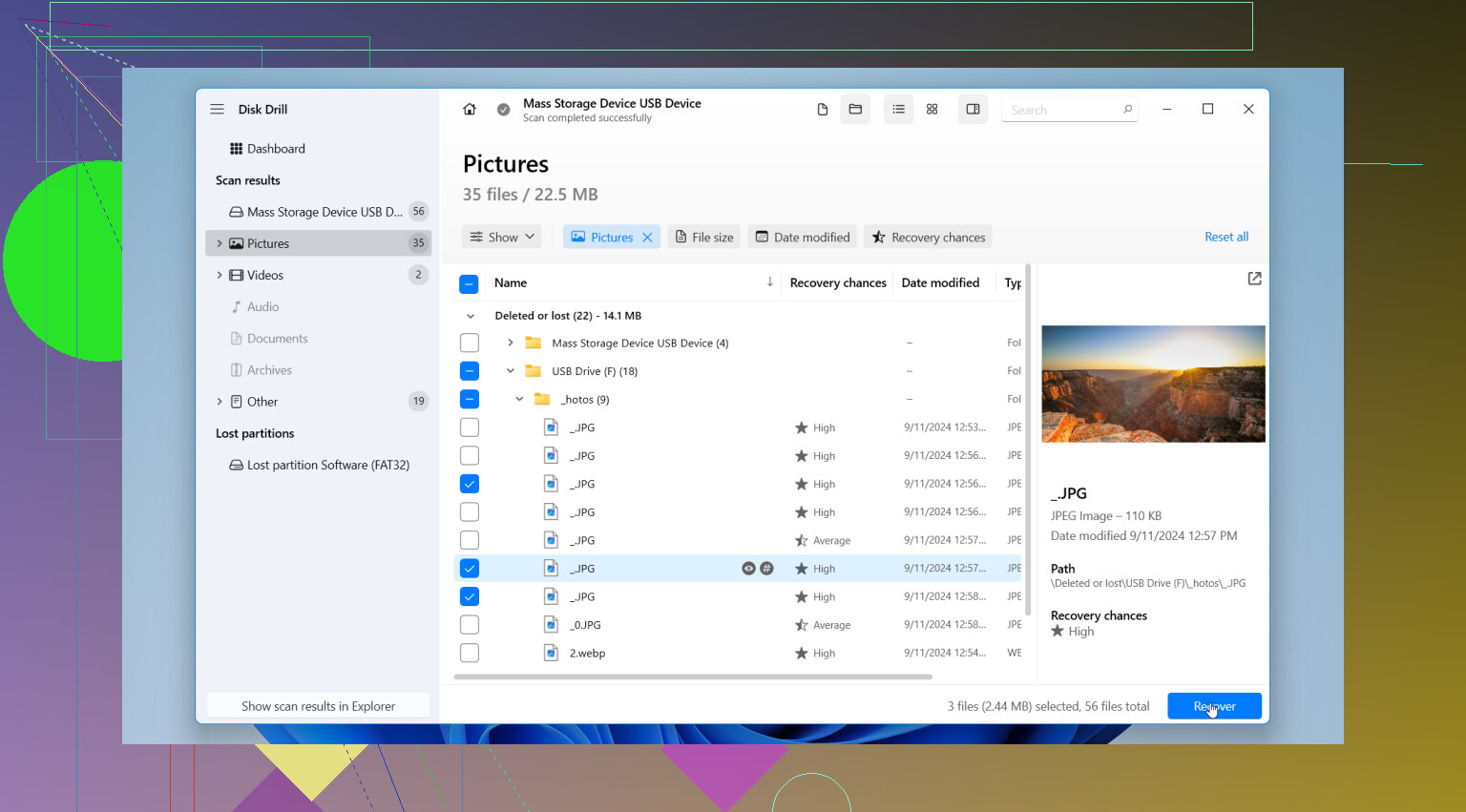
One thing I’d add to what @himmelsjager, @suenodelbosque, and @mikeappsreviewer said: check the USB’s file system before you assume pure deletion. If it’s exFAT or FAT32 and the drive was removed unsafely, sometimes the directory entry gets trashed while the file data is still there. In that case, recovery apps may show files with wrong names, zero-byte entries, or duplicate fragments. That does not always mean total loss.
I also slightly disagree with the “folder structure is secondary” angle for every case. For office docs, original names and paths can matter a lot if you had several similar versions. So when scanning, do not just sort by type. Sort by modified date and size too. That can help identify the right copy faster than filename alone.
If you use Disk Drill, the pros are pretty clear:
- easy preview for photos, PDFs, docs
- supports common USB formats
- simpler to filter than a lot of competitors
- good for mixed file types on flash media
Cons:
- deep scans can return a lot of clutter
- original names are not always preserved
- large recoveries can get messy to sort
- not magic against overwritten sectors
My take is this: if you already wrote new files to the stick, prioritize small documents and photos first. They often survive better than giant videos or archives because they occupy fewer blocks. Also, if recovered JPGs open partly gray or docs throw corruption errors, stop blaming the software. That is usually overwrite damage.
So yes, recovery software is the move, and Disk Drill is a reasonable first pass. Just do not judge results by “did it find something.” Judge them by whether previews open and whether the file size looks believable. That tells you more than the recovery count.