A file transfer from my CF card was interrupted, and now the card is acting strange and some photos seem to be missing. I’m looking for help with CF card recovery, safe steps to avoid making things worse, and the best way to recover the files if the card was corrupted during the transfer.
I shoot events for a living, and yeah, few things feel worse than plugging in a CompactFlash card and seeing it mount blank, or not mount right at all. I’ve had this happen after long wedding days, sports gigs, boring corporate stuff, the whole mess. The good news is the files are often still sitting there. What’s broken is the index, not always the data itself.
If you want the shortest path with the fewest mistakes, start with recovery software instead of poking at the card for an hour. I’ve had the best results with Disk Drill. It handled big RAW sets better for me, CR2, NEF, ARW, plus large video clips split across fragmented blocks. I tried PhotoRec and Recuva too. PhotoRec pulled files, sure, but dumped them into a giant pile with renamed junk, which is rough when you need to sort client work fast. Recuva was hit or miss once I fed it pro camera formats. Disk Drill felt less messy, and the preview saved me from restoring trash files I didn’t need.
What I’d do first
- Install the recovery app on your computer’s main drive. Put it on your internal drive, not on the CF card, not anywhere touching the damaged media.
- Make a full image of the card. If the card is throwing read errors or disconnecting, create a byte-for-byte backup first. Scan the image file after. This takes pressure off a card that might be dying.
- Scan the card or the image. Point the software at the source, pick the recovery option, and let it run. Don’t interrupt it unless the card keeps dropping offline.
- Check previews before restoring. I always do this. If your photos open in preview and the clips show proper length or thumbnails, you’re in decent shape.
- Recover to another drive. Save everything to your computer, an external SSD, anything except the CF card. Writing back to the same card is how people bury their own files.
While the scan runs, or before you even insert the card again, there are a few rules worth following. Most bad recoveries happen because someone keeps testing stuff, formats by mistake, or writes new files to the card.
Rules I follow when a CF card goes bad
- Stop using the card. No more photos. No test shots. No copying random files onto it. New data lands on old sectors and wipes out what you’re trying to save.
- Ignore the format warning. If Windows or macOS says the card needs formatting, hit no. Don’t let the system “help.” It makes the cleanup harder later.
- Use a card reader, not the camera cable. I’ve had better luck with direct reader access every time. The camera USB route sometimes hides low-level access you need for proper scanning.
- Check whether the system sees the card. On Windows, open Disk Management. On Mac, use Disk Utility. If the card shows up with the right capacity, even if the file system looks busted, software recovery still has a shot. If it does not appear at all, or the card took physical damage, you’re looking at lab recovery territory, possibly through CleverFiles.
- Don’t panic if videos come back broken. Photo files often recover cleanly before video does. Large video clips fragment more. I’ve fixed some by setting VLC Media Player to always repair damaged files, and others with Untrunc on Windows when the header was mangled.
- Fix the card only after your files are safe. Once the recovery is done and you’ve checked the files, then mess with repairs. CHKDSK on Windows or First Aid on Mac might clean up file system errors. For reuse, I usually format the card in-camera and keep an eye on it. If a card has failed on me once, I don’t trust it for paid work again. Too risky.
A few small things people skip
If the scan finds thousands of files, filter by type first. Start with RAW and video, then grab JPEGs after. If your job mattered, copy the recovered set to two places before touching the card again. I learned this one the hard way. One recovered folder on a desktop is not enough when you’re tired and moving fast.
So yeah, take a breath, don’t write anything to the card, image it if the card looks unstable, and recover to another drive. Most of the time, if the card still shows up with the proper size, you’ve still got a path out of the hole.
5 Likes
Stop using the CF card now. No new shots. No retry copy jobs. No repair tools yet.
I agree with @mikeappsreviewer on one big point, image the card first if it keeps dropping off. I disagree on one part though, I would not jump to CHKDSK or First Aid later unless the recovered files are checked and backed up twice. Those tools sometimes “fix” the folder tree and leave you with less to recover.
My order would be:
- Test a different card reader and a different USB port.
- Check if the card shows correct size in Disk Management or Disk Utility.
- If it shows size, make an image.
- Scan the image, not the card, if possble.
- Recover files to another drive.
For CF photo recovery, Disk Drill is a solid pick because it sorts found files better than many free tools, and previews help with RAW sets. If the card mounts but looks empty, that often means file system damage, not erased data.
If files were lost after formatting or a broken transfer, this is the plain-English version people search for, recover files from a formatted CF card safely and restore missing photos after file system corruption.
One more thing. If the card gets hot, disconnects, or clicks in the reader, stop. That points to hardware failure.
This clip also covers safe handling steps in a quick way, watch this quick CF card recovery walkthrough.
After recovery, retire the card. I woudn’t trust it again for paid work.
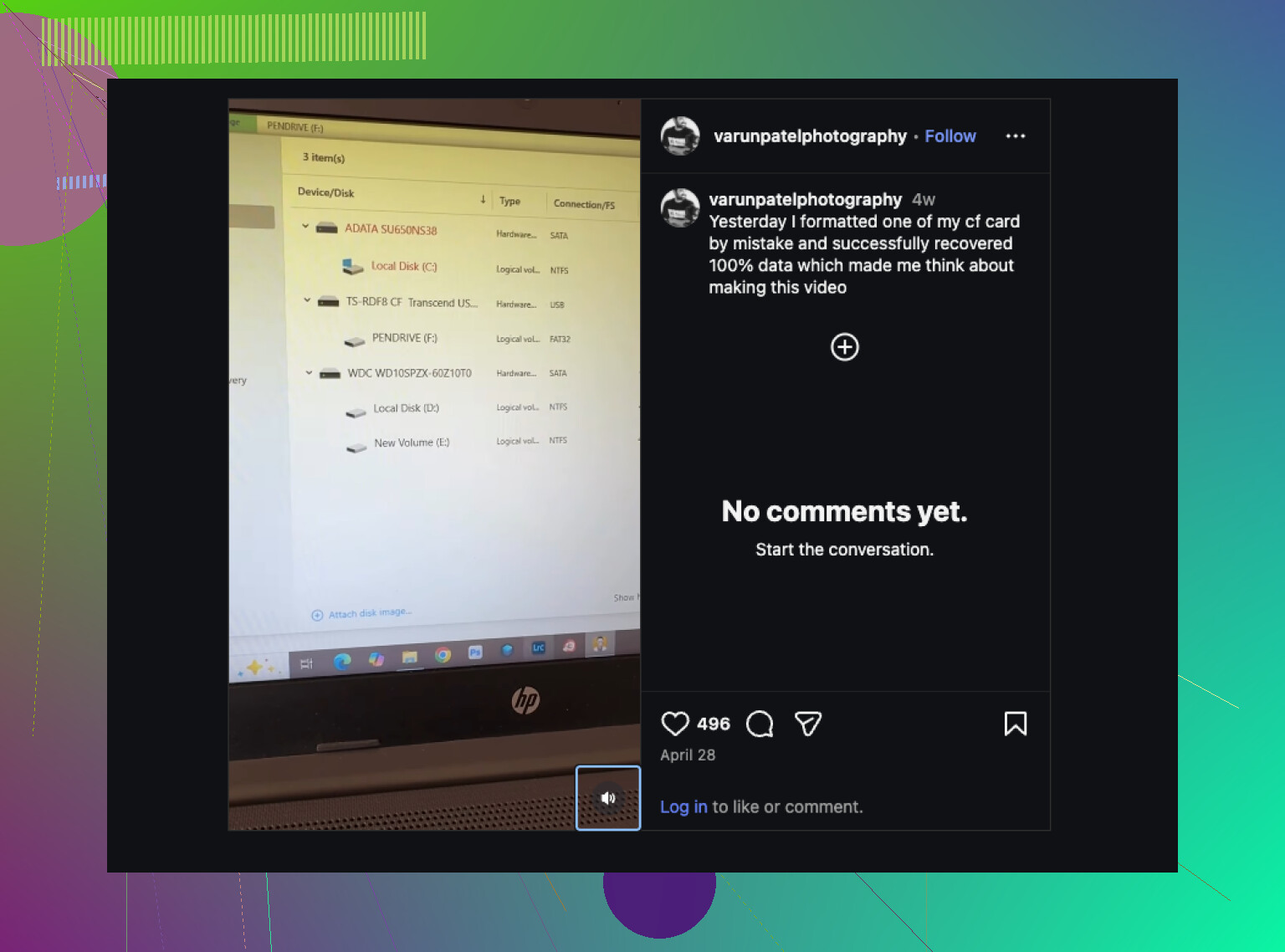
I’d be a little more conservative than @mikeappsreviewer and @himmelsjager on one thing: if the transfer was interrupted, don’t assume the card itself is dying right away. Sometimes it’s just a corrupted directory entry from the copy process crashing out. People retire media too fast.
What I would do is this:
- lock the card if your adapter/reader supports it
- try a different reader before anything else
- check SMART-style behavior is impossible on CF, so your clues are weird mount times, read slowdowns, and I/O errors
- if it reads at all, clone it first
- if cloning fails partway, use a tool that can retry bad sectors gently, not Windows copy/paste
After that, scan the clone with Disk Drill. That’s probly the easiest route for CF card photo recovery because it handles missing file tables better than a lot of basic tools, and the previews help sort out which RAW/JPEG files are actually intact before you waste time restoring everything.
One thing I would not do is run file system repair just because the card appears blank. Blank does not mean empty. It often means the allocation records got borked.
Also, if your camera still sees thumbnails but the computer doesn’t, copy via a different reader, not through the camera. Cameras can be weirdly selective.
If you want more compact flash card recovery discussion, this thread is relevant:
CompactFlash card data recovery tips for missing photos and corrupted transfers
If the card disappears, gets super hot, or capacity shows wrong, stop messing with it. That’s when DIY turns into “welp, should’ve stopped sooner.”