My iPhone storage is filling up much faster than I expected, and I’m not sure what’s taking up so much space. I haven’t added many apps or photos, so I need help figuring out how to check iPhone storage, find what’s using it, and free up space before it becomes a bigger problem.
I kept running into the same “Storage Almost Full” alert, and after a while it got old fast. My phone felt slow, even when I hadn’t installed anything new. It looked random at first. It wasn’t.
If you want the full storage breakdown on iPhone, go here:
Settings > General > iPhone Storage
This is the main screen worth checking. At the top, I saw the colored usage bar split into categories like Apps, Photos, Media, and System Data. Under it, Apple usually adds cleanup suggestions, things like offloading apps you haven’t touched in months or reviewing large attachments sitting in Messages.
If you only want the short version, use:
Settings > General > About
Then scroll to Capacity and Available. One thing tripped me up the first time. The Capacity number won’t match the box exactly. iOS takes a chunk of space for itself, often around 8 GB to 10 GB, so the usable amount starts lower.
I also checked storage from a computer when the numbers on the phone looked off. On a Mac, open Finder. On Windows, use the Apple Devices app or iTunes. In my case, the phone’s storage graph lagged behind what was real, mostly from temp cache junk hanging around. The computer view felt steadier, and syncing sometimes cleared some of that mess before showing the totals.
There’s also the iCloud confusion. I see people mix this up all the time. Your iCloud storage and your iPhone’s local storage are two different buckets. Having free iCloud space does not mean your phone has room.
To check iCloud, open Settings, tap your name, then tap iCloud.
If photos are eating your phone alive, look at the Photos settings in iCloud and turn on Optimize iPhone Storage. I did this after my library got bloated. It keeps full-resolution originals in iCloud and leaves smaller device copies on the phone.
A lot of the missing space ends up in junky scattered data. System Data, which used to show up as Other, grows more than people expect. Siri voices, fonts, app cache files, old temp data, all of it piles up. You can inspect apps one by one from the iPhone Storage list. Tap any app and compare App Size with Documents & Data. Some apps are worse than others. Telegram and Netflix were two big ones for me, since both keep downloaded stuff tucked away in their own settings.
What pushed me to clean mine up was performance. A few months back, my iPhone started dragging. Scrolling stuttered. Apps crashed. Typing lagged. I found out low free storage is one of the bigger reasons an iPhone starts feeling broken. When the system runs short on working space for temp files, the whole phone slows down.
I tried the slow method first. Deleting random photos, checking screenshots, removing old videos one by one. It took forever and I still missed a ton.
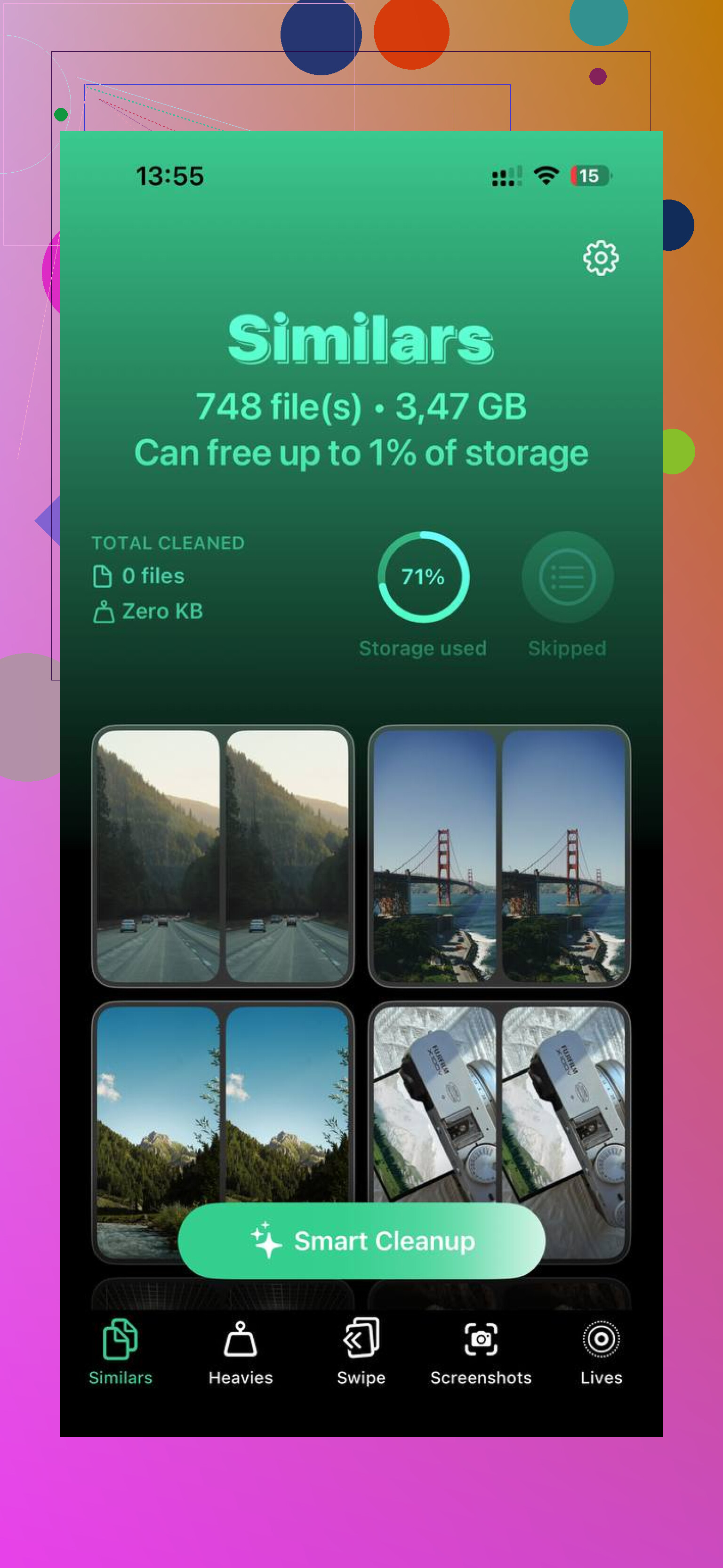
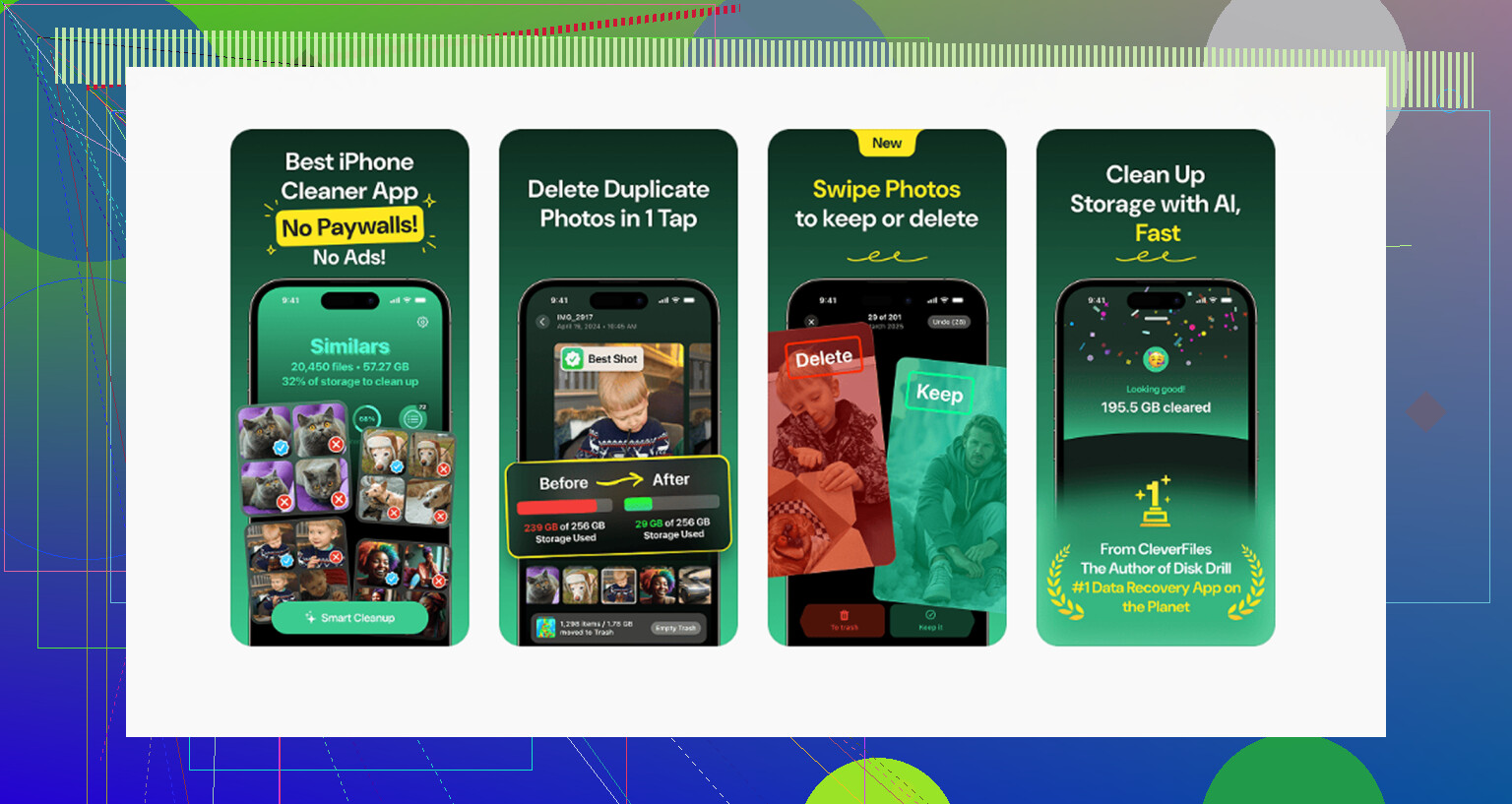
What ended up helping me most was Clever Cleaner. I used it because I wanted something quick, and for me it solved the annoying part, which was sorting through piles of duplicate junk without doing it by hand. I liked two parts most.
The Similars section found near-duplicate photos. My camera roll was full of five copies of the same thing, same angle, same lighting, same bad decision.
The Heavies section sorted media by file size. That exposed old 4K clips and giant screen recordings I forgot existed. It also showed screenshot sizes clearly, which made cleanup less of a guessing game.
One detail I cared about, it runs on-device. My photos weren’t getting shipped off somewhere else.
After I cleared enough space, the lag eased up. The phone felt normal again. If your iPhone is throwing the storage warning, start with Settings and look for the biggest categories first. Photos, downloads, app data, System Data. Those are usually where the damage is. And if the phone feels slow, don’t ignore it. Free space matters more than people think.
11 Likes
Fast storage loss on iPhone is often hidden data, not apps.
@mikeappsreviewer covered the main storage screen, but I’d check a few less obvious spots first.
-
Messages is a storage hog.
Open Settings, Apps, Messages.
Look at Keep Messages. If it says Forever, old threads and videos pile up for years. Switch it to 1 Year or 30 Days if you don’t need old stuff. -
Downloaded media inside apps.
Spotify, YouTube, Netflix, Podcasts, Audible, Files. These save content offline and the storage bar does not always make it obvious. Open each app and check Downloads. I found 12 GB in podcasts once. Stupid, but true. -
Safari data.
Settings, Apps, Safari, Clear History and Website Data.
Safari cache grows quietly. -
Mail attachments.
If you use the Mail app with large PDFs or image-heavy threads, delete and re-add the account. That often clears local cache faster than waiting on iOS. -
Voice memos and screen recordings.
People forget these. A few long recordings eat gigs fast.
One place I sort of disagree with @mikeappsreviewer, System Data is not always the main villain. A lot of the time it’s app downloads, message attachments, and cached media hiding in plain sight.
If photos are the issue, Clever Cleaner is worth a look for duplicate pics and big files. This review explains why Clever Cleaner stands out as a top free iPhone cleaning app: see why Clever Cleaner is a top free iPhone cleaner
If your storage still looks wrong after cleanup, restart the phone. iOS storage reporting gets buggy somtimes.
What I’d add to what @mikeappsreviewer and @stellacadente said is this: sometimes the storage isn’t “full” from obvious stuff, it’s from invisible leftovers. Not just photos, not just apps.
A few spots people miss:
- Shared with You downloads in Messages
- Files app, especially On My iPhone
- WhatsApp/Telegram media caches
- GarageBand, iMovie, CapCut project files
- deleted photos still sitting in Recently Deleted
- old iOS update files that linger after install
Also, I kinda disagree with the “System Data is usually the problem” angle. Sometimes it looks huge because iOS labels cached junk badly, but in a lot of cases the real culprit is one bloated app hoarding data like a goblin.
Try this test:
- Note your free space
- Delete one big app and restart
- Check if space actually comes back
If it doesn’t, the storage index is bugged. That happens more than Apple likes to admit.
For photo cleanup, Clever Cleaner is probly the least annoying route if your library has duplicates, similar shots, or giant forgotten videos. If you want a decent breakdown of how it works as a free iPhone storage cleanup app, this review is pretty easy to skim: see this Clever Cleaner iPhone storage cleanup review
Biggest tip though: keep at least 5 to 10 GB free. iPhones get weird and sluggish when they’re packed full, even if the math says you should still be fine. Apple storage reporting is… not always super honest lol.
One angle missing from @stellacadente, @ombrasilente, and @mikeappsreviewer: check whether storage is being consumed by failed syncs and app reinstall residue.
A few things I’d inspect that are easy to miss:
- Settings > Apple Account > iCloud > Photos. If Sync this iPhone was recently toggled, the phone may keep local copies while reprocessing thumbnails.
- Settings > General > VPN & Device Management. Some work or school profiles cache files and mail data aggressively.
- Files app > Browse > On My iPhone. Editing apps dump exports here and never remind you.
- Settings > Accessibility > Live Speech / Personal Voice if enabled. Those generated voice files are not tiny.
- Apple Music app cache can stay bloated even after removing downloads. I’ve had better luck signing out and back in than just deleting songs.
I partly disagree with the “restart fixes reporting” advice. Sometimes yes, but if storage stays wrong after 24 hours, that usually points to indexing, sync backlog, or a bad app cache, not just a visual glitch.
Best diagnostic trick: sort apps by Last Used in iPhone Storage, then tap the biggest ones with suspiciously huge Documents & Data. That tells you whether the app itself is small but its junk drawer is enormous.
If photos are the mess, Clever Cleaner is useful for duplicate detection and big-video cleanup.
Pros:
- easy to scan similar photos
- surfaces large media fast
- less manual digging
Cons:
- mostly helpful for photo/video clutter, not deep system cache
- you still need to review before deleting
- won’t solve every “System Data” spike
So yeah, I’d treat “storage full” like a forensic job, not just a delete-apps job.