I know how to delete large message attachments on my iPhone to free up storage, but I’m not sure if the steps are the same on an iPad. I ran out of space and found big attachments taking up storage, so I need help figuring out whether iPad has the same settings and cleanup process.
Messages handles big attachments in a clumsy way. I kept expecting one clean 'remove all this junk' option, and nope. What works is piecemeal, and a couple of Apple quirks make it look broken when it isn’t.
Is there any faster method than tapping files one by one?
A little faster, yes. Fast is relative here.
The best starting spot is Settings > General > iPhone Storage > Review Large Attachments. That screen pulls the biggest message files into one list, so you aren’t hopping across random chats trying to find the worst offenders.
If you want to clean one conversation only, open the thread, tap the person or group name at the top, then open Photos or Documents. Hit See All, then pick multiple items from there.
Two catches. First, both routes still need manual picks. Second, there is still no Select All button. I looked for it more than once, felt dumb, then realized it still doesn’t exist on iOS in 2026.
Does this work the same on iPad?
Yep. iPadOS uses the same storage menus and the same attachment cleanup flow. The Settings path is the same, and the result is the same too.
If you use Messages in iCloud, deleting on your iPhone should sync over to the iPad. Mine has lagged before. Not hours, but long enough to make me think the delete failed. Give it a few minutes before you start redoing stuff.
Will deleting attachments remove both photos and videos?
Yes. Both go away from Messages.
The part people trip over is this. If you ever tapped Save Image or Save Video, iOS made a separate copy in the Photos app. Deleting the attachment removes the Messages copy only. The saved copy in Photos stays there.
If you never saved it outside the chat, deleting it from Messages wipes it for good. I learned this the annoying way with an old clip I thought was still in my camera roll. It wasn’t.
Why do deleted attachments show up again?
I’ve seen this happen for two main reasons.
First, Messages has its own Recently Deleted area. Deleted items sit there for 30 days. Until you empty it, the storage hit often sticks around.
To get there, open Messages, tap Edit from the main conversations screen, then tap Show Recently Deleted. If you skip this part, cleanup feels fake becasue the files are still hanging around on the phone.
Second, iCloud sync or storage optimization sometimes muddies the waters. The phone seems to think some message content still belongs there and starts pulling it back in. After I cleared Recently Deleted, a restart usually fixed the loop and forced storage to recalculate.
Why doesn’t storage drop right after deletion?
Usually it’s the same Recently Deleted issue. Those files still count for the full size during the 30-day window.
The storage number also updates slowly. I’ve deleted a chunk of media, checked storage right away, and saw almost no change. After emptying Recently Deleted and rebooting, the freed space showed up. So if your number looks wrong at first, don’t trust the first reading.
When deleting message attachments still isn’t enough
This was the part I missed at first. Message junk eats space, sure, but it often isn’t the main hog. For me it was old 4K video, duplicate shots, and piles of screenshots I forgot existed. You clear Messages, feel productive, then storage fills right back up a week later.
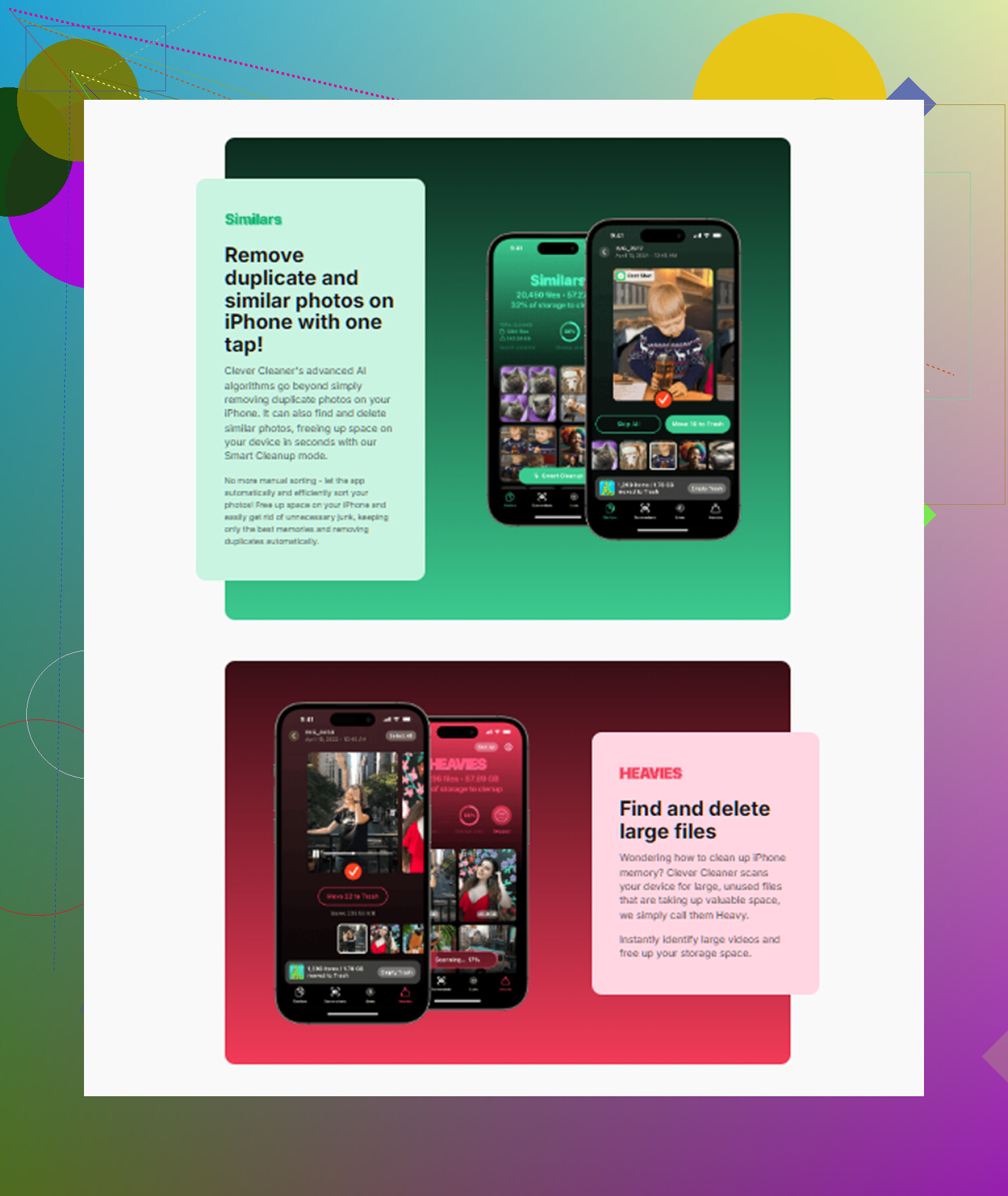
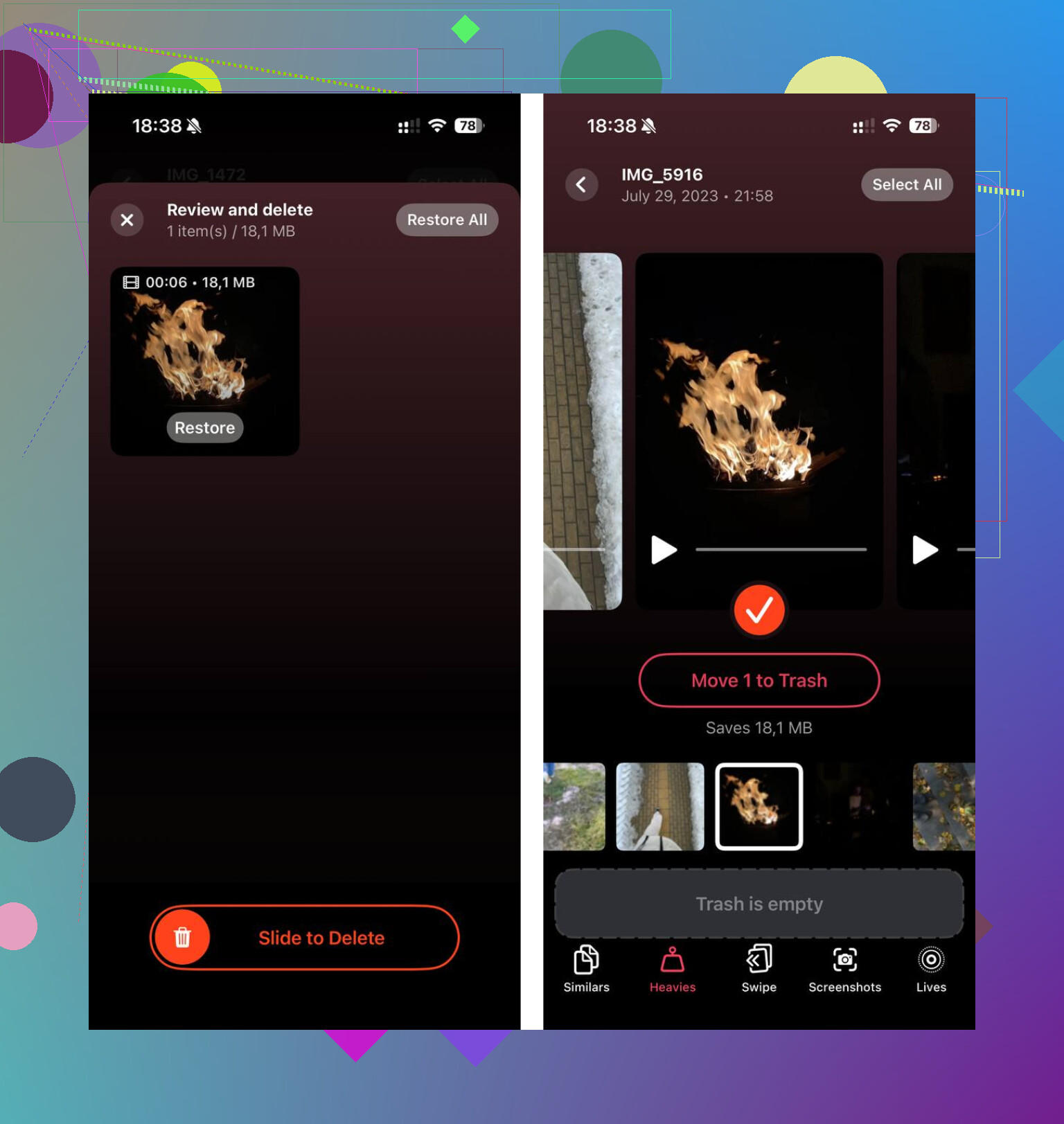
If you want the broader cleanup too, Clever Cleaner was the extra step mentioned in the original writeup. It sorts large files in the Heavies tab by exact size, which makes the biggest videos easy to spot. The Similars tab groups near-duplicate photos and picks a Best Shot, so burst photos are easier to thin out. Screenshot file sizes show before deletion, and the processing stays on-device.
After clearing about 15GB there, plus emptying Messages Recently Deleted, the phone stopped dragging. Low-storage lag went away for me after tht.
34 Likes
Yes. On iPad, the flow is almost the same as iPhone. Same app, same Messages data, same cleanup idea. The menu labels look a little diff depending on iPadOS version, but you’re still dealing with Settings, storage, and Messages attachments.
One thing I’d add to what @mikeappsreviewer said. If your iPhone and iPad both use Messages in iCloud, deleting attachments on one device usually syncs. I say usually because Apple sync is not always instant, and sometimes it’s annoyngly inconsistent. So I would not waste time deleting the same stuff twice unless you checked storage later and it still stayed full.
Also, if your iPad is low on space, check Files app downloads too. A lot of people focus on Messages and miss large PDFs, ZIPs, and video files saved locally on the iPad. On tablets, those files pile up fast.
If storage is still tight after clearing message attachments, Clever Cleaner is worth a look for the rest of the junk. It helps find big videos, duplicate photos, and screenshots eating space outside Messages.
For more user feedback and cleanup tips, see real Reddit reviews on a free iPhone cleaner app.
Short version. Yes, same idea on iPad. Check sync, check Files, then clear photo clutter too if space is still bad.
Yep, basically. iPadOS handles Messages attachments almost the same way as iPhone, but I’d push back a little on @mikeappsreviewer and @jeff on one thing: in real use, it does not always feel truly identical because iPad storage reporting can be weirder and slower to update.
What I’d check on iPad specifically is whether the space issue is really Messages at all. On iPads, downloaded school/work PDFs, Procreate files, offline streaming downloads, and Files app junk are often the actual space hogs. People blame Messages first becuase it’s easy to see big attachments, but the iPad usually has other hidden clutter.
Also, if you delete attachments and the iPad still looks full, check if the conversation is set to keep messages forever. Changing Message History to 1 Year or 30 Days can quietly save a lot more space than manual cleanup.
And if your storage is a total mess, not just Messages, Clever Cleaner is actually useful for the rest of it, especially large videos and duplicate photos sitting outside iMessage. This is a decent quick look at it: watch how Clever Cleaner frees up storage fast.
Short version: yes, same general process on iPad, but also audit Files, downloads, and message retention settings or you may be chasing the wrong problem.
Mostly yes, but I slightly disagree with the “same thing” framing from @jeff, @nachtdromer, and @mikeappsreviewer. The menus are close, but iPad cleanup feels less obvious because Messages often is not the real storage bully on iPad.
What’s different in practice:
- iPad tends to hide space in app data, offline media, art files, and Safari downloads
- Split View makes it easier to save attachments into Files without noticing
- Storage numbers on iPad can lag and look wrong for a while
One thing worth checking that they only touched on indirectly: shared media inside long group chats can stay huge even after you remove a few obvious videos. If one thread is massive, sometimes deleting the whole conversation frees more space than cherry-picking attachments.
I’d also look at your Mail app. Big PDFs and scans there can rival Messages attachments.
If the issue goes beyond Messages, Clever Cleaner is decent for photo/video cleanup.
Pros:
- easy to spot large videos
- helpful for duplicates and screenshots
- simple interface
Cons:
- won’t clean message attachments for you
- another app to install
- best for Photos clutter, not Files app mess
So yes, same general idea on iPad, but don’t lock onto Messages too hard or you may miss the actual storage hog.
The replies focus on manual cleanup. I’d try automatic deletion instead, if you don’t need your old chats.
On your iPad, open Settings > Apps > Messages > Keep Messages. Choose 30 Days or 1 Year instead of Forever. Your iPad then removes older messages and their attachments automatically. This deletes older text too, not only photos and videos.
Save any favourites seperately first. Choose 1 Year if you want more chat history, or 30 Days if you only need recent conversations. It’s less fiddly than selecting attachments one by one.
Careful with the auto-delete route if both devices share one Apple ID and Messages in iCloud. Setting Keep Messages to 30 Days on the iPad isn’t a local setting, it changes the retention for the whole account. So @zeroeagle5572’s tip works, but it can quietly trim your iPhone history too, not just the tablet. If you only wanted the iPad cleaned and still care about old threads on the phone, that’s a nasty surprise a week later.
The retention idea itself is the cleanest fix in here though. Cherry-picking attachments by hand is a waste of an afternoon for most people. I’d just go in eyes open about what it removes.
On the ‘same as iPhone’ question, yes the menus match, and @techchizkid is right that Messages usually isn’t the real culprit on an iPad anyway. What I’d add to that is a specific one nobody flagged: offline downloads from streaming apps. TV, Netflix, YouTube saved episodes can sit at several gigs each and they don’t show up anywhere near the Messages storage view. Check each app’s own download list, because the system storage screen lumps that under app data and it’s easy to scroll past.
One more thing on the sync lag people keep mentioning. If a delete looks like it didn’t take, don’t reboot ten times. Toggle Messages in iCloud off and back on once, give it a bit on wifi, then look. Forcing it repeatedly just makes the storage counter more confused.
For the photo and video side once Messages is sorted, Clever Cleaner is what I’d point you at. Beyond that, the real habit change is turning off Save to Photos for stuff you get in group chats, otherwise you’re just deleting the same media twice, once in Messages and once in the camera roll.