My iPhone storage is almost full, and photos are taking up most of the space. I deleted several pictures, but the photo data is still showing. What’s the fastest way to permanently clear it and free up storage?
Don’t start by deleting your whole photo library. Most of the wasted space is usually tied up in duplicates, bursts of nearly identical shots, forgotten screenshots, Live Photos, and oversized videos. Clearing those out can recover a lot of storage without touching the pictures you actually want.
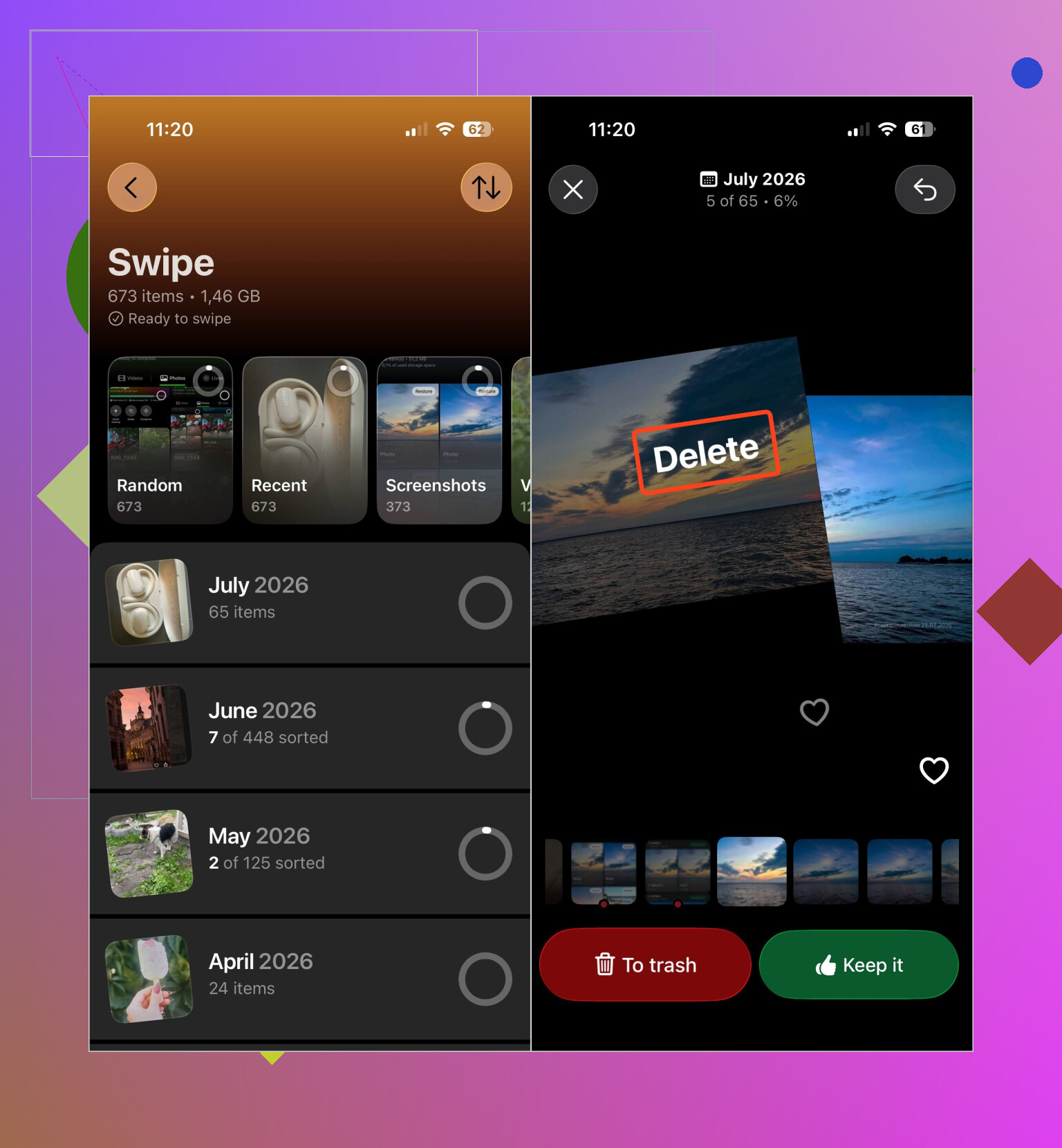
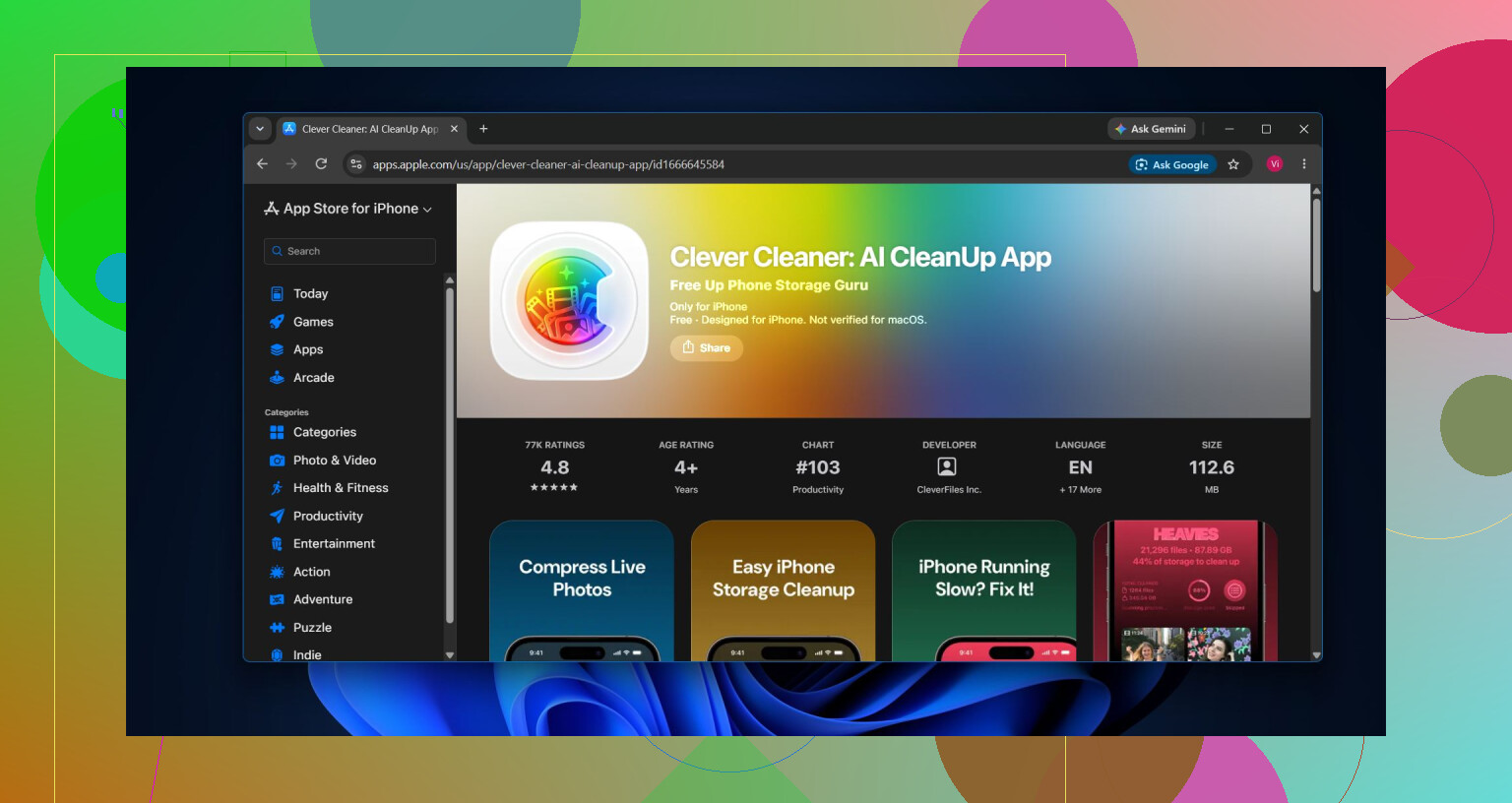
My library had grown past 100 GB a few months ago, so sorting everything manually wasn’t practical. I used Clever Cleaner to group duplicate and similar photos, duplicate videos, screenshots, Live Photos, and large files into separate categories.
You can review the results before removing anything, which is worth doing with similar photos since the app can’t know which version you prefer. The Compress tool is useful when you want to keep a photo but reduce its file size, while Swipe mode lets you sort through the gallery one item at a time. There’s also Smart Cleanup, which handles similar photos and compressible media across several categories in a few taps. The app is free, has no ads, and doesn’t require a subscription to get started. Some cleanup features do have a fairly generous daily limit for new users.
I’d work through the library in roughly this order:
- Remove exact duplicates and unwanted similar photos.
- Check large videos and duplicate videos.
- Delete Live Photos you don’t need, or compress the ones you want to keep.
- Clear out old screenshots.
- Run Smart Cleanup if you want to handle several categories together.
- Open the Recently Deleted album and empty it. Otherwise, those files can continue using storage for up to 30 days.
Messages is another place people miss. Photos and videos sent through conversations may still be stored there even after you remove copies from the Photos app. In Messages, open a conversation, tap the contact’s name, then choose See All under Photos. From there, select and delete attachments you no longer need. Deleting an entire old conversation will remove its attachments as well.
If you use iCloud Photos, turn on Optimize iPhone Storage under Settings > Photos. That keeps smaller versions on your phone while the full-resolution originals remain in iCloud.
It also helps to clean by event or album instead of scrolling through the entire library. An old vacation album with 50 versions of the same scene is much quicker to sort through as a group. After the main cleanup, spending a minute or two each week removing fresh screenshots and duplicates keeps the problem from building up again.
If the goal is more free space without losing important memories, focus on clutter first. Duplicates, similar shots, large videos, unnecessary Live Photos, screenshots, and old Messages attachments are usually the safest places to start.
5 Likes
The photo data may not still be there because the iPhone Storage screen can lag after you empty Recently Deleted. Restart the phone, wait a bit, then check Settings > General > iPhone Storage again before deleting anything else.
Before emptying Recently Deleted, check whether iCloud Photos is enabled. Permanent deletion will sync across every device using that iCloud library, so copy anything important to a computer or external drive first.
For a straight purge, you do not need a cleaner app. Select photos in large batches from the Library, delete them, then open Recently Deleted and choose Delete All. Be aware that deleting an album only removes the album organization, not the actual pictures inside it. For thousands of files, selecting and reviewing them on a Mac or PC is usually quicker than tapping through the phone.
Afterward, the storage reading may take a while to recalculate, as @cyberhive2855lab mentioned. Restart before assuming the files are still taking up space.
The size of what you deleted matters more than the number of photos. Removing 200 regular pictures may barely move the storage bar, while deleting two long 4K videos or screen recordings can free several gigabytes.
For the quickest result, open Photos, go to Media Types, and check Videos, Screen Recordings, RAW, and Bursts first. Delete the largest unwanted files, then empty Recently Deleted. After that, leave the phone plugged in and locked for a while so iOS can finish indexing and recalculate storage. @cyberhive2855lab is right that the storage screen often lags.
If iCloud Photos with Optimize iPhone Storage is enabled, there is no manual “clear photo cache” button. iOS decides when to remove local full-resolution copies. Cleaner apps such as Clever Cleaner can make sorting easier, but they cannot bypass Recently Deleted or force the storage figure to refresh.
Check whether Optimize iPhone Storage is already on before you delete anything, because it changes what ‘clearing photos’ even does. If it’s on, most of your full-res images already live in iCloud and your phone is only holding smaller previews. Deleting those previews frees very little locally, so you can wipe hundreds of pictures and watch the storage bar barely twitch. That alone explains why a lot of people think the data ‘won’t go away.’
@xhiddenvectorx nailed the important part that everyone else danced around: it’s the videos and screen recordings doing the damage, not the count of photos. A single 4K clip can outweigh a thousand snapshots. If you want the fastest real win, sort by size and go after the big media first, don’t grind through your camera roll photo by photo.
Where I’d push back a bit is the restart-and-wait advice. It’s true the storage screen lags, but people use that as a reason to keep waiting and never actually confirm anything. If you really want to know what’s on the device versus in iCloud, plug into a computer and look at the actual local library size. That number doesn’t lie the way the Settings screen does.
On the tool angle, Clever Cleaner is fine for herding duplicates and similar shots into one place so you’re not squinting at near-identical photos on a tiny screen. Just don’t expect it to force iOS to release space. No app can override Recently Deleted or the iCloud sync logic. It sorts, you decide, iOS does the actual freeing on its own schedule.
One thing nobody flagged: turning off iCloud Photos to ‘get your originals back’ can quietly pull down every full-resolution file and fill your phone worse than before. If your library is big, that’s a trap. Copy what matters to a computer first, then decide.