My iPad Photos app has built up a lot of duplicate pictures over time, and it’s starting to waste storage and make my library messy. I’m finally ready to clean it up, but I’m not sure what the safest way is to find and delete duplicate photos without losing anything important. Any advice on the best iPad duplicate photo cleanup method?
Your iPad isn’t going to quietly delete photos on its own, so you don’t need to worry about Apple suddenly wiping stuff from your library. You have to start the cleanup yourself. The annoying part is that Photos can fill up fast with repeat shots, old screenshots, and near-identical pictures that all look the same when you’re scrolling.
If you’re on iPadOS 16 or newer, start with the built-in Duplicates album. Open Photos, go into Collections or the sidebar, then scroll down to Utilities. There should be a Duplicates section there if your iPad has found any.
That tool is probably the easiest native option. When you merge a group, the iPad keeps what it thinks is the best version, including better quality and useful metadata like location or tags, then sends the extra copies to Recently Deleted. So it’s not just randomly deleting one and hoping for the best.
If the Duplicates album is not showing
That usually comes down to one of a few things.
- The iPad may still be scanning your library. This can take a while, especially after a big import or software update. Leave it locked and plugged in for some time. For large libraries, it can take days.
- If you’re still on iPadOS 15 or older, the Duplicates feature is not available.
- Apple’s duplicate detection is pretty strict. Two photos that look identical to you may still be treated as separate photos if they were taken a second apart or have tiny differences.
That last part is where most people get stuck. The built-in tool is good for true duplicates, but it usually won’t clean up “same pose, same scene, slightly different shot” situations.
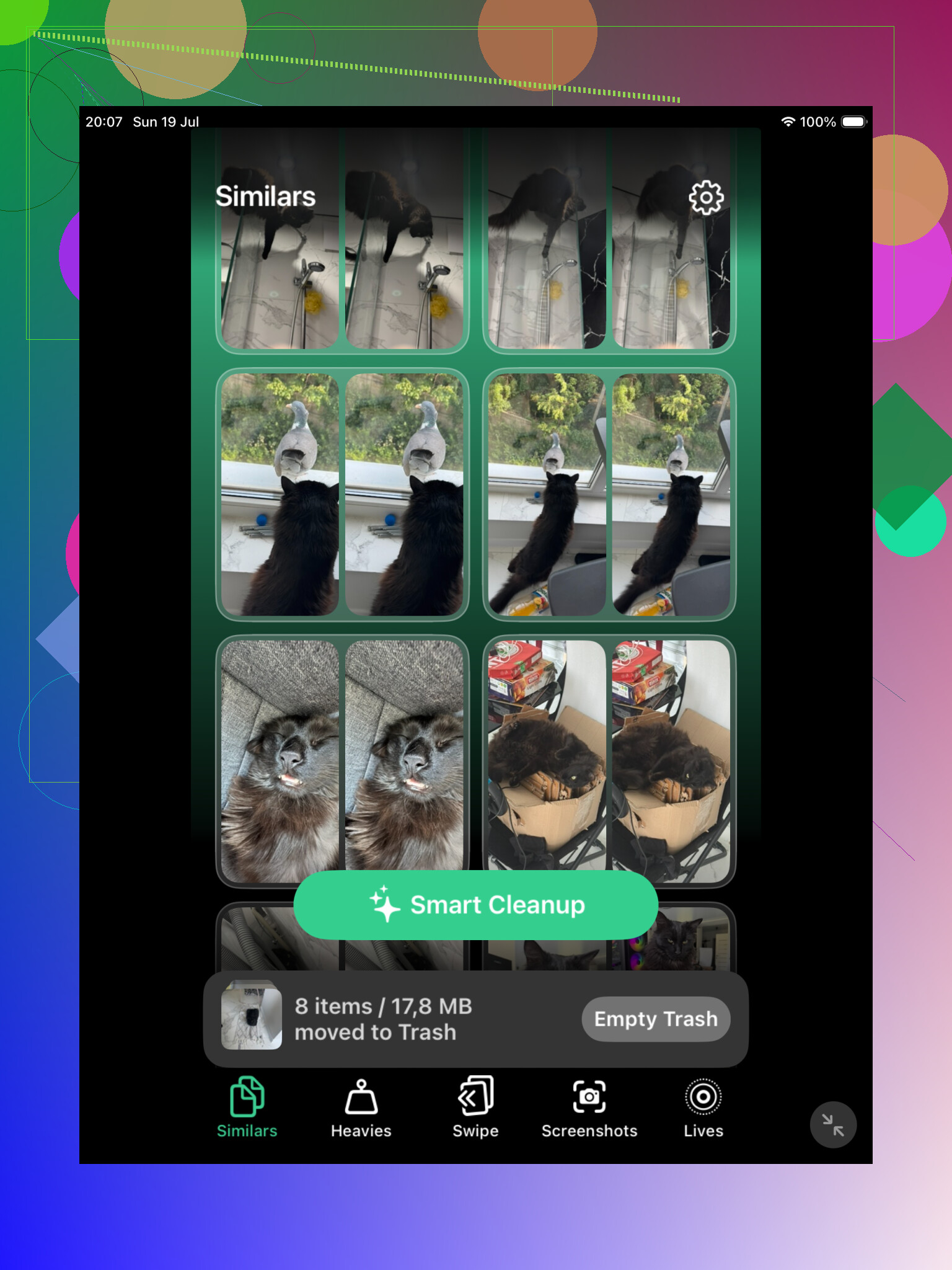
For those similar photos, a cleaner app can save a lot of time. Clever Cleaner is one option since it has a Similars section and can group photos that are almost the same. It can also suggest a best shot, which makes it easier to remove the extras without checking every single image manually.
If you don’t want to install anything, use Search inside the Photos app. Search for things like “dog,” “beach,” “receipt,” or whatever you know is cluttering your library. It’s often easier to clean up similar photos when they’re grouped by subject instead of buried in your full camera roll. The Months and Years views can also help if the duplicates came from a trip, event, or one specific time period.
One thing people forget: deleted photos still sit in Recently Deleted for 30 days. If you’re trying to free up storage right away, you need to open Recently Deleted and empty it manually.
Also, if iCloud Photos is turned on, deleting from your iPad deletes the same photos from your iPhone, Mac, and iCloud library too. That’s useful if you want everything cleaned up everywhere, but double-check before you permanently delete anything.
14 Likes
Make a real backup first. Mike’s right that Recently Deleted gives you a safety net, but iCloud Photos is syncing, not backing up, so before bulk-merging or using Clever Cleaner, export anything important to a computer or external drive. Then clean in small batches instead of deleting hundreds at once.

Do not empty Recently Deleted until you have actually opened a few merged/deleted photos and checked that the keeper is the one you wanted. The safety net is only useful while it is still there, and it is easy to get impatient once you see storage numbers start moving.
I’d be a little slower with screenshots, edited photos, Live Photos, and anything you imported from another device. Two items can look the same in the grid but differ in annoying ways, like one has edits, one has the original date, one is a Live Photo, or one is the version you already cropped for sharing. Apple’s Duplicates tool is fine for obvious duplicates, but I would not treat any cleaner app’s “best” pick as final without looking at the group first. Clever Cleaner or similar apps can be useful for near-duplicates, but that is exactly where judgment matters more.
My boring method would be: run Apple’s Duplicates album first, then tackle only one category at a time after that. For example, search “screenshots” and clear those, then maybe “videos,” then one trip or month. It feels slower, but it prevents the classic mistake of cleaning 4,000 items in one sitting and only realizing later that you deleted the better version of a bunch of photos.
Cleaning a local iPad library is different from cleaning one tied to iCloud Photos: with iCloud on, the mess and the fixes both travel to your other devices. After a batch of merges or deletes, give Photos time to sync before doing more, otherwise you can end up chasing items that only look like they “came back.”