I accidentally formatted a memory stick that had important photos and documents on it before I copied everything off. I stopped using it right away, but I really need help figuring out the best way to recover the deleted files without making things worse. Are there any safe recovery steps or tools that actually work for a formatted memory stick?
I did this once with a USB full of old project files, and the first thing I learned was simple. A format does not always wipe everything out. A lot depends on which format option was used, and whether you wrote new stuff to the drive after the mistake.
If it was a Quick Format, your odds are often decent. That option usually finishes fast because it rebuilds the file system and clears the index, not the raw file data itself. The files often sit there until new data lands on top of them. A Full Format is rougher. On most systems, it writes over the storage, so software recovery tends to fail there.
First move, stop using the flash drive. Right now. Do not copy files onto it. Do not format it again. Do not run CHKDSK or any repair tool. Every new write cuts into your chances. I learned this the hard way years ago, and yep, it was dumb.
Before you start scanning, check whether the files already exist somewhere else. People forget about backups all the time. I did.
- OneDrive, Google Drive, Dropbox, or iCloud
- Windows File History or Backup and Restore
- Another USB stick or external hard drive
- Your PC’s Downloads, Desktop, and Documents folders
- Email attachments or chat apps where you sent the files before
If nothing turns up, recovery software is the next thing I’d try.
I’ve seen solid results with Disk Drill. It handles the file systems most USB drives use, and the setup is not a mess. This is the route I’d take:
- Install Disk Drill on your computer’s internal drive, not on the formatted USB.
- Plug in the flash drive.
- Open Disk Drill and pick the USB from the device list.
- Hit Search for Lost Data, then choose Universal Scan if it asks. For formatted drives, this is often the scan worth starting with.
- Let the scan run to the end. Early results show up fast sometimes, but more files often appear later.
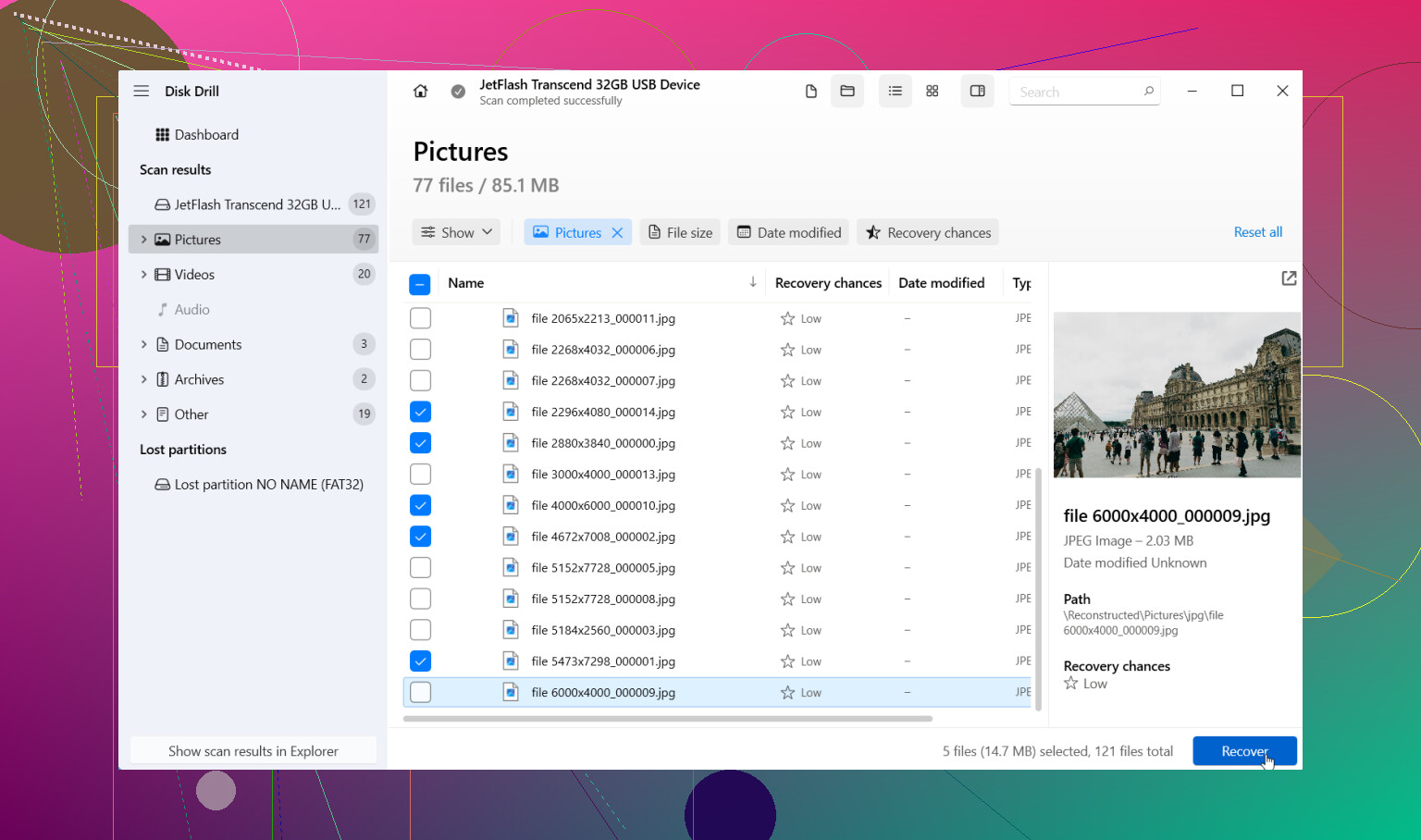
- Preview what you find. If a photo opens or a document looks normal in preview, recovery odds are usually better.
- Save recovered files to another drive, never back onto the same USB.
One thing I liked, it sorts results into groups like Photos, Videos, Documents, Audio, and Archives. You can also filter by extension, size, file type, and recovery likelihood. If the original filenames are trashed or the folders are gone, this helps a lot.
If the flash drive starts acting weird, random disconnects, read errors, crawling transfer speed, I’d avoid repeated scans on the original device. In Disk Drill, I’d make a disk image first and scan the copy instead. Safer move. Less stress on a drive that might be dying.
If the first scan comes back ugly, don’t write it off yet. Think back to how the format happened. Quick format and full format leave different outcomes. Quick format often leaves more behind. If you’re not sure which one happened, scan it anyway. No one knows what survived until the scan is done.
I’ve seen people recover formatted USB files more often than most would guess. So, no, all hope isn’t gone. Keep your hands off the drive while you work on recovery. If the files matter a lot, work docs, tax records, family photos, stuff you can’t replace, and the software finds nothing, then a professional recovery shop is the next stop. They use tools and methods you won’t have at home, and sometimes they pull data from drives software can’t read right.
5 Likes
If you stopped using the stick right away, your odds are still decent. That part matters most.
I agree with @mikeappsreviewer on one thing, do not write anything back to the USB. Where I differ a bit is this. People get too hung up on whether it was quick format or full format before they even test the drive. On many flash drives, the only thing worth doing first is a read-only recovery attempt and seeing what shows up.
My approach:
-
Check the drive health first.
If Windows throws read errors, random disconnects, or asks to ‘fix’ the drive, skip repairs. Those tools often make the mess worse. -
Make an image of the USB if the files matter.
This gives you one stable copy to scan instead of pounding the original stick over and over. If the drive is flaky, this step is huge. -
Run two types of recovery.
One pass for lost file system records.
One pass for raw file carving.
Photos like JPG and PNG often come back from carving even when folder names are gone. Office files are less forgiving, but many still recover. -
Recover to your PC or another external drive.
Do not save back onto the memory stick. Peolpe still do this and then wonder why half the files are corrupt. -
Check file integrity after recovery.
Open a batch of photos. Test a few docs. A recovered filename means nothing if the file body is broken.
Disk Drill is a solid pick for this because it does both metadata scanning and signature-based recovery in one place, and it previews files before recovery. For a formatted flash drive, preview is what saves time. If the previews look clean, your chances are better.
One extra thing. If your documents were PDFs, DOCX, XLSX, or similar, sort results by file size. Tiny recovered office files are often junk. Normal-sized files are the ones I’d pull first.
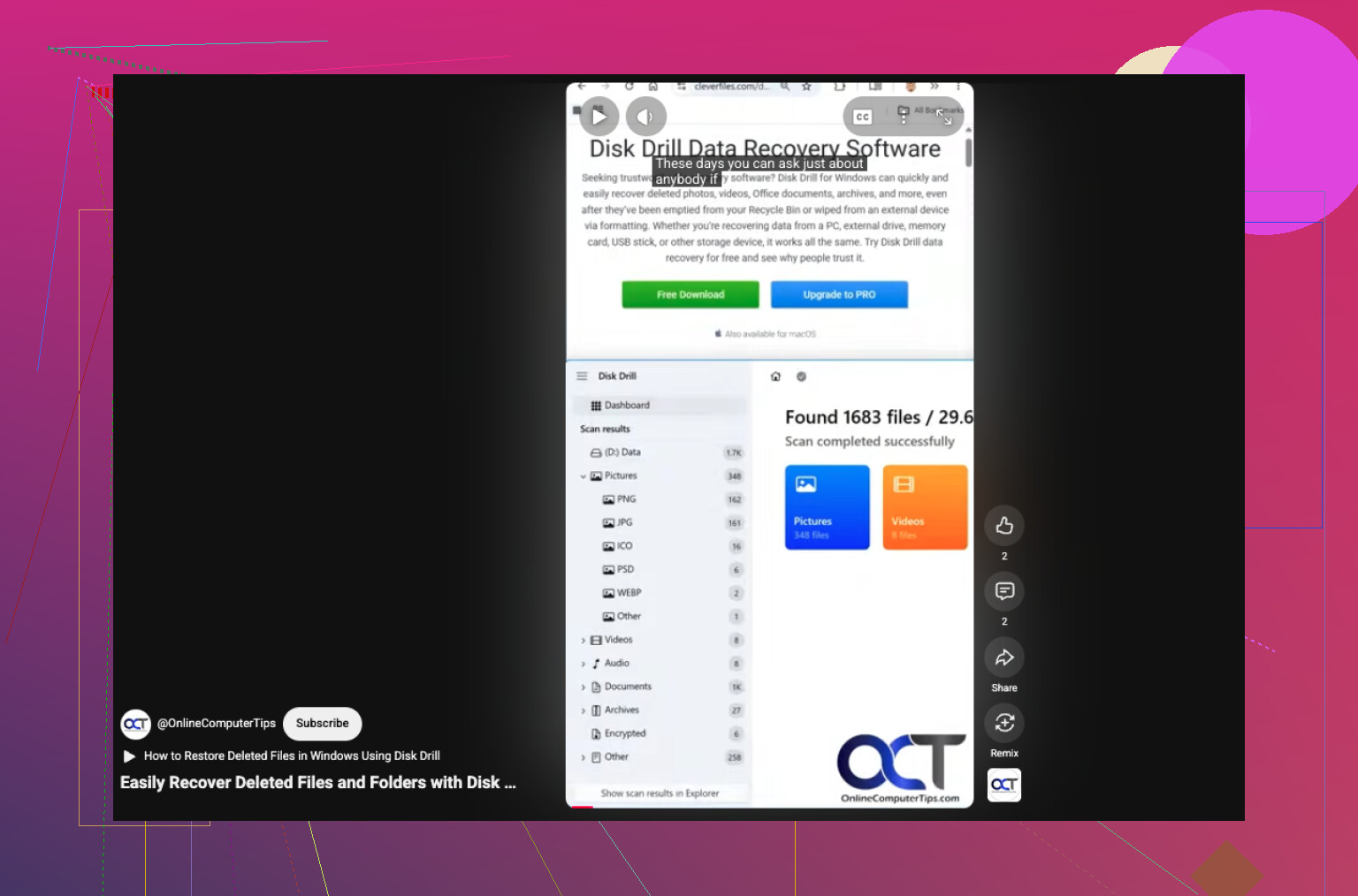
If you want a quick visual walkthrough, this is useful for recovering files from a formatted USB drive, watch this short guide for USB data recovery.
Search phrase wise, think in plain English:
recover data from a formatted USB drive
restore deleted files from a memory stick
USB photo and document recovery after format
If Disk Drill finds nothing important and the drive keeps disconnecting, stop there. Repeated scans on a failing stick are a bad bet. At that point, a recovery lab is the safer move.
Stopping right away was the smartest thing you could’ve done. That alone keeps recovery possible.
I mostly agree with @mikeappsreviewer and @codecrafter, but I’d push one extra point: before doing a big recovery run, check whether the USB shows its original capacity correctly in Disk Management. If it suddenly shows weird size, RAW, or keeps dropping offline, that’s less a “formatted by accident” problem and more a hardware/controller problem. In that case, software recovery can get messy fast.
A few things I’d do that haven’t really been stressed enough:
- Use a different USB port, preferably direct on the PC, not a hub
- If possible, try on another computer just to rule out driver weirdness
- Note the file system it was using before, if you remember it: FAT32, exFAT, NTFS
- If your photos came from a camera/phone, also check whether the same pics still exist on the source device or its app backup
I slightly disagree with the “full format = game over” angle because on some removable media situations, results can still be mixed. Usually bad news, yes, but not always absolutley dead. So it’s worth scanning before assuming the worst.
For software, Disk Drill is still a reasonable choice for formatted USB recovery, especially if you need to sift photos and documents fast. The preview feature matters more than people think. Don’t judge success by file names alone, judge it by whether the files actually open.
Also, if you want more real-world opinions before using it, this thread is decent:
read this Disk Drill review and recovery discussion
One more practical tip: recover the most important file types first. Photos, PDFs, DOCX, XLSX. Don’t waste time pulling back thousands of junk temp files if the family pics are the priority.
If the stick starts clicking, disconnecting, freezing Explorer, or making scans crawl, stop messing with it. That’s the point where DIY can make it worse.
One small disagreement with @codecrafter and @reveurdenuit: I would not keep rescanning a cheap USB stick just because recovery software still detects it. Flash drives can degrade fast once they start misbehaving, and every extra pass is a gamble.
What I’d add is this: check whether the recovered files are actually usable before spending hours exporting everything. For photos, preview is enough. For documents, especially DOCX/XLSX/PDF, corruption often shows up only when opening them fully. That is where Disk Drill is handy, because you can quickly sort, preview, and pull the high-value stuff first.
Disk Drill pros
- Good preview support
- Handles formatted USB scans well
- Easy to filter photos vs documents
- Can scan by file system traces plus signatures
Disk Drill cons
- Deep scans can take a while
- Recovered original folder structure is not always perfect
- Large recoveries can get messy if you do not organize output folders
Also, if the files were super important, recover only a sample first. Open 10 to 20 files. If they’re clean, then do the full run. That saves time and storage.
@mikeappsreviewer had the right instinct about stopping use immediately. That part probably helped more than anything else.