I cloned a drive to a new disk, but something went wrong and now the GPT partition layout looks damaged or missing. The system won’t boot properly, and I’m worried about losing the data. What’s the safest way to recover the GPT partition table after a failed disk clone without making things worse?
If a drive suddenly shows up as “RAW,” “Unallocated,” or “GPT Protective Partition,” don’t assume the data is already gone. It can look bad in Windows, but with GPT disks there may still be enough partition information left to recover the files, especially since GPT stores a backup partition table near the end of the drive.
The important part is to stop writing to the disk. Don’t initialize it. Don’t format it. Don’t create a new partition. Don’t run commands that “fix” the partition table unless you already have the data copied somewhere else. A lot of recoverable drives get made worse by trying quick fixes first.
The safest approach is to work from a copy of the disk, not the original.
First, make a full sector-by-sector clone or image of the drive. Tools like dd or ddrescue can do this. If the drive might have bad sectors, ddrescue is usually the better choice because it handles read errors more carefully. Once you have an image, you can scan that image instead of poking at the original drive over and over.
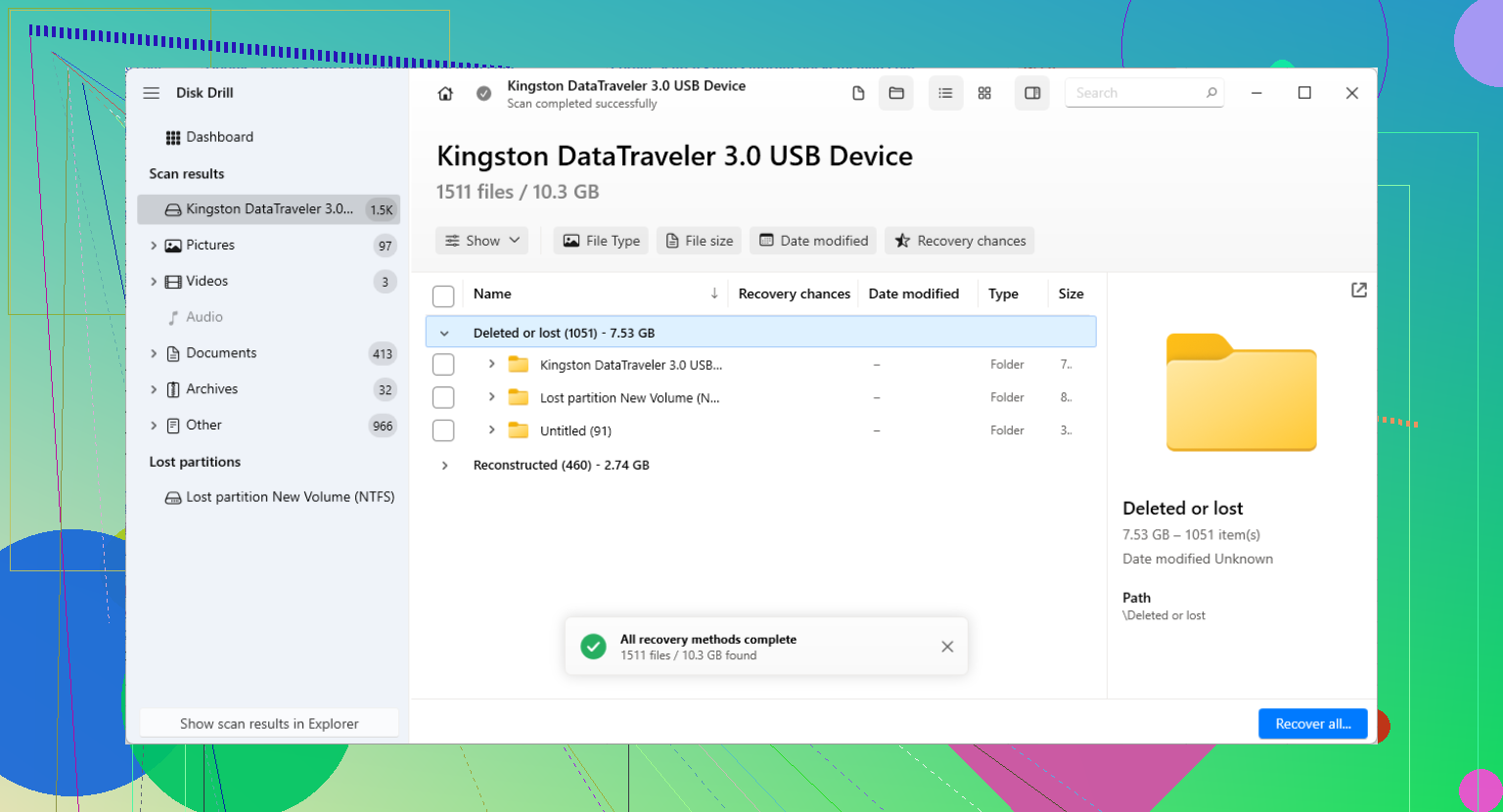
After that, focus on recovering the files before trying to repair the partition table. For a lot of people, that’s the safer order. Disk Drill is one option that’s easy enough to use and can look for lost partitions, damaged file systems, and file signatures without making you manually edit GPT data. The scan is non-destructive, so you can see what it finds before doing anything else.
If the scan shows your files and the previews look right, recover them to a different drive with enough space. Don’t save anything back onto the damaged disk. That can overwrite data you haven’t recovered yet.
Only after the important files are safe would I start thinking about partition repair. TestDisk can analyze the disk, find lost partitions, and write a repaired partition table if it identifies the right layout. Just be careful with the write step. If the detected partition doesn’t match what was there before, don’t apply it.
For GPT-specific problems, gdisk can also help. Since GPT keeps a secondary header at the end of the disk, gdisk can sometimes rebuild the damaged main GPT header from the backup copy.
One extra warning: if Windows says “GPT Protective Partition,” don’t jump straight to Diskpart and run clean. That wipes partition information and can make recovery harder. Sometimes that label is caused by an older OS, a compatibility issue, or a USB enclosure/dock that isn’t reading the drive properly. Scan it first and see if the files are still visible. In many cases, the volume just isn’t mounting normally, but the data is still sitting there.
13 Likes
Don’t try to make the cloned disk bootable before you know which disk has the intact data. If the original still exists, unplug it and treat it as the master copy, then inspect the clone separately.
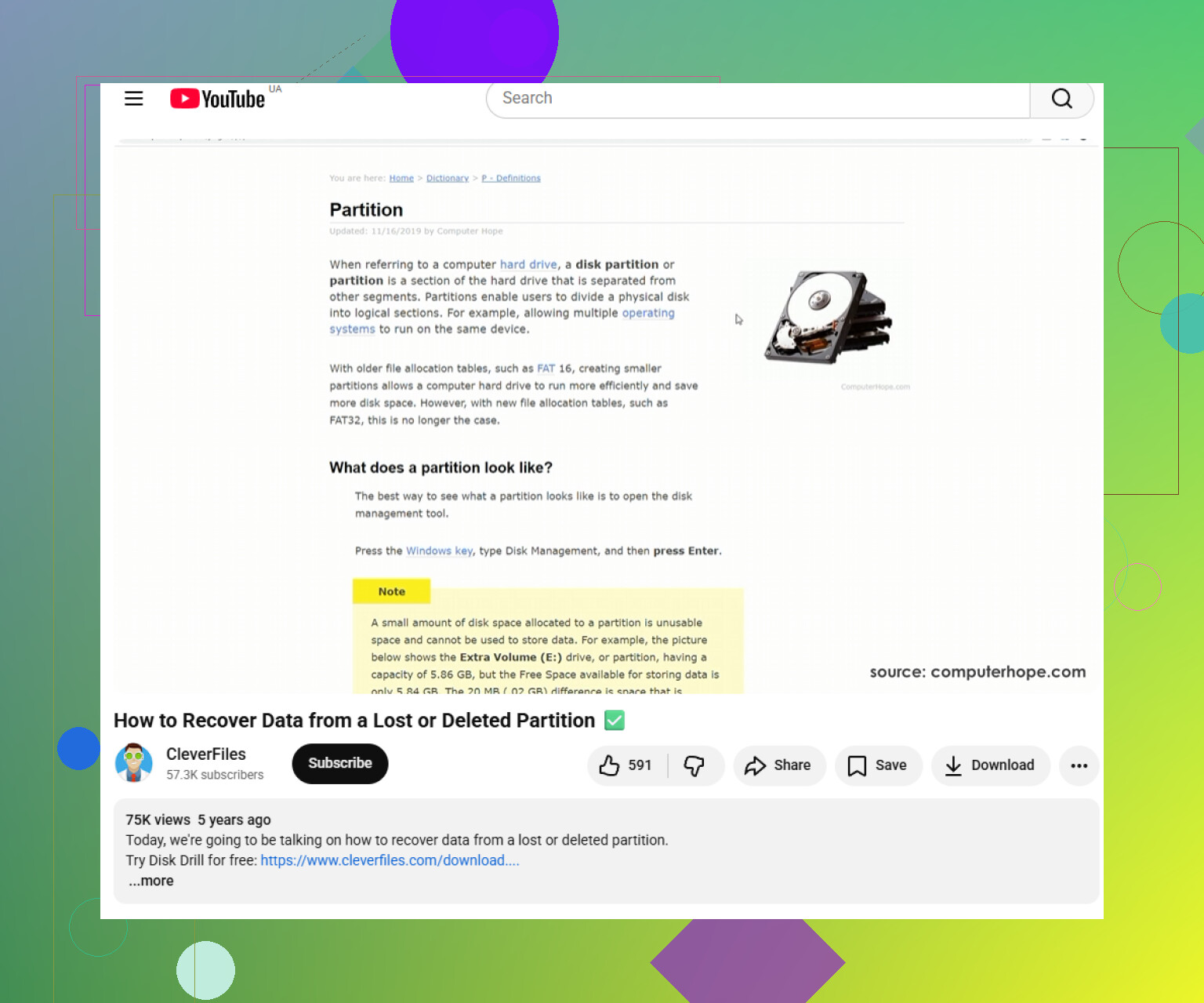
The easy mistake here is “repairing” the wrong drive and turning one bad clone into two bad disks. If you need a visual walkthrough, this lost GPT partition recovery guide is worth watching before touching anything.
A bad clone is not the same problem as a bad partition table, and treating them the same can wreck the recovery.
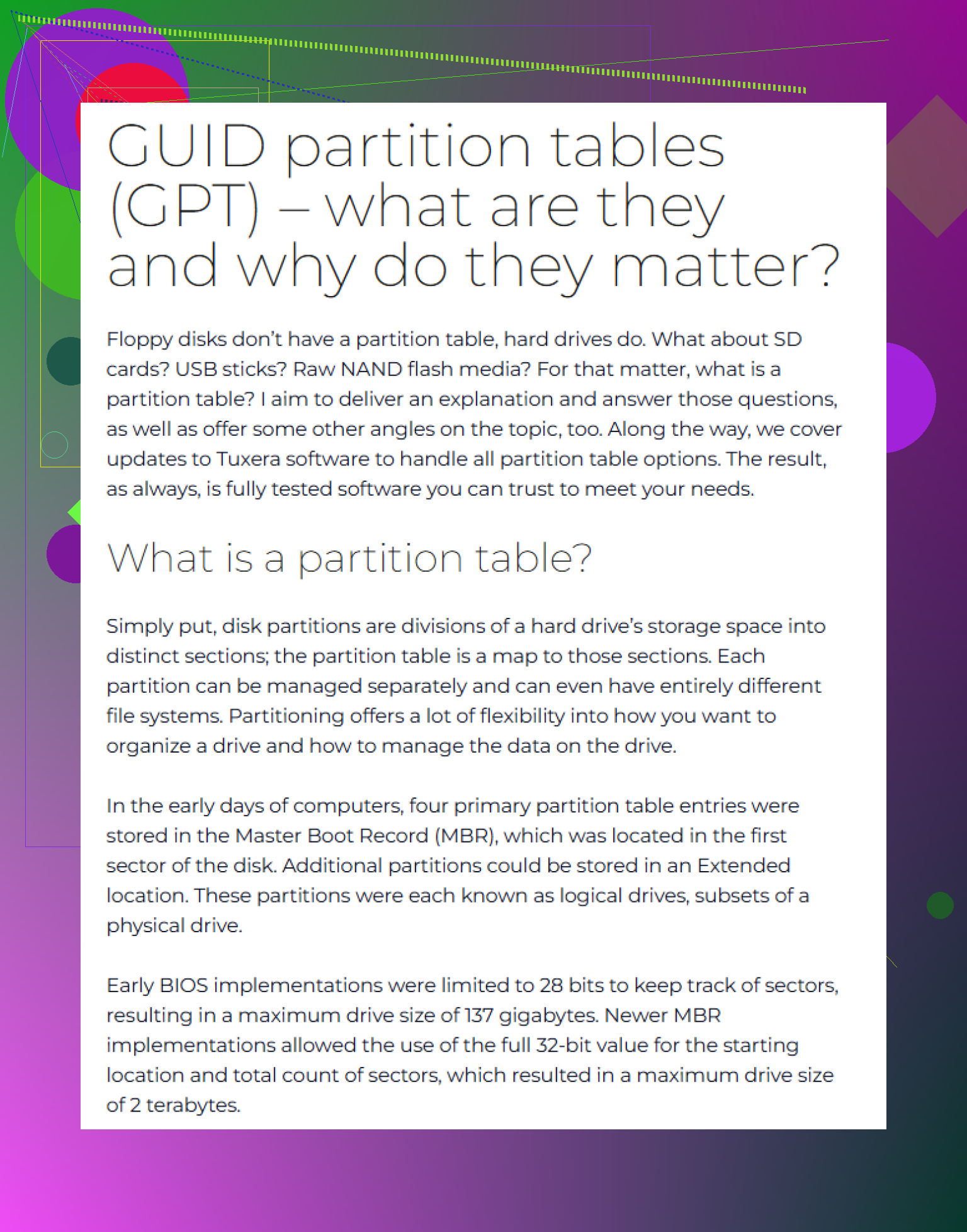
The missing detail here is how the clone was made and whether the target disk is the same size or larger. With GPT, the backup header lives at the end of the disk. If you clone a larger disk onto a smaller one, or the cloning tool stops early, the backup GPT may not land where the new disk expects it. If you clone a smaller disk onto a larger one, the backup GPT may still point to the old end of disk. That can make tools complain even when the actual partitions and file systems are still sitting there.
So before running repair, I would check boring facts first:
- Exact original disk size and exact clone disk size
- Whether the clone completed without read errors
- Whether the disk is connected directly by SATA/NVMe or through a USB dock
- Whether the partition start sectors still look believable
- Whether the file system can be mounted read-only from Linux or a recovery environment
That USB dock point matters more than people expect. Some enclosures translate sector sizes or do weird things with large drives. A disk that looks broken in one dock may show a sane layout when connected directly or through a different adapter. I would not write a new GPT while the disk is in a questionable enclosure.
I agree with the “copy first” advice, but I’d be a little stricter about the order: don’t try to make it boot, don’t run Windows startup repair, and don’t let Windows “initialize” anything. Boot repair tools are trying to create a working system, not preserve evidence. They may rewrite EFI boot entries, create new boot files, or touch partitions you were hoping to recover cleanly.
If the data matters, the safest workflow is:
Make an image of the questionable disk to another disk with enough free space.
Put the original away if it still exists.
Work only on the image or on the clone, never on the original.
Scan first. Repair later.
Recover files to a third disk, not back to the damaged clone.
After that, if you still want the cloned disk bootable, build that as a separate step. A recovered file set and a bootable OS clone are two different goals. Mixing them is where people get into trouble.
Disk Drill is fine as a first pass if you want a graphical scan and you’re mainly trying to get files back. The caveat is that you should install it somewhere else and recover to somewhere else. If the damaged disk is the only disk in the machine, don’t boot into that Windows install and start downloading recovery software onto it. Use another computer or boot from external media.
For partition-table repair, I would only trust the result if the found partitions match what you actually had before. For example, if you know the disk had an EFI partition, a Windows partition, maybe a recovery partition, and a data partition, then the proposed layout should resemble that. If a tool finds six random overlapping partitions with strange sizes, that is not a green light to write the table. It just means it found old signatures.
A quick check that can save a lot of pain: look at the first sector of the big data partition. If the partition start is right, NTFS/exFAT/ext4 tools will usually recognize something. If every guessed partition start is wrong, repairing GPT won’t magically fix the file system. You may need file carving or a deeper scan instead.
And if the original disk still boots or still mounts, stop touching the clone and make a fresh image from the original using a tool that reports errors clearly. A failed clone can be misleading. The clone may be the broken thing, not the source drive.
Check whether the Windows partition was BitLocker-encrypted before you spend hours scanning or “repairing” anything. A cloned disk with a broken GPT and a BitLocker volume can look like total garbage to recovery tools, even when the partition itself is mostly intact. If the old install used device encryption or BitLocker, find the recovery key first. Check your Microsoft account, printed backup, domain/AD/Azure records, wherever it would have been saved.
This is where I’d be a little cautious about the usual “scan it and recover files” advice. It is good advice for a normal NTFS/exFAT partition, but encryption changes the order. If the partition boundary is wrong, the encrypted volume may not unlock. If the boundary is right but the boot setup is broken, the files may still be perfectly recoverable after unlocking it. Disk Drill or similar tools may be useful after that, but if the volume is still encrypted and locked, previews and file names may not mean much.
A simple check is to boot from Windows recovery media or a Linux live USB and see whether the expected partitions are visible without writing anything. On Windows recovery media, manage-bde -status can tell you if BitLocker sees an encrypted volume. Don’t run repair commands yet. Just identify what you are dealing with. If it asks for a BitLocker recovery key, that is useful information, not a failure.
I agree with @mikeappsreviewer on not trying to make it boot first. Boot repair is a separate problem. For now, the target should be boring: preserve the original, image the bad clone if needed, identify whether the big partition starts at the right sector, and confirm whether encryption is involved. Once the important data is copied out to a different disk, then you can decide whether fixing the GPT is worth the risk.
If the original drive is still readable, I would stop working on the clone entirely and make a new image from the original. A bad clone can waste a lot of time because you end up trying to solve damage that was created by the cloning process, not by the source disk.