My SD card suddenly became corrupted after I removed it from my camera, and now my computer says it needs to be formatted before I can use it. It has important photos and videos I haven’t backed up, so I’m looking for help with corrupted SD card recovery, safe data recovery steps, or software that actually worked.
I’ve been burned by bad SD cards more than once, and the pattern is always the same. A card full of photos or clips suddenly throws errors, your camera or phone says it needs formatting, and your first instinct is to click yes and hope for the best. Don’t do it. If the files matter, hold off on formatting and stop using the card right away.
That part matters more than people think. The second you keep shooting, copying, or saving anything to the card, you raise the odds of old data getting overwritten. I learned this the hard way on a trip where I kept testing a flaky card instead of pulling it out. Dumb move.
If your device says the card needs to be formatted, skip the prompt for now. Formatting rewrites file system info, which makes recovery messier. First job is getting your files off.
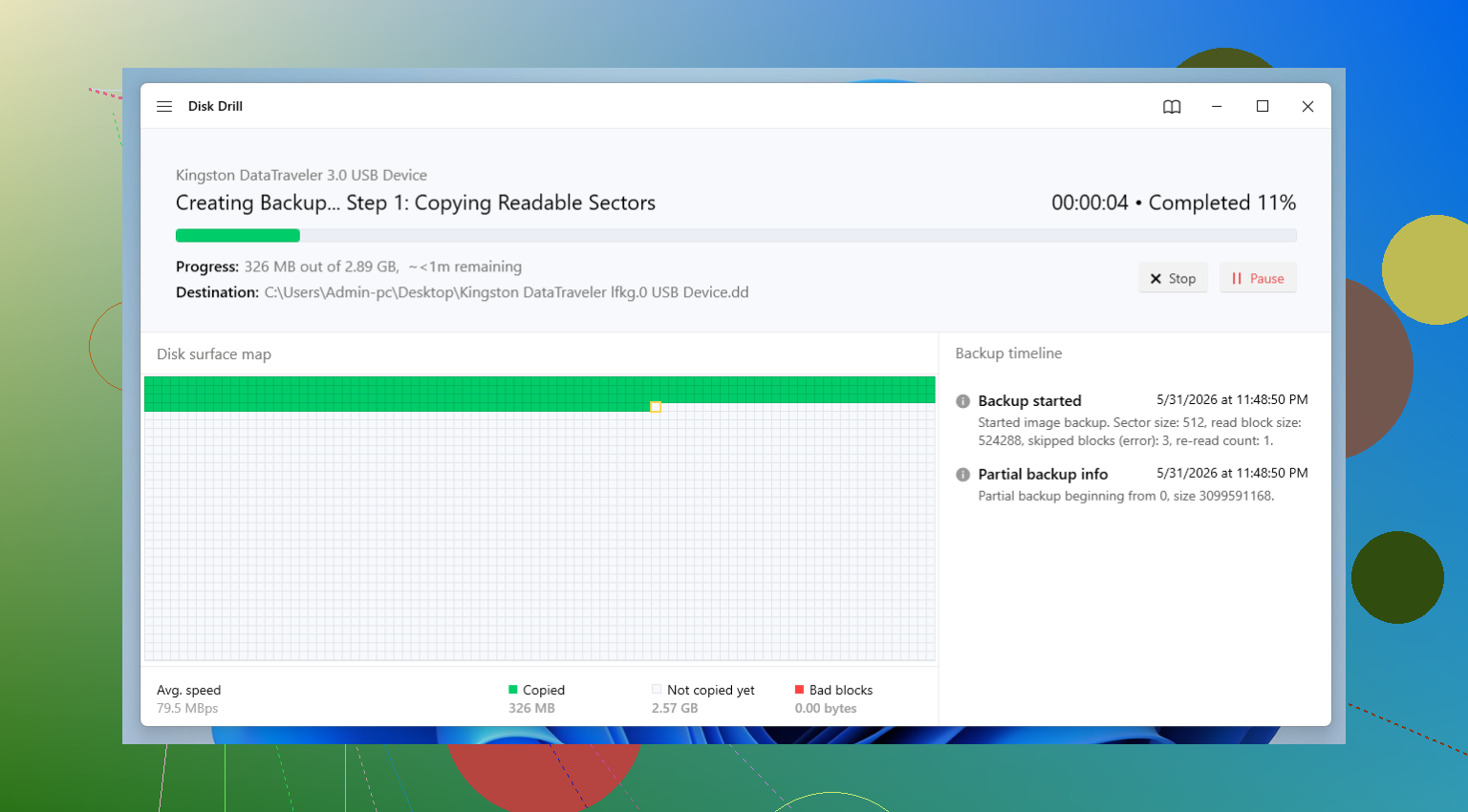
For recovery, I usually go with Disk Drill. I’ve had decent results with deleted files, cards showing up as RAW, busted file systems, and even media that was half-failing. The part I like most is the byte-to-byte backup feature. If the card is acting unstable, I make an image first and scan the image instead of hammering the original card over and over. Safer move. Once the scan finishes, check previews, recover what you need, and save everything to a different drive.
Only after your important files are back and opening normally should you bother trying to fix the card itself.
Method 1: Rule Out the Reader First
This gets missed all the time. Sometimes the SD card is fine and the reader is the problem. I’ve seen cheap USB readers fake the exact symptoms of corruption.
Try this:
- Take the card out of the current reader.
- Test it with another reader, adapter, or USB port.
- If you have another computer nearby, check it there too.
If the card suddenly shows up normally, you found the issue.
Method 2: Give It a Drive Letter
Windows sometimes detects the card in the background but forgets to assign a usable letter, so it never appears in File Explorer.
- Press Windows + X, then open Disk Management.
- Find the SD card in the list.
- Right-click its partition.
- Select Change Drive Letter and Paths.
- Pick Add or Change.
- Assign an unused letter, then click OK.
After that, check File Explorer again.
Method 3: Use Windows Error Checking
This one is built in, so it’s worth trying before you get into heavier tools.
- Open File Explorer.
- Right-click the SD card and choose Properties.
- Open the Tools tab.
- Click Check under Error Checking.
- Let Windows scan and attempt repairs.
On small file system errors, this sometimes fixes access fast. Sometimes it does nothing. Still worth the two minutes.
Method 4: Run CHKDSK
If the normal Windows check comes up empty, I move to Command Prompt.
- Insert the SD card and note the drive letter.
- Search for Command Prompt.
- Right-click it and choose Run as administrator.
- Type chkdsk X: /r and swap X for the SD card letter.
- Press Enter and wait.
It’s slow on some cards. Let it finish.
Method 5: Fix the Partition with TestDisk
If the card shows as unallocated, or the partition seems gone, this is where I’d look next. TestDisk is ugly, old-school, and kind of a pain the first time. It still works.
- Download and open TestDisk.
- Select the affected SD card.
- Use the partition table type the tool suggests.
- Choose Analyze, then run Quick Search.
- Look through the partitions it finds.
- If the missing one appears and looks right, use Write to restore the partition table.
I wouldn’t call it beginner friendly, no. But for lost partitions, it’s one of the better free options I’ve used.
Method 6: Format the Card
If recovery is done and the repair steps above fail, formatting is the last stop.
- Open File Explorer.
- Right-click the SD card and choose Format.
- Select exFAT for most newer SD cards.
- Leave allocation unit size on the default setting.
- Click Start.
At this point, the risk is different because your files should already be copied somewhere safe.
One more thing. If a card keeps corrupting, I stop trusting it. Full stop. Flash storage wears out, and repeated corruption is often the warning sign. You might repair it today and still lose the next batch of photos next week. If the card has started acting weird more than once, retire it. I do. Saves a lot of regret later tbh.
5 Likes
Yes. I’ve pulled files off “format this disk” SD cards more than once.
A few things I’d do before repair tools. I don’t fully agree with @mikeappsreviewer on running CHKDSK early. CHKDSK is fine on a throwaway card, but on a card with irreplaceable photos, I treat it as a later step. It likes to “fix” file system damage, and sometimes your folder structure gets mangled in the process.
My order would be:
- Put the write-protect switch on the SD adapter, if you have a full-size adapter.
- Check whether the camera still reads the card. Sometimes the PC refuses it, but the camera still shows thumbnails.
- If the camera reads anything, copy files out with USB from the camera first. Lowest effort, best case.
- If Windows asks to format, hit cancel every time.
- Use recovery software to scan for photo and video signatures, not only the old file system.
Disk Drill is a solid pick here, mostly because it handles RAW and damaged cards well and tends to find JPG, CR3, NEF, MP4, MOV, and similar files even when the partition info is toast. Recover to your computer, not back to the SD card. Obvious, but people still do it and then wonder why stuff got worse.
If your videos came from a camera and they recover but won’t open, the issue is often a broken container, not missing data. Photo recovery gets more attention, but video repair is a seperate mess.
Also, look at the card size in Disk Management. If a 128GB card suddenly shows as 31MB or 0 bytes, I start suspecting hardware failure, not simple corruption. In thar case, spend less time “fixing” and more time extracting what you can.
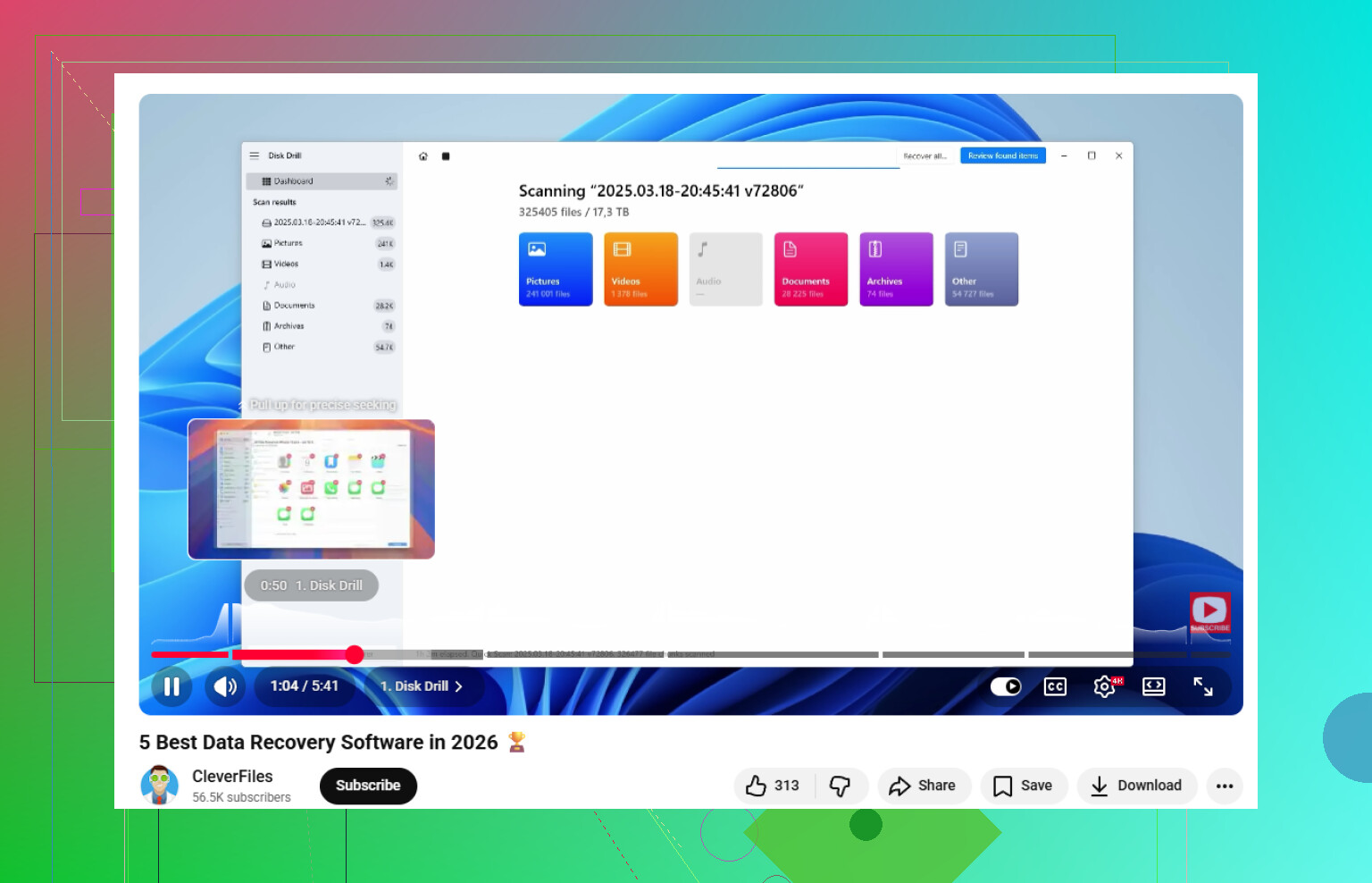
If you want a clean explainer, this video on SD card recovery with top-rated data recovery software covers the process in an easy way.
If you recover the files, retire the card. No second chances with flash media, imo.
Yep, I’ve recovered files from cards in exactly that “needs to be formatted” state.
I mostly agree with @mikeappsreviewer and @espritlibre, but I’d push one extra step higher than both of them: make a full image of the SD card first if the card is still readable at all. Not just because it’s safer, but because failing flash media can get worse fast. Every reconnect is kind of a dice roll. If you can clone it once, you can do all the experimenting on the image instead of the card itself.
Also, slight disagreement with the usual “try every fix in Windows first” advice. If these are really important photos/videos, I would not spend too much time letting Windows “repair” things before recovery. Sometimes the card is not really corrupted in the dramatic sense, just the file system metadata is damaged. Recovery tools can often pull the files without trying to make the card usable again.
What I’d check that hasn’t been stressed enough:
- See if the card reports the correct capacity
- If it shows the wrong size, that points more to controller/hardware failure
- If the files were from the same camera, look for sequential recoveries with proper file sizes
- For video, recover a few samples first and test playback before doing a huge dump
- If the recovered photos look fine but videos are broken, that’s often a separate issue
Disk Drill is a reasonable choice here because it’s good at pulling media from damaged SD cards and RAW/unmountable volumes, especially when you need photo and video signature scanning. I’d use it for recovery, then save everything to your computer or another external drive, never back onto the same card. Kinda obvious, but people still do that and then things go sideways.
One more thing people skip: if the card got yanked out while the camera write light was still blinking, corruption is super common. If that happened, chances are better that the memory chips are okay and the file system just got trashed.
If you want more SD card data recovery tips for corrupted cards and unreadable media, that thread is worth a look too.
And honestly, if you do get the files back, retire the card. Flash media loves to pretend it’s fine right before it ruins your weekend agian.