My iPhone photos are taking up a lot more storage than I expected, and I just realized many of them were saved as Live Photos. I want to remove the Live Photo motion part without deleting the actual pictures. I’m worried about losing important memories, so I need help figuring out the safest way to turn off or delete Live Photos while keeping every photo on my iPhone.
I hit the same mess a while back. I didn’t want my pics gone. I wanted the tiny motion clips stripped off so they’d stop eating space. I looked around iOS first, expecting some plain bulk switch to turn Live Photos into normal photos. Didn’t find one. Apple makes this oddly annoying.
Figure Out Which Job You’re Doing
People usually mean one of two different things here.
Option 1: Wipe out the Live Photos completely.
Option 2: Keep the image, dump the moving part.
Those are not the same cleanup job.
If you don’t care about keeping the shots, the fast route is built into Photos. Open the Live Photos album, select what you want gone, delete it, then empty Recently Deleted. If you skip the last part, your storage number won’t change right away. I missed this the first time. Felt dumb after.
What I Needed
I wanted all the photos kept, no exceptions. Only the Live part had to go.
You can do this by hand, sure. But it gets old fast. For a small batch, fine. For hundreds, it turns into tap, save, repeat, then cleanup after cleanup. I tried doing it manually and bailed pretty fast.
What Ended Up Working for Me
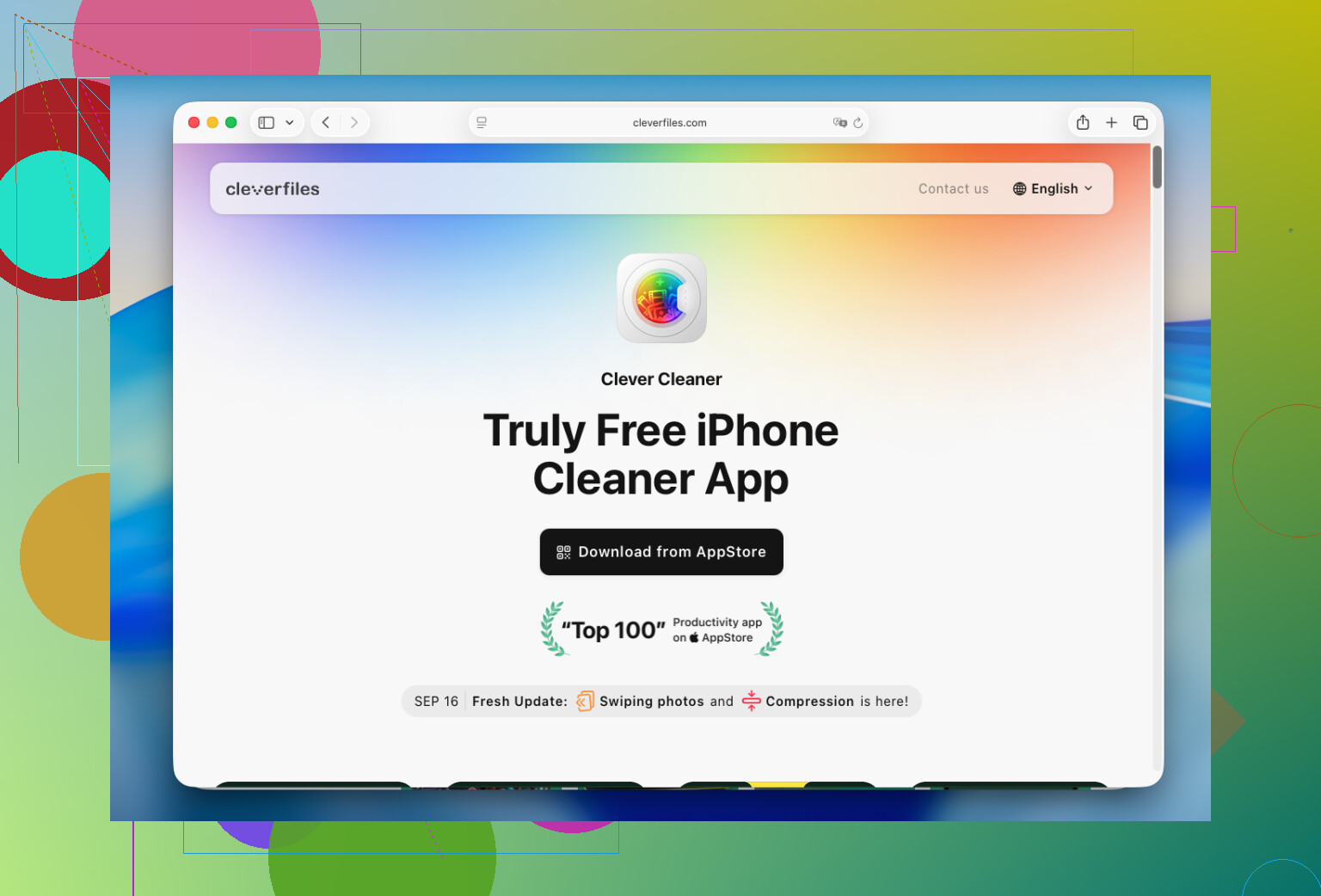
I used Clever Cleaner when the manual route started feeling like punishment.
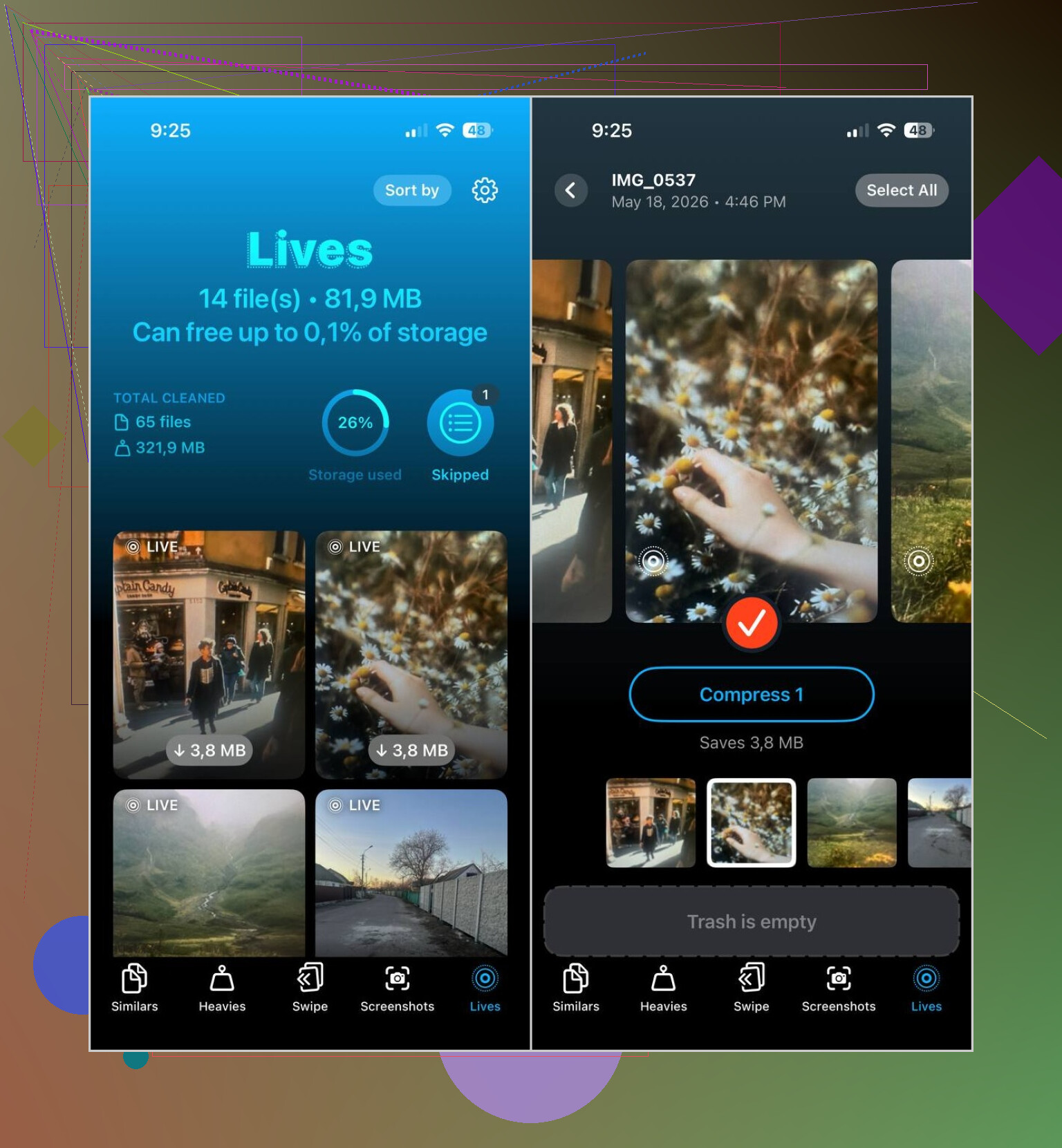
The useful bit is simple. It separates Live Photos into their own section. You open the app, hit Lives, and there they all are. No scrolling through years of random camera roll junk, no guessing which photo has motion attached and which one doesn’t.
This is the flow I used:
- Open the Lives tab
- Sort by date or file size
- Pick the ones you want to change
- Tap Compress
- Check the output
- Delete the original Live Photos if the still copies look right
Yeah, the wording is a little off. “Compress” sounds like smaller files only, but here it ends up turning Live Photos into regular stills, then lets you deal with the originals after. Weird label, useful result.
Stuff I Used After That
I grabbed it for one problem and ended up cleaning other junk too.
Similars caught piles of duplicate shots, especially from trips where I took six near-identical photos because one person blinked in each one.
Heavies was the one that surprised me. It pushed my largest videos to the top, and a few old clips were hogging multiple gigabytes on their own. I hadn’t looked at those in years.
Screenshots was the easy win. I cleared out old receipts, app settings, shipping updates, and random junk in a couple minutes. Stuff I never would have searched for one by one.
What I’d Do in Your Place
If you only have a handful of Live Photos, stick with the built-in Photos app and do it manually. No need to overcomplicate it.
If your library is packed with them and your goal is to keep the pictures while cutting the motion part, I’d skip the handwork. Clever Cleaner made this a lot less miserable for me. The Lives section feels like something iPhone Photos should’ve had from day one, tbh.
7 Likes
If your goal is keep the photo and lose the motion part, I would not start by deleting from the Live Photos album. That solves the wrong problem.
Best built-in route on iPhone:
- Open the photo.
- Tap LIVE at the top.
- Switch it to Live Off.
- Save as still photo.
The bad part is scale. Ten photos, fine. Five hundred, nope. Apple still has no clean bulk tool for this, which is kinda ridicilous.
I slightly disagree with @mikeappsreviewer on one point. Compression is useful, but I prefer thinking in terms of conversion first, cleanup second. You want a normal still copy confirmed before you remove anything.
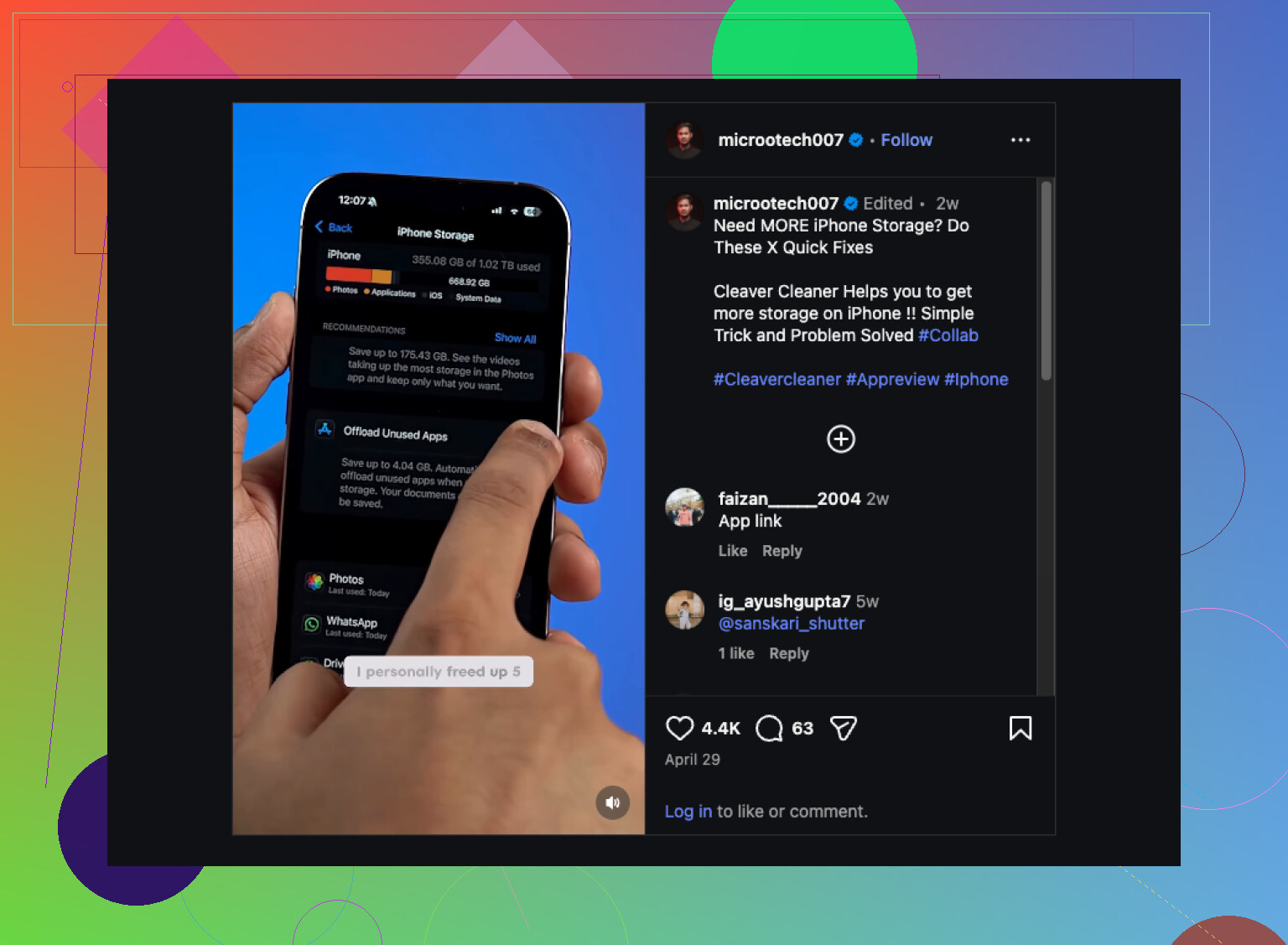
If you have a large library, Clever Cleaner is the easier route because it surfaces Live Photos fast, then you can convert and remove the motion-heavy originals in batches. That cuts storage without nuking your pics. Live Photos often take about twice the space of a still, sometimes more if the HEIC image was small and the video part was long enough to matter.
Also check your storage the right way:
Settings > General > iPhone Storage > Photos
Photos app numbers lag sometimes. iCloud Photos also muddies things if Optimize iPhone Storage is on.
If you want a quick visual on clearing iPhone storage without losing photos, this helped: smart ways to clear iPhone storage fast.
Short version. Keep the stills. Remove the Live component. Batch it if you have a lot, or you’ll be tapping for hours lol.
One thing I’d add to what @mikeappsreviewer and @kakeru said: before changing anything, check whether the space problem is actually on the iPhone or mostly in iCloud. A lot of people chase Live Photos, then realize videos and downloads are the real storage hogs. Live Photos do add up, but not always as much as ppl think.
If you want to keep every picture, the safest move is: make sure each Live Photo has a still version you can verify first, then remove the Live original after. I’m a little skeptical of doing this fully manual unless your library is tiny. It’s too easy to miss stuff.
Also, if your issue is ongoing, stop future bloat too:
Settings > Camera > Preserve Settings > Live Photo
then turn Live Photo off in Camera and it’ll stop coming back every time.
For bulk cleanup, Clever Cleaner makes more sense than poking around Photos forever. Its Live Photo cleanup is useful if your goal is to reduce iPhone photo storage without deleting the actual images. This guide on how to remove Live Photos and free up iPhone storage explains it pretty clearly.
So yeah, don’t delete the album blindly. Audit storage first, disable future Live shots, then convert/clean in batches. Way less risk of an “oh no I deleted the real pic too” moment.
Small correction to @kakeru, @stellacadente, and @mikeappsreviewer: I would not assume Live Photos are the main problem until you check what format your originals are using. If Optimize iPhone Storage is on, deleting or converting a bunch may barely change local storage right away because iPhone is already holding smaller device copies.
What I’d do first:
- Check Settings > Photos
- See if iCloud Photos is on
- See whether Optimize iPhone Storage or Download and Keep Originals is selected
That matters a lot.
Also, if your goal is to keep the exact still image, there’s a safer Apple-only trick people forget: on important Live Photos, use Duplicate first. That gives you a backup copy before you strip anything down. It is slower, yes, but less risky for favorite shots.
For bulk jobs, Clever Cleaner is reasonable because it groups Live Photos so you can review them faster.
Pros
- Easy to find Live Photos in one place
- Faster review than the Photos app
- Useful extra cleanup categories
Cons
- You still need to verify results before deleting originals
- Third-party app access to your library may not be for everyone
- Storage savings can be inconsistent if iCloud optimization is already doing most of the work
One more thing nobody mentions enough: if you edit a Live Photo heavily, double-check that the edited still version keeps the crop/filter you want before removing the Live original. That’s where mistakes usually happen, not in the deletion itself.