I’m trying to control my Apple TV volume with my iPhone, but the volume buttons aren’t working like I expected. I already set up the Apple TV Remote in Control Center, and I can navigate menus, but I still have to use my regular remote for sound. I need help figuring out what setting or device setup I’m missing so I can control Apple TV volume from my iPhone.
Controlling Apple TV volume from an iPhone is less direct than people expect.
The part tripped me up first was this. Apple TV itself does not keep its own volume level. It sends audio onward to your TV, receiver, soundbar, HomePod, or speakers. So when you think you are raising Apple TV volume, your iPhone is trying to tell the audio device at the end of the chain to go louder or quieter. If your setup supports it, it works. If not, the buttons sit there and do nothing. I ran into both.
The built-in route on iPhone
Add the Apple TV Remote to Control Center.
Swipe down from the top right.
Tap Add Controls, then Add a Control.
Search for Remote.
Add it.
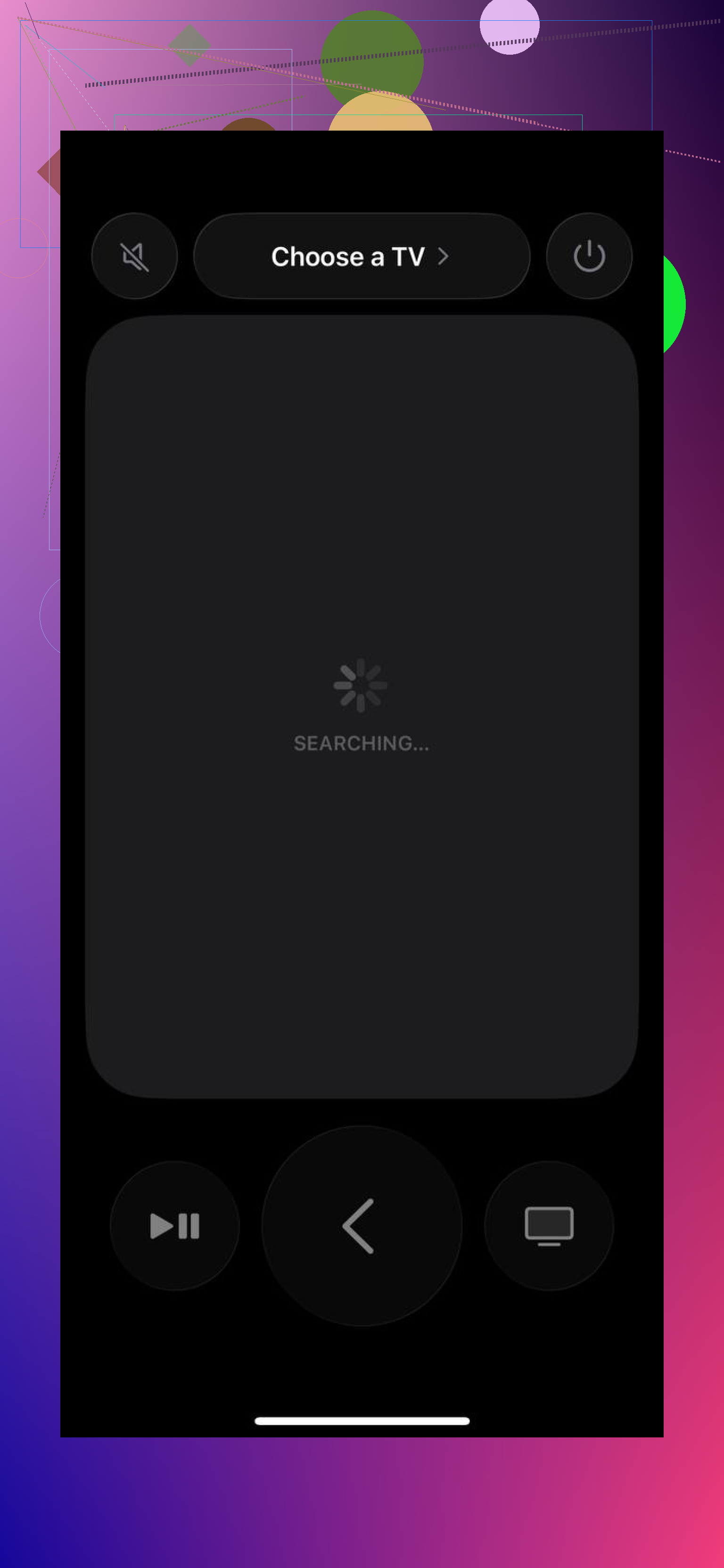
After tht, check two simple things.
Your iPhone and Apple TV need to be on the same Wi-Fi.
Then open the remote from Control Center, pick your Apple TV, and type the 4-digit code if iOS asks for it.
Once the remote is open, press the physical volume buttons on the side of your iPhone.
This is where people get mixed results
Those side buttons only affect volume in certain setups. I saw them work when Apple TV was sending audio to HomePod and AirPlay speakers. They also work when the TV or audio gear supports HDMI-CEC and CEC is turned on.
If your TV handles volume only through infrared, your iPhone has no path for that. It does not send IR. So you might get full navigation in the Apple TV Remote and still get zero response from the volume buttons.
What fixed it for me was checking the TV settings menu for HDMI-CEC. Brands rename it all over the place. Look for names ending with Link or Sync, or stuff like Anynet+, Bravia Sync, Simplink, Viera Link, CEC, and similar junk. Once enabled, the iPhone volume command goes to the Apple TV, then out over HDMI to the TV or audio device.
If pairing the Apple remote is a mess
I had better luck at one point using Universal Remote Control TVRem.
It supports Apple TV now, and for me it felt easier to connect than poking around Control Center when pairing kept failing or dropping off for no clear reason.
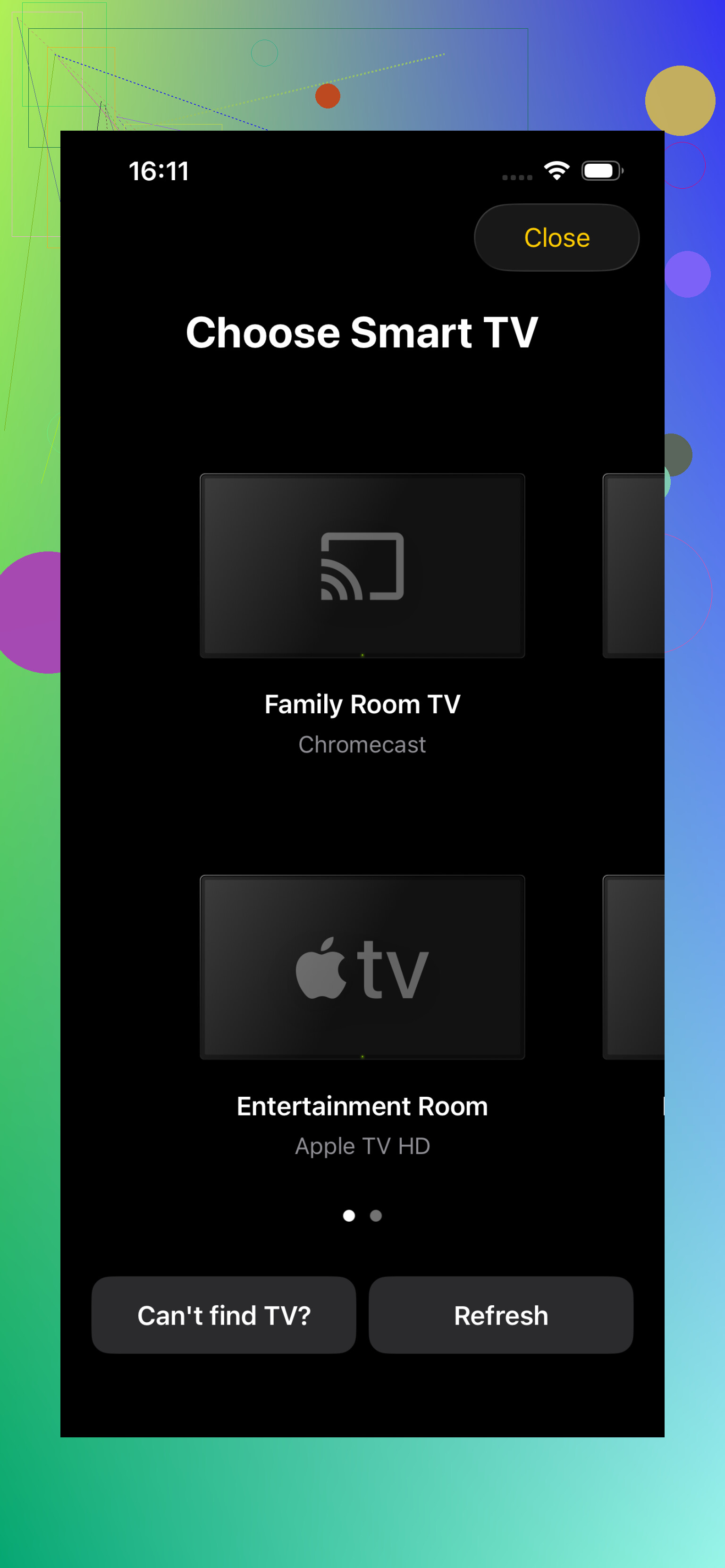
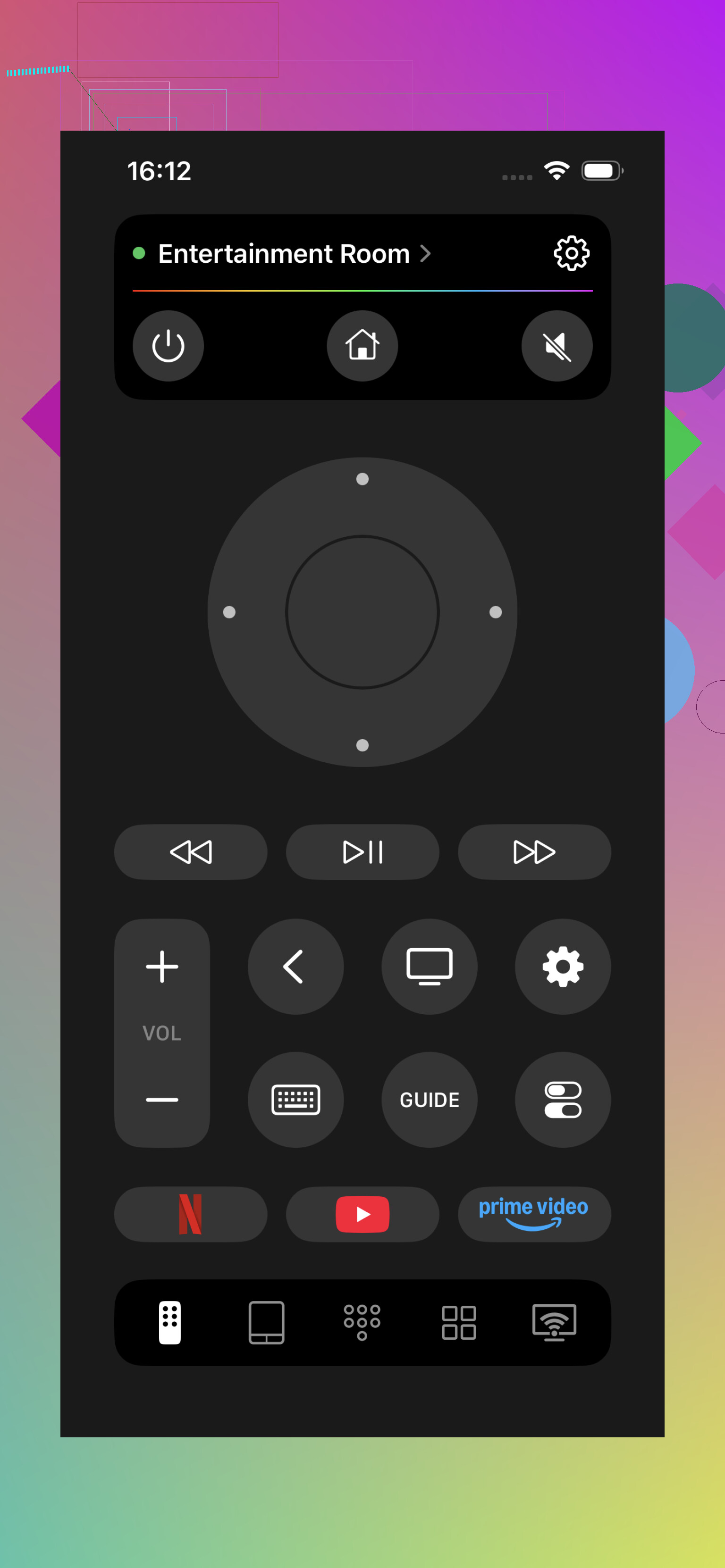
It also works with Roku, Samsung, LG, Fire TV, and Android or Google TV. If your living room looks patched together from five different years of tech, that part helps. The app sits at 4.8 stars from around 2,400 reviews.
One thing to keep straight
TVRem still uses Wi-Fi. So it does not bypass the hardware limit above. If your TV needs IR for volume and does not support CEC, no app on your iPhone is going to fix tht. You still need one of these:
CEC enabled on the TV or receiver
AirPlay speakers or HomePod
Your normal TV remote
Where TVRem helped more was ease of use and handling multiple device types in one place.
So, short version. If iPhone volume buttons do nothing while using Apple TV Remote, the problem is usually not the app. It is your TV or audio path. Check Wi-Fi first. Then check HDMI-CEC. That was the whole thing for me too.
12 Likes
One extra thing beyond what @mikeappsreviewer said. Check where your Apple TV audio is set to go.
On Apple TV, open Settings, Video and Audio, Audio Output. If it is set to TV Speakers, your iPhone volume buttons depend on the TV or receiver accepting the command path. If it is set to HomePod, stereo pair, or another wireless output, the iPhone buttons tend to behave more consistently.
Also check Settings, Remotes and Devices, Volume Control. If your Siri Remote is trained to control volume by IR, that explains why the iPhone fails. The Siri Remote has IR hardware. Your iPhone does not. Lots of people miss this part.
I disagree a bit with the idea that pairing is the main issue. If you navigate Apple TV fine, pairing is usualy not the problem. Audio routing is.
Fast test.
- Start music on Apple TV.
- Switch output to HomePod or AirPlay speaker.
- Try iPhone volume buttons again.
If volume works there, your iPhone is fine. Your TV audio path is the weak link. If not, reboot both devices. Sounds dumb, fixes weird Apple stuff more often then it should.
If you can navigate Apple TV from the iPhone remote, then I kinda disagree with blaming pairing first like @mikeappsreviewer hinted at. At that point, control is mostly fine. The missing piece is usually whether the Apple TV is allowed to pass volume commands to whatever actually makes sound.
One thing I’d check that @mike34 only touched on lightly: your receiver or soundbar’s HDMI input settings. Some gear has CEC on globally, but disables it per input, which is super annoying. If Apple TV is plugged into the “wrong” HDMI port, volume relay can fail even though power/input switching works.
Also, if you use your TV’s own speakers plus a cable box or soundbar sometimes, the TV may be switching audio modes behind the scenes. That can break iPhone volume control until you reselect the active audio output.
Another sneaky fix: on Apple TV, try toggling audio format settings. If it’s forced to a weird format, some older receivers get flaky with control passthrough. Set Audio Format back to Auto and test again.
So the real checklist is:
- same Wi-Fi for remote control
- CEC enabled everywhere, not just on the TV
- right HDMI port/input behavior
- audio output not bouncing between devices
- Apple TV audio format on Auto
If none of that works, then yeah, you’re probly stuck using the TV/receiver remote for volume. Annoying, but pretty normal tbh.
I’d split this into two separate jobs:
- iPhone controlling Apple TV
- Apple TV controlling whatever actually outputs sound
@codecrafter is right that audio routing matters more than pairing in most cases. But I slightly disagree with @mikeappsreviewer on one point: if the remote UI works, re-pairing over and over usually is not the best next move. It can help, just not first.
A thing nobody emphasized enough is how you launch the remote. If you open the Apple TV Remote from Control Center while some media is already playing on your iPhone, the side buttons can stay “attached” to the phone’s own media session instead of the Apple TV session. Force close the current audio app on iPhone, then reopen the Apple TV Remote and test again. Weird, but I’ve seen that cause fake failures.
Another check: Focus mode / Lock Screen behavior. On some iPhones, the volume HUD and Now Playing controls on the Lock Screen can hijack what the buttons are doing. Unlock the phone, keep the Apple TV Remote panel active, and try volume there instead of from the Lock Screen.
Also worth testing:
- remove any Bluetooth headphones from the iPhone temporarily
- disable Reduce Loud Sounds / Sound Check if you use HomePods or AirPlay
- make sure your receiver is not in a fixed-volume mode
If you want a cleaner all-in-one remote setup, TVRem: Universal Remote Control is decent for readability and juggling mixed devices.
Pros: simpler layout, handles multiple TV platforms, easier for households with different gear.
Cons: still depends on your network/device chain, won’t magically fix IR-only volume, another app to maintain.
So yeah, @mike34 and @codecrafter are mostly pointing at the real culprit: not the iPhone itself, but which device in the chain owns volume. If your setup is TV speakers over a stubborn HDMI path, the iPhone buttons may never be reliable.