I need help clearing out my iPhone photo library without losing the pictures I marked as Favorites. My storage is full, and I accidentally let thousands of photos build up, but some favorite photos are important and I don’t want to delete them too. Is there a safe way to delete all photos from an iPhone while keeping Favorites untouched?
Some photo libraries keep swelling until your phone starts acting dumb. I had one where the screen hung, Photos took forever to open, and the storage graph looked frozen no matter what I removed. What works depends on how you’re cleaning it up, so here’s the version I’d want someone to post before I wasted an afternoon.
Before you touch anything, watch out for iCloud Photos
This trips people up all the time. They delete pictures on the iPhone, then see them vanish from the iPad or Mac and think something broke. It didn’t. iCloud Photos syncs the same library across devices. Remove a photo in one place, it disappears everywhere tied to that library.
If you want to keep your pictures and only need space back on the phone, go to Settings > Photos and turn on Optimize iPhone Storage. Your phone keeps smaller versions locally, and the full originals stay in iCloud. I’ve seen this fix storage pressure without deleting a single shot.
If your photos already live somewhere else and you want them off the phone for good, then move on.
Working from a computer is usually less painful
On a Mac, I’d skip the Photos app. Use Image Capture. Photos tends to drag iCloud into the mess, which is the last thing I wanted when I was trying to clear a stuffed device.
Plug in the iPhone, open Image Capture from Applications, and wait. With a huge library, it can sit there looking dead for 30 minutes or more. Mine did. Then the thumbnails showed up all at once. From there, Command + A selects the lot, and delete handles it in one pass.
Windows works too, sort of. You go through File Explorer and open the DCIM folder. The problem is stability. Big deletes often fail halfway because the phone drops the connection or stalls. If you’re stuck on a PC, keep the batches under 500 files. It’s slower, but I had fewer errors doing it in chunks.
If you’re deleting straight from the phone
This is where things get ugly once the library gets big. Somewhere around 10,000 to 15,000 items, the Photos app starts feeling unreliable. Scrolling lags. Multi-select gets sloppy. If storage is nearly full, the app can freeze while trying to process a large delete.
Two things helped me before I tried a phone-only cleanup:
Delete one or two big apps first. A game, a downloaded video app, anything chunky. iOS needs some free working space to process deletions. If your storage is pinned to the ceiling, Photos tends to choke.
Don’t select everything at once. Do a few thousand, let it finish, then do the next batch. Trying to wipe the whole library in one swing is where I had the most failures.
For faster selection, there’s a trick. Tap Select, drag across the bottom row to start highlighting items, then with your other hand tap near the top of the screen while keeping the first finger down. The view jumps, and the selection keeps extending. It’s a little janky on huge libraries, but it beats dragging through endless thumbnails like a maniac.
Where the built-in Photos app falls short
This part annoyed me more than the lag.
You don’t get file sizes in any useful way. You can’t sort by size. You can’t quickly tell which video is eating 4 GB and which image is tiny. You don’t get a clean way to protect favorites during a mass delete. Near-duplicate shots, like five photos taken two seconds apart, aren’t grouped in a useful cleanup flow.
For casual browsing, Photos is fine. For trimming a giant mess, I didn’t find it good enough.
Clever Cleaner covers the stuff Apple leaves out
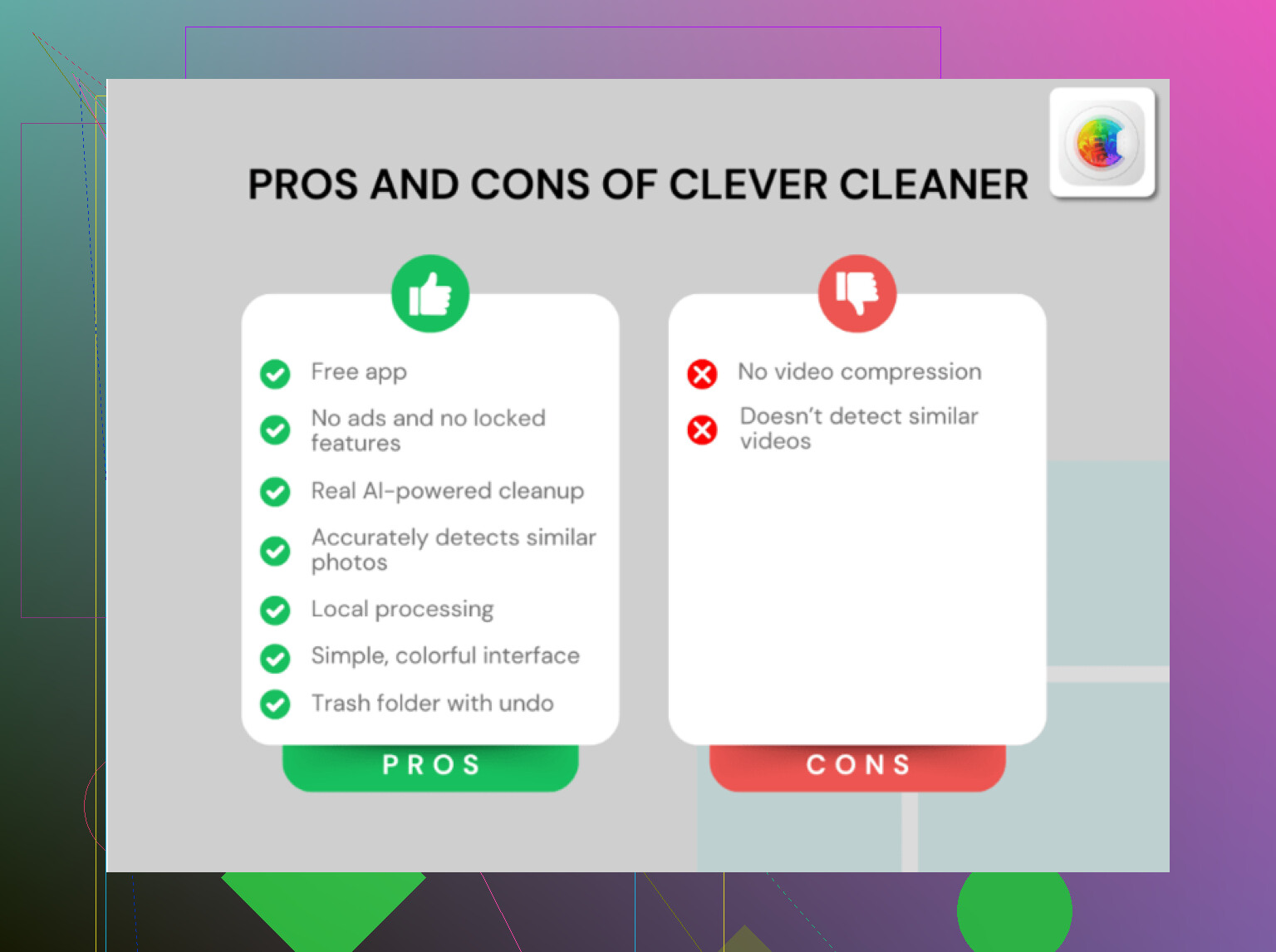
What stood out first, it’s free. No ads. No subscription wall. No fake “free” install where every useful button asks for money after two taps. On the App Store, that alone narrows the field a lot.
What it does better than the stock app:
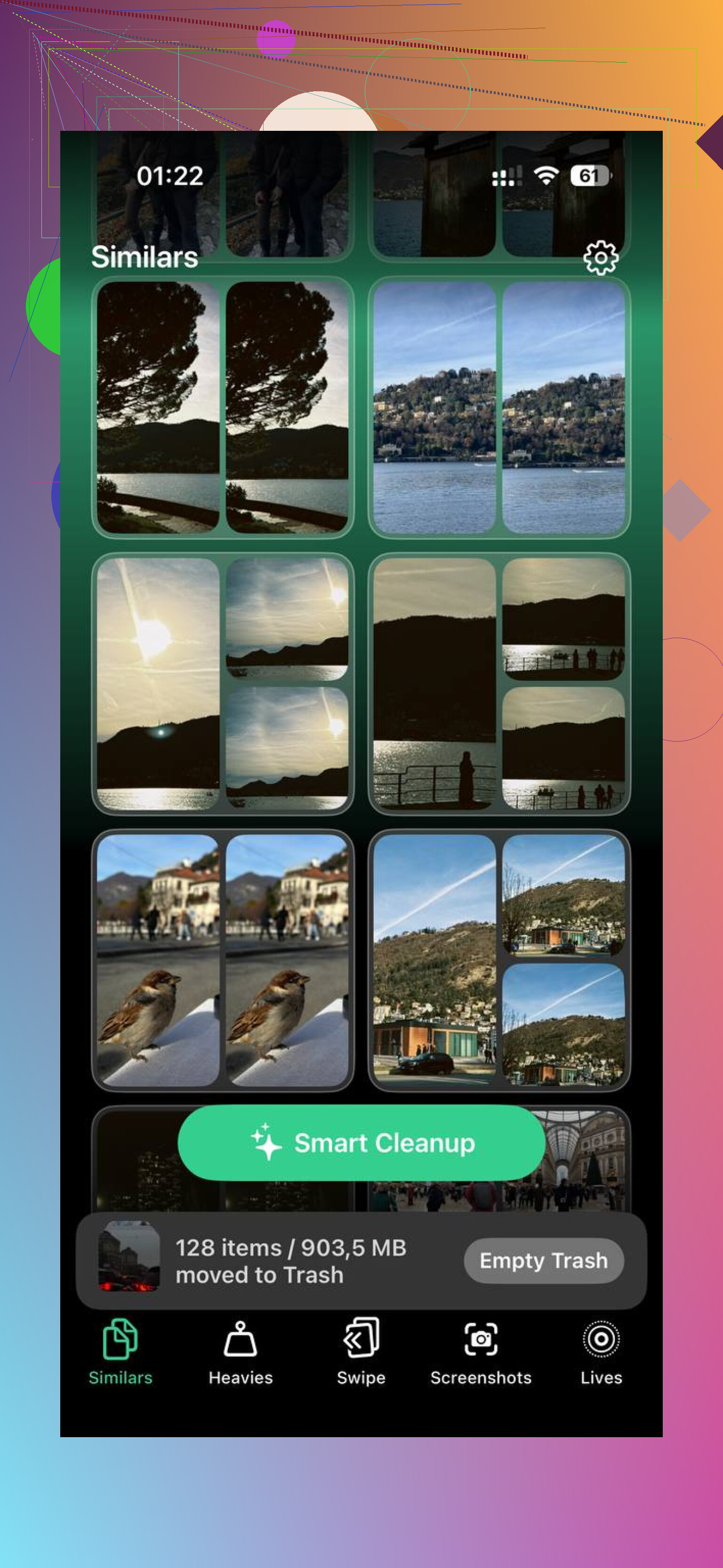
The Heavies section sorts your library from largest file to smallest. This is the part I wish Apple had built in years ago. You open it and the worst storage hogs are right there, big 4K clips, exports you forgot about, oversized junk sitting quietly in the background. Deleting ten giant files often freed more space for me than removing a few hundred normal photos.
The Similars section groups images that are close matches, not only exact duplicates. Burst shots, three tries at the same picture, frames taken seconds apart, they get bundled together so you keep one and toss the rest quickly.
The Screenshots section shows screenshots with the file size visible on the thumbnail. I liked seeing the number first instead of deleting blind.
And the processing stays on the phone. Nothing gets uploaded elsewhere for analysis. If your library has private chats, banking screens, work docs, or random personal stuff, that matters.
If your goal is “keep favorites, wipe the rest,” this kind of sorting is way easier here than in the default app. I tried doing the same thing in Photos and it was clumsy as hell.
The step people forget, and then think nothing worked
Deleting photos does not always free storage right away. Sometimes the number barely moves. Sometimes it doesn’t move at all. iOS sends deleted items to Recently Deleted in Albums under Utilities, and they sit there for up to 30 days. While they’re there, they still count against your storage.
So after cleanup, go to Albums, open Recently Deleted, tap Select, then Delete All. That’s the part that usually makes the storage figure drop. Before that, you’ve mostly moved clutter from one room to another.
If the storage total still looks off after emptying Recently Deleted, restart the phone. I’ve had iOS hang onto the old number until after a reboot. Then it finally updated.
26 Likes
Best way is to invert the problem.
First, save your Favorites into a separate place. On iPhone, open Photos, go to Favorites, tap Select, then Share, then Save to Files or AirDrop them to a Mac. If you use the Files route, make one folder called Favorites Backup. This matters because the Favorites heart is only a tag, not a protected vault. If you mass delete badly, those photos go too.
After you back them up, make a new album and add all Favorites there too. Album membership is easier to verify than scrolling a huge heart list. I trust albums more than the tiny icon, tbh.
Then remove the rest in the Library tab by month, not by “All Photos” in one giant swipe. Less lag, fewer failed deletes. I disagree a bit with @mikeappsreviewer on one part, I think the built-in Photos app is fine if you split the job into smaller chunks and backup first.
If sorting the mess is taking forever, Clever Cleaner helps surface large files and dupes faster. Worth a look if your library is chaos. Try free Clever Cleaner for iPhone photo cleanup.
Last step, re-import only the Favorites backup if you wiped everthing. Check Recently Deleted too, or storage wont drop.
Favorites on iPhone are not “locked.” That’s the part people miss. The heart is just a label, so if you bulk delete carelessly, your Favorites go with everything else.
I’d do it this way instead of only relying on the Photos app flow @mikeappsreviewer and @kakeru talked about:
- Make a new album called something like KEEP.
- Go to Favorites, select all, and add them to that album.
- Export that album somewhere outside Photos first. Files app, Mac, external drive, whatever. This is the real safety net.
- Then on iphone.com? Nope. On the iPhone itself, go to Library and delete in chunks, not all at once.
One thing I slightly disagree on: re-importing later can create a messy library with duplicates and lost dates if you do it wrong, so I’d rather archive Favorites first than nuke everthing and rebuild from scratch.
Also, if your main goal is space, don’t just target photo count. Target size. A few giant videos usually hurt more than 2,000 random pics. That’s where Clever Cleaner is actually useful, because it surfaces big files and similar shots way faster than Apple’s app does.
And yeah, empty Recently Deleted or none of this means squat.
If you want a visual walkthrough, this step-by-step iPhone photo cleanup guide is probly easier than guessing through menus.
Favorites are just a tag, so I’m with @kakeru and @suenodelbosque on not trusting the heart alone. Where I differ a bit from @mikeappsreviewer is I would not jump straight to mass deletion unless you first use the Photos search filters to isolate what you do not care about, like screenshots, screen recordings, WhatsApp junk, and videos. That trims risk fast.
If you want the safest path without rebuilding the whole library:
- Duplicate your Favorites into a normal album.
- Delete obvious clutter categories first.
- Only then do broad library cleanup.
Also, check Shared Library. People forget photos can sit there too.
Clever Cleaner can help if the library is too messy to sort manually. Pros: easy view of big files, duplicates/similar shots, simple cleanup. Cons: another app has to scan your library, and I would still verify before deleting anything important.
So, not “delete all except Favorites” first. More like “remove the worst junk first, then decide if a full wipe is even necessary.”
Use Apple Shortcuts to delete every non-favorite photo automatically.
Open Shortcuts, tap +, then add Find Photos. Set the filter to Is Favorite, is false. Add Delete Photos as the next action. Set a 20-photo limit and run it frist. Check the selected picures carefully. If everything looks right, remove the limit and run it again.
iPhone will ask you to confirm deletion. Your Favorites stay untouched. Empty Recently Deleted afterward to reclaim storage. Keep an iCloud or computer backup before running the full shortcut.
Saving Favorites through Share then Save to Files doesn’t preserve everything the way a couple of people here are assuming. Regular photos come through fine, but Live Photos usually flatten to a still or split into a separate video file, and edits can bake in or get dropped depending on the format. If any of your favorites are Live Photos or heavily edited, check them after the export before you trust that backup and start deleting.
The Shortcuts method @vladthedebugger posted is honestly the least error-prone way to do the actual ‘keep favorites, wipe the rest’ part, way cleaner than dragging through thousands of thumbnails and praying the selection doesn’t slip. One caveat though: that shortcut deletes from the library, and if iCloud Photos is on, that means everywhere. So do the favorites backup first, run the test batch, and only then let it loose. Also worth remembering the Find Photos filter only cares about the heart tag, so if you mislabeled stuff months ago, it’s gone.
Where I’d slow down is the assumption that a full wipe is even the goal. If your problem is storage and not clutter, deleting 12,000 small photos might barely move the needle while three long 4K videos are eating most of your space. That’s the one spot Clever Cleaner earns its place here, sorting by size so you can nuke the heavies first. Do that, empty Recently Deleted, and there’s a decent chance you free enough room that you don’t need to delete the whole library at all.