I’m trying to clean up my iPhone photo library and remove a bunch of unwanted pictures at once, but I’m worried about accidentally deleting all my photos or removing them from iCloud too. What’s the safest way to select and delete multiple photos on iPhone without wiping everything?
If your iPhone is yelling about storage and Photos is the problem, don’t waste time tapping pictures one at a time. That gets old fast. When I checked mine, I had more than 18,000 photos sitting there, so I ended up using a few different cleanup methods depending on what I was trying to remove.
For smaller cleanups, the regular Photos app is fine. Open Photos, tap Select, then drag your finger across rows of photos instead of selecting each one separately. If you’re dealing with a lot of pictures from one month or trip, pinch out to the Months view first. It makes grabbing bigger chunks much easier. Once everything is selected, hit the trash icon.
The built-in app is also decent if you want to wipe out certain types of media. Go into Photos, open the Collections tab, then scroll down to Media Types. Albums like Screenshots, Bursts, and Screen Recordings are already separated for you. Open one, tap Select, then Select All, and delete what you don’t want. That Select All button saves a lot of time.
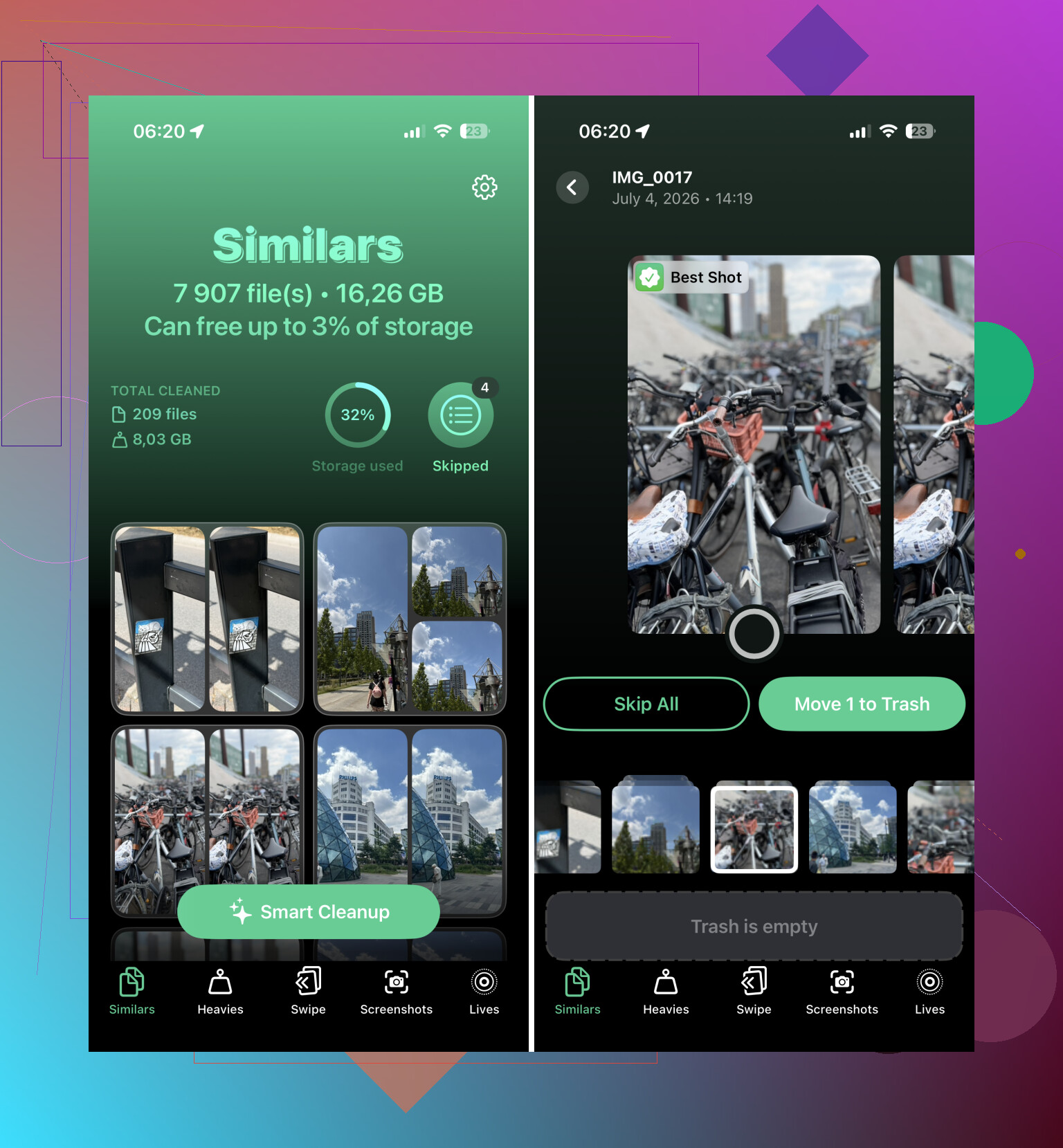
For a big library, Clever Cleaner was the most useful option for me. I usually avoid cleaner apps because a lot of them are annoying, full of ads, or locked behind subscriptions, but this one is free and it handled a large photo library pretty well.
After you install it, check the Similars section first. It groups photos that look almost the same and marks what it thinks is the Best Shot, so you can keep the better one and remove the extras. The Screenshots section is good for bulk deleting junk screenshots. Live Photos can be reviewed too, especially if you want to turn some into normal still photos to save space. Also check Heavies, because large videos usually free up way more storage than deleting a bunch of regular photos.
If you’re removing thousands of photos, doing it from a computer can be less painful. Go to iCloud.com if you use iCloud Photos, sign in, and use Shift-click to select large ranges. Delete the photos there, then give your iPhone time to sync the changes. A keyboard and mouse are just easier for this kind of cleanup.
The nuclear option is a factory reset. Only do this if you truly don’t need anything left on the phone, or you already backed up the stuff you care about. Go to Settings > General > Transfer or Reset iPhone, then choose Erase All Content and Settings. Follow the prompts and the phone gets wiped.
I wouldn’t reset the phone just to clean up a messy photo library, but if you’re selling it, giving it away, or starting over completely, it’s the fastest way to clear everything at once.
20 Likes
Deleting from Photos is not really “from this iPhone only” if iCloud Photos is turned on, so that’s the trap I’d check before doing any big cleanup. Mike’s drag-select method is fine, but first go to Settings > your name > iCloud > Photos and see whether syncing is enabled. If it is, anything you delete will eventually disappear from iCloud and your other Apple devices too, though it sits in Recently Deleted for about 30 days unless you empty that folder. If your goal is just to free phone storage while keeping the library, don’t mass-delete. Turn on Optimize iPhone Storage instead, or export the photos somewhere else first. Then delete in smaller batches and check Recently Deleted before clearing it permanently.

Deleting twenty bad screenshots is a different job from pruning ten years of family photos, so I’d treat them differently instead of doing one huge select-and-delete run.
For the safest cleanup, make a copy somewhere first if any of the photos matter. That means a real export to a computer, external drive, Google Photos, Dropbox, etc., not just “my iPhone is backed up.” People mix up iCloud Backup and iCloud Photos all the time. If iCloud Photos is on, deleting a photo from the Photos app deletes it from iCloud Photos too after syncing. A backup is not a magic undo button for individual photo cleanup.
For ordinary bulk deleting, I’d do it in batches like this:
- Open Photos and go to a narrow area first, like Screenshots, Videos, Selfies, or a specific month.
- Tap Select.
- Drag across photos to select a group, but stop before you get into anything you’re unsure about.
- Tap the trash can.
- Go to Recently Deleted and check what landed there before emptying it.
That last step matters. Recently Deleted is your safety net, but only if you actually look at it before clearing it. Don’t delete 4,000 items, panic, then immediately empty Recently Deleted because a storage warning is still showing. The phone may not show the freed space until after that folder is emptied, but emptying it is the point where the mistake becomes much harder to fix.
I agree with the iCloud warning above, but I’d be a little more cautious than using “Select All” unless you’re inside something disposable like Screenshots or Screen Recordings. Select All inside Recents or a broad date range is where people get burned. If you’re tired and the library view jumps around, it’s easy to include photos you didn’t mean to touch.
A useful trick is to favorite anything you absolutely want to protect before cleaning. It is not a lock, and it will not stop you from deleting the photo, but it gives you a visual check. If you’re selecting a bunch of junk and you see hearts mixed in, slow down. Same idea with albums: you can create a “Keep” album for important stuff, but remember that albums are just organization. Removing a photo from an album is different from deleting it from the library.
For duplicates and near-duplicates, apps like Clever Cleaner can be handy, but I would not let any cleaner app make the decision for you without reviewing the selections. The “best” photo is sometimes the sharpest one, not the one you actually like. Use it to group similar shots, then make the final call yourself.
If your goal is only to free space on the iPhone, deletion may be the wrong tool. Turn on Optimize iPhone Storage if you use iCloud Photos. That keeps smaller versions on the phone and full versions in iCloud. If your goal is to permanently shrink the whole library, then deleting is fine, but assume it deletes everywhere that iCloud Photos syncs.
Small batches are slower, but they’re the least stressful way to do this. Delete 100 or 200, check Recently Deleted, then continue. The dangerous version is trying to clean the entire library in one sitting while half-watching TV and trusting your thumb.
Make a temporary “Delete later” album first and use that as a staging area instead of sending photos straight to the trash. Select the photos you think you want gone, tap the share button, add them to that album, then leave it for a day or at least review it once more before deleting. It does not make extra copies, but it gives you a cleaner place to inspect your choices without scrolling through your whole library.
The important catch is that albums are not folders. If you open that temporary album and only choose “Remove from Album,” the photos stay in your library. If you actually want them gone, you need the option that deletes them from the library. Read the prompt before tapping, because Apple’s wording matters there.
I agree with the iCloud warning already mentioned. Do not assume “I’ll just delete them from the phone” unless iCloud Photos is off and you understand what that means. With iCloud Photos on, deleting from the library is a synced deletion. It is meant to keep all devices matching, so your iPad, Mac, and iCloud.com will follow along.
For selecting, I’d avoid starting in Recents if you have a messy library. Use Search or Media Types first. Search for things like “receipt,” “whiteboard,” “screenshot,” a place name, or a month/year, then select from those results. It is much harder to accidentally grab vacation photos when you are looking at a narrow pile of junk.
And don’t empty Recently Deleted immediately. Treat it like a holding pen, not a trash chute. Delete a batch, check that folder, make sure nothing important is sitting there, then clear it only when you are sure. The extra minute is less annoying than trying to recover a photo you deleted while speed-tapping.