I’ve been creating AI-generated photos, but they still look fake with odd skin texture, lighting, and background details. I need help figuring out what settings, prompts, or editing steps can make AI images look more realistic and natural for better results.
If you want AI photos to pass as real at a glance, the input matters more than anything else. I got the cleanest results when I used recent selfies with soft daylight, no weird shadows, no beauty filters, and a mix of angles. Front-facing only was a mistake for me. A few side angles helped a lot. Neutral face worked better too. Big smiles, sunglasses, motion blur, and old photos gave me outputs with odd skin, weird teeth, or eyes that looked off.
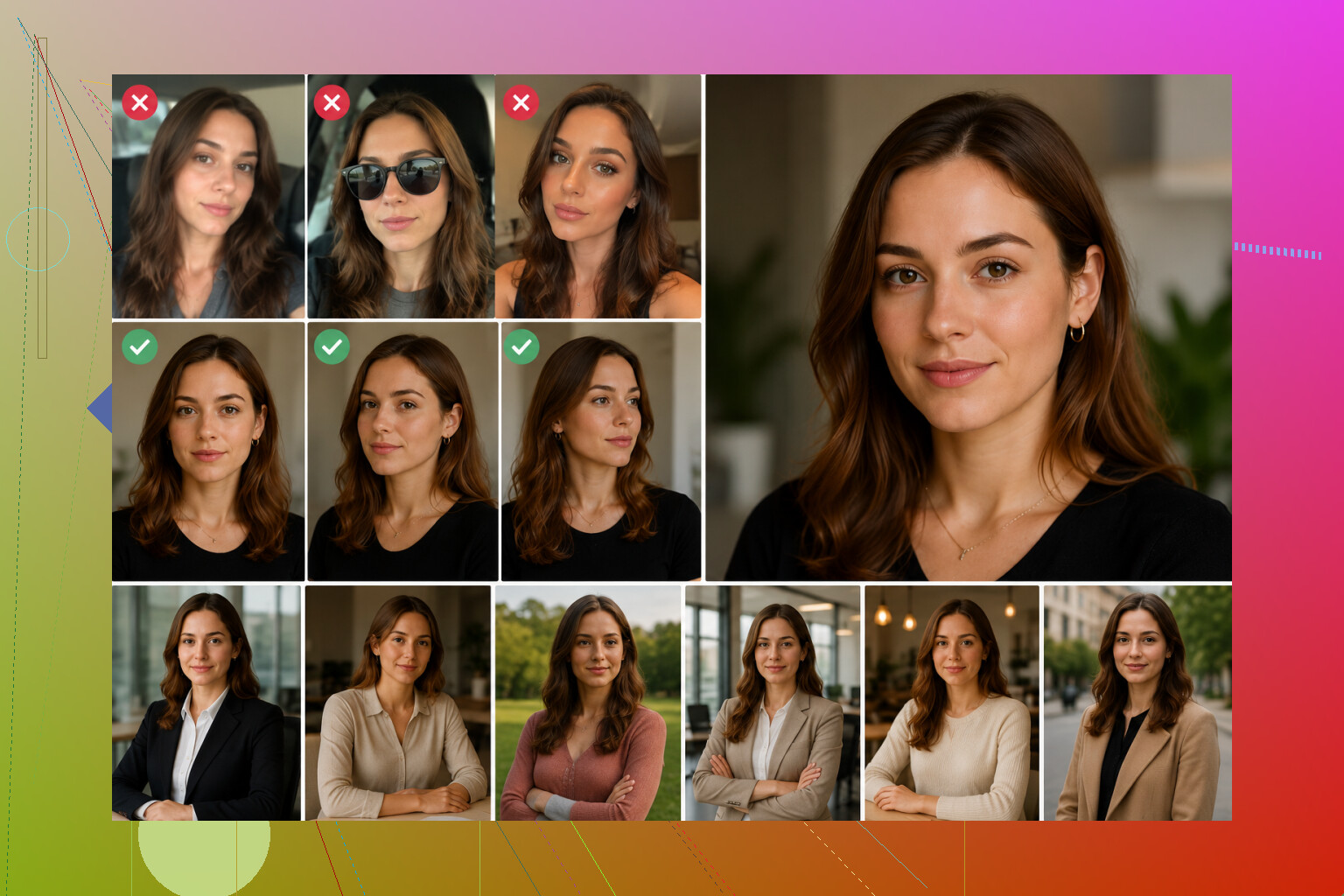
The template choice matters more than people think. If you feed the app realistic styles, you usually get something usable back. I had better luck with plain business headshots, outdoor portraits, and simple everyday shots. Stuff with dramatic lighting or overly polished fashion looks tended to drift into fake-looking skin and strange facial structure. I also would not keep the first image batch. I’d run a few sets, then compare small details. Eyes first. Then skin texture. Then jawline and face shape. If one of those looked off, the photo was done.
The app matters too. Some of them smooth everything into plastic. Some mess up symmetry. Some are decent with faces but fail on hairlines or ears. I noticed a big gap between general AI photo tools and apps built for portraits.
One option I tried was Eltima AI Headshot Generator app. What stood out to me was how focused it is on portrait output. I did not need to write prompts or tweak a bunch of settings. I uploaded the selfies, let it build the face model, and the results stayed more consistent from image to image than what I saw in broader image generators.
The app flow is pretty plain. You upload your selfies first. Then it builds your profile. After tht, you pick a style pack. The more useful ones, at least from what I saw, were LinkedIn Headshots for clean work photos, Corporate or Business Portraits for formal office-style images, Casual Lifestyle for normal everyday portraits, and the Social Media or Instagram-style packs for something less stiff.
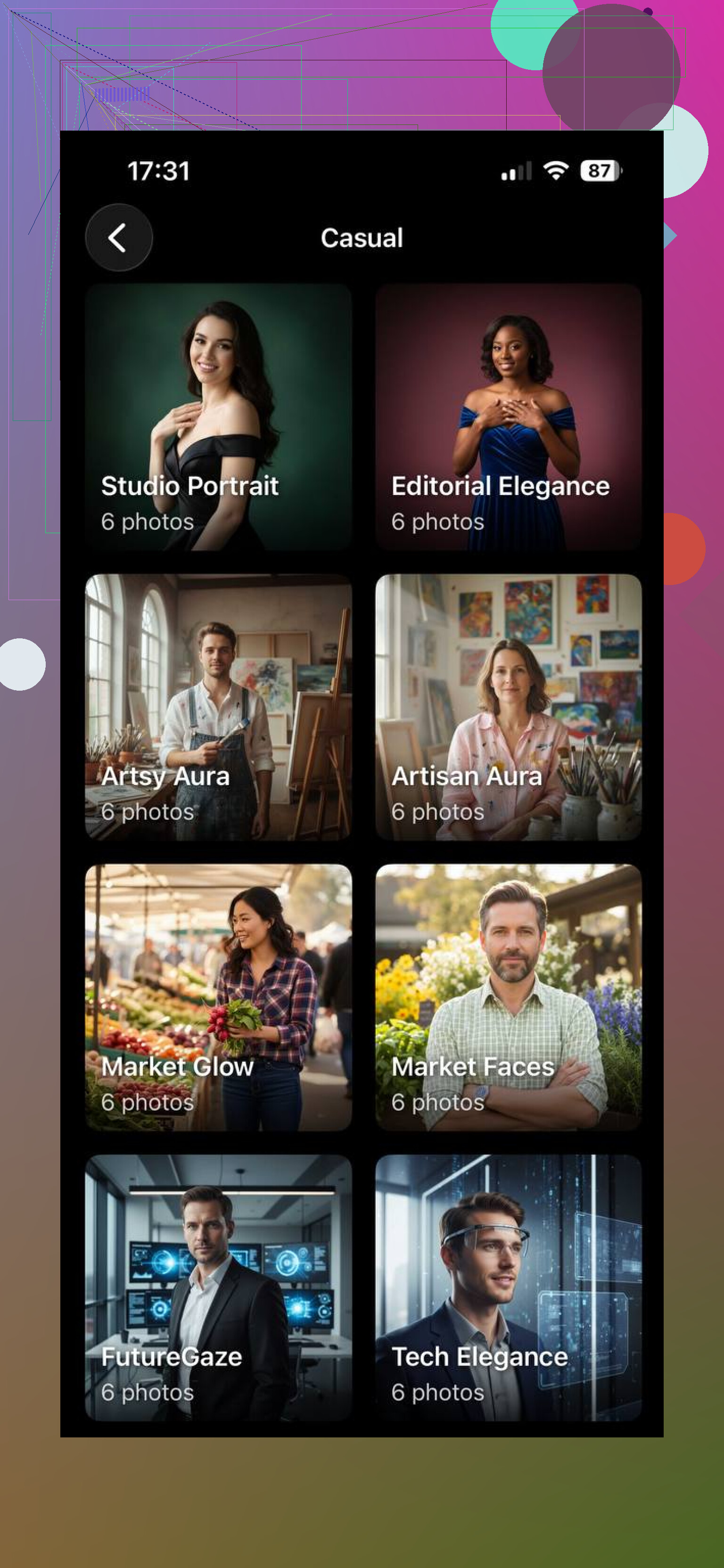
If you’re using the Eltima AI app, the process is simple enough. Upload a varied set of selfies. Wait while it builds your profile. Pick a pack. Generate a batch. Then be picky. I had better results when I mixed packs instead of staying inside one style the whole time. A business set plus a casual set gave me more natural-looking picks than repeating the same template over and over.
31 Likes
I’d focus less on the model picker and more on image physics. A lot of fake-looking AI photos fail because the scene does not obey a real camera.
Try this:
-
Prompt for camera limits.
Use terms like 50mm lens, f/2.8, natural skin pores, subtle under-eye texture, realistic catchlights, soft ambient bounce, shallow depth of field, sensor noise, compressed background. Those cues push it toward photo behavior. -
Add negatives.
plastic skin, oversmoothed face, extra fingers, warped ears, asymmetrical eyes, melted teeth, double jewelry, floating hair, fake bokeh, text, distorted background. -
Lower stylization.
If your tool has stylize, creativity, CFG, or prompt strength, pull it down a bit. High values often make skin waxy and backgrounds weird. -
Fix lighting in post.
Use Lightroom or Snapseed. Lower clarity on skin a tiny bit, not global blur. Reduce highlights. Lift shadows a little. Add grain, around 10 to 20. Slight vignette. Warmth only a touch. This hides the sterile AI look. -
Keep backgrounds boring.
I disagree a bit with people who chase lots of templates. Fancy sets often break first. Plain wall, office, street, park bench, window light. Boring works. -
Check zoomed in at 200 percent.
Hairline, ears, teeth, hands, shirt collars. AI still screws those up alot.
@mikeappsreviewer is right about consistency from portrait-focused apps, but even there, post-editing is what sells the shot. Raw output is rarely enough.
I’d add one thing neither @mikeappsreviewer nor @suenodelbosque really leaned on enough: stop trying to make the AI do everything in one pass.
Most fake-looking images happen because people ask for realism, perfect skin, cinematic lighting, detailed background, fashion styling, and expression all at once. That combo usually breaks. Split the job up.
What helped me:
- Generate the face and pose first with a super plain scene
- Inpaint only the problem areas instead of regenerating the whole image
- Swap backgrounds later if needed
- Match color temperature across subject and background before sharpening
Also, I kinda disagree with the “add grain and vignette fixes it” idea. Sometimes that just hides defects instead of solving them. If the lighting direction is wrong or the skin texture is inconsistent, grain won’t save it.
Big thing people ignore: facial asymmetry. Real faces are slightly uneven. AI often makes them either too perfect or weirdly crooked. A tiny liquify adjustment in post can make a pic look way more human.
Another trick is to intentionally keep some imperfections:
- slight flyaway hairs
- tiny skin marks
- mild fabric wrinkles
- uneven background blur
If everything is too clean, it screams AI. Real photos are messy. That’s the part people skip, and then wonder why it still looks off lol.
I’d add one thing the others only touched indirectly: realism often dies at the composition stage, not the skin stage.
If the framing feels like no human photographer would take it, the image reads fake even before you zoom in. Watch for:
- camera too high or too low for the pose
- shoulders at weird angles
- background horizon cutting through the head
- hands placed where a real person would never rest them
- clothing folds that ignore gravity
I slightly disagree with the “just use plain setups” advice. Simple backgrounds help, sure, but realistic complexity can actually make an image feel more real if it’s coherent. A café booth, office desk, hallway, or car interior often looks more believable than an empty perfect wall because real photos usually contain context.
What I’d do differently:
- Prompt for situation, not beauty
Instead of “ultra realistic beautiful portrait,” try:- waiting at a coffee shop table
- standing near office window after work
- candid street portrait while looking away
- friend-taken iPhone photo
Those setups naturally produce believable posture and imperfections.
-
Use less centered symmetry
AI loves dead-center faces. Real photos often have slight misalignment, head tilt, partial crop, or one shoulder closer to camera. -
Downgrade perfection
Ask for:- light frizz in hair
- faint smile lines
- slightly uneven sweater texture
- natural phone-camera dynamic range
- minor lens softness at edges
-
Match the source type
If you want a phone photo, don’t prompt DSLR language. If you want a studio portrait, don’t ask for messy casual lighting. Mixing those cues causes that uncanny fake blend. -
Use selective post, not global fixes
Most people edit everything equally. Bad move. Adjust only:- face shine
- eye whites
- neck tone
- background sharpness
- clothing wrinkles if they look synthetic
On tools, @mikeappsreviewer, @suenodelbosque, and @sognonotturno all make fair points. If you want something easier for portraits specifically, the Eltima AI Headshot Generator app is worth a look.
Pros
- portrait-focused output
- easier consistency across batches
- less prompt tinkering
- useful if you mainly want headshots, profile pics, business photos
Cons
- you still need to curate and lightly retouch results
- not ideal if you want complex scenes or highly custom concepts
My blunt rule: if an image looks fake in thumbnail view, don’t try to save it with editing. Regenerate. Post should polish realism, not invent it.
Alternative, simpler path. Fake a phone photo pipeline.
- Generate bigger than needed.
- Downscale to 1080 px long edge.
- Export JPEG at quality 70 to 80, sRGB.
- Add 2 percent luminance noise, slight chroma noise.
- Add 0.3 px chromatic aberration at edges.
- Add 0.2 px motion blur in subject direction.
- Light local sharpen, radius 0.3.
- Copy EXIF from a real iPhone photo with exiftool.
- Crop to 4:5 or 3:4.
People judge in feed view. This pipeline hides AI tells alot. Run 5 images, pick 1. Keep faces mid frame, avoid heavy retouch.