I need help transferring my files from Amazon Drive to Google Drive because Amazon Drive is shutting down soon. I have a large amount of photos and documents stored and want to make sure I don’t lose anything. What are the easiest and safest ways to move everything over? Looking for step-by-step advice or any tool recommendations.
How I Shifted Data from S3 to Google Drive: Manual Grind vs. the Drag-and-Drop Dream
So, there I was, staring down a mess of files on AWS S3, needing to get them over to Google Drive. Here’s what actually worked for me, with a couple of action shots and a detour or two along the way.
The “Old-School” Way – Download, Then Upload (Rinse and Repeat)
Let’s be real: If you only need to move a handful of files, you don’t need anything fancy. You barely even need instructions, but maybe you want to double-check you aren’t missing a shortcut. Here’s how I did it when I just wanted to get a few PDFs off S3 and stop thinking about it.
-
Logged into AWS S3.
-
Poked around my buckets ‘til I spotted the files I wanted. Pro tip: The search isn’t as clever as I wish.
-
Highlighted the files and hit download. Waited for the browser to do its thing.
-
Hit up Google Drive in a new browser tab.
-
Smashed that Upload button and tossed the freshly downloaded files in.
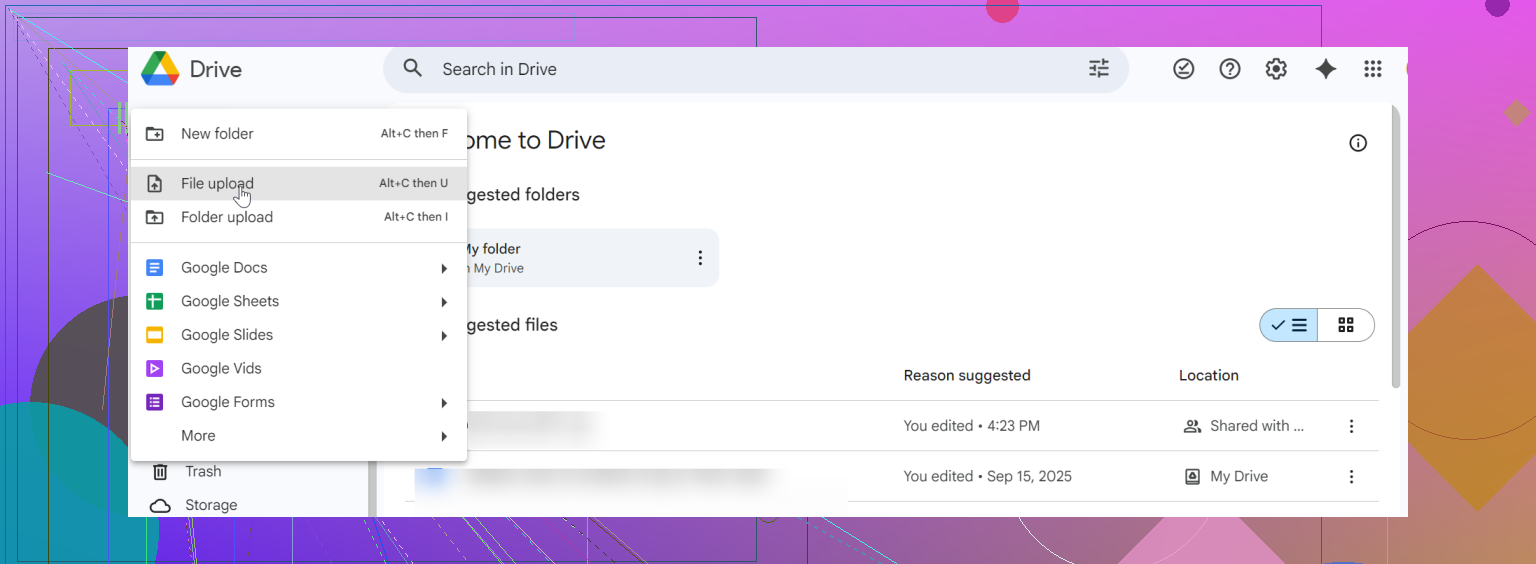
If your dataset isn’t the size of a small town’s photo archive, this is painless—ten minutes, max.
What If You’ve Got a Boatload of Data?
Moving a dozen files? Easy. Moving thousands? I’d rather organize my sock drawer by color and emotional resonance. That’s the moment I started looking around for something kinda, well, modern.
My Desk Is Now a Cloud Highway: CloudMounter
Enter CloudMounter, which honestly felt like cheating at first. I’m not plugging it—I’m skeptical of anything that claims “seamless”—but after giving it a run, here’s what shook out.
Basically, CloudMounter turns your cloud accounts into extra drives on your desktop. Google Drive, S3, Dropbox, OneDrive—all there, looking as normal as your C:/ drive. Once connected, you just drag files from S3 to Google Drive right inside File Explorer (Windows) or Finder (Mac), skipping all the browser jazz.
Setting Up Google Drive in CloudMounter (AKA: 3 Steps to Chill)
-
Fire up CloudMounter and tap on the Google Drive logo in the welcome window.
-
Punch in your login details, hit “Mount.”
-
Boom: Your Google Drive is now a “disk” in Finder or File Explorer. It sits next to your regular folders.
-
Click on your shiny new Google Drive folder, shuffle things around, and you’re golden—no duplicate downloads, no browser induced rage.
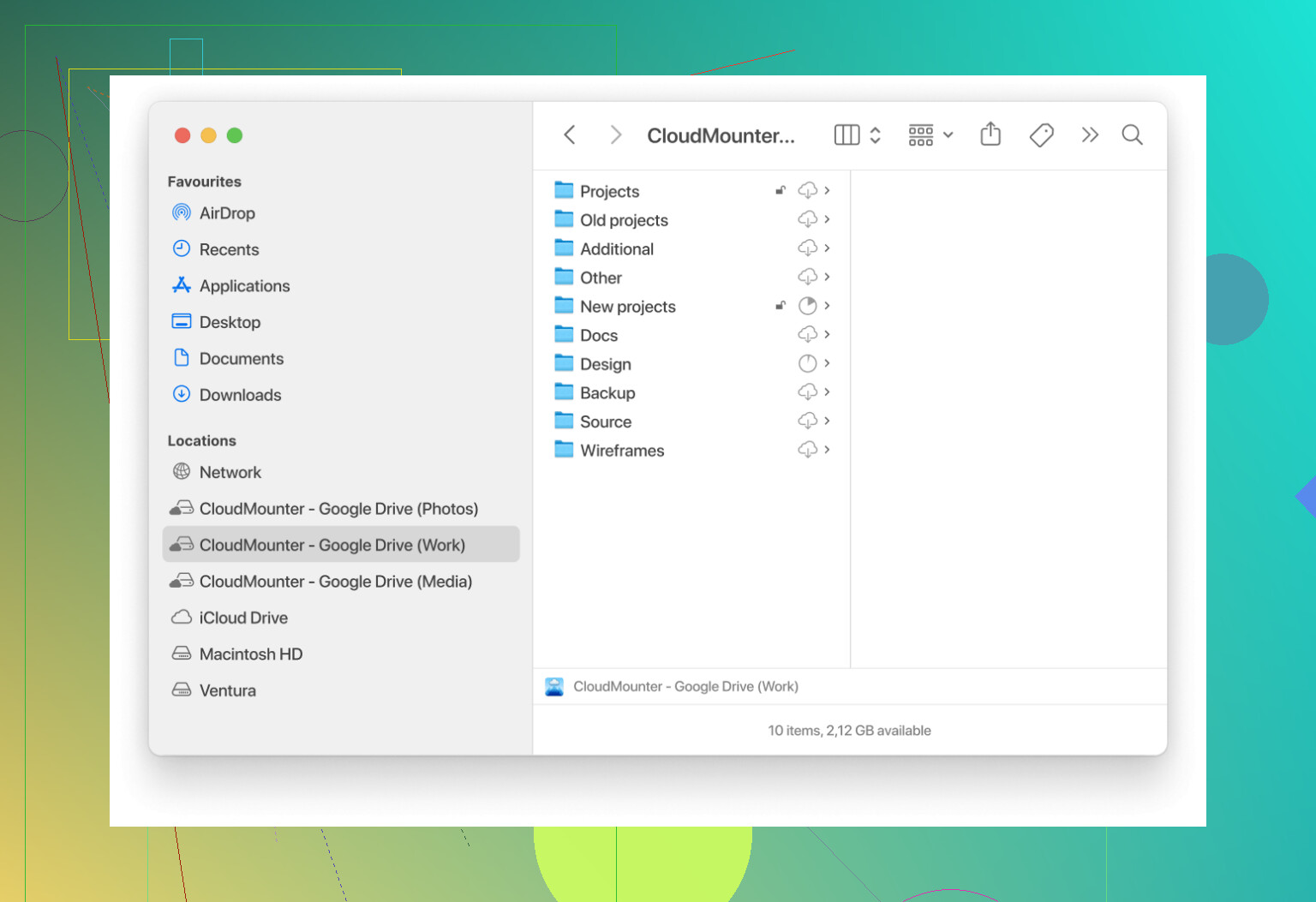
I still use the manual method when all I need is a single file that’s not buried under ten subfolders. But for almost everything else? Drag-and-drop wins, hands down. And, yeah, sometimes seeing your S3 files right in File Explorer almost makes you feel like the cloud wasn’t invented to torture us.
Anyone else have a favorite workaround? Or nightmare manual transfer stories? Let’s get cathartic.
59 Likes
Honestly, @mikeappsreviewer’s drag-n-drop CloudMounter idea is pretty slick, but there’s more than one way to skin a digital cat. I’ll play devil’s advocate and say: manual transfer is NOT my first choice if you’ve really got gigs of photos/documents. Amazon Drive (not S3, but the personal storage—just clarifying in case anyone else is confused) can be brutally slow during mass downloads, and sometimes it’ll choke or timeout if you try zipping up huge folders.
If you want a more reliable (and truly huge batch-friendly) experience and don’t care about “hands-off” automation, here’s what I did recently when migrating ~700GB:
1. Amazon Photos/Drive Desktop App:
Install their desktop app (if it still works for your account). Download your entire library directly to a local folder. If it fails mid-process, at least you can resume instead of starting over.
Downside: eats up your hard drive space. But for once-only jobs, whatever.
2. Sync to Google Drive via Google Drive for Desktop:
Once your files are on your hard drive, use the Google Drive app to “mirror or stream” them in. Yes, it’s not technically cloud-to-cloud, but it’s way more stable than browser uploads/downloads, which tend to choke on 5GB+ batches.
3. Use a Cloud Transfer Service:
If you’re REALLY allergic to local downloads and want pure cloud-to-cloud, look at third-party services (think MultCloud, CloudHQ, or Koofr). They’ll eat your API tokens but let you connect Amazon Drive straight to Google Drive and transfer entire folders, automatically preserving structure, EXIF metadata, etc. Usually, they have file/folder limits for free plans, but if you fork over a couple of bucks for a month, it’s hands-off and usually much faster.
One honest tip: Double-check transfer completeness. Sometimes stuff gets left behind (hidden files, or folders with funky names). Do a side-by-side comparison before deleting your Amazon content.
CloudMounter’s method is tight and feels “local” even though it isn’t, but for anyone with transfer speed/connection hiccups (or worried about ISP data caps), having the option to use a real cloud-to-cloud transfer tool should be considered. Whatever you do, don’t just select-all and hope for the best in your browser. That never ends well (ask me about my 2AM rage-refreshing saga).
So, my ranking?
- Cloud-to-cloud service (faster, minimal headache, but costs).
- CloudMounter (for hands-on, Finder-level control).
- Download/upload via official desktop apps (safe, reliable, but time-consuming and eats local storage).
- Browser downloads/uploads (last resort, best for a few files).
Anyone else get throttled to death by Amazon Drive’s “generous” download limits? Or am I just unlucky?
Alright, so we’ve got @mikeappsreviewer hyping the drag-n-drop magic of CloudMounter (pretty cool, honestly), and @sonhadordobosque going deep on the “desktop app plus Google Drive Sync” tap-dance. Both solid options, with their quirks. But before you buy into either, here’s a little curveball: what about just scripting it out? Techie overkill? Maybe. Dumb for the average user? Absolutely, but hear me out.
If you’ve got any command-line chops and care about precision or automating future migrations, something like rclone is low-key a powerhouse. You set up Amazon Drive as a “remote,” do the same with Google Drive, and literally run one command that pipes everything from one to the other—folder structure, file names, metadata, none of it gets mangled (unless you mess up the flags, which, yeah, is possible). You can throttle transfer speed, pause, resume, and even trigger integrity checks post-transfer.
Downside? It’s not the friendliest if command lines give you hives, and all those “easy” config steps can get pretty meta if you’re unfamiliar with OAuth tokens or errored logins (plus Amazon Drive support is, well, a moving target). And while @mikeappsreviewer and @sonhadordobosque make CloudMounter/desktop sync sound smooth, sometimes desktop utilities just hang forever on weird files or time out anyway—at least with rclone, you see the logs, get error reports, and can retry selectively.
That said, no method is God-tier perfect. Third-party cloud-to-cloud transfer services eat your privacy for breakfast, desktop sync apps can choke your bandwidth, and browser-based solutions make you question the very existence of progress bars.
If you want zero local disk use and you’re even halfway ok with learning new tools, seriously, rclone is worth a Google—put it up against CloudMounter and see which one makes you less likely to throw your laptop out the window. But, if you prefer a GUI and want something you can set and forget, I can see why CloudMounter is getting all this fanfare. As for “just use the browser,” unless you like babysitting downloads all weekend, I’d skip it—unless you’re into that kind of suffering.
Who else here’s tried rclone or something equally nerdy and lived to tell the tale?
Let’s make this spicy: everyone’s debating CloudMounter, rclone scripts, old-school drag-n-drop, desktop sync—yeah, the usual suspects. Here’s the real scoop if you’re tired of hunting for a “one size fits all” answer for shoving everything from Amazon Drive to Google Drive.
CloudMounter sounds like a dream: your clouds pop up as drives, it’s as easy as dragging between folders, and hey, you barely touch your local storage. Plus, forget browser stalls or tangled third-party transfer hoops. Seriously: anyone who just wants their files out now will feel blessed. The glaring downside? It’s not free, and I’ve seen the app get a little choked on massive folders (think “endless spinning wheels” vibes if you’re moving thousands of pics). Also, it’s more at home on Mac than PC, so Windows folks might find their experience less silky smooth. On the flip side, it doesn’t hoover up your privacy like some cloud-to-cloud services do, and it hands you control without fighting command lines.
Now, a couple of folks here are on the desktop sync or rclone train: desk-based sync (like with the Amazon/Google Drive apps) can be solid, but watch your hard drive—those files land locally and can fill your SSD until it cries. As for rclone lovers: hats off, true power, but not for the faint-hearted. If your eyes cross at terminal windows, maybe steer clear, but if you want logging, resuming after a crash, or detailed error catching, nothing beats it.
And those browser uploads? Please, unless you have a time machine handy.
Summing up: CloudMounter = easiest for non-techies, but keep in mind the price and potential snags on bulk jobs; rclone = king of control if you’re comfy with CLI; native sync clients = doable, but hard drive-hungry. Pick your poison—not all clouds are silver lining, but at least you get a choice.
Quick recap. You covered CloudMounter drag and drop, third party cloud transfer tools, official desktop sync, rclone for power users, and browser uploads. You weighed speed, cost, throttling, and resume support.
Simpler path, phone only. Works best under 100 GB.
- Install Amazon Photos on iOS or Android. In Albums, select all, Save to device. Use SD card or USB C drive to avoid space crunch.
- Install Google Photos and Google Drive. Turn on Photos backkup, Original quality, Wi Fi only.
- For docs, open Files, select folders, Share to Drive.
- Keep phone charging overnight. Verfiy counts match.