Windows keeps starting updates and restarting my PC while I’m working, which has caused me to lose time and interrupt important tasks. I need help figuring out how to prevent automatic Windows updates during work hours without turning updates off completely, so I can keep my computer secure and avoid disruptions.
Windows rebooting in the middle of work is one of those things that feels small until it wrecks a call or kills your focus. I had it happen during a screen share once. Since then, I stopped leaving update behavior on default settings.
The fix I trust most is Active Hours. If you set it right, Windows avoids forced restarts while you’re using the PC.
Set Active Hours first
Go here:
- Settings
- Windows Update
- Advanced options
From there, set the hours when your computer is usually in use.
Manual setup
Pick a start time and end time, like 8:00 AM to 6:00 PM. Windows still grabs updates in the background, but it should hold off on auto-restarting during those hours.
Let Windows guess
There’s an option where Windows learns your usage pattern. I tried it once. It was fine, though I still stick with manual times because my schedule stays pretty steady.

Pause updates when timing matters
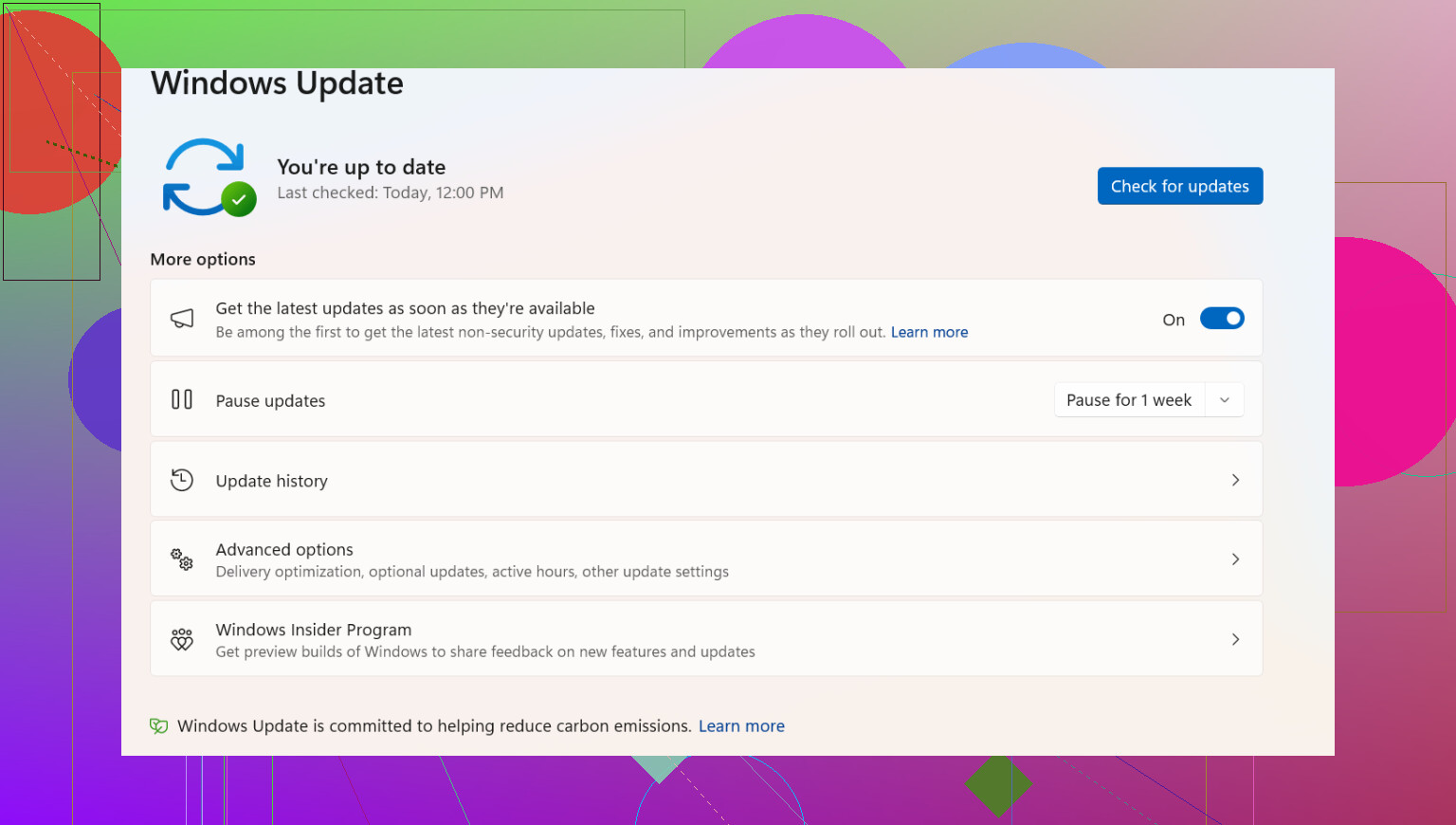
If you’re in a crunch week, or you’re doing something touchy like a long export, recording session, or client meeting block, pause updates from the main Windows Update page.
You get the option to stop updates for a week, sometimes longer depending on your setup. I treat this like a short-term override, not a forever fix. Still useful when you need your machine to sit still and behave.
Turn on restart notifications
This part gets missed a lot. You can tell Windows to notify you when a restart is needed instead of barging in with a timer and taking over the screen.
I prefer the tray icon warning. It’s quieter. You see it, deal with it later, and move on.
What worked for me
After I set Active Hours, plus restart notifications, forced restarts mostly stopped being a problem. Updates still happened. They just stopped happening at dumb times.
If you want extra user reports and workarounds, here’s the thread on Reddit!
18 Likes
I’d add one thing beyond what @mikeappsreviewer said. Meter your connection.
If you mark your Wi Fi or Ethernet as a metered connection, Windows slows down update downloads a lot. For many people, that cuts off the worst part, the surprise install later in the day.
Path:
Settings, Network and Internet, Wi Fi or Ethernet, then toggle Metered connection on.
I’d also disable restart apps after sign in:
Settings, Accounts, Sign in options, turn off “Automatically save my restartable apps…”
This won’t stop updates, but it stops Windows from trying to reopen stuff after a forced reboot and making the mess feel worse.
If you use Pro edition, Group Policy is stronger than Active Hours. I disagree a bit with relying on Windows to “learn” your schedule. It gets it wrong too often. Use gpedit:
Computer Configuration, Administrative Templates, Windows Components, Windows Update, Manage end user experience.
Set:
No auto-restart with logged on users for scheduled automatic updates installations
That policy is the closest thing to “stop interrupting me while I’m at my desk.” Home edition users don’t get it, wich is annoyng.
One more habit. Restart on your terms, once or twice a week, after work. If you never give Windows a clean update window, it keeps nagging and stacks patches. That’s when the random reboot junk starts.
I mostly agree with @mikeappsreviewer and @kakeru, but I’d be a little careful about using metered connection as the main fix. It can delay other stuff too, and sometimes Windows still finds a way to be Windows.
What helped me more was changing the restart deadline behavior. In Windows Update advanced settings, make sure Windows isn’t allowed to restart ASAP after an update without giving you much room to react. Also check Task Scheduler and disable the UpdateOrchestrator reboot task if it keeps firing at bad times. That one’s a bit more advanced, but it can stop those sneaky scheduled restarts.
Another thing people skip: save your work and shut down fully at night, then power on before work if needed. Fast Startup can make Windows act weird with pending updates, so I actually turned Fast Startup off. Sounds minor, but it cut down on random update nonsense for me.
If you’re on Pro, I’d use local policy over “smart” Windows settings every time. Windows guessing your habits is cute until it reboots during a meeting lol.