My iPhone storage is completely full, and now I can’t install the latest iOS update. I’ve already deleted apps, photos, and other files, but it still says there isn’t enough space. I really need help updating my iPhone without doing a factory reset because I don’t want to lose anything important. Has anyone found a safe way to update an iPhone with no storage?
I ran into this on my own iPhone, free space looked fine, update still refused to start. The part Apple does not spell out well is simple. The download size is only part of it. Your phone also needs room to unpack the update and install it. So if the update says 2GB, your iPhone often wants quite a bit more than 2GB sitting open first. For a big jump, like a major iOS release, I would not try it with scraps left over. I’d want 10GB to 15GB free so the install does not choke halfway through or dump you into a restart mess.
If you are stuck deleting random screenshots and seeing no real progress, this is the order I’d use.
Use a computer first
This saved me the most time. Plug the iPhone into a Mac or Windows PC and update there instead of doing it on the phone. On Mac, use Finder. On Windows, use iTunes. The reason this works better is boring but useful. The computer handles the download and the unpacking work on its own drive, so your iPhone does not need nearly as much breathing room during the process.
Before you press Update, make a full backup to the computer. I did this first because if the install fails, you want an easy path back.
If your storage situation is bad enough, there is a more drastic route. Back up the phone, erase it, set it up again, then restore from the backup after iOS installs. During setup, the phone usually pulls the newest version your model supports. It is a pain, yes. It also works when nothing else does.
If you do not want to wipe the phone, then space has to come from somewhere. I’d start here.
Photos and videos
For most people, this is where the space went. Not photos, though. Videos. One forgotten 4K clip from a concert or a kid’s soccer game eats more storage than hundreds of normal pictures.
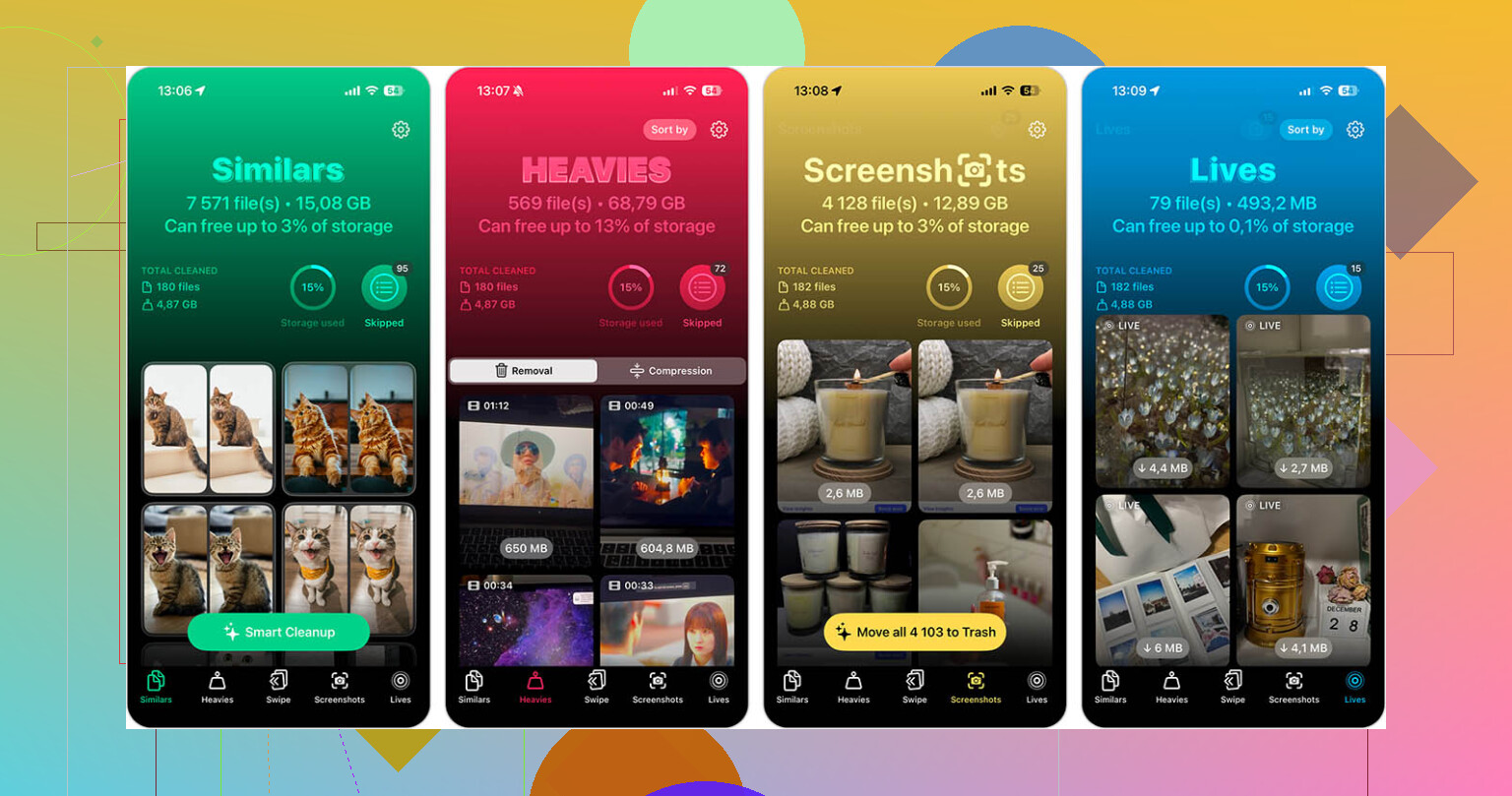
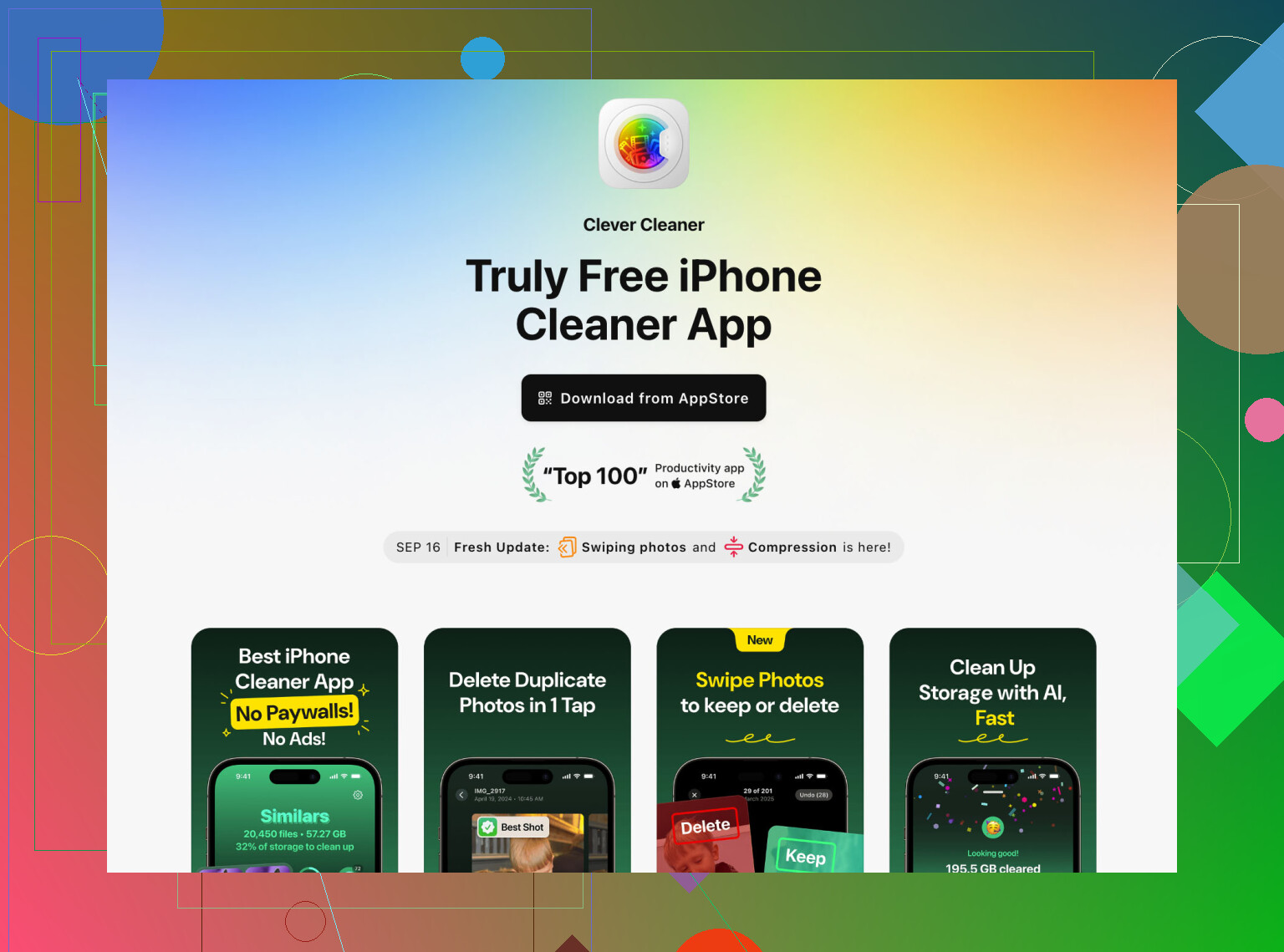
I stopped trying to scroll through the library by hand. It took forever and I still missed the biggest files. A cleaner app is faster if you pick one that is not loaded with paywalls. I used Clever Cleaner, mostly because it did the job without nagging me every ten seconds.
The useful part for me was the Heavies section. It sorts videos by size, so the worst offenders float straight to the top. I deleted three old clips and got back more space than I did from clearing out a pile of screenshots. It also groups similar photos, which helped with the usual burst-shot clutter. You know the type, 18 near-identical shots and one of them is the keeper.
One annoying gotcha. After deleting anything from Photos, open Recently Deleted and empty it. If you skip this, the storage does not come back right away. Your phone keeps those files around for 30 days unless you remove them yourself.
Apps
I know iPhone loves suggesting Offload App. I don’t bother with it when I’m low on space. Offloading removes the app itself but keeps its extra data, and in some apps the junk lives in the data. Social apps are bad for this. TikTok, YouTube, Instagram, they tend to swell over time.
I delete the app outright if I do not need it today. Full delete, clean slate. You can reinstall it after the update, sign back in, and in a lot of cases it comes back much smaller than before. I did this with two apps and got back more room than expected, no fancy tricks needed.
Hidden data people skip
Two spots tend to hold junk quietly.
Safari cache. Go to Settings > Apps > Safari, then tap Clear History and Website Data. On my phone this freed a chunk of space fast. Not huge every time, but enough to matter when you are close.
Message attachments. Group chats are storage leaks with no warning label. Go to Settings > General > iPhone Storage > Messages, then open Review Large Attachments. You can remove old videos, GIFs, and files without deleting the conversations themselves. This one surprised me. Years of junk was sitting there.
If I had to rank the fastest wins, I’d go computer update first, then huge videos, then app deletions, then Safari and Messages cleanup. That order got me past the storage error without wiping the whole phone.
24 Likes
One thing I’d add to what @mikeappsreviewer said, check for a half-downloaded iOS file. iPhones love to keep failed update files and never tell you. Go to Settings > General > iPhone Storage. Look for an iOS update entry. Delete it if it’s there. Then restart the phone and try again. I’ve seen this free up multiple GB.
Also turn off automatic downloads for a minute. Settings > App Store, then disable app updates and automatic downloads. If your phone is full, iOS sometimes keeps trying to queue other stuff in the background. Annoying, but yep.
Another good move is temporary cloud offloading. If you use iCloud Photos, switch on Optimize iPhone Storage. If you use Apple Music, Spotify, Netflix, YouTube, remove downloaded songs and offline videos first. Those are easy to miss and they eat space fast.
I slightly disagree with aiming for 10GB to 15GB every time. For smaller point updates, I’ve gotten through with less when updating from a computer. For major iOS jumps, sure, more free room helps a ton.
If you want a fast way to find junk, Clever Cleaner is worth a look, esp if videos and dupes are the issue. I also found this useful thread on a truly free iPhone cleaner with no ads or paywall.
Last trick. Force restart after deleting stuff. Storage totals sometimes lag and dont update right away.
I’d try one thing neither @mikeappsreviewer nor @voyageurdubois really leaned on enough: remove the update requirement entirely by using Recovery Mode + Update, not Restore.
That sounds scarier than it is. It does not have to wipe the phone. If you connect the iPhone to a Mac or PC, put it in Recovery Mode, then choose Update when Finder/iTunes gives the option, it reinstalls iOS while keeping your data if all goes normal. Different from Restore, which nukes it. This can work when the regular update path keeps whining about storage because the normal OTA updater is kinda fragile.
Also check this weird one:
Settings > Accessibility > Spoken Content > Voices
If you’ve downloaded extra Siri/voice packs, they can take a stupid amount of space and people forget they exist. Same for dictionaries, GarageBand sound library, iMovie assets, podcast downloads, and old Mail attachments. Mail is sneaky. If you use the built-in Mail app with a huge account, removing and re-adding the account can clear bloated local cache.
Another thing I mildly disagree on: deleting random apps is not always the best move if you already deleted a ton and storage still looks stuck. Sometimes iOS “System Data” is the real hog, and regular deleting barely touches it. In that case, syncing the phone to a computer, letting it sit charging on Wi-Fi for a bit, then rebooting can shrink caches. Not instant, but I’ve seen it work after a few hrs.
If you still want to clear media fast, Clever Cleaner is fine for spotting the fat stuff quickly, especially giant videos and duplicate photos. Just don’t expect any cleaner app to fix iOS system bloat by itself.
Also, if you want a cleaner guide on smart ways to automate iPhone storage cleanup, that’s prob worth a look.
Short version:
- Back up first.
- Try Finder/iTunes.
- If that fails, Recovery Mode and choose Update, not Restore.
- Hunt hidden junk like voice packs, Mail cache, podcasts, offline media.
- Reboot and recheck storage, because iPhone storage counts are janky sometimes.
One angle I think @voyageurdubois, @viaggiatoresolare, and @mikeappsreviewer only partly touched: check whether the update is being blocked by the battery requirement, not just storage. If Low Power Mode is on, battery health is rough, or you are under 50 percent and unplugged, iOS can throw vague update failures that look like space problems. Plug it in, disable Low Power Mode, join stable Wi-Fi, then leave it idle on the charger for 30 to 60 minutes before trying again. iPhones sometimes do background cleanup only when charging and locked.
I also would not keep chasing “System Data” manually unless you have time to burn. Sometimes it shrinks on its own after a boring overnight charge.
A less obvious cleanup target:
- downloaded podcasts
- WhatsApp or Telegram media inside the app
- Books or PDF files saved offline
- Files app downloads folder
- old screen recordings
If your storage graph still looks frozen, change the date forward a day, reboot, then set automatic date/time back on. Weird trick, but it can force storage recalc on some devices.
For media cleanup, Clever Cleaner is decent if your library is the main issue.
Pros
- fast at spotting giant videos and duplicates
- simple to use
- good for reclaiming space quickly
Cons
- will not fix iOS system storage weirdness
- you still need to review before deleting
- less useful if your problem is app caches, not photos/videos
My order would be:
- Charge + Wi-Fi + Low Power Mode off
- Clean in-app downloads
- Reboot
- Try update from computer
- Recovery Mode Update only if normal update fails