How I Fumbled My Way Into Accessing OneDrive Files on a PC
So, a while ago I was knee-deep in a project and needed to grab some docs chilling in my OneDrive from my desktop. It seemed easy until it wasn’t (trust me, there’s always that “wait, where’d my stuff go?” moment). Thought I’d spell out how I finally got it sorted, in case someone else has a laptop in one hand and panic in the other.
The Blunt Playbook: Getting OneDrive Files on Your PC
- Open File Explorer (yeah, the thing you probably ignore for Chrome).
- On the left pane, look for the blue cloud icon labeled “OneDrive.”
- Click it. If you haven’t signed in yet, Windows screams at you to do so. Enter your Microsoft account credentials (the one you signed up OneDrive with).
- Once you’re in, your OneDrive folders pop up beside your regular “Downloads” and “Documents” stuff.
- The files marked with a cloud are only online—double-click and Windows pulls ‘em down. The ones with a checkmark are already sitting on your hard drive. Right-click any folder or file and hit “Always keep on this device” if you want it sticking around.
- Drag’n’drop just works. If you wanna copy files from PC to OneDrive (or vice versa), just yoink ‘em in either direction.
Seems basic, but, man, that “sign in with the right account” bit trips people up more than you’d think.
Why I Ranted About Third-Party Mount Tools (And, Oddly, Liked One)
Honestly, the above works for most folks. But here, let me get real for a hot second: Sometimes, especially if you’re wrangling more than one cloud thing (Dropbox, Google Drive, whatever else IT makes you use), stuff gets tangled. Native apps start fighting. File search becomes an archaeological dig. You just want to pop open your stuff without dancing through logins or windows.
So, out of frustration and too many browser tabs, I went hunting for apps that corral all my clouds into one sensible spot. That’s how I ended up testing a Mac tool called CloudMounter, I didn’t even know this kind of setup was possible before that. Yes, Mac—if you’re working cross-platform or on multiple devices, this is a game-changer.) It basically acts like a bouncer, letting you plug in OneDrive and other cloud accounts, so they show up like plain old drives. No messy web logins, no extra syncing drama—just files where you expect them.
Screenshot for effect:
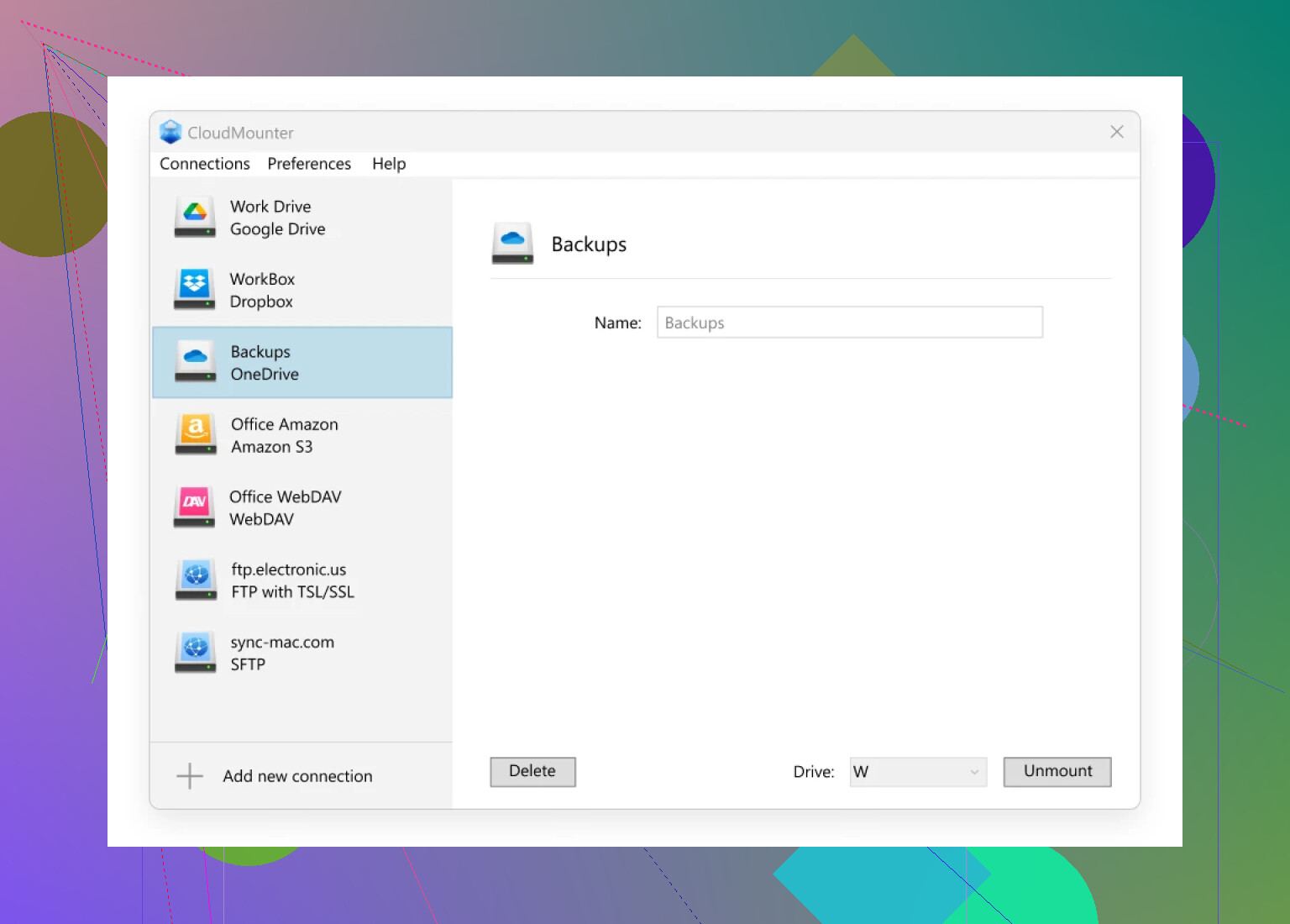
It’s not magically going to fix your OneDrive woes on PC if you’re all-Windows, but if you’re juggling clouds—especially on a Mac—this little app is worth a look. Just thought I’d toss that out there for anyone else staring down a spaghetti plate of cloud storage and wondering if there’s a better way.
In short: Microsoft OneDrive on PC? Easy enough once you sign in properly and know what the icons mean. Got a foot in Mac territory or just want your clouds to behave? There’s software for that. Learned it the long way around, but hey, that’s why we swap tips on forums, right?