I just installed Box on my Mac, but it doesn’t show up in Finder like iCloud Drive or Dropbox. I need to access and sync my Box files directly from Finder for work, but I can’t figure out what setting or extension I’m missing. Can someone walk me through how to properly add Box to Finder and make sure it stays visible?
To get Box to show up in Finder on macOS, you’ve basically got two main ways to do it: the official Box Drive app, or a “mount it like a network drive” app such as CloudMounter. I’ve used both. They work differently, and that matters a lot if you care about disk space, how Finder behaves, and how many sync clients you want running.
Using the official Box Drive app
If you just want the “standard” solution that Box themselves support, it goes like this:
-
Go to the Box downloads page:
https://www.box.com/resources/downloads -
Download the Box Drive installer (it’s usually a
.pkgfile). -
Run the installer, click through the usual macOS-style prompts, and let it finish.
-
Once installed, open Box Drive and sign in with your Box account.
-
After you log in, Finder will get a new “Box” entry in the sidebar under Favorites. It looks and behaves a lot like a regular folder:
- You can open files from there in any Mac app
- Changes sync back to Box
- You don’t have to keep your browser open
Box Drive is fine if you’re okay with the typical cloud sync model and another background app running. It works, does what it says, and is straightforward.
Why I ended up using CloudMounter instead
Here’s where my setup shifted a bit. I wanted Box to feel more like a drive that just exists in Finder without mirroring everything to my internal SSD.
CloudMounter does that by mounting Box as a network drive, which means:
- Finder sees it like another disk
- Files look local but actually live in the cloud
- You’re not forced to sync huge folders to your Mac
With this approach, I can:
- Add Box to Finder on Mac
- Open, edit, copy, and save Box files directly from Finder
- Use normal macOS apps without juggling the browser
- Avoid filling up my drive with stuff that I only touch occasionally
It makes Box feel like a native part of the OS rather than “that thing in the browser plus some helper app.”
How I set up Box in Finder with CloudMounter
Here’s the exact flow I follow when I set this up on a new Mac.
1. Move CloudMounter to Applications
After downloading CloudMounter, I drag the app into the Applications folder like any normal Mac app.
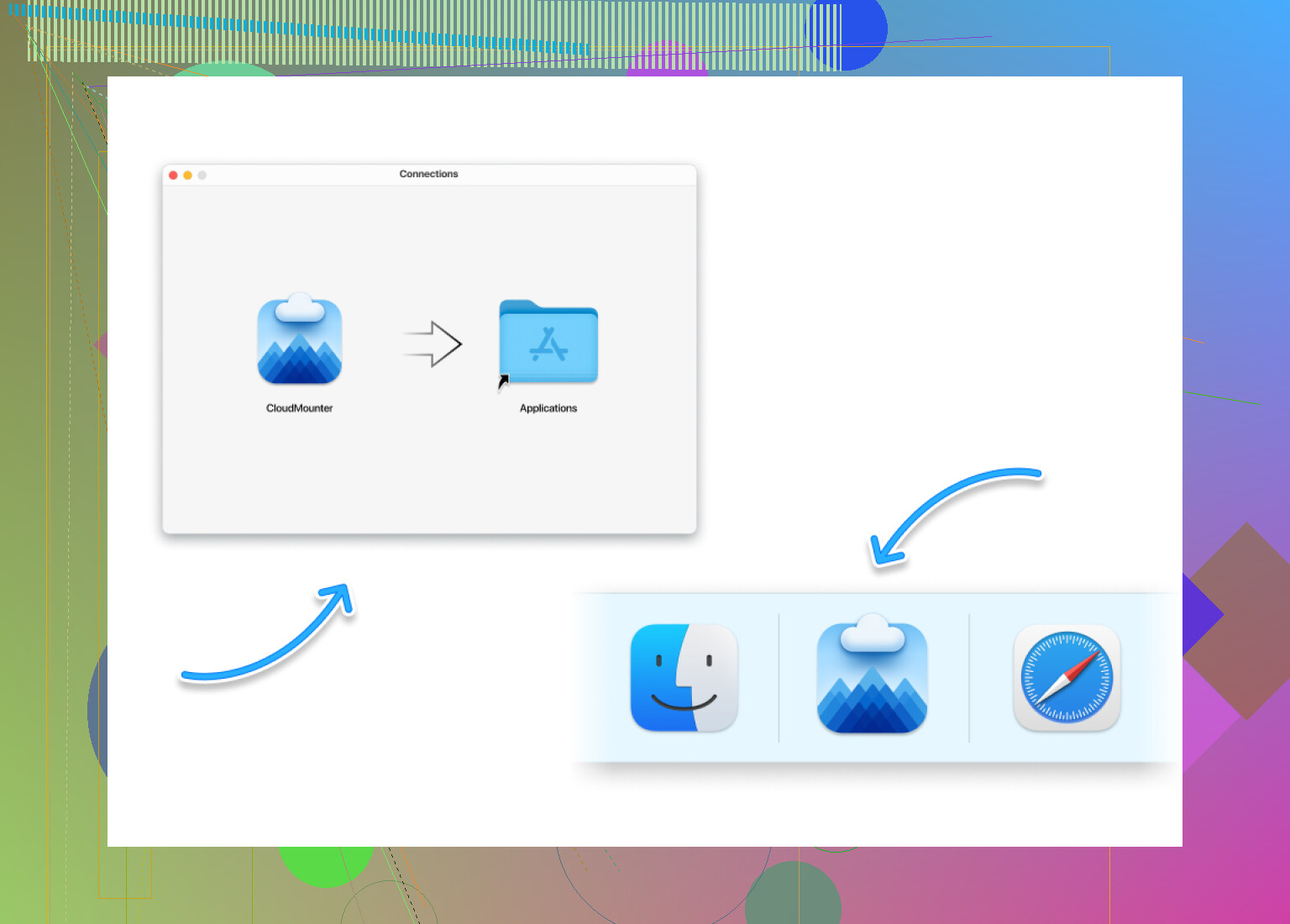
Then I launch it from there.
2. Pick Box from the list of services
When CloudMounter opens, it shows a grid of different cloud services you can connect to.
I scroll or glance through the list, find the Box icon, and click it.
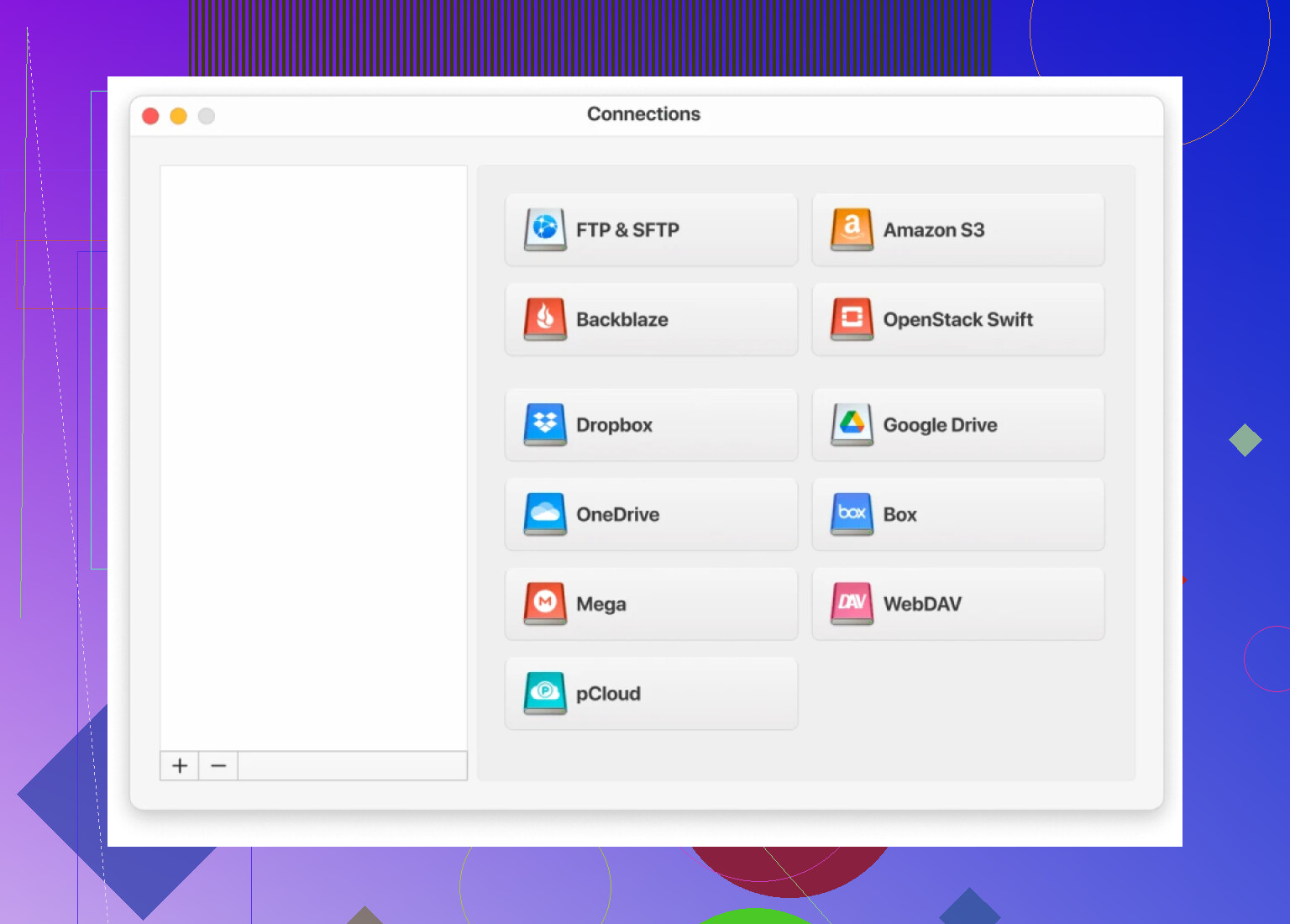
This opens the configuration window specifically for Box.
3. Sign in and mount it as a network drive
CloudMounter walks you through the login process:
- Follow the on-screen steps to sign into your Box account.
- Grant the necessary permissions when prompted.
- Once the connection details are in place, I hit the “Mount” button.
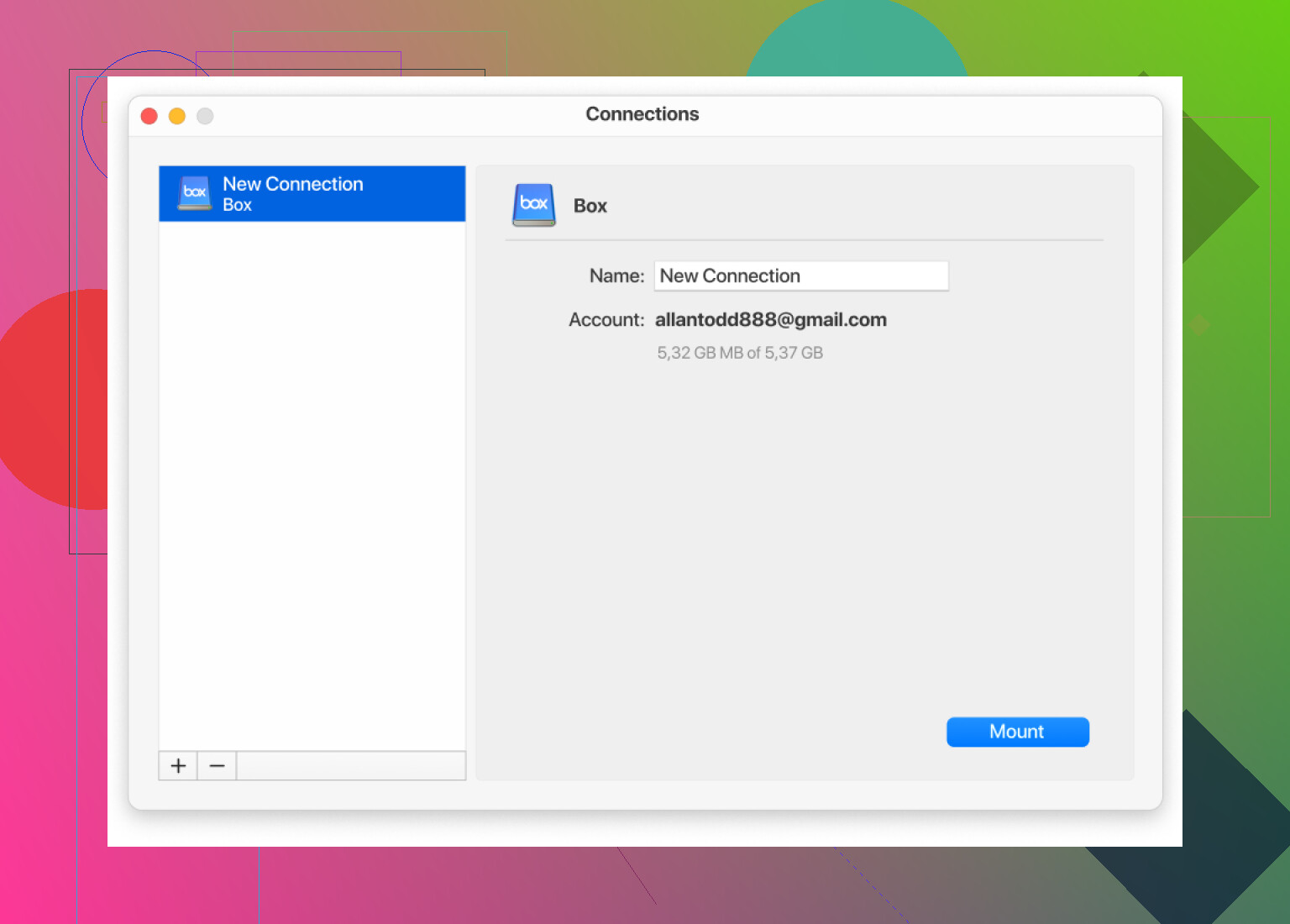
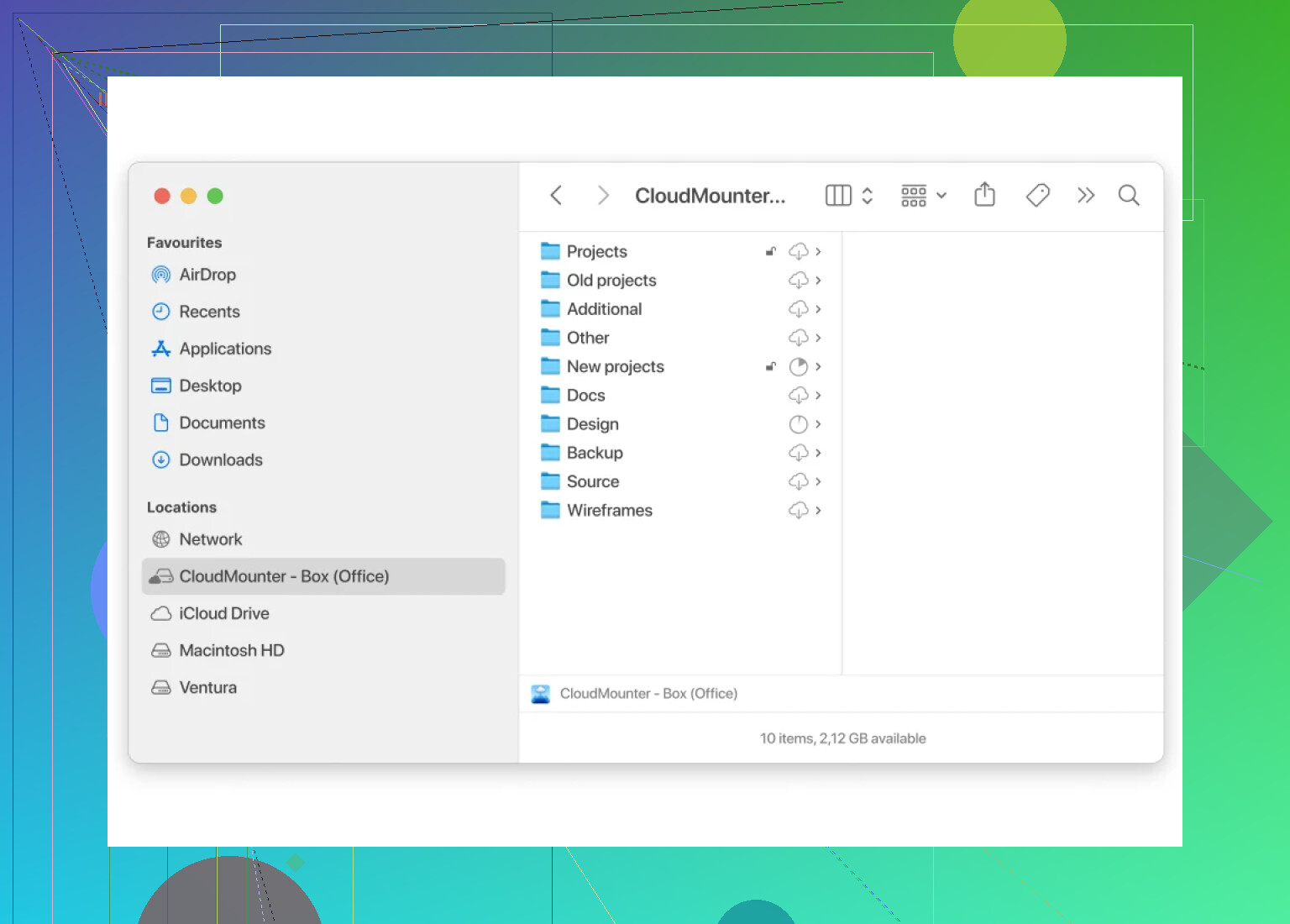
After that, Box shows up in Finder as if it were a regular drive. No weirdness, no extra dance.
4. Use it like a normal drive in Finder
From that point on, the mounted Box drive behaves like local storage from the Finder perspective:
- Double-click files to open them
- Save directly back to Box
- Drag and drop files in and out
- Work with folders the same way you do on any external drive
You still get the benefit of cloud storage, but your internal disk doesn’t get stuffed full of synced data.
114 Likes
Couple of things that trip people up with Box on macOS that @mikeappsreviewer didn’t really touch, so here’s the “why isn’t it in Finder even though it’s installed” angle.
First, Box has two very different Mac products:
- Box Drive (what you want for Finder integration)
- Box Edit / Tools / notes plugins (these do not add a Finder location)
If you “installed Box” from some IT portal or old link, there’s a decent chance you grabbed the wrong one or an outdated pkg.
1. Confirm you actually have Box Drive
Go to:
Applicationsand look for Box.app with the blue Box icon.- In the menu bar, you should see a little Box icon when it’s running.
If it’s not there, uninstall whatever Box thing you installed and grab Box Drive specifically. If IT manages your Mac, they sometimes give out a weird combo of Box tools that don’t create a Finder folder.
2. Check Finder settings (this is the bit most people miss)
Even with Box Drive correctly installed and signed in, Finder can quietly hide it:
- Open Finder.
- In the menu bar: Finder > Settings… (or Preferences on older macOS).
- Go to Sidebar.
- In the Locations or Favorites section, make sure Box is checked.
A lot of people think “Box didn’t install” when it’s literally just unchecked in that list. Sometimes after an OS update, macOS randomly unchecks new “locations.”
Also, in the Finder sidebar, if you see “Box” but faint/greyed out, click it once to wake the integration. macOS occasionally gets lazy with that.
3. Check the new “File Provider” behavior on newer macOS
On macOS Ventura / Sonoma and newer, Apple forces cloud apps like Box, Dropbox, OneDrive into the File Provider system. That means:
- Box shows up under
/Users/yourname/Library/CloudStorage/Box - In Finder, you’ll see it under Locations or as a top level “Box” entry, but not always in the exact same place iCloud Drive or old Dropbox used to live.
If you want to confirm it’s actually connected:
- In Finder, press
Shift + Command + G. - Paste:
~/Library/CloudStorageand hit Enter. - You should see a Box folder in there if Box Drive is working.
If that folder never appears, your Box Drive install or login is broken.
4. Login & permissions checks
Open the Box app:
- Make sure you’re actually signed in and not stuck on some SSO / browser window that you closed.
- If your company uses SSO, that login sometimes times out and Box sits there doing nothing.
- Also check System Settings > Privacy & Security > Full Disk Access / Files & Folders and confirm Box has the rights it wants. If macOS blocked it, Finder integration can silently fail.
If all else fails:
Quit Box entirely, then:
Option+ right click Finder in the Dock- Choose Relaunch
Then reopen Box and sign in again.
5. If you don’t want the whole sync thing
Here’s where I differ a bit from @mikeappsreviewer: I wouldn’t jump straight to a third‑party tool just because Box Drive feels heavy. It’s still the only thing Box actually supports for “full” Finder sync and offline files.
That said, if you:
- Don’t want your SSD filled with synced content
- Are fine treating Box like a network drive
- Mostly need on‑demand access
Then a tool like CloudMounter is honestly a solid option. It mounts Box as a drive in Finder, without mirroring everything locally. For big Box accounts and small Mac SSDs, CloudMounter + selective online access can be way saner than fighting with Box Drive’s caching.
I’d personally:
- Try to get Box Drive actually visible in Finder first (Sidebar + CloudStorage checks).
- If it’s still flaky or you hate the sync model, install CloudMounter, add a Box connection, and use that Finder-mounted drive instead.
One last gotcha: if your Mac is managed by corporate IT, they can block or auto-remove kernel extensions and background helpers. In that case, Box Drive can “install” but never really hook into Finder. If none of the above works, that’s when you ping IT and ask if they’ve restricted Box Drive / File Provider or forced another client.
Couple of angles that @mikeappsreviewer and @stellacadente didn’t hit directly:
- Make sure Box is using the “new” File Provider setup correctly
On Ventura/Sonoma, Box Drive must live under Apple’s File Provider system. Sometimes Box “installs” but never actually registers there.
- Open Terminal and run:
ls ~/Library/CloudStorage
You should see a folder literally calledBox(or similar). - If it’s missing, uninstall Box Drive completely:
- Quit Box
- Drag Box.app from Applications to Trash
- Delete
~/Library/Application Support/Boxand~/Library/Logs/Boxif they exist - Reboot (yes, actually reboot, Box’s file provider can be sticky)
- Reinstall Box Drive fresh and sign in again
If after a clean reinstall there is still no Box folder in ~/Library/CloudStorage, the integration itself is failing, and no Finder setting will magically fix it.
- Check if another sync tool is conflicting
This is rarer but I’ve hit it once: having multiple sync clients that use File Provider can cause Finder weirdness:
- OneDrive, Dropbox (new version), Google Drive, etc, all trying to hook into the same system
- Box shows as installed but doesn’t appear in Finder sidebar or under CloudStorage
Try temporarily quitting the other sync apps, then:
Option+ right‑click Finder in the Dock- Click Relaunch
- Start Box Drive alone and see if it suddenly appears
If it does, you’ve got a conflict. Usually you can bring the others back one by one and it stays fine, but the first launch with just Box sometimes “wakes up” the provider.
- Corporate / MDM profiles quietly blocking it
If this is a work Mac, check for the fun stuff:
- System Settings → Privacy & Security → Profiles
If there’s a management profile, they might:- Block third‑party file providers
- Force an older Box component that doesn’t integrate with Finder
In that case, no amount of reinstalling will help, because the policy wins. At that point it’s an IT ticket: “Box Drive not appearing in Finder / ~/Library/CloudStorage, is File Provider or Box blocked by policy?”
- What to do if you’re just done fighting Box Drive
Here’s where I slightly disagree with both @mikeappsreviewer and @stellacadente: I don’t think Box Drive is always worth wrestling with if you just need reliable Finder access and don’t care about Box’s “official” blessed setup.
If you:
- Mainly need on‑demand access
- Are fine with Box acting more like a mounted network volume
- Don’t need fancy offline/smart-sync voodoo
then a third‑party client is honestly less drama.
CloudMounter in particular is good for this:
- It mounts Box as a drive in Finder using the standard disk/mount model
- Nothing has to appear in
~/Library/CloudStorage - You just see a mounted drive and use it like an external disk
- It avoids the random “File Provider is confused again” behavior that Box Drive can have
So my rough decision tree:
- Need official support, offline mode, and your company requires Box Drive:
→ Fix File Provider: clean reinstall, check~/Library/CloudStorage, make sure no IT policy is killing it. - Just need a stable way to use Box from Finder and don’t care how it’s wired:
→ Skip the drama and mount Box with CloudMounter instead.
Right now you’re probably stuck at: “installed something called Box, nothing in Finder.” That usually means either:
- It wasn’t actually Box Drive, or
- It’s installed but never created the
Boxfolder in~/Library/CloudStorage.
Figure out which of those is true first, then either fix the File Provider path or bail out and use CloudMounter as a cleaner workaround.
Couple of extra angles you can try that build on what @stellacadente, @hoshikuzu and @mikeappsreviewer already said, without rehashing the same “install Box Drive / use CloudMounter” walkthroughs.
1. Check where Box is actually living in Finder
Sometimes Box installs fine but Finder is just hiding it.
- Open Finder.
- In the menu bar, click Finder → Settings → Sidebar.
- Under “Locations” and “Favorites,” make sure:
- “Box” is checked if it appears.
- “Your Mac” and “Hard disks” are checked too.
If Box is using the newer File Provider system, it will physically live inside:
~/Library/CloudStorage
Use Go → Go to Folder in Finder and paste that path. If you see a “Box” item there, you do have Box, it’s just not pinned to the sidebar. In that case you can:
- Drag the Box folder from that location into the sidebar manually.
- Or control‑click it and choose “Add to Sidebar” if available.
If you don’t see Box in CloudStorage, then the integration is failing, which is where the rest of this comes in.
2. Make sure you did not install the “web launcher” instead of the drive
Box’s download page and some IT portals are confusing. There are at least three different “Box for Mac” things you might end up with:
- Box Drive (integrates with Finder, what you actually want)
- Box Tools / Box Edit (lets you open docs from the browser, no Finder drive)
- Old Box Sync (legacy, often blocked on newer macOS)
If the app in Applications is not literally “Box Drive” or just “Box” with cloud‑storage behavior, you might have only the helper tools. In that case:
- Remove the wrong Box app from Applications.
- Reinstall explicitly the Box Drive package, not Tools or Sync.
This is one of those subtle issues that looks like “Finder is broken” when it is really “the wrong component got installed.”
3. Give Box the permissions it quietly needs
Newer macOS versions are picky about what apps can touch files. If permissions are off, Box can half‑register and not appear properly.
Go to:
- System Settings → Privacy & Security → Full Disk Access
- Make sure the Box process / Box Drive is:
- Present in the list
- Enabled
Also check:
- System Settings → Network → VPN & Filters
If a corporate filter or VPN client is intercepting everything, Box Drive might fail to complete its first‑time setup, which again means Finder never sees it. Temporarily disabling the filter (if allowed) or doing the first Box sign‑in off VPN has fixed this for a few people I’ve helped.
4. When Box Drive is just not worth the fight
Here is where I diverge a bit from @hoshikuzu. Trying to “fix” File Provider for hours is often not the best use of time if your only requirement is “Box in Finder like a drive.”
If you just want reliable Finder access and do not care whether it is the officially blessed method, a dedicated client such as CloudMounter can be the more predictable solution.
Instead of syncing, CloudMounter mounts Box as a network drive that shows up in Finder like external storage.
Pros of CloudMounter for Box
- Does not require the macOS File Provider system that Box Drive depends on.
- Saves local disk space by keeping data in the cloud and loading it on demand.
- Lets you treat Box like a regular volume: drag and drop, open from any app, etc.
- Central place to manage multiple services (Box, Google Drive, etc.) if you use several.
Cons of CloudMounter
- It is a third‑party app, not the official Box client, so some corporate IT departments will not support it.
- Offline usage is weaker than Box Drive’s sync model, since it is primarily a “mounted” connection.
- One more app to install, configure and keep updated.
- Some advanced Box features (like classification, certain enterprise controls) might not surface the same way as in the official client.
If your company is strict about “only Box Drive,” then you are stuck with debugging File Provider and policies as @hoshikuzu described. If they are flexible, using CloudMounter gives you “Box in Finder” without relying on whatever Apple and Box are doing under the hood that week.
5. Quick decision path
-
You see a Box folder in
~/Library/CloudStoragebut not in the Finder sidebar
→ Fix Finder sidebar settings or drag it there manually. -
No Box folder in
~/Library/CloudStorage, and your IT requires Box Drive
→ Verify you installed Box Drive (not Tools / Sync), check permissions, check for MDM or security profiles that might be blocking file providers. -
You just need stable Finder access and are free to pick tools
→ Use CloudMounter to mount Box as a network drive and bypass the Finder/File Provider mess entirely.
Try a simpler path, enable the Box Finder extenstion.
Steps:
- Open System Settings.
- Privacy and Security, Extensions, Finder extensions.
- Check Box.
- Sign out of macOS, sign back in.
- Open Finder. Click View, Show Sidebar.
- Look under Locations. If Box shows, drag it into Favorites.
This flips the Finder hook without reinstalling. On a 2023 M2 Air, Box reappeared in Finder after this switch and relogin. If it still hides, make a Smart Folder targeting Box items, then pin it to the sidebar. Quick, no admin rights.