I’m trying to Chromecast from my iPhone to my TV, but I can’t get the devices to connect or find the casting option. They’re on the same Wi-Fi network, so I need help setting up Chromecast and troubleshooting the connection.
If the goal is Netflix, YouTube, Disney+, or another streaming service, I skip mirroring apps altogether. Supported streaming apps already know how to communicate with Chromecast. Once my iPhone and the Chromecast, or a television with Chromecast built in, are connected to the same Wi-Fi network, I open the streaming app and start the video. The Cast icon looks like a rectangle with curved Wi-Fi-style lines in one corner. Tapping it brings up the available devices, and selecting the television moves playback over to the big screen.
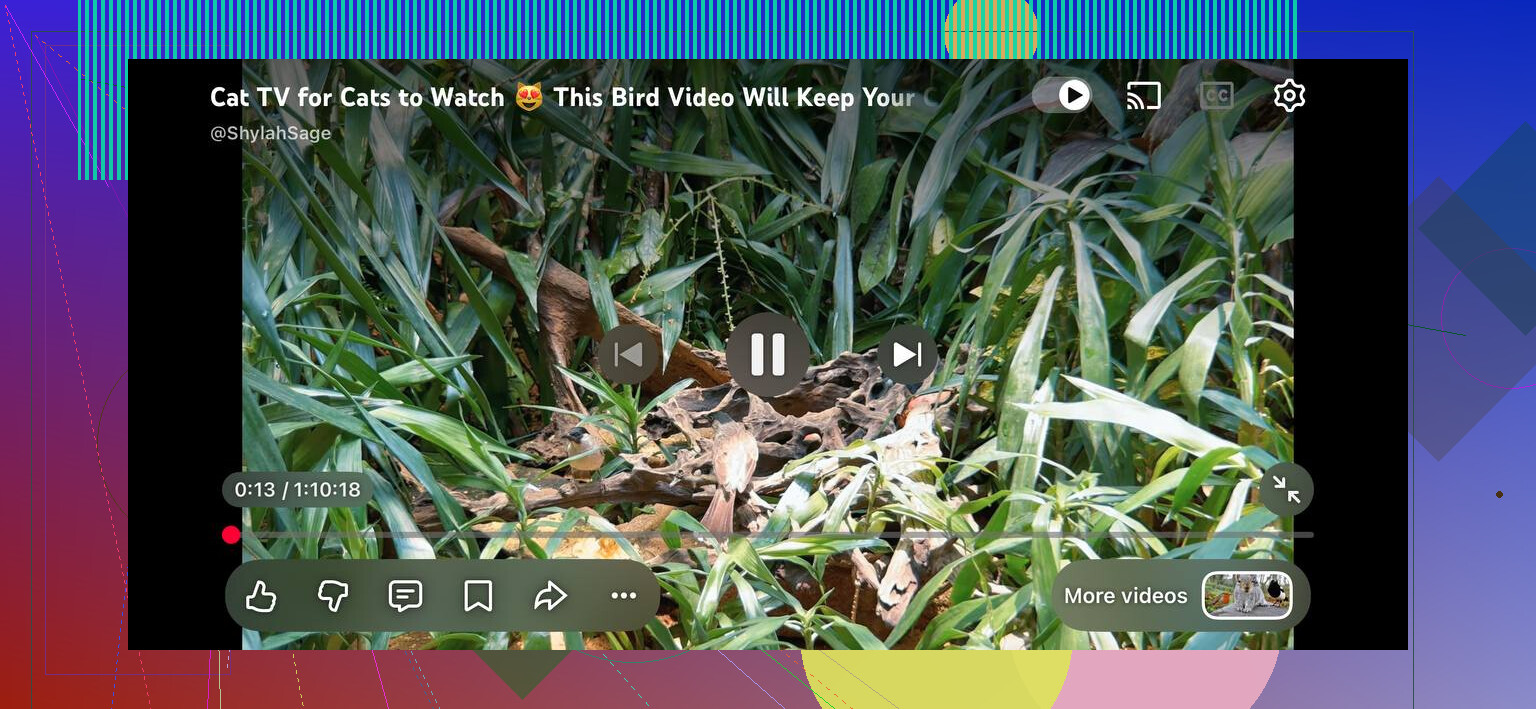
The phone then works more like a remote than a video transmitter. That distinction matters because the television or Chromecast is receiving the stream through the service’s official system. In my experience, this is the least troublesome option and usually gives the best result. It also avoids the copy-protection problem that tends to appear when someone tries to mirror Netflix, Prime Video, or Apple TV+ through a separate app.
The missing button is not actually missing
The confusing part is that iPhones use AirPlay, while Chromecast uses Google’s separate casting protocol. They are not interchangeable, so iOS does not provide one universal Chromecast button that suddenly appears in Control Center. The Cast icon comes from individual apps that have added Chromecast support.
That means I divide the problem by content source. If the movie or show lives inside a compatible streaming app, I use that app’s Cast button. If the content lives on my phone, such as personal photos, saved videos, or music, I use a bridge app. The same applies when I need to show the entire iPhone screen.
One option is DoCast, which can connect an iPhone to a Chromecast device or to a television with Chromecast built in. Sony, Vizio, Hisense, and TCL are among the television brands where that setup may be available, depending on the model.
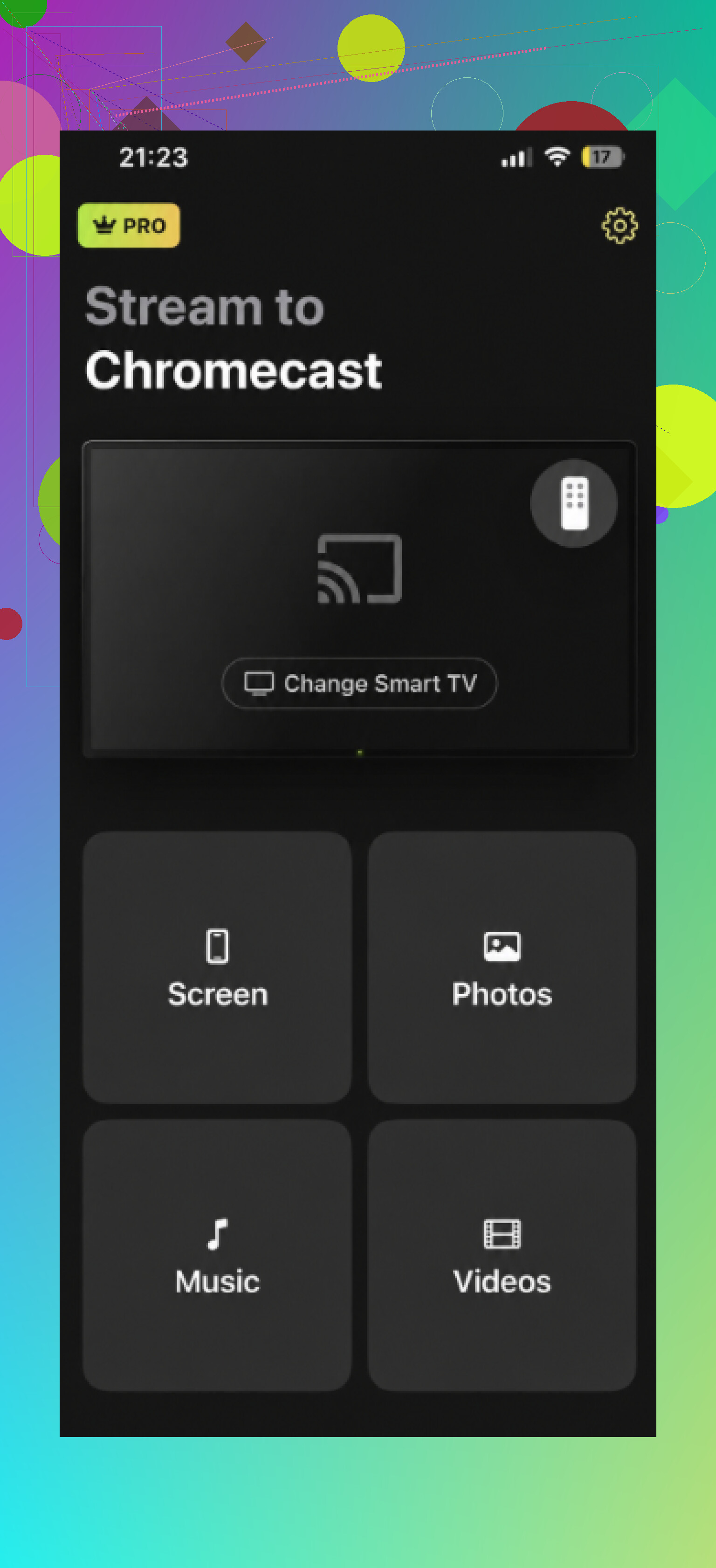
Inside the app, I select the detected television and choose whether to mirror the screen or send media from the phone’s library. The free version allows unlimited photo casting. Its video and music limits are the short sessions mentioned above, while full-screen mirroring requires the paid version.
Replica offers similar features and is worth comparing before paying for anything.
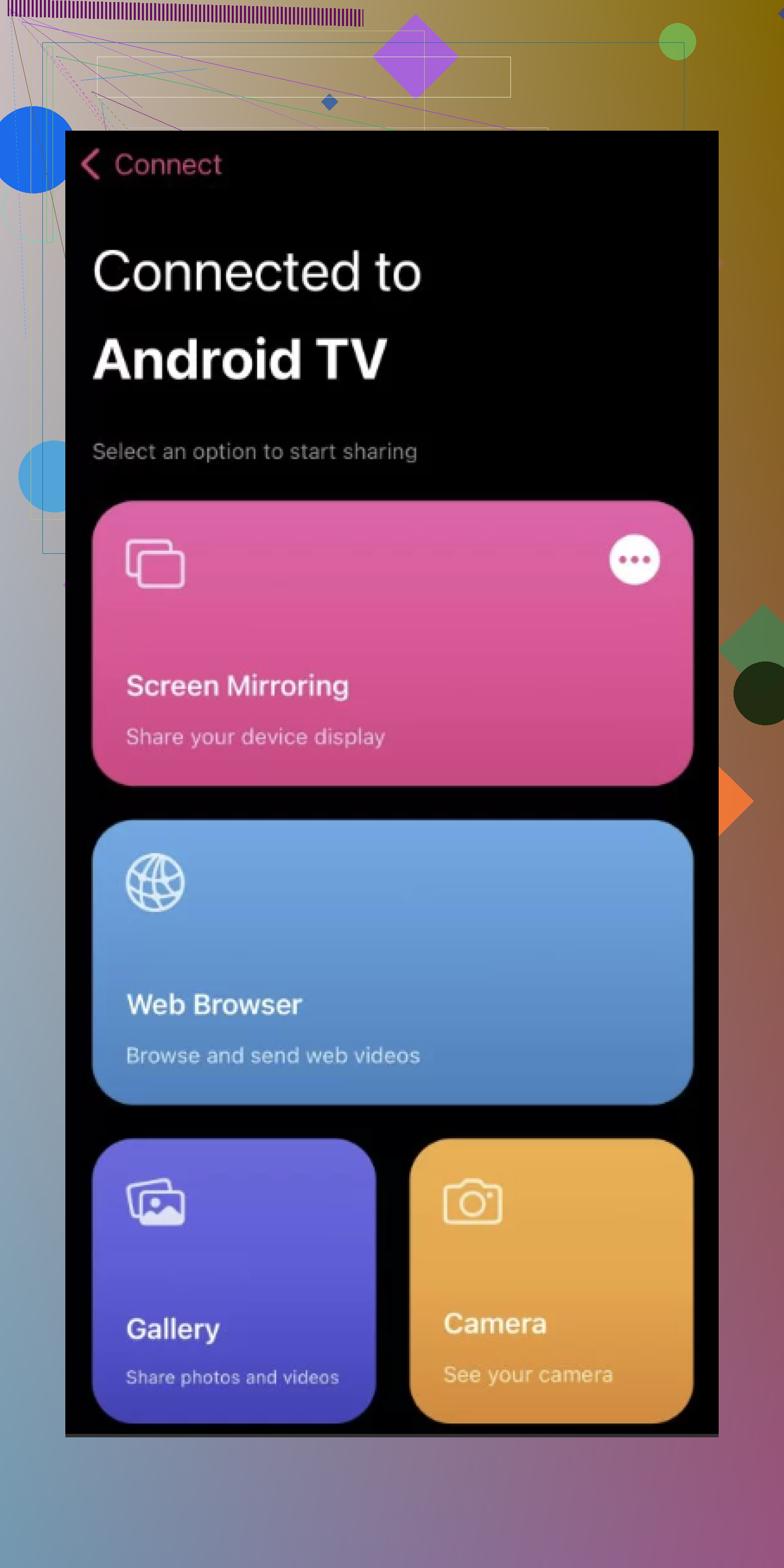
I would choose among them based on the exact job rather than treating any one app as a magic replacement for AirPlay. Sadly, protocol diplomacy has not advanced that far.
Fix discovery before blaming the app
Most failures I have run into happen before casting even begins. The phone and television need to be on the same local Wi-Fi network. A guest network can isolate connected devices, so both devices may have internet access while remaining invisible to each other. Checking the actual network name on both ends saves a surprising amount of fiddling.
I also turn off any VPN on the iPhone while setting things up. A VPN can interfere with local device discovery, which leaves the app searching forever even though the Chromecast is nearby. If the television still does not appear, restarting the Chromecast or television and waiting about a minute before reopening the app is usually a better use of time than repeatedly tapping refresh.
There is one firm limit to keep in mind. Third-party mirroring apps like DoCast cannot bypass DRM. They may mirror menus, photos, home videos, and other local material perfectly well, yet produce a blank screen or playback failure with protected streaming services. For those services, I stick with the built-in Cast button.
So my rule is simple: official Cast support for commercial streaming, a bridge app for personal media or general screen sharing, and network checks before troubleshooting anything else. I would change that advice if iOS added native system-wide Chromecast mirroring, or if reliable testing showed a third-party app consistently mirroring DRM-protected services without violating their playback restrictions.
23 Likes
Same Wi-Fi isn’t enough if iOS blocked device discovery. Go to Settings > Privacy & Security > Local Network and enable access for Google Home and the streaming app, then reopen it and check for the Cast icon.
If the Chromecast was previously set up on another router, your iPhone will not find it just because the TV is now on your current Wi-Fi. Open Google Home with Bluetooth enabled and confirm the Chromecast appears there first. If it does not, reset the Chromecast and run setup again. After that, @brightpilot’s Local Network permission check is the next place I’d look.
A mesh extender can show the same Wi-Fi name while isolating the iPhone from the Chromecast. Temporarily connect both devices near the main router; if casting appears, the extender or router’s client-isolation setting is the culprit.
Don’t factory-reset the Chromecast or pay for a mirroring app yet. That is the troubleshooting equivalent of replacing the engine because the radio won’t turn on.
Use YouTube as a basic test. It has built-in Google Cast support, so open the YouTube app and look for the Cast icon near the top. If your TV appears there, the Chromecast and network are working. The original app is then the likely problem: it may not support Chromecast, may need an update, or may have its own Local Network permission switched off. That permission is per app, so enabling it for Google Home does not automatically enable it for everything else.
If Google Home can see the Chromecast but YouTube cannot, check Settings > Privacy & Security > Local Network and enable YouTube. Force-close and reopen it afterward. @brightpilot was right about this setting, but it needs to be checked for each app you intend to cast from, not only Google Home.
If neither Google Home nor YouTube sees anything, then treat it as a device setup problem. Google Home is mainly useful here for proving the Chromecast is online and attached to the correct home. You do not normally send a Netflix or YouTube video through Google Home. You initiate playback from the streaming app itself.
Confirm that the TV actually supports Google Cast, too. “Smart TV,” AirPlay, screen sharing, and Google TV are labels people understandably lump together, because apparently four overlapping systems were considered simpler than one. A TV with AirPlay but no Google Cast will never appear in an app’s Cast menu. If you have a separate Chromecast dongle, make sure it is powered properly and not merely connected to an HDMI port with a questionable USB power source. Google’s setup instructions call for the power adapter.
A quick way to narrow it down is:
- YouTube sees the TV: the other app is the issue.
- Google Home sees it, but YouTube does not: check YouTube’s Local Network permission and update the app.
- Neither app sees it: troubleshoot Chromecast power, setup, and router isolation.
- The iPhone’s Control Center sees nothing under Screen Mirroring: expected, because that menu is for AirPlay, not Chromecast.
- The TV has only AirPlay or another mirroring system: use that system or attach an actual Chromecast-compatible device.
That test should tell you which problem you have before a reset wipes the setup and creates a second problem for entertainment.
Don’t troubleshoot “no Cast button” and “Cast button shows no TV” as if they are the same failure. If the button is missing entirely, that app or type of content probably does not support Chromecast. Switching networks or resetting the dongle will not make an unsupported app grow a Cast icon. This is common with videos opened in Safari or Chrome on an iPhone, since the mobile browser does not work like desktop Chrome’s tab-casting feature.
If the Cast button exists but the device list is empty, then the network and permissions advice above applies. If the TV appears and connects but nothing displays, that is a playback issue instead. Check that the TV is on the Chromecast’s HDMI input, then try a normal YouTube video. Protected content, downloaded files, and some embedded website players can fail even when basic casting works.
Compared with screen mirroring, direct casting is less flexible but usually more reliable. Mirroring apps can handle a webpage, photo, or presentation that has no Cast support, but they may introduce lag and will not solve DRM restrictions. I would first identify which of those three symptoms you actually have before changing router settings or resetting anything.
A phone happily sitting on the 5GHz band and a Chromecast that only speaks 2.4GHz look like the same Wi-Fi name but don’t always see each other, especially on routers that split the bands under one SSID. Everyone here jumped to permissions and isolation, which is fair, but I’d check the band before resetting anything. Force your phone onto the 2.4GHz network for a minute and see if the TV suddenly shows up.
An iPhone Personal Hotspot can look like a shared Wi-Fi network while still preventing that same phone from reliably discovering the Chromecast. If that’s your setup, connect both devices to a regular router instead, or use a second phone for the hotspot. Then power-cycle the Chromecast, open Google Home to confirm it is online, and test with the YouTube app. If YouTube works, the original app either lacks Chromecast support or needs Local Network permission.