Messenger is taking up a lot of storage on my iPhone, and I want to clear the cache to free up space. I’m worried deleting or reinstalling the app might remove my message history, photos, or conversations. What’s the safest way to clear Messenger cache on iPhone without losing chats?
If Messenger is taking up something like 4GB under “Documents and Data,” deleting and reinstalling it is usually the closest thing iPhone has to a real cache clear. iOS doesn’t give you the same simple “clear cache” option Android does, so you’re mostly stuck choosing between offloading the app or removing it completely.
Offload App is the lower-risk option. Go to Settings > General > iPhone Storage > Messenger, then tap “Offload App.” That removes the app itself, but keeps your local documents and login-related data. After you reinstall it, some temporary junk may be gone, but it’s not always a full reset.
If you want the cleanest result, delete Messenger and reinstall it. You can do it from that same iPhone Storage screen, or by long-pressing the app icon. That clears the locally stored stuff like cached images, videos, thumbnails, stickers, and temporary login files.
Your actual chats should be fine. Messenger conversations are stored on Meta’s servers, not in the app cache on your phone. When you reinstall and sign back in, your messages should show up again. Just make sure you know your password and have access to your two-factor authentication before deleting the app, because you will be logged out. Cached media may disappear from local storage, but it can download again when you reopen those conversations.
The annoying part is that this fix usually doesn’t last forever. Messenger rebuilds its cache as you use it because that’s how it keeps chats, stickers, profile photos, and media loading quickly. So yes, reinstalling can free up space, but don’t be surprised if the number creeps back up later.
Also, if your iPhone is still slow or still low on space after doing that, Messenger might not be the real problem. In a lot of cases, the bigger storage hog is the Photos library: old screenshots, duplicate-looking shots, burst photos, and huge videos.
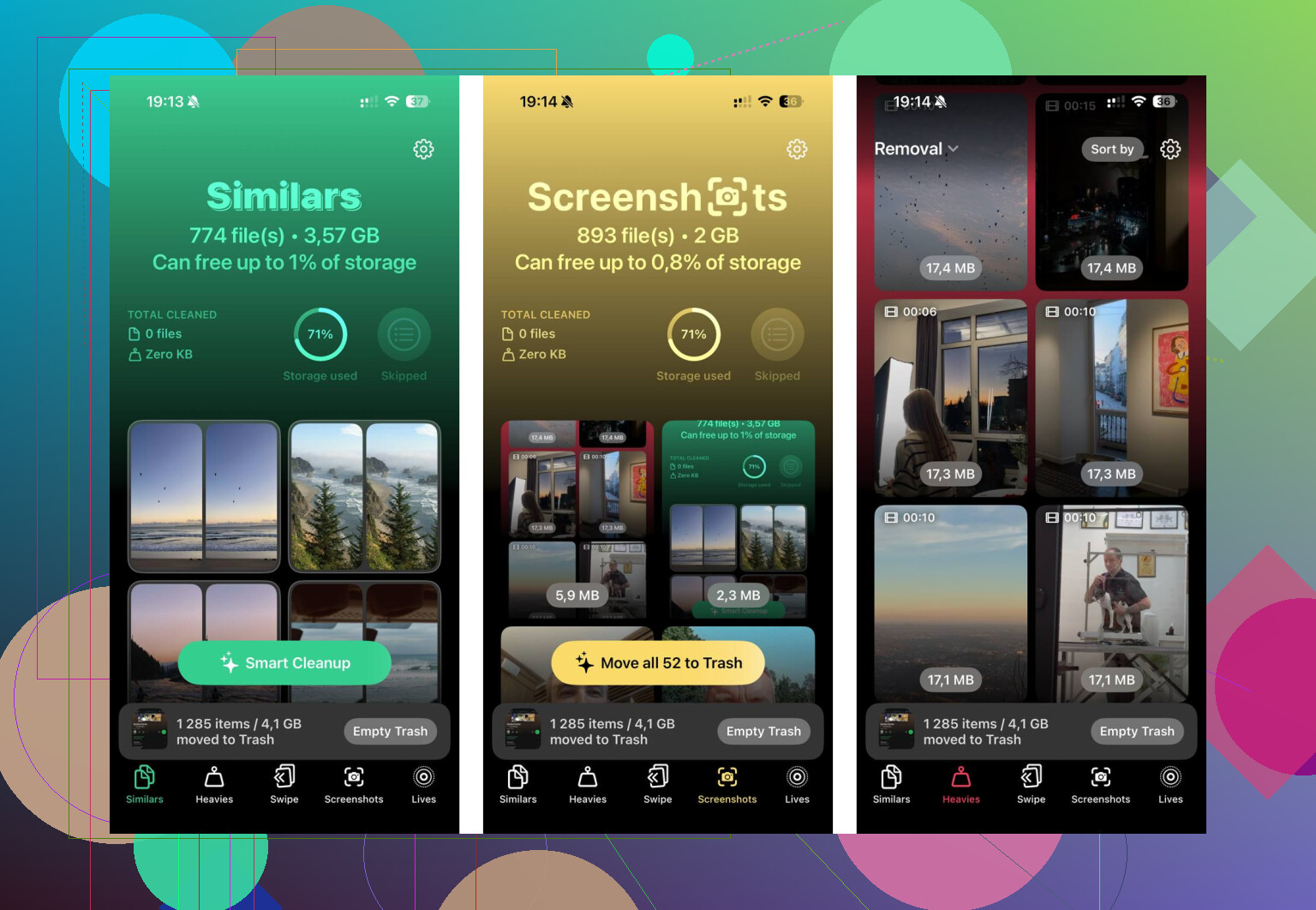
That’s where something like Clever Cleaner can be more useful than constantly fighting app caches. It doesn’t clear Messenger data, but it helps clean up the stuff that usually eats the most space.
The Heavies tab is handy because it sorts photos and videos by file size. That makes it way easier to find one giant video instead of deleting a bunch of tiny photos that barely move the needle.
The Similars tab groups photos that are almost the same, so you can keep the best one and remove the extras. It also has a section for screenshots, which is useful if your camera roll is full of random receipts, memes, app screens, and things you forgot you saved.
One other nice thing is that Clever Cleaner processes your photos on the device instead of uploading them somewhere. It’s also free, with no ads or paywall mentioned here, which matters because a lot of “cleaner” apps are pretty spammy.
So the short version: reinstall Messenger if you want to clear its cache properly. Offload it if you want the safer half-step. But if your phone is still packed afterward, check your photo library next, because that’s often where the real space is going.
1 Like
If some of your chats are end-to-end encrypted, I would check the Messenger PIN or secure storage setup before deleting the app. Regular cloud-backed Messenger history usually comes back after you sign in, but encrypted chat history can be fussier. Meta says encrypted chats can be restored with a PIN or recovery code if you saved them in secure storage, so make sure that part is set up and that you actually know the PIN before you wipe the app. (facebook.com)
The important distinction is this: deleting the Messenger app from the iPhone is not the same as deleting conversations inside Messenger. Don’t open a chat and hit delete/remove if you want to keep the history. Go through iPhone Storage and remove the app itself, then reinstall from the App Store and sign back in. You may lose local convenience stuff like already-loaded thumbnails, downloaded media previews, search cache, stickers, and login state, but that is the point of clearing space.
I’d be a little skeptical of expecting a permanent fix, though. Messenger will rebuild a chunk of that storage as soon as you start scrolling old threads and opening videos again. If you only need a quick bit of room, delete/reinstall is fine. If you are trying to recover a lot of storage, check whether Messenger is actually the biggest offender or whether the same photos and videos are saved in your Photos app too. A cleaner app like Clever Cleaner can help with the photo-library side, but it will not magically empty Messenger’s own cache.
Don’t tap anything inside a conversation that says delete, remove, unsend, or clear chat if the goal is only to free iPhone storage. The safe target is the app’s local copy, not the conversation itself. I agree with @nachtdromer that encrypted chats are the annoying edge case, so check your PIN/recovery setup first. After that, I’d skip Offload if you actually want space back, because it often leaves the bulky “Documents & Data” behind. Use Settings > General > iPhone Storage > Messenger > Delete App, reinstall Messenger, then sign in again. Your normal message history should reload from your account, but expect the app to look a bit “fresh” at first: previews, media thumbnails, searches, and stickers may need to download again as you open chats.
The thing nobody flagged yet is what happens if you log into Messenger with just a phone number or a Facebook account you barely remember the credentials for. Deleting the app logs you out completely, and if you can’t get back in, your history being safe on Meta’s servers doesn’t help you at all. I’ve seen people lock themselves out this way, so before you delete anything, actually confirm you can log back in from scratch, not just that you’re currently signed in.
@waldgeist is right that Offload usually leaves the bulky Documents and Data behind, so if space is the whole point, delete and reinstall is the real move. But I think the thread is slightly overselling how much you’ll get back. Messenger cache balloons fast if you’re in a lot of active group chats with videos and voice notes. You’ll clear a few gigs, feel good, and it’ll be halfway back in a couple weeks. That’s not a bug, it’s just how the app works.
One correction on the encrypted chat warning from @nachtdromer, and it’s worth taking seriously: if you never set up the PIN or saved a recovery code for secure storage, those end-to-end chats can just be gone after a reinstall. Not fussy, gone. So if you have any encrypted threads you care about, sort that out first or don’t delete the app at all.
The Clever Cleaner suggestion makes sense as a check on whether Messenger is even the culprit. Half the time people blame an app when the camera roll is the real problem. Use it to confirm where your storage actually went, then decide if the Messenger reinstall is even worth the login hassle. If Messenger is only sitting at a gig or two and your Photos are eating twenty, don’t bother touching the app.
Quick version: verify your login, check your encryption PIN, then delete and reinstall. Just don’t expect it to stay clean.