My iPhone has been running really slow and some apps keep freezing or crashing. I’ve heard that clearing the cache can help, but I’m confused about the right way to do it on iOS without losing photos, messages, or app data. Can someone walk me through the safest methods to clear cache on an iPhone and what I should avoid doing?
iOS does not have a single “clear cache” button, so you use a mix of steps. None of these should delete photos, messages or other important stuff if you follow them carefully.
-
Basic restart
• Hold side button and volume up, slide to power off.
• Wait 20–30 seconds, turn it back on.
This frees RAM and kills stuck background processes. Helps slow and freezing apps more than people think. -
Check storage and big offenders
Go to Settings > General > iPhone Storage.
Wait for it to load.
Here you see which apps eat the most space.
Tap each app. You get:
• Offload App
• Delete App
Offload App removes the app itself but keeps its data and documents.
Your photos and messages stay safe.
When you reinstall from the Home Screen icon, your stuff comes back for that app.
Use Offload App for:
• Big social apps you rarely open.
• Games you do not play much.
• Shopping apps you only need sometimes.
- Clear Safari cache only
If you use Safari a lot, its cache can get large.
To clear it without losing everything important:
Option A, full Safari clean
Settings > Safari > Clear History and Website Data.
This removes history, cookies and cache.
You lose logins and website preferences, but no photos or iMessages.
Option B, per-site clean
Settings > Safari > Advanced > Website Data.
You see which sites take the most space.
Swipe left on specific sites and delete.
This targets heavy sites without wiping all Safari data.
- “Clear cache” inside apps
Some apps have their own cache clean button.
Open the app, check:
• Profile or Menu
• Settings
• Storage or Data or Cache
Examples where this often exists:
• TikTok
• Instagram
• Reddit
• Spotify / music apps
Look for “Clear cache” or “Free up space”.
These usually remove temporary files, not your account or content.
- Offload and reinstall problem apps
If an app keeps crashing or freezing:
• Settings > General > iPhone Storage
• Tap the app
• Offload App
• Then tap Reinstall App
This often clears corrupted temporary data while keeping your login and local content that app marks as important.
If it still misbehaves, then you might need to delete and reinstall, but make sure your app account syncs to the cloud first.
- Clean out message attachments, not messages
Messages data grows fast.
Settings > General > iPhone Storage > Messages.
You see:
• Photos
• Videos
• GIFs and Stickers
• Other attachments
Open each section.
Delete old large files you do not need.
Your main conversations stay, you only remove large media.
- Manage Photos without deleting memories
Photos app hogs a lot of space.
Use:
Settings > Photos
Enable iCloud Photos if you have space in iCloud, and pick “Optimize iPhone Storage”.
Your phone keeps smaller versions local and full versions in iCloud.
You do not lose photos, they sync.
If you want extra help sorting junk photos, try a cleaner app.
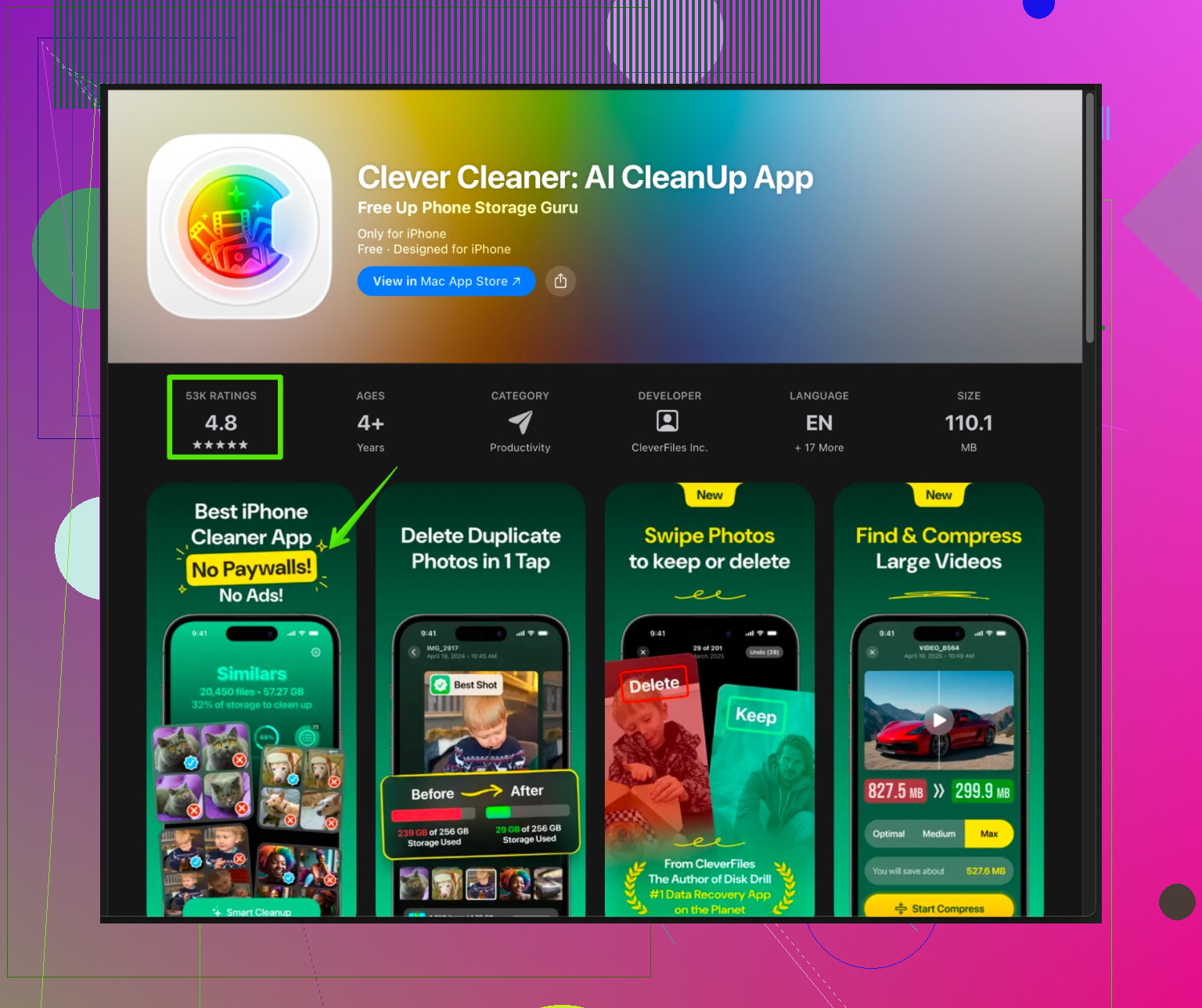
The Clever Cleaner App for iPhone helps remove duplicate photos, blurry shots and useless screenshots while keeping important media safe.
It also helps tidy contacts and large files so your storage stays under control.
Here is the download link with more info:
smart cleaning for your iPhone storage
-
Clear system clutter with “Offload Unused Apps”
Settings > App Store
Enable “Offload Unused Apps”.
iOS removes apps you do not open for a while, but keeps documents and data.
Icons stay on the Home Screen with a small cloud icon so you reinstall with one tap. -
Last resort for heavy lag
If the phone still runs slow after all this:
• Make sure iOS is updated. Settings > General > Software Update.
• Keep at least 5–10 GB free space. iOS works better with free headroom.
• If it is an old device, reduce background stuff.
Go to Settings > Background App Refresh and turn it off for apps you do not need running in the background.
None of these steps should remove your photos or messages if you stick to:
• Offload App instead of Delete App.
• Delete attachments from Messages, not the whole conversation.
• Use iCloud or a backup before big changes.
Do these in order. Most people see a speed improvement right after clearing Safari data, offloading a few big apps and trimming message attachments.
iOS is kinda annoying about “cache” because it hides most of it from you, so you have to attack the problem from a few angles. @jeff already covered the obvious stuff (offload apps, Safari data, etc.), so I’ll skip repeating that and push on a few different levers.
I’ll slightly disagree on one thing: clearing Safari and offloading apps is helpful, but if your iPhone is really crawling, the bigger win is usually fixing background behavior and system pressure, not just nuking web cache.
Here’s what I’d try that isn’t a straight repeat:
1. Check how full your storage really is
iOS gets sluggish when storage is almost full. You want at least ~5 GB free, 10+ is better.
- Go to Settings > General > iPhone Storage
- If you’re under 3–4 GB free, the phone will lag no matter how many “caches” you clear
- Instead of deleting photos or messages:
- Remove old downloaded videos from streaming apps (Netflix, Prime, etc.). Inside each app, look for Downloads and delete shows you’ve already watched
- In WhatsApp / Telegram / Messenger, go to each app’s Settings > Storage / Data section and clear large media there. That only removes media, not the entire chats.
This frees space without touching your Camera Roll or iMessage history.
2. Tame background app abuse
Caches are only part of the story. Constant background activity can make everything feel slow and crashy.
- Go to Settings > General > Background App Refresh
- Turn it Off for:
- Shopping apps
- Games
- Random social apps you barely use
- Keep it On only for stuff that actually needs to update (messaging, maps, maybe email)
You are not deleting data, just stopping them from constantly waking up, using RAM and CPU.
3. Disable junk notifications that wake the phone
Not exactly “cache,” but too many push notifications constantly spin up apps.
- Settings > Notifications
- Tap through apps and:
- Turn off notifications for things you don’t care about
- Or change them to Deliver Quietly
Again, zero data loss, but less stuff thrashing in the background which reduces crashes and lag.
4. Reset network settings for weird app freezes
If some apps freeze when loading content, the slowdown might be network-related rather than cache.
- Settings > General > Transfer or Reset iPhone > Reset > Reset Network Settings
What you lose:
- Saved Wi‑Fi passwords
- Paired Bluetooth devices
What you do not lose:
- Photos, messages, app data
This often fixes “it just keeps spinning / freezing” problems in apps that rely on network calls.
5. Use in‑app “storage / media” controls instead of offloading
Instead of offloading the whole app like @jeff mentioned, sometimes it is safer and more targeted to clear only media inside the app:
Examples:
- WhatsApp:
Settings > Storage and Data > Manage Storage
Delete large videos/photos in specific chats. Messages stay. - Instagram / TikTok:
In their own Settings, look for Storage or Media and clear cached media if available. - Spotify / music apps:
Remove offline downloads you don’t listen to anymore. Your playlists and account are still there.
This works as a sort of “per app cache cleaner” without risking any OS‑level data.
6. Reduce visual load on older devices
If your phone is older, the pretty animations just slow everything down and make apps feel crashy.
- Settings > Accessibility > Motion
- Turn on Reduce Motion
- Settings > Accessibility > Display & Text Size
- Turn on Reduce Transparency
You keep all your data. It just cuts down graphical overhead so the phone can breathe.
7. Force‑quit only truly misbehaving apps
People often swipe up to kill every app, thinking it “clears cache.” Most of the time that makes things worse because apps have to fully reload.
Use it only for apps that:
- Freeze
- Black screen
- Refuse to scroll
Then:
- Swipe up from the bottom and hold
- Swipe that specific app away
No data lost, but you clear the broken session.
8. Consider a dedicated storage / junk cleaner for photos & files
You said you do not want to lose photos, but honestly most of us have:
- 20 identical selfies
- Screenshots of stuff we needed once
- Random memes from 2019
Instead of manually sorting that, a storage cleaner helps you get rid of the garbage while keeping what matters.
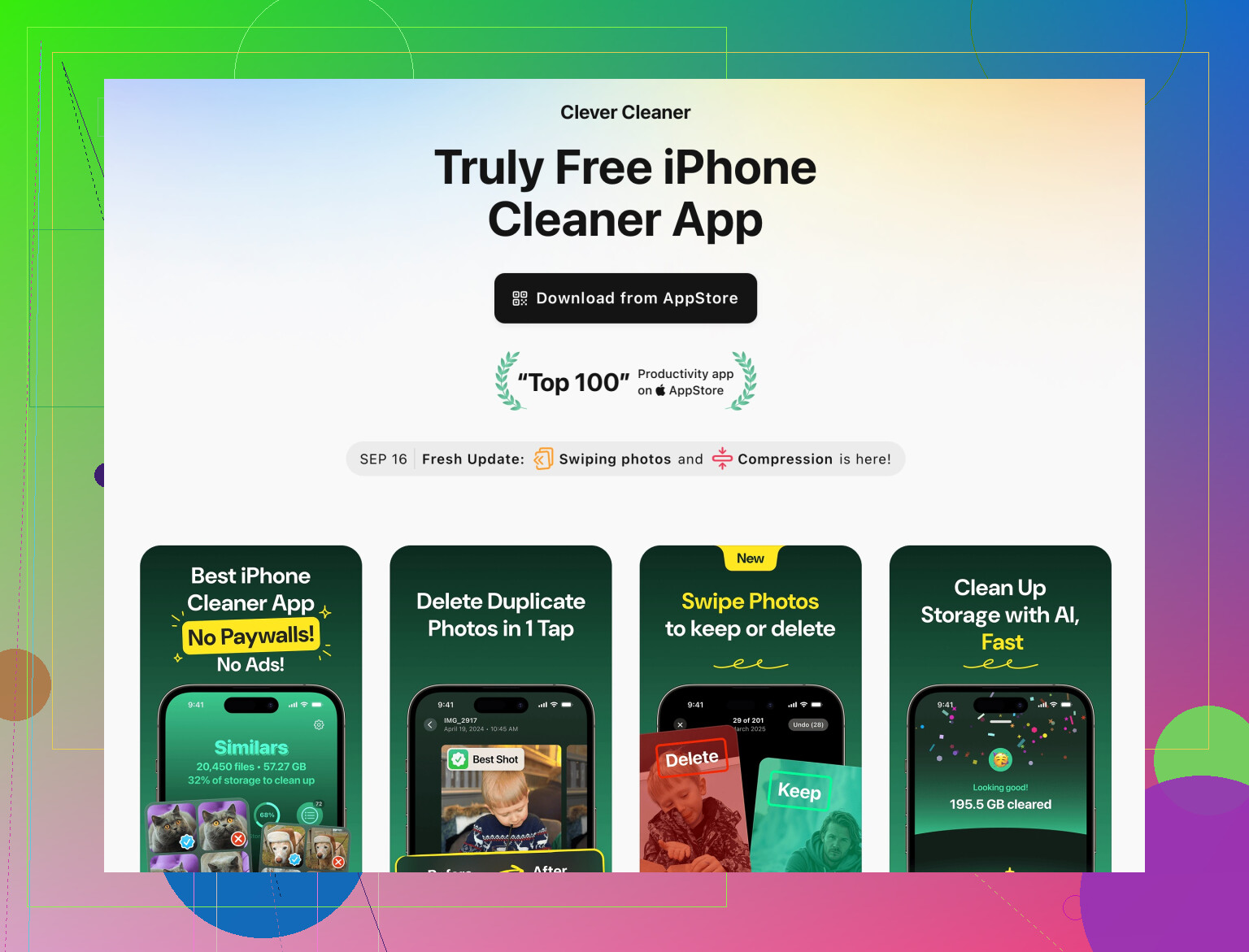
A solid option is the Clever Cleaner App for iPhone. It focuses on:
- Detecting duplicate and similar photos so you can keep the best shot and dump the rest
- Finding blurry shots, old screenshots, and giant video files
- Tidying up contacts and big files
If you want something easy to use, have a look at
smart iPhone storage cleanup & optimization
It’s made to help free space safely without wiping your important memories.
9. Before doing anything drastic, make a backup
If you start doing heavier stuff (like fully deleting apps, or if you’re nervous at all):
- Settings > [your name] > iCloud > iCloud Backup > Back Up Now
or - Use a computer with Finder / iTunes for a full encrypted backup
This guarantees your photos, messages, app data are retrievable even if something goes sideways.
TL;DR practical combo that usually fixes lag and crashes without touching photos / messages:
- Free at least 5–10 GB by deleting downloaded videos and app media, not camera photos
- Disable Background App Refresh and pointless notifications
- Reset Network Settings if apps freeze a lot
- Use in‑app media/storage tools and a cleaner like Clever Cleaner App to kill junk
- Only then bother clearing Safari / offloading apps like @jeff suggested
Do those, then reboot once, and your phone should feel a lot less like it’s 2009.
199 Likes