Twitter/X has been running slowly on my iPhone and taking up more storage than expected. I’m trying to clear the app cache without deleting important data or messing up my account settings. What’s the safest way to clear Twitter cache on iPhone?
If you’re trying to free up space from Twitter, it helps to separate two things: clearing the app’s cache, and actually getting your iPhone storage under control. Cache cleanup can help, but it usually isn’t the whole fix.
Clearing cache does not remove search history
Your Twitter search history is not part of the cache. If you want to delete recent searches, open the search tab, tap into the search bar, then remove each item with the X next to it. Clearing cache from the Data Usage menu won’t erase those searches.
How to clear Twitter cache on iPhone
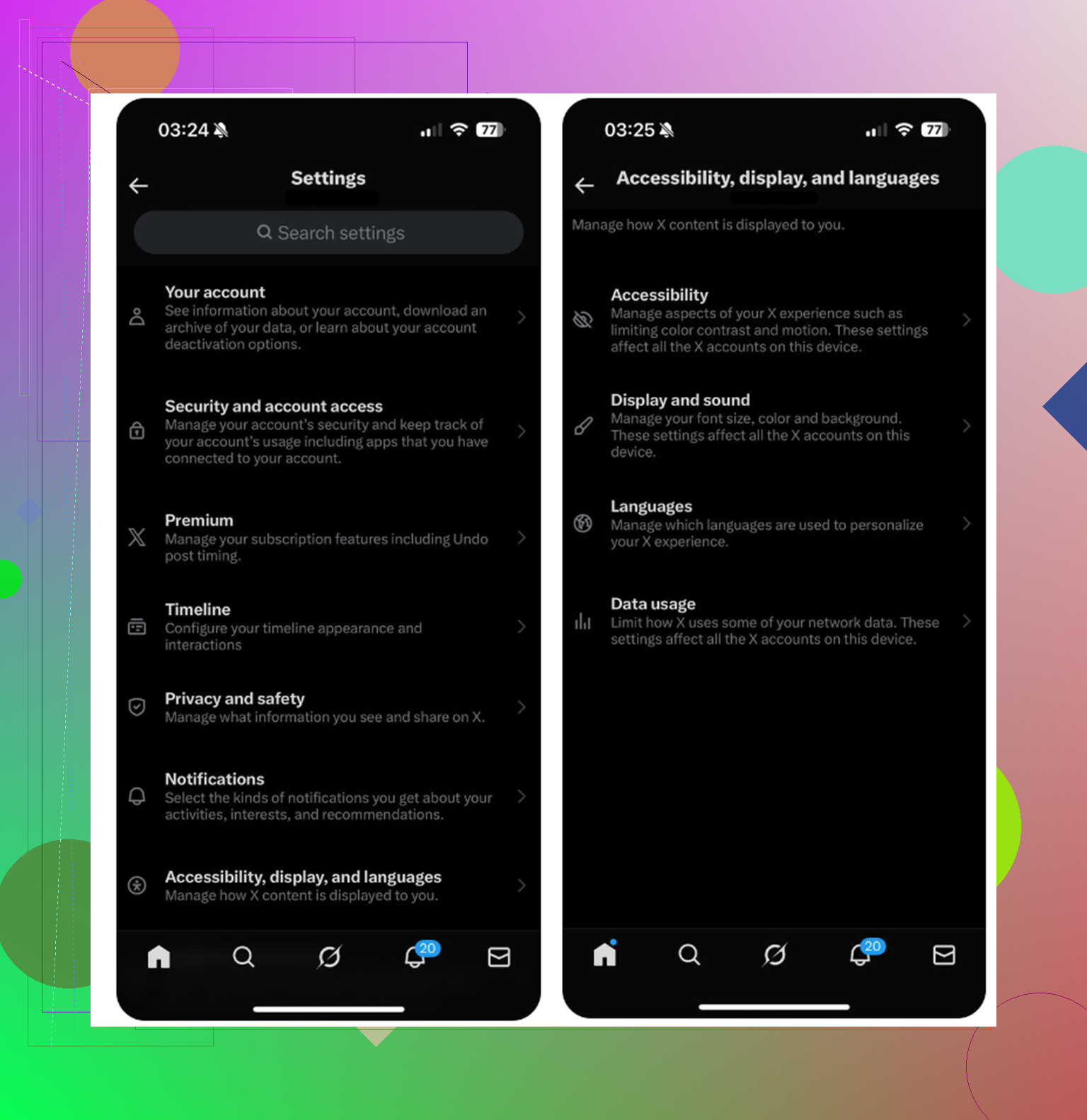
- Open Twitter and tap your profile icon in the top-left corner
- Go to Settings and Support, then Settings and Privacy
- Tap Accessibility, Display and Languages
- Open Data Usage
- Scroll down to the Storage section
Media storage is the safe one most people are looking for. That’s where Twitter keeps cached images, GIF pieces, video thumbnails, and other stuff it loads while you scroll. Clearing it won’t log you out.
Web storage is different. If you clear web page storage, it removes cached website data and usually leaves your login alone. If you choose clear all web storage, that also removes cookies, so expect to be signed out. Make sure you know your password before using that option.
Doing this regularly is fine
Clearing Twitter cache every month or so, maybe every four to six weeks, is reasonable. Just don’t expect it to stay empty for long. Twitter rebuilds cache as you use the app because it preloads thumbnails and video previews to keep scrolling fast.
If you want it to grow back more slowly, go back into Data Usage and change video autoplay to Wi-Fi only, or turn autoplay off completely.
If your iPhone is still slow, Twitter probably was not the main issue
Clearing Twitter cache might get you back 1 to 2GB for a while. That’s useful, but if your phone is still laggy or storage warnings come back a few days later, the bigger problem is somewhere else.
iOS needs free space to work properly in the background. When the phone is almost full, everything can start feeling slow, not just Twitter. App cache is easy to blame, but on a lot of iPhones the real storage hog is the photo library. Old screenshots, repeated burst shots, and big videos that have been sitting there for months usually take up far more space than Twitter cache.
What usually makes the bigger difference
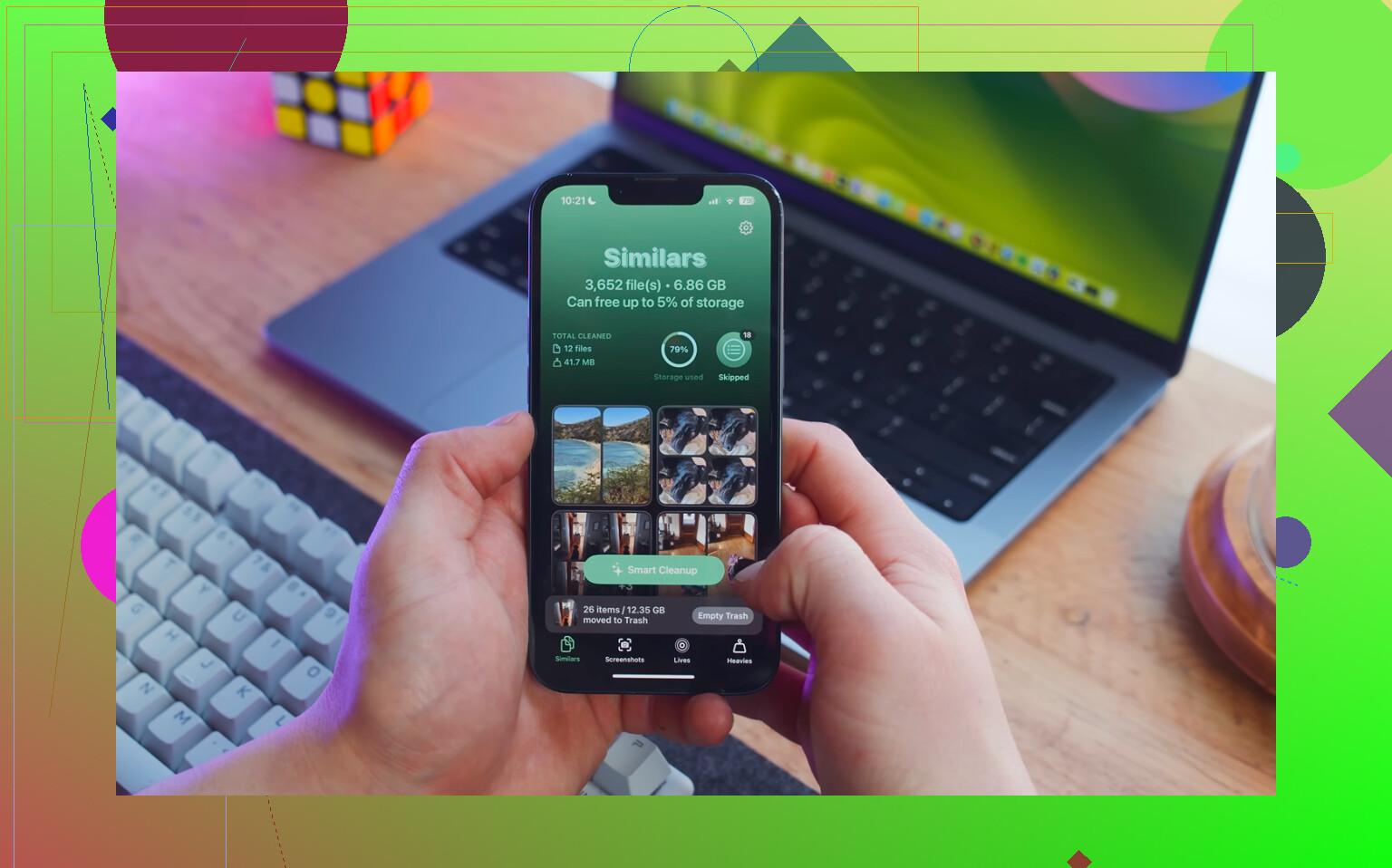
After you clear Twitter cache, check your photos next. That’s where Clever Cleaner is actually useful. It’s free, has no ads, and does not require a subscription.
It does not clear Twitter data or app cache. You still have to do that manually with the steps above. What it does is help find the photo library items that are eating the most space.
The Heavies tab shows your largest files first, with exact file sizes. So if you have old 4K videos buried somewhere in the library, they show up right away instead of being hidden among thousands of photos.
The Similars tab groups near-duplicate photos and uses AI to pick a Best Shot from each set. That makes it easier to clear out ten versions of the same picture without checking every single one manually.
It also shows file sizes on screenshots before you delete them, which makes cleanup less random. You can see what is actually worth removing.
Everything runs on the device, so the app is not uploading your photo library to an outside server.
The practical cleanup order
Clear Twitter cache first if you want the quick win. Then go through your photo library with Clever Cleaner, because that is where the larger storage problem usually is.
One last step matters: after deleting photos or videos, open Photos, go to Recently Deleted, and tap Delete All. Deleted files stay there for 30 days and still count against your storage until you empty that folder. If you skip that, it can look like nothing changed even after a big cleanup.
1 Like
Clearing media storage is the low-risk cleanup; deleting the app and reinstalling it is the bigger reset that can wipe local stuff like drafts and force you to sign back in. Mike’s steps are the right place to start, but don’t panic if iPhone Storage doesn’t update the number right away. iOS can be slow to recalculate app storage, so close X, reopen it, or restart the phone before assuming it failed. I’d avoid “clear all web storage” unless you’re fine re-logging into sites opened inside X. If the app is still massive after clearing media storage, then reinstalling X is the cleaner fix, but only after checking you know your login details and don’t have anything local in the app you care about.
Clearing X’s media cache is like emptying a junk drawer, while deleting and reinstalling the app is more like moving out and hoping you packed everything first.
The iPhone button that gets people into trouble is Offload App. It sounds like a cleanup button, but for this problem it is often the wrong one. Offloading removes the app itself and keeps its documents and data so you can reinstall it later. If the big storage number is sitting in that kept data, offloading may barely change anything. It can make you think you cleared cache when you mostly just removed the app shell.
The safer order would be:
- Clear media storage inside X first.
- Leave web storage alone unless pages opened inside X are the actual issue.
- Fully close X and restart the iPhone if the storage number looks unchanged.
- Check Settings > General > iPhone Storage > X again.
- If X is still huge, then consider Delete App, not Offload App, but only after checking your login, 2FA, and drafts.
Most account stuff is not stored only on your phone. Your follows, profile, bookmarks, DMs, and settings should be tied to the account. The parts I would worry about are local drafts, temporary browser logins inside X, and the hassle of signing back in. If you use a password manager, passkey, or two-factor app, make sure that is working before you delete anything.
I’d be a little less confident about how much space you’ll get back. Sometimes clearing media storage frees a lot. Sometimes iOS still reports the app as large, or the cache comes right back after a day of watching videos and scrolling image-heavy feeds. That does not mean you did it wrong. X rebuilds cache because that is how it avoids loading every thumbnail from scratch.
If your goal is to keep it from growing again, change the behavior that fills it. Turn video autoplay off or set it to Wi-Fi only. That is not as satisfying as clearing cache, but it slows down the repeat problem.
I would keep photo cleanup separate from X cleanup. Something like Clever Cleaner can be useful if your whole iPhone is low on space because Photos is packed with large videos or duplicates, but it is not going to clear X’s cache. Clear X inside X first. If the phone is still low on storage after that, then look at Photos, Messages attachments, and downloaded files.
The boring answer is the safest one: clear media storage, avoid “clear all web storage” unless you accept being signed out of sites, do not expect Offload App to solve cache, and only delete/reinstall once you know you can get back into your account.
If the problem is mostly lag and not a huge X storage number, clearing cache may not be the magic fix. Cache is there so the app doesn’t have to reload every image and video preview from scratch, so right after you clear it X can actually feel a little clunkier for a bit. I’d use cache clearing when the app is taking up weird amounts of space, thumbnails are acting buggy, or videos keep misbehaving.
For the safe route, I agree with the others: clear media storage inside X first and leave web storage alone unless you specifically want to reset the little browser inside the app. The small thing people forget before deleting/reinstalling is drafts. If you have half-written posts, threads, or anything you started but didn’t send, copy them somewhere else first. Same goes for checking all accounts if you switch between more than one login.
After clearing it, don’t judge it instantly from the iPhone Storage screen. Open X once, close it, restart the phone if needed, then check again later. If it refills fast, that’s normal behavior from scrolling video-heavy feeds. At that point the better “fix” is using less autoplay/media loading, not clearing cache every few days like it’s a maintenance ritual.