I’m trying to clear Facebook data on my iPhone because the app is using a lot of storage and still seems to remember old searches and cached content. I’m not sure if I should offload the app, delete it, clear browser data, or change Facebook settings. What’s the safest way to remove Facebook cache and data without losing my account or important information?
If Facebook is eating a weird amount of storage on your iPhone, the annoying part is that Apple does not give you a simple “clear cache” button for it. You can clear some of it, but the method matters.
Deleting Facebook will not remove your account stuff
Your posts, uploaded photos, videos, friends, messages, and account data are stored on Facebook’s servers, not only on your phone. What sits locally is mostly cache: thumbnails, pieces of videos, scripts, and other temporary files Facebook saves so the app loads faster.
So yes, clearing the local data means Facebook has to download things again. No, it does not delete your uploaded photos or posts.
The only real full cleanup: delete and reinstall
Go to Settings > General > iPhone Storage > Facebook, then choose Delete App.
That removes the app plus its Documents and Data, which is where the bigger local cache usually lives. After reinstalling Facebook, you will need to log in again, but your account data comes back from Facebook’s servers.
This is the method that actually clears the deeper cache. If Facebook is taking up a lot of space, this is the one that usually makes a noticeable difference.
Offloading is not the same thing
From that same iPhone Storage screen, Offload App only removes the app itself. It keeps Documents and Data, so reinstalling usually keeps you logged in.
That can be useful if you just want to free a small amount of space without dealing with login, but it usually will not fix a big Facebook storage problem because most of the junk is still sitting there.
There is also a small browser cache inside Facebook
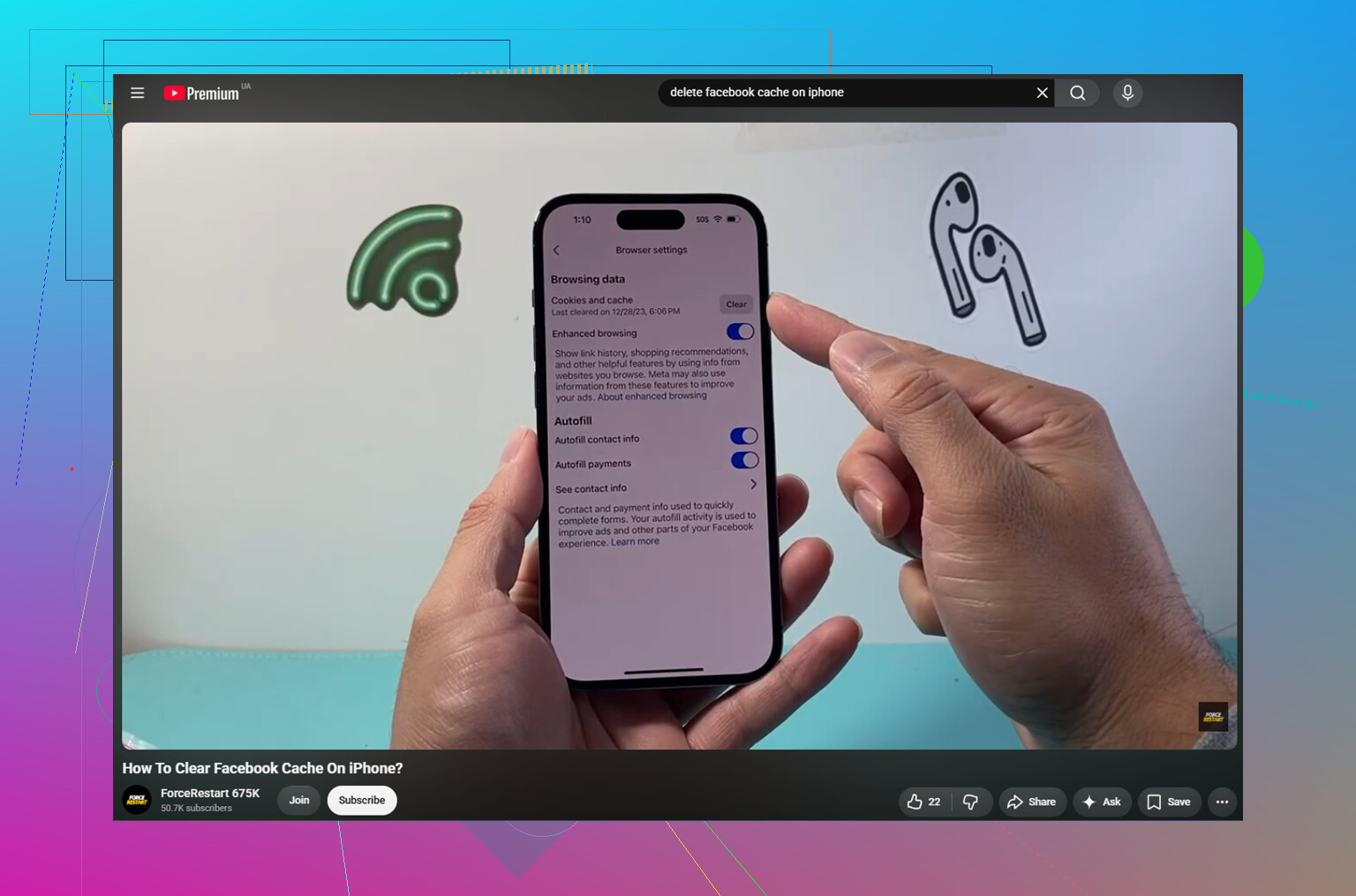
In the Facebook app, go to Menu > Settings and Privacy > Settings > Browser, then tap Clear next to Cookies and Cache.
This only clears data from websites opened inside Facebook. It can help if links are acting weird or loading slowly, but it is not where most of the storage goes.
To keep it from filling back up so fast
Turn off video Autoplay in Facebook’s settings, or at least set it to Wi-Fi only. Videos and Reels are usually the biggest reason the cache starts growing again right after you clear it.
And it will grow again. That is just how Facebook works. Scroll for a while, open images, watch Reels, and the app starts caching all over again, often within a day or two. The cache exists to make the app feel quicker, so Facebook keeps rebuilding it.
The bigger storage problem is usually not Facebook
For a lot of iPhones, Facebook looks like the problem because it is visible in storage settings, but the photo library is often much worse. Old videos, burst shots, duplicate-looking photos, and screenshots you never went back to can take up way more space than the Facebook app.
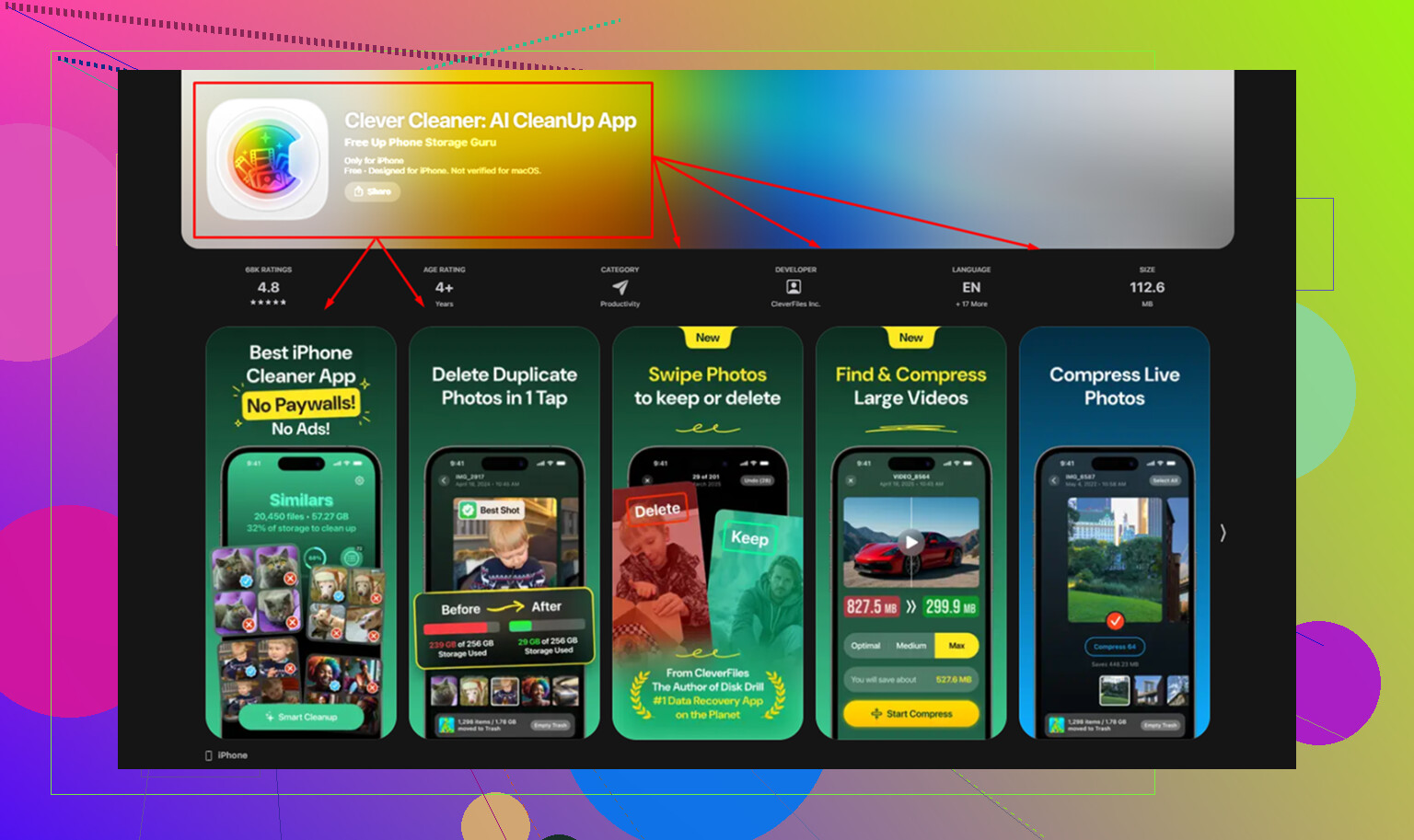
That is where Clever Cleaner is useful. It does not clear Facebook cache, so you still need the manual steps above for that. It focuses on the photo library instead, and it is free with no ads or subscription.
The Heavies tab sorts your files from largest to smallest and shows the exact size of each one. Sometimes one old 4K video is taking up more room than Facebook itself.
The Similars tab groups near-duplicate photos and chooses a Best Shot, so you can clear several versions of the same picture without checking each one manually.
Screenshots also show their file sizes before you delete anything, which makes it easier to see when a pile of old screenshots has turned into several gigabytes.
Everything is processed on the device, with nothing uploaded externally.
After clearing about 10GB of duplicate photos and old videos, the storage warning stopped coming back even though Facebook still rebuilt its cache like usual.
1 Like
Don’t delete Facebook until you’re sure you can get back into the account. Check that you know the password, have access to the email or phone number on the account, and that two-factor codes will still work. A lot of people clear space fine, then get stuck because the app was the only place they were still logged in.
I agree with @mikeappsreviewer that delete and reinstall is the cleanest way to wipe the iPhone-side junk. Offload is mostly useless for this because it keeps the saved data. But I’d separate “storage data” from “Facebook remembers things.” Reinstalling can clear cached images, videos, and app files, but it may not erase stuff tied to your Facebook account, like search history, recent interactions, ad preferences, or login/session history. Those can come back because they live with the account, not the phone.
For old searches, open Facebook and clear them from the search screen or Activity Log, depending on what exactly is showing. For websites opened inside Facebook, clear the in-app browser cookies/cache. For actual iPhone storage, delete the app from iPhone Storage and reinstall. If Safari is involved too, clear Safari website data separately, because Facebook in Safari and Facebook the app do not share one neat “erase everything” button.
If you use Messenger separately, clear that too, because deleting the Facebook app will not clean Messenger’s local storage or its own recent chats/search bits. I agree with deleting and reinstalling Facebook for the real app cache, but I’d check Settings > General > iPhone Storage afterward and see what is still huge. Sometimes people “fix Facebook” and the space is actually sitting in Messenger, Instagram, Safari website data, or Photos. Offload is only worth using if you are nervous about logging back in and want a low-risk first try, but for an actual reset of Facebook’s iPhone data, delete is the cleaner move.
Removing the icon from the Home Screen is not the same as deleting Facebook. If you long-press the app and only choose “Remove from Home Screen,” the app and its data are still on the phone. You need “Delete App,” or go through Settings > General > iPhone Storage > Facebook > Delete App if you want the local Facebook storage gone.
I agree with the others that offloading is usually the wrong tool here. Offload is more like putting the app shell away while keeping its suitcase full of data. Good if you just need a tiny bit of space, bad if the suitcase is the problem. After reinstalling, expect some things to come back because Facebook syncs them from your account, especially searches, suggestions, and activity-based stuff. Cache is phone-side. History and preferences are often account-side.
And don’t expect a cleaner app to wipe Facebook’s private app data. iOS sandboxes apps, so another app can’t just reach into Facebook and empty its cache. Something like Clever Cleaner may help if your Photos app is the real storage hog, but it won’t replace deleting and reinstalling Facebook. For Facebook itself, the boring answer is still the correct one: confirm your login, delete the app, reinstall, then clear search/history inside Facebook if that’s the part bothering you.