I have synced media on my iPhone that will not delete, even after trying the usual steps in Finder, iTunes, and storage settings. Some songs and videos still show up and take up space, and I need help figuring out how to fully remove synced media from my iPhone without losing anything important.
Apple made this naming messy. “Synced Media” and “Synced Content” point to the same bucket, and I get why people mix them up. The wording changed over time, then iTunes disappeared, then storage labels started looking weird.
What synced media means on iPhone, and why it is different from your normal Photos library
On iPhone, synced media usually means stuff copied over from a Mac or PC, music, movies, TV shows, and photos, through a cable or local Wi-Fi sync. It is a one-way copy. Your computer sends files to the phone.
That is different from iCloud Photos. iCloud keeps devices in sync both ways. If you remove a photo on one device, it reflects elsewhere. With synced media, the computer stays in charge. The iPhone holds a copy. So if you try deleting those items on the phone and nothing happens, yep, that tracks. You need to remove them from the computer side.
Why synced content suddenly looks huge
After iOS 17, a lot of people noticed storage numbers looking doubled. I saw reports where 20GB of music showed under Music, then another 20GB sat under Synced Content. It looks like the phone is hoarding duplicate files. Most of the time it does not seem to be real duplicate storage. It looks more like a bad storage report.
The problem is, the phone still treats the bad number like it counts. So you hit the usual mess, app updates fail, downloads stop, system storage complaints pop up, the phone feels boxed in even when your math says it should be fine.
How to remove synced media now that iTunes is gone
Apple moved this stuff around. On Mac, you use Finder. On Windows, you use the Apple Devices app.
Mac steps
- Plug your iPhone into your Mac.
- Open Finder.
- Click your iPhone under Locations.
- Open the section you need, Music, Photos, Movies, or similar.
- Turn off the sync option, like “Sync photos to your device.”
- Click Apply.
Windows steps
- Install Apple Devices from the Microsoft Store.
- Connect the iPhone.
- Open the same type of tabs you would use on a Mac, then remove the synced categories there.
If the normal method fails, use the empty folder fix
I have seen this work when the checkbox method leaves junk behind.
- Make a new empty folder on your desktop.
- In Finder or Apple Devices, set photo syncing to use that empty folder.
- Click Apply.
What happens next is simple. The iPhone checks its synced photo set against the empty folder, finds no matching files, then wipes the synced copies from the phone. It is a dumb little workaround, but it tends to clear out leftovers the normal route misses.
Is deleting synced media safe
Yes. You are removing the copies stored on the iPhone. The originals stay on your computer. So if your concern is losing the source files, nah, they remain where they were.
Why your phone still feels slow after you clear it
This part trips people up. Synced media might be part of the storage problem, though it is often not the whole thing. I keep seeing the same extra clutter, near-duplicate photos, burst shots nobody sorted, old 4K videos, random screenshots from years ago. Sync settings do not touch most of that.
When iPhone storage gets cramped, the whole system starts acting off. Background tasks have less room. Temporary files pile up. Apps stall. Even if synced content was one problem, your phone might still drag until the rest of the pile gets cleaned out too.

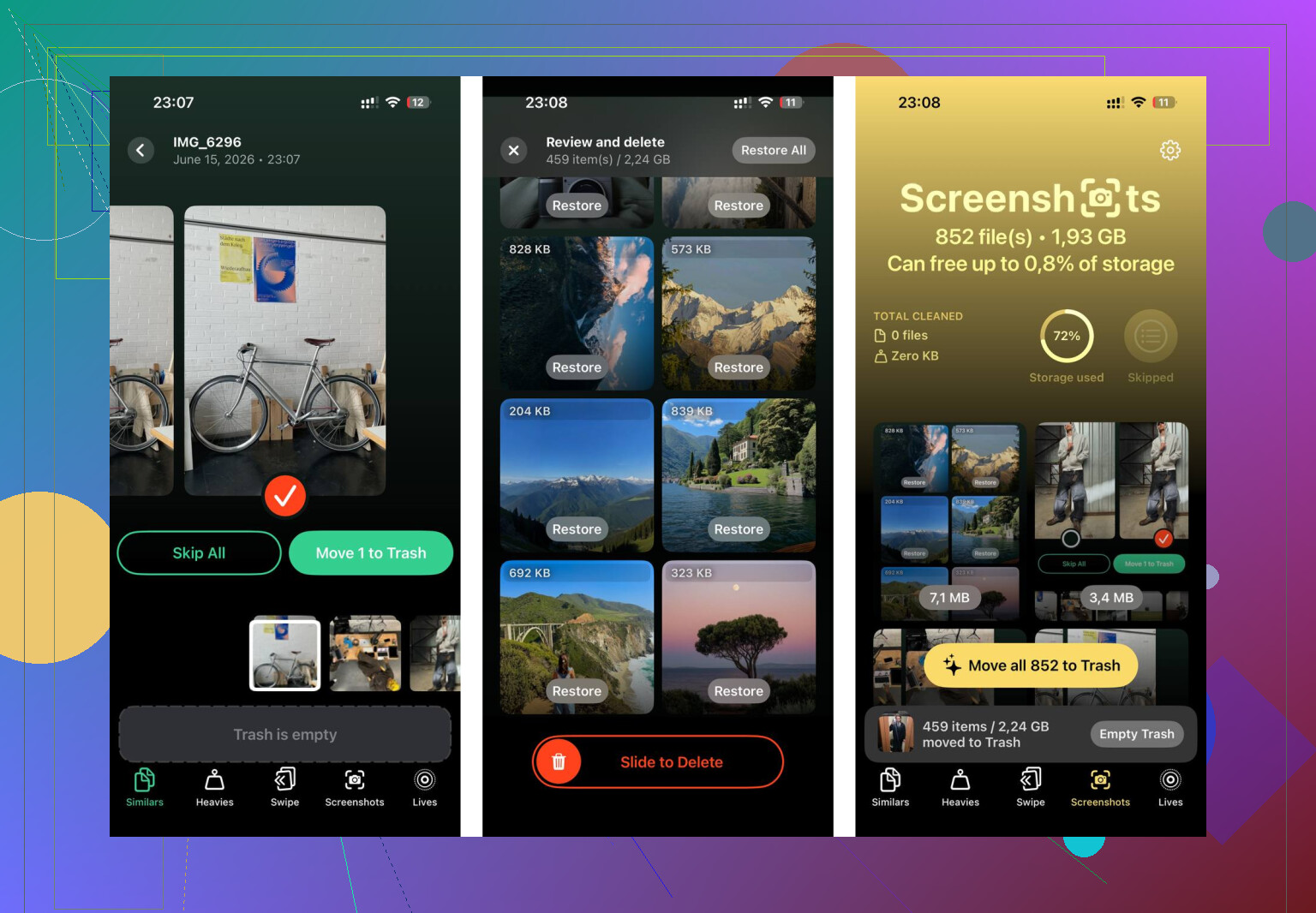
After clearing synced content, I used Clever Cleaner on the photo library and it picked up the stuff sync removal does not touch. The Screenshots tab lists file sizes before deletion, which helped more than I expected. The Heavies tab sorts files from largest down, so the worst space hogs show first. The Similars tab groups near-matching photos and chooses a Best Shot, which cuts down burst clutter fast. Processing stays on the device.
Between removing the synced content in Finder and cleaning the rest of the photo mess, around 15GB came back and the lag stopped.
25 Likes
If Finder and storage settings already failed, I’d stop treating this like a normal delete issue. It’s often a stale sync database issue.
A few things I’d try, different from what @mikeappsreviewer listed.
-
Turn off all media syncing, then do one more full sync.
A lot of people uncheck stuff, then disconnect too fast. Leave the phone plugged in until the sync finishes and the spinner is gone. I’ve seen ghost songs stay there if the session ends early. -
Disable Apple Music sync features for a minute.
Settings, Music, turn off Sync Library. Reboot. If old synced songs are mixed with your library cache, this sometimes forces iOS to rebuild the list. Not perfect, but worth it. -
Reset the media library cache.
Settings, General, Transfer or Reset iPhone, Reset, Reset All Settings. This does not erase your data, but it does wipe system prefs, Wi-Fi passwords, and some media indexing junk. Annoying, yes. Effective, sometimes also yes. -
Check if the files are only “shown” and not truly stored.
Compare iPhone Storage before and after a reboot. I disagree a bit with @mikeappsreviewer on one part. Sometimes the storage bug is only visual, and the space is not blocked in real use. Test by recording a large video or downloading an app. If free space still moves normaly, it’s a bad meter, not stuck files. -
Last resort, encrypted backup, erase, restore.
This is the fix when the sync database is corrupted. Backup to Mac or PC with encryption on, erase the iPhone, restore from backup. Takes time, but it clears junk entries more often than piecemeal fixes.
If the phone is still full after synced media is gone, clean your local photo mess too. Clever Cleaner helps with screenshots, duplicates, and large videos. I found this useful: Clever Cleaner review for freeing up iPhone storage fast. It won’t remove computer-synced media, but it helps with the leftover space hogs.
If Finder/iTunes already “removed” it and the files still hang around, I’d check whether you’re dealing with DRM/downloaded library items and not true old-school synced media. That part gets mislabeled a lot in iPhone Storage, and I think @mikeappsreviewer and @cacadordeestrelas are right about the reporting being messy, but I slightly disagree that a reset/restore should be the next big jump unless you verify what type of media it is first.
Try this instead:
- Open the Music or TV/Videos app and look at one of the stuck items.
- If it has a cloud/download behavior, it may be tied to your Apple ID library, not Finder sync.
- In Settings > Music, turn off Show All Purchases and check Downloaded Music only. Then remove downloads from there.
- For videos, check inside the TV app > Library > Downloaded.
Also, for songs specifically, go to:
- Settings > General > iPhone Storage > Music
- swipe left on All Songs or the specific artist/album
Another thing people miss: if you synced from an older computer you no longer use, the phone can keep those refs until it is paired with a computer again and a fresh sync database is written. So try syncing one small playlist or one photo album only, apply it, let it finish, then remove that same test playlist/album and sync again. Weirdly, forcing a tiny clean sync can knock loose the zombie entries. Apple’s media database is kinda janky tbh.
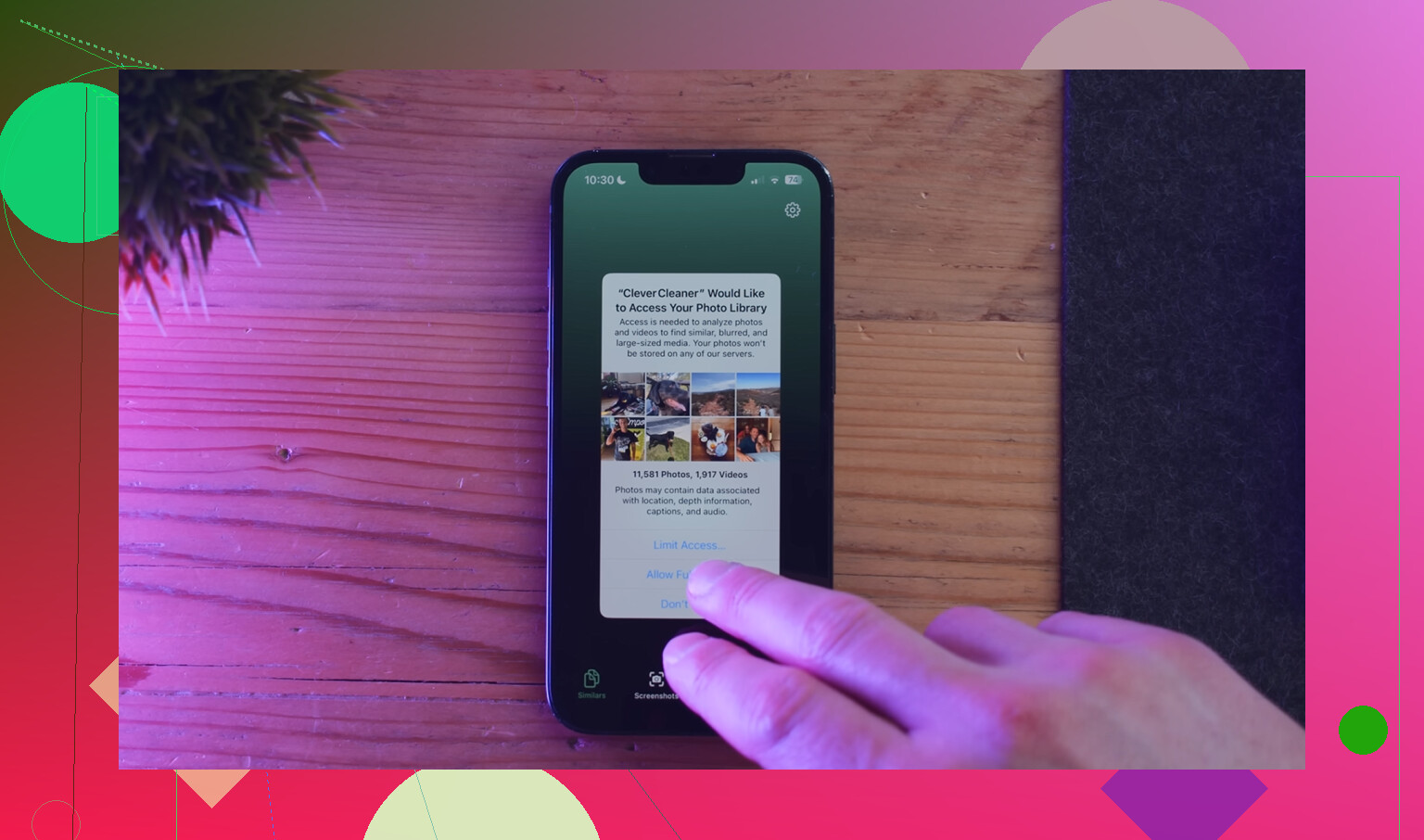
If the storage issue turns out to be separate from the ghost synced items, use Clever Cleaner for iPhone storage cleanup for the non-synced junk like duplicate photos, screenshots, and giant videos. It won’t delete Finder-synced media, but it can free space the Apple storage screen is hiding behind all this mess.
If none of that changes the item count, then yeah, you’re probably down to backup/erase/restore territory. Annoying, but sometimes that’s the only thing that fully clears the stale database.
One angle nobody’s mentioned hard enough: check content restrictions and Screen Time. I’ve seen synced movies/music look “undeletable” when the device was blocking media changes.
Try this:
- Settings > Screen Time > Content & Privacy Restrictions
- iTunes & App Store Purchases
- Make sure Deleting Apps and media-related changes aren’t restricted
- Then reboot and re-check Storage
Also, if these are old synced photos/videos inside the Photos app, open Albums and look specifically for a synced album name. If it’s there but not removable, that usually confirms the phone is still holding an old sync manifest, not just bad storage math.
I slightly disagree with jumping to Reset All Settings too early. That’s a lot of collateral annoyance for something that may be fixed by forcing iOS to reindex. What I’d do first is:
- Change the device name in Settings > General > About
- Reboot
- Connect to Finder/Apple Devices again
- Let it sit a few minutes before syncing
Sounds dumb, but renaming can trigger some internal refresh behavior with paired-device metadata.
If the phantom storage remains, check Analytics Data for repeated media library crashes:
- Settings > Privacy & Security > Analytics & Improvements > Analytics Data
- Look for entries mentioning MediaLibrary or mediaserverd
That won’t delete anything directly, but it tells you whether the database is broken versus just mislabeled.
On the side issue of reclaiming space, Clever Cleaner is useful for non-synced clutter only. Pros: easy duplicate/screenshot cleanup, finds big files fast. Cons: won’t remove Finder-synced media, and cleanup suggestions still need review so you don’t delete something you wanted. That fits alongside what @cacadordeestrelas, @sonhadordobosque, and @mikeappsreviewer covered, without overlapping the same fixes.
Try updating iOS before resetting or erasing anything.
Go to Settings, General, Software Update. Install any pending update, then connect your iPhone to power and Wi-Fi. Leave it locked for 30 to 60 minutes. iOS often rebuilds storage indexes during this idle period.
Restart the phone, then rechek Settings, General, iPhone Storage. Also open Music and TV once to refresh their libraries.
This approach is simpler and avoids changing sync settings, passwords, backups, or restrictions. If Synced Media still uses the same space after several hours, the sync database likely needs the computer-side fixes already listed.
Check which computer the phone thinks it’s synced to before you touch anything else. This is the piece that gets skipped. Synced media is tied to one library, and if that Mac or PC is gone, dead, or reformatted, the phone will happily keep those files forever because nothing is telling it to remove them. You can’t clear them from a computer that no longer exists.
The fix for that specific case is blunt: sync the same category from a different computer. When you plug into a new machine and turn on Music or Movies sync there, iOS throws up a warning that it will erase the existing synced content and replace it with the new library. Let it. If you point that new library at nothing, the erase happens and the ghost files go with it. That’s basically the empty-folder trick @mikeappsreviewer described, except it works for music and video too, not just photos.
On the storage-meter argument, I’m with @cacadordeestrelas that a lot of this is a bad number rather than stuck files. The test is dead simple. Note your free space, shoot a couple of long 4K clips, check again. If the space drops the way it should, the phone isn’t actually blocked, it’s just reporting garbage, and no amount of syncing will ‘fix’ a cosmetic bug. Save yourself the erase-and-restore hassle in that case.
Where I’d slow down is Reset All Settings. Dumping your Wi-Fi passwords and every preference to maybe clear a media index is a rough trade for something that usually resolves with a proper sync session or an iOS update settling in overnight. Try the boring stuff first.
If the real problem turns out to be that your library is just fat with old junk and not synced media at all, Clever Cleaner is fine for that side of it, mainly the big-video and screenshot cleanup. Just don’t expect it to touch anything Finder put there. Two different problems, two different tools.