My iPhone storage is almost full, and a huge chunk is listed as “System Data.” I don’t understand what’s taking up so much space or how to reduce it without messing up my phone. Can someone explain what System Data actually is and walk me through safe ways to clear or shrink it so I can free up space?
Short version, you cannot fully clear System Data, but you can shrink it a lot.
On iOS, “System Data” is stuff like:
• iOS itself
• caches from apps and Safari
• logs and diagnostics
• Siri, Spotlight, and keyboard data
• update files
When it gets huge, it is often caches and leftover junk.
Do these in order:
-
Check storage by app
Settings > General > iPhone Storage.
Look for apps with big “Documents & Data”. Messages, Instagram, TikTok, Facebook, Telegram, etc often blow up. -
Clear Safari data
Settings > Safari > Clear History and Website Data.
This drops System Data for many people by a few GB. -
Clear Messages bloat
Messages > Settings > Messages > Keep Messages > set to 1 Year or 30 Days.
Then in iPhone Storage > Messages, delete big “Photos”, “Videos”, “GIFs and Stickers”.
You free storage, and System Data often shrinks after a while. -
Offload or delete heavy apps
Settings > General > iPhone Storage, tap an app.
Use “Offload App” to remove the app but keep documents.
For super bloated social apps, delete and reinstall to clear hidden caches.
You will need to log in again, so make sure you know your passwords. -
Remove old iOS update files
Settings > General > iPhone Storage.
If you see an old update at the top, tap and delete it. -
Restart the phone
A simple reboot sometimes forces iOS to recalc System Data and clear temp caches. -
Use a cleaning helper
If you have tons of duplicate photos, similar screenshots, or blurry shots, that feeds into storage use and pushes iOS to keep more indexing data.
A cleaner app helps you quickly remove:
• duplicates
• similar photos
• old screenshots
• large videos
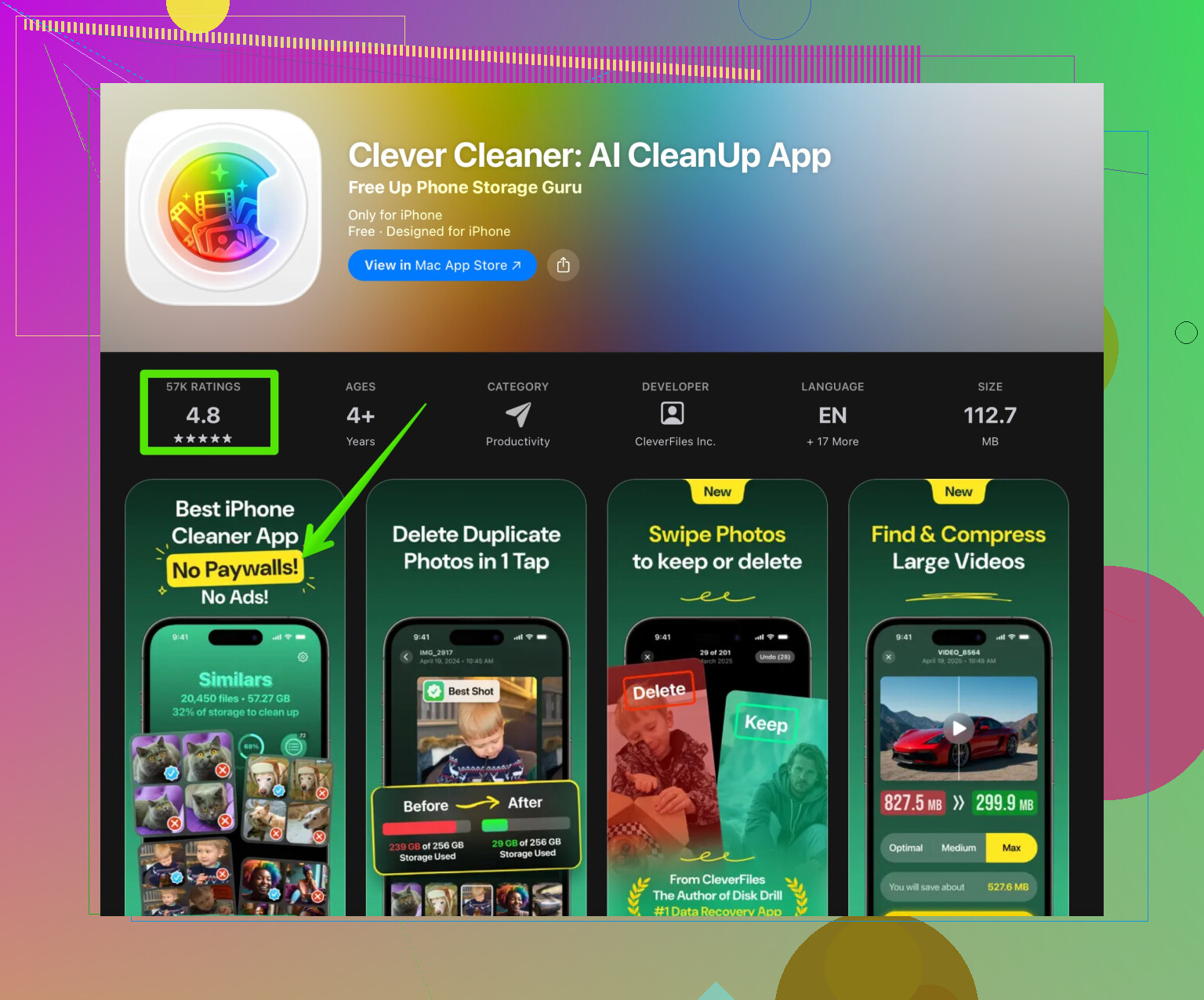
A decent tool for this is the Clever Cleaner App. It focuses on photo cleanup, contacts tidying, large files, and so on, which reduces total used space and often lowers the System Data footprint after iOS reindexes.
You can check it here:
Smart storage cleanup for iPhone with Clever Cleaner
- If System Data is still huge
When System Data sits at 20 to 40 GB and never drops, the most effective fix is:
• Backup to iCloud or to a computer
• Wipe the phone
Settings > General > Transfer or Reset iPhone > Erase All Content and Settings
• Restore from backup
This resets the system partitions and clears old cached stuff that iOS does not expose.
Extra notes:
• Do not trust the number to change instantly. It can take a few hours.
• Heavy apps rebuild cache over time. You will need to repeat some steps if you use them a lot.
Try Safari, Messages cleanup, and one or two big app reinstalls first. Those give the biggest wins with the lowest risk.
158 Likes
System Data on iPhone is basically Apple’s junk drawer plus the stuff it actually needs to run:
- Core iOS system files
- Temporary caches from apps and Safari
- Log files and diagnostic data
- Language packs, fonts, Siri, Spotlight, keyboard data
- Update and restore files
- Indexes for Photos, Messages, etc.
You can’t “delete” it like a normal app, but you can influence how big it gets. @espritlibre already covered the classic steps (Safari cleanup, Messages trimming, offloading apps, reset/restore). I’ll skip repeating those and hit the angles people usually miss.
1. Stop feeding System Data in the first place
A lot of that System Data exists to support stuff you do:
-
Turn off analytics & big logs
Settings > Privacy & Security > Analytics & Improvements
Turn off Share iPhone Analytics and the others you don’t care about. It slows down how fast logs pile up. -
Dial back Siri & search indexing
Settings > Siri & Search
Turn off “Show in Search / Show Content in Search” for apps you never search.
Less indexing → less background database bloat. -
Reduce keyboard & dictation hoarding
Settings > General > Transfer or Reset iPhone > Reset > Reset Keyboard Dictionary
This nukes years of learned words, slang and typos. Tiny thing, but it is part of System Data.
I actually disagree a bit with the “use everything as normal and just clear stuff sometimes” approach. If you are always redlining storage, you want to reduce what iOS has to track in the first place.
2. Tame Photos and iCloud behavior
People forget that big media libraries cause big background indexes and caches that live under System Data.
-
Turn on Optimize iPhone Storage
Settings > Photos > Optimize iPhone Storage
This moves full‑res photos to iCloud and keeps lighter versions locally. That cuts both Photos size and some of the index overhead. -
Let the phone finish indexing
After big deletes (photos, messages, apps), plug in, lock the phone, and leave it on Wi‑Fi for an hour or two.
System Data often shrinks after iOS finishes reindexing, not right away. A lot of people think “nothing changed” because they check too soon.
If you have a messy camera roll, a storage cleaner is actually useful. Something like the Clever Cleaner App can help you quickly clear duplicates, blurry shots, and giant videos. Fewer files means lighter indexing and usually a bit less System Data over time.
3. Manage “hidden hoarders” that don’t show clearly
Some apps push work into System Data instead of their own category.
-
Mail
Huge email accounts with years of mail and attachments can create large caches that show up strangely.
Try temporarily removing and re-adding the worst account:
Settings > Mail > Accounts > tap the account > Delete Account
Then add it back.
Your mail re-syncs from the server, but old local junk gets trashed. -
Streaming & offline content
Spotify / Netflix / YouTube / podcast apps love “temporary” files. A chunk of that behaves like System Data.
Inside those apps, clear their offline downloads and cache from their own settings instead of just relying on iOS storage screen. That drops background files iOS keeps around. -
File sync apps
Google Drive, Dropbox, OneDrive, etc can keep “recent” files cached. Go into each app’s settings and limit or clear offline data.
4. Use a smarter photo & file cleanup instead of manual hunting
Manual deletion is painful, and pretending you’re going to organize 15k photos “one day” is a lie we’ve all told. This is where something like the Clever Cleaner App actually earns its keep:
- Finds duplicate and near-duplicate photos
- Spots giant videos and old screenshots
- Helps merge or clean messy contacts
- Surfaces big files scattered around
By aggressively cutting unneeded photos, videos and junk files, you indirectly cut down what iOS has to index and cache. After a big cleanup, leave the phone plugged in and locked; System Data often shrinks within a few hours once indexing finishes.
If you want to check it out, this link points right to it:
smart iPhone storage cleanup with Clever Cleaner
5. When you should not bother with a full reset
I know @espritlibre mentioned the nuke-and-restore option, and it does work, but I’d save it for:
- System Data stuck above ~25–30 GB on a 128 GB phone
- You’ve already cleaned Messages, Safari, social apps, Photos, and rebooted
- You’re comfortable backing up and restoring
If you’re sitting at like 8–15 GB of System Data on a 128 GB device, that is honestly normal, and wiping the phone is overkill. You’ll probably end up right back around the same number once you reinstall everything and iOS rebuilds its caches.
6. What System Data should look like
Rough ballpark:
- 64 GB iPhone: 6–15 GB System Data is usually fine
- 128 GB: 8–18 GB normal
- 256 GB and up: 10–25 GB not unusual if you keep a lot of stuff
The goal is not “0 GB System Data.” The goal is “enough free space that the phone is usable and not yelling at you every day.”
And just to make sure we hit that SEO part clearly for anyone searching this later:
If your iPhone storage is almost full and “System Data” is taking up a huge chunk, focus on deleting unused apps, trimming messages, cleaning up photos and videos, and clearing hidden caches from browser and social apps. After that, let the phone sit plugged in so iOS can reindex and recalc storage. Tools like the Clever Cleaner App help automate photo and file cleanup, which can indirectly reduce System Data and keep your iPhone running smoother and faster over time.