I’m trying to free up storage on my iPhone by deleting all photos except the ones marked as Favorites. I’m worried about accidentally removing important pictures or losing them from iCloud, so I need a safe step-by-step way to do this.
Yeah, this is way more annoying than it should be. I ran into the same thing when my library got huge, around 20,000 items, and my iPhone basically became useless. Photos would lag, deleting stuff barely worked, and Apple still somehow doesn’t have a simple “delete everything except favorites” option.
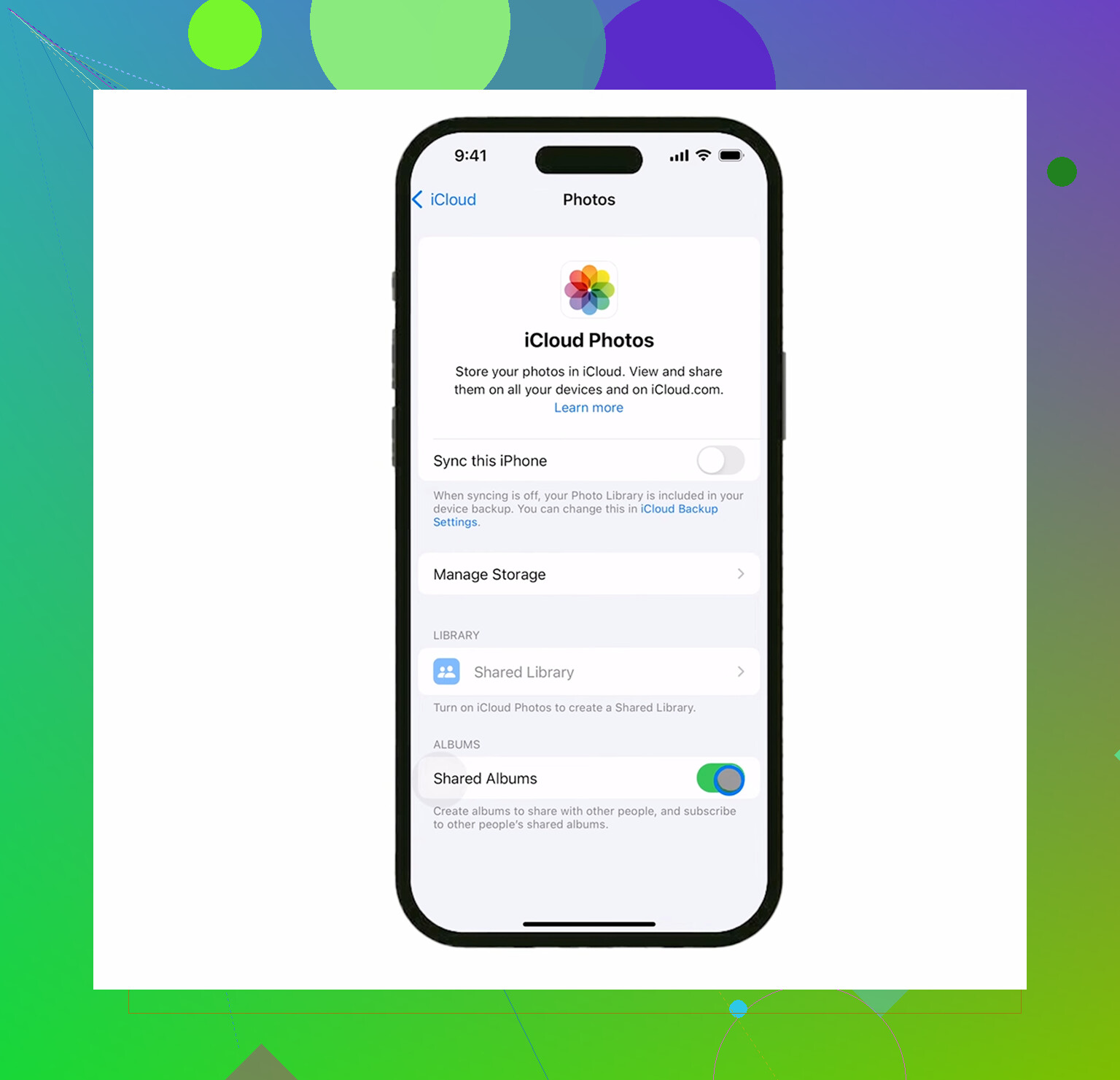
The important part with iCloud is this: your favorites are safe only if you don’t delete them. iCloud Photos mirrors what happens on the phone. It’s not a separate backup folder. So if you accidentally delete your favorites on the device, they can disappear from iCloud too. Before doing anything big, double-check that the heart icon is filled on the photos you care about.
If you want to stay inside the built-in Photos app, the safest workaround I found is using the Hidden album to temporarily move your favorites out of the way:
- Open the Favorites album.
- Tap Select, then Select All.
- Use the three-dot menu or share button, depending on your iOS version, and choose Hide.
- Now go back to Library or Recents. Your favorites should no longer show there.
- Tap Select, start from the last photo, and drag-select upward. You can tap near the top of the screen while holding to speed it up.
- Delete everything that’s visible.
- After that, go to Hidden under Utilities, select all your favorites, and choose Unhide.
It’s clunky, but it does keep the favorites out of the main view while you delete the rest.
Another option is the duplicate trick. Go into Favorites, select everything, and hit Duplicate. Those duplicates should land at the end of your camera roll. Then you can delete everything before them. I’d still be careful with this one, especially if the phone is already almost full, because duplicating a large favorites album can make the storage problem worse for a bit.
The part that really causes trouble is when the phone has almost no free space left. If you’re sitting at something like 127.9GB used out of 128GB, iOS can barely handle the cleanup. The Photos app may freeze, crash during batch deletes, or show a storage number that doesn’t change. It needs a little free space just to process the deletion.
That’s where the stock Photos app falls short. It doesn’t show file sizes, so you might spend forever deleting small photos while one old 4K video is taking up more space than hundreds of images.
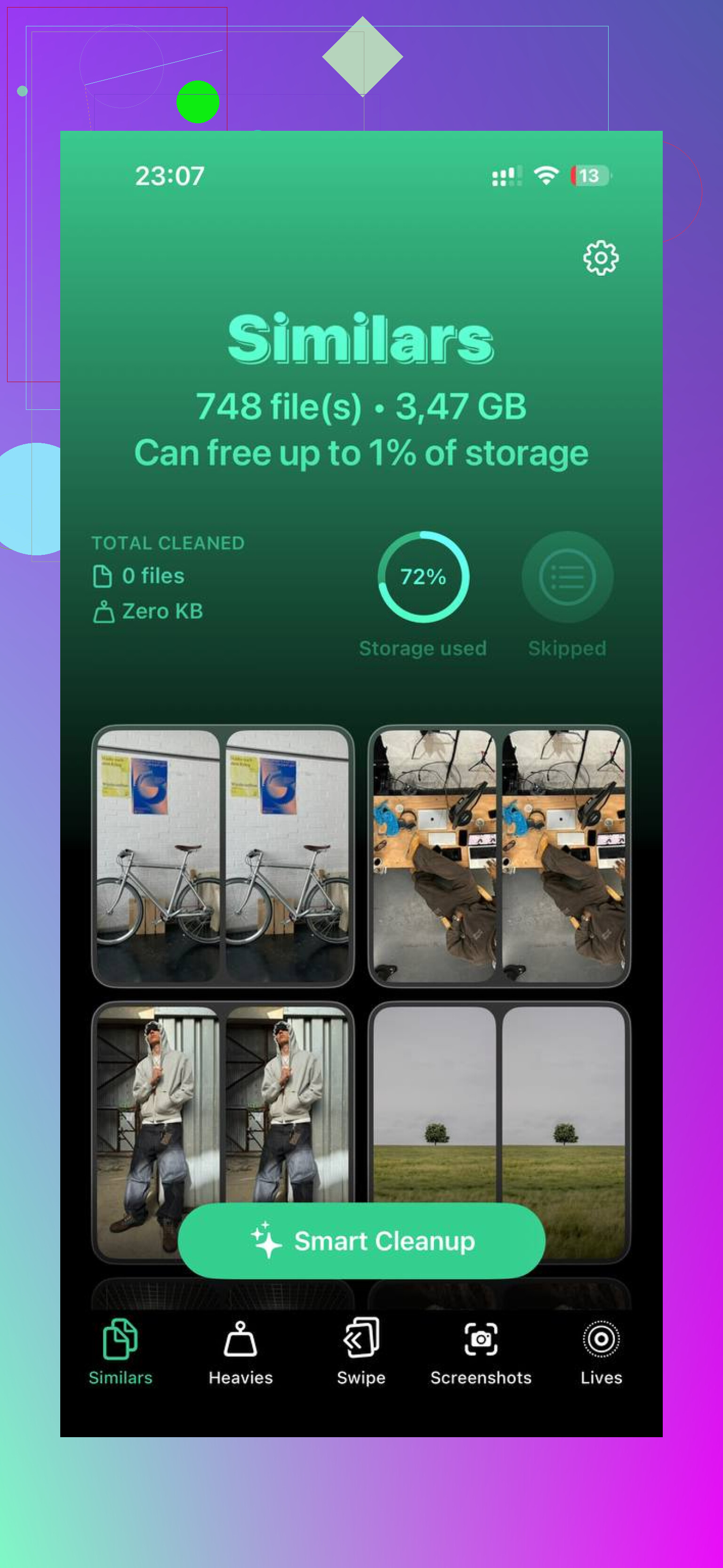
I ended up using Clever Cleaner, and it made the process a lot less painful. I’m usually suspicious of cleaner apps because a lot of them are ad-heavy or push subscriptions, but this one was free when I used it, with no paywall or annoying ads.
The useful part was the Heavies section. It sorts your library by file size, so you can delete the giant stuff first. In my case, that meant old screen recordings and video exports I had completely forgotten about. The Similars section was helpful too, since it groups shots that are almost the same, like when you took five versions of one photo and only need one. There’s also a Screenshots section that shows file sizes right on the thumbnails, which is way better than guessing. It also processes on the device, so your photos aren’t being sent off somewhere.
For me, deleting the biggest files first made the phone usable again pretty quickly. Once there was some free space, the Photos app stopped choking so badly.
Don’t forget the last step: deleted photos still sit in Recently Deleted for 30 days. Go to Albums, scroll down to Recently Deleted, and hit Delete All if you actually want the storage back right away. If Settings still shows the old number after that, restart the phone. Sometimes iOS just needs a reboot before it updates the storage properly.
6 Likes
Don’t turn off iCloud Photos halfway through this unless you already understand what “download originals” vs “optimize storage” is doing. That can make the cleanup more confusing, especially if some items are only stored in iCloud and not fully on the phone. I’d do the boring safety step first: make a temporary album called “Keep,” add all Favorites to it, then check that the count matches your Favorites album before deleting anything. The Hidden trick works, but a normal album gives you an easy count to compare. After deleting the non-favorites, go to Recently Deleted and review it before hitting Delete All. If you use something like Clever Cleaner for large videos, fine, but I’d still treat Favorites as the source of truth and not let any cleaner app decide what is important.
A normal album is only a pointer, not a safe copy, so don’t rely on a “Keep” album to protect anything while deleting from Recents. Use it for counting if you want, but the actual shield is Hide or an outside backup. Safest order: make sure iCloud Photos has finished syncing, back up/export anything irreplaceable, open Favorites and select all, hide them, go to Recents and delete what remains, then check Recently Deleted before clearing it. After that, unhide the Favorites. I agree with the warning above about iCloud: deleting on the phone deletes from iCloud too, so treat Recently Deleted as your last chance to catch a mistake, not as a backup plan.
Make a separate backup of the Favorites first, even if it’s just exporting them to a computer or Files, because Hidden is only a temporary sorting trick, not protection.
After that, the hide-delete-unhide method is fine, but don’t empty Recently Deleted until you’ve searched the Favorites album again and confirmed the count looks right. I wouldn’t use any cleaner app on the Favorites themselves.