I’m trying to free up storage on my iPhone, but a lot of my downloads seem to be saved inside different apps instead of the Files app. I downloaded videos and documents over time, and now I can’t figure out where to remove them. I need help finding and deleting in-app downloads so I can clear space without deleting the apps themselves.
I hit this mess more than once. iPhone storage cleanup looks simple until you try it. Then it turns into five different hiding spots, two trash bins, and one storage graph that lies for a while.
If your phone says Storage Almost Full, or it starts freezing when you type, low free space is often part of it. I saw it on mine. Apps stalled, camera felt slow, keyboard lagged.
Streaming app downloads are usually not removable from the main iPhone storage menu. Netflix, Spotify, YouTube, Disney+, stuff like that keeps downloaded files inside the app itself. So you need to open each app and clear its offline section there.
One exception worth knowing, Apple Music gives you a faster route. Go to Settings > Music > Downloaded Music. Tap Edit. Then remove All Songs if you want the whole batch gone. If you only want to trim some albums, Library > Downloaded inside the Music app works too.
The part people miss is Recently Deleted. Deleting on iPhone often means delayed deletion.
In Files, a deleted PDF or document sits in Recently Deleted for 30 days unless you empty it yourself. Open Files, hit Browse, then Recently Deleted, then remove the stuff for good.
Photos works the same way. Delete a bunch of videos, think you cleared space, then wonder why storage barely moved. Been there. Open Photos, scroll to Utilities, open Recently Deleted, and delete them again. Until you do, the space is still tied up.
If you want a file off your phone but still kept in iCloud Drive, do not press Delete. Press and hold the file and choose Remove Download. This one matters. It removes the local copy from your phone storage but leaves the file in iCloud. You keep access to it later, and the cloud icon shows it is still there for re-download.
Another spot worth checking is Files > On My iPhone. Browser apps like Chrome and Firefox often stash downloads in their own folders there. I found old ZIP files, forms, PDFs, random junk I forgot I ever saved. A few gigs disappeared after that cleanup alone.
If storage still looks full after you clean up, two things usually explain it.
First, one of those trash folders still has your deleted stuff.
Second, iOS drags its feet updating System Data and the storage bar. A reboot sometimes fixes the numbers faster. I had to restart mine before the freed space showed up properly.
What pushed me over the edge was old media. I had too many near-duplicate photos and some large 4K videos saved from Safari. Manual cleanup worked, sort of, but it ate hours and I kept missing things.
I ended up using a cleanup app called Clever Cleaner. I do not say that about many apps because most of them are junk, full of ads, locked features, or subscription nags. This one felt different from the usual pile.
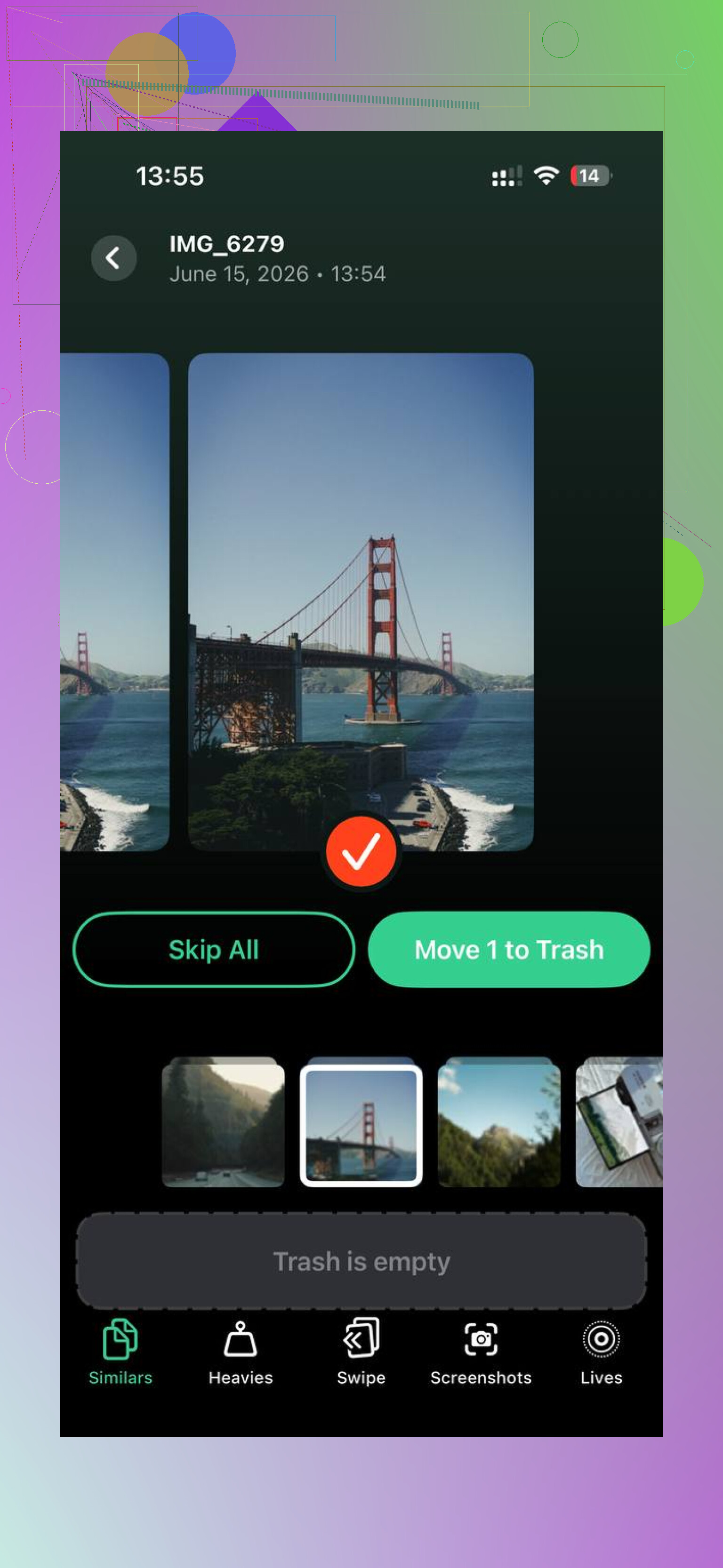
The part I liked was the Heavies section. It shows photos and videos by file size, so the giant files rise to the top fast. No guessing. You see the 1.8 GB clip, you remove it, done.
There is also a Similars section for duplicate-looking photos. Mine had strings of ten near-identical shots from the same moment. It helped cut those down without me opening every single one.
What made me less uneasy was local processing. My photos stayed on the device during the scan, which mattered to me more than any fancy feature list.
After I cleaned roughly 30 GB off my phone, the lag stopped. Typing felt normal again. Apps opened without that weird pause. If you want the shortest path, here is the order I would use:
- Clear downloads inside each streaming app.
- Empty Recently Deleted in Files.
- Empty Recently Deleted in Photos.
- Check Files > On My iPhone for browser folders and leftovers.
- Use Remove Download for big iCloud Drive files you still want to keep.
- Restart the phone if storage numbers look wrong.
That last step gets skipped a lot. I skipped it too. Then I restarted and the storage meter finally caught up.
Big thing to remember, deleting is sometimes only step one on iPhone. If you do not empty the trash folders after, you did not free much. You moved the mess into another room.
40 Likes
A lot of those downloads live in each app’s own storage bucket, so you need to attack it app by app.
Start here.
Settings > General > iPhone Storage.
Wait for the list to load. Tap the biggest apps first. Look for apps with “Documents & Data” taking tons of space. If an app shows 8 GB app size and 25 GB documents, your downloads are often in there.
Important part, some apps do not give you a delete button in iPhone Storage. I disagree a bit with @mikeappsreviewer on one thing. Restarting helps the storage graph, sure, but the bigger win is offloading or deleting bloated apps when the app itself hoards files with no cleanup menu.
Try these:
-
Messaging apps.
WhatsApp, Telegram, Messenger, Slack, Discord.
Open the app’s storage or data settings.
Delete old videos, voice notes, big attachments.
WhatsApp has Manage Storage, which sorts large files fast. -
Podcast and reading apps.
Spotify gets mentioned a lot, but podcast apps are sneaky too.
Apple Podcasts, Pocket Casts, Audible, Kindle, Libby.
Old episodes, audiobooks, and offline books eat space. -
Browser app downloads.
Safari saves to Files often, but Chrome, Firefox, and Edge sometimes keep PDFs, ZIPs, and media inside app storage or their own folder.
Check each browser’s download manager, not only Files. -
Remove and reinstall stubborn apps.
If an app has huge Documents & Data and no cleanup option, delete the app, then reinstall it.
This wipes hidden cached downloads in many cases. Annoying, yes. Effective, also yes. Make sure your account is synced first or you’ll hate yourself later. -
Check Mail.
The Mail app caches attachments. Same with Gmail and Outlook.
Deleting old emails with giant attachments frees more space than people think.
If your goal is speed, use iPhone Storage as the map and sort by size. Large apps first. You’ll find the worst offenders fast.
For photo and video clutter, Clever Cleaner helps if your storage issue is mixed in with media bloat. User feedback and cleanup results are here, see what Clever Cleaner users say about freeing iPhone storage.
Short version, app downloads usually do not sit in one master folder. They hide in each app. Delete from inside the app, or delete the app itself if it refuses to clean up. Annoying system, but taht’s how iPhone handles it.
A thing both @mikeappsreviewer and @mike34 only kinda danced around is this: some apps store “downloads” under accounts, not just app storage. So if you use Dropbox, Google Drive, OneDrive, Notion, Adobe Reader, VLC, Kindle, etc., check the app’s offline/favorites/available offline section. Deleting the file from Files may do nothing if the app pinned its own copy.
Also, I would not jump straight to deleting apps unless they’re clearly disposable. Reinstalling works, sure, but it’s a sledgehammer and some apps make you lose local stuff if sync wasn’t on. Kinda risky tbh.
What I’d do first:
- In iPhone Storage, tap an app and see if Offload App is available. Sometimes that clears the app but keeps docs/login data.
- In cloud apps, unmark Offline or Available Offline instead of deleting the file entirely.
- In video apps like VLC or Infuse, check their own library/download folders.
- In PDF/document apps, look for Local, Downloads, or Saved on iPhone.
Another sneaky one: Settings > Safari > Downloads only shows where Safari saves stuff, but not what third-party apps cached later.
If most of your space hog is photos/videos plus random duplicates, Clever Cleaner is actually useful for spotting the giant files fast. And if you want a quick visual walkthrough, this Clever Cleaner iPhone storage cleanup video guide is easier than poking around menus blindly.
Main idea: if it was downloaded inside an app, delete it inside that same app first. Annoying system, but that’s iPhone for ya.
One angle the others barely touched: Screen Time restrictions can block deletion inside apps. If an app suddenly has no trash/remove option, check Settings > Screen Time > Content & Privacy Restrictions > iTunes & App Store Purchases > Deleting Apps and also any content limits. Sounds unrelated, but it trips people up.
I also slightly disagree with going straight to app deletion. Before that, look for in-app caches labeled things like Clear cache, Reset downloaded content, Remove offline data, or Storage used. A lot of apps hide this under profile/settings instead of the download page.
Another overlooked place is search indexes and “recents” libraries in media apps. Deleting a file may not remove the local preview/cache until you refresh the library, sign out/in, or toggle sync for that app.
Useful test:
- Turn on Airplane Mode
- Open the app
- If the file still plays/opens, it is stored locally in that app
That helps you find the real hoarders fast.
@mike34, @viajantedoceu, and @mikeappsreviewer covered the big buckets already. I’d just add that Offload App is not always helpful for download-heavy apps because it can leave the bulky documents behind.
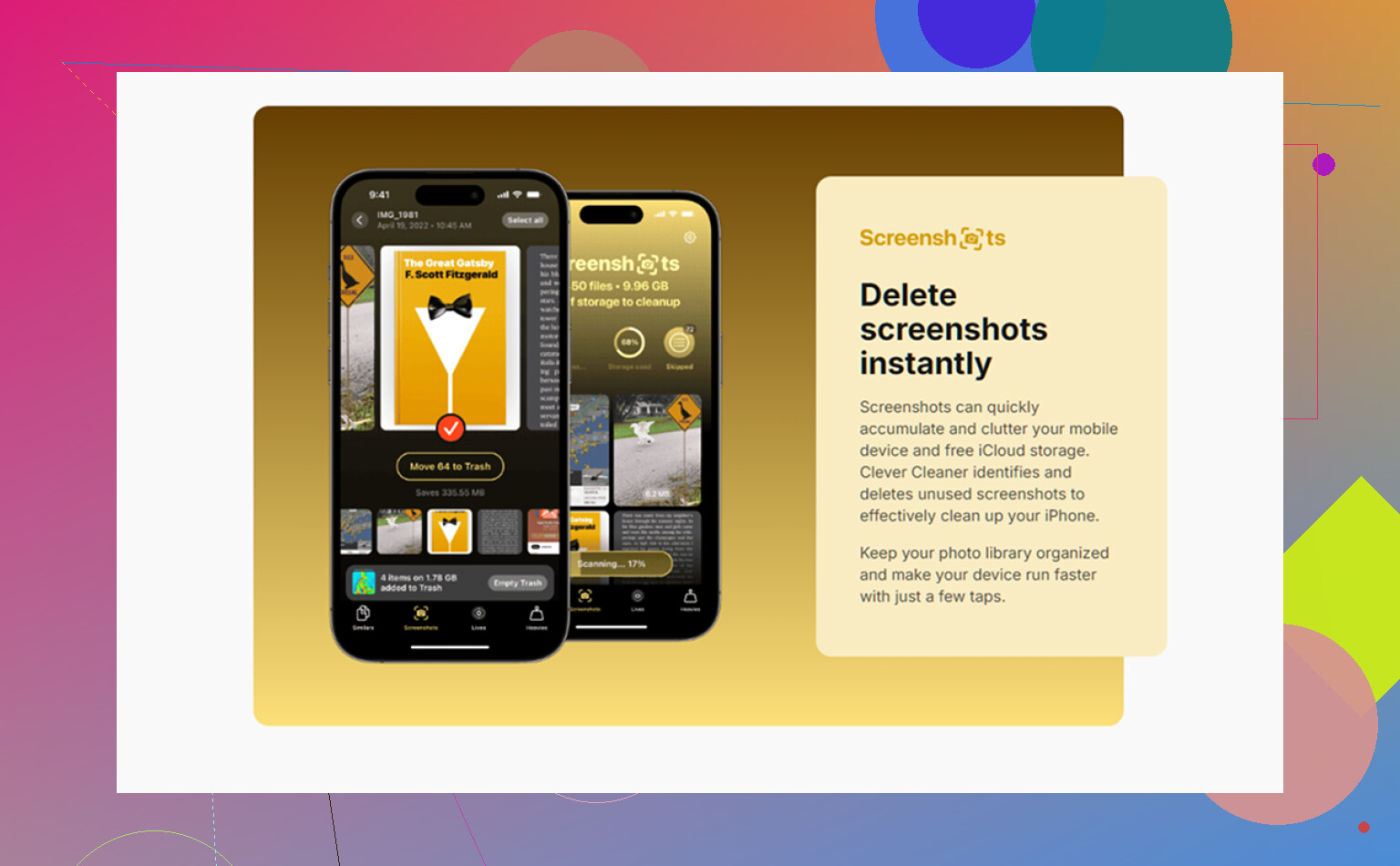
If your problem is mixed with huge photos/videos, Clever Cleaner is decent for spotting large media.
Pros:
- quick view of heavy files
- useful for duplicates/similar shots
- simple UI
Cons:
- mostly media-focused, not true app-cache control
- may suggest keeping decisions you still want to review manually
- won’t delete downloads trapped inside Netflix, Kindle, Dropbox, etc.
So the rule is: if it opens offline only inside one app, remove it from that app first. If storage still doesn’t drop, then consider offloading or deleting the app.
A simpler option is to connect your iPhone to a computer.
On Mac, open Finder. On Windows, open Apple Devices. Select your iPhone, then open Files. You’ll see apps wich allow document sharing. Expand each app, select old videos, PDFs, or ZIP files, then delete them.
This gives you one screen for several apps, instead of hunting through every app menu. Start with files over 500 MB for faster results.
Check the app version numbers before you nuke anything. Some apps hold onto downloads through an update, and reinstalling like @mike34 said can dump your local stuff if the login didn’t sync first. I’ve seen people lose Kindle annotations and offline maps that way.
The airplane mode trick @codecrafter mentioned is the most useful thing in this whole thread honestly. If it still opens with no signal, it’s local, and that’s where your gigs went. Faster than digging through five settings menus.
Clever Cleaner is fine for the photo and video pile, but don’t expect it to touch anything trapped inside Netflix or Dropbox. That part stays manual no matter what.