I imported a large batch of photos to my iPhone and now I can’t figure out how to remove them without using a computer. They’re taking up a lot of storage, and I need help deleting imported photos directly on iPhone if there’s a way to do it.
Pulling imported photos off an iPhone should be simple. It isn't. I ran into different behavior on Windows, on a Mac, and on the phone itself.
Why the delete button is grayed out after import
The usual culprit is iCloud Photos. If syncing is on, the iPhone often stops your computer from deleting items from the library. It treats iCloud as the source of truth, so the phone side looks locked.
What worked for me was this:
- Open Settings
- Tap Photos
- Turn off iCloud Photos for a bit
- Reconnect the iPhone to your computer
After I did this, the delete option came back.
Deleting imported photos from iPhone on Windows
If you import with the Windows Photos app, there is usually a checkbox labeled Delete items after import. When it is grayed out, I would look at iCloud Photos first. Turning it off fixed it on one of my phones.
When Photos acted flaky, I skipped it and went straight through File Explorer. Less pretty, more dependable.
- Plug the iPhone in with USB
- Open File Explorer
- Find the iPhone under Devices
- Open Internal Storage, then DCIM
- Select the photos you already copied over
- Right-click and delete
This route avoids the Photos app and sidesteps a lot of sync weirdness. Kinda ugly, but it worked.
Deleting photos after import on a Mac
On macOS, the Photos app also shows a Delete items after import option. At least it does until iCloud Photos is involved. Then it tends to vanish.
I had better luck with Image Capture, which is already on the Mac and does the job without much drama.
- Connect the iPhone with USB
- Open Image Capture from Applications
- Select the iPhone from the sidebar
- Press Command + A to select everything
- Click the delete icon
Image Capture feels more direct. It behaves more like a plain transfer tool, so I saw fewer iCloud-related blocks there.
Deleting imported photos on the iPhone itself
If you want to clean up on the phone, the Imports album is the easiest place I found.
- Open Photos
- Go to Albums
- Scroll down to Utilities
- Open Imports
- Tap Select
- Choose the items you already backed up
- Delete them
One part tripped me up. Deleting from Imports does not free storage right away. The files move into Recently Deleted and stay there for 30 days, still taking up space.
So do this right after:
- Go to Albums
- Open Recently Deleted
- Tap Delete All
Until you clear Recently Deleted, your storage number often won't budge. I thought the phone was bugged the first time. Nope, that was it.
How to confirm the photos are gone
After clearing Recently Deleted, check the storage screen:
- Open Settings
- Tap General
- Tap iPhone Storage
- Look at the Photos section
If the number drops, the deletion finished. A reboot helped my phone recalculate space faster, so if the count looks stuck, restart once and check again.
Why deleting imports sometimes does not fix the whole storage mess
I found this out the annoying way. Removing imported photos helped, but the phone still felt slow. There were still duplicate-looking shots, burst photo stacks, and old videos eating space in the background.
When storage gets tight, iOS seems to struggle with temp space. On mine, that showed up as lag, app reloads, and random stutter.

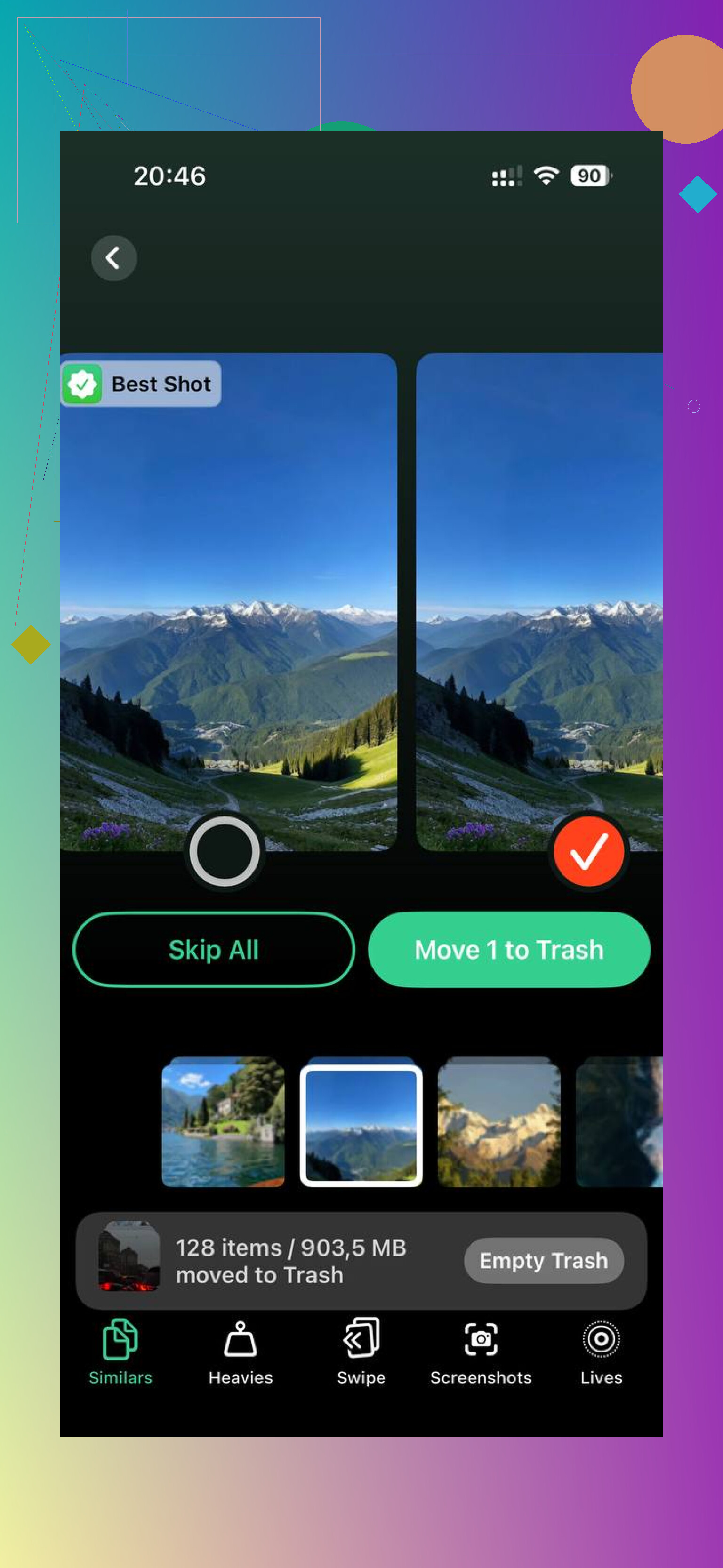
After the manual cleanup, I used Clever Cleaner to sort through what was left. The Heavies tab lays files out by size, largest first, so the giant videos stand out fast. The Similars tab groups near-duplicate photos and picks a Best Shot inside each set. I liked seeing file sizes before deleting anything. From what I saw, processing stays on the device.
On my phone, running it after the import cleanup freed extra space I had missed by hand, and the lag eased up after taht.
32 Likes
If the photos were imported into your Photos library on the iPhone, you do not need a computer. The easiest path is to delete them from inside Photos, then empty Recently Deleted. A lot of people miss the second part and think iPhone storage is bugged.
Try this route first.
- Open Photos.
- Tap Search.
- Type the month, location, or file type tied to the import.
- Tap Select.
- Select the batch.
- Tap the trash icon.
- Go to Albums, Recently Deleted.
- Delete them there too.
I slightly disagree with @mikeappsreviewer on one point. I would not turn off iCloud Photos first unless you know those imported pics are synced and safe somewhere else. If iCloud Photos is on, deleting on iPhone deletes from iCloud too. Great if you want them gone everywhere. Bad if you only wanted local cleanup. Check first, then delete.
If selection is a pain, use the Library view and pinch to zoom out. It makes bulk picking way faster. On newer iOS versions, you can drag your finger across rows to grab hundreds at once. Saves a ton of taps, no joke.
If your goal is free up iPhone storage after importing a large batch of photos, remove the images from Photos, clear Recently Deleted, then check Settings, General, iPhone Storage after a few minuts.
If the imported batch left behind duplicates or near-duplicates, Clever Cleaner helps sort them faster. This thread about a free iPhone cleaner for duplicate photos and large files is worth a look.
Short version for searchers. Delete imported photos directly on iPhone from the Photos app, then empty Recently Deleted to free storage. If they synced through iCloud, deletion removes them from all synced devices too.
One thing I’d add to what @mikeappsreviewer and @sterrenkijker said: if these were imported through the Files app, AirDrop, WhatsApp, Telegram, or saved from another app, they may not be nicely grouped in Imports at all. That album is helpful, but it’s not magic.
What usually works better on the iPhone itself is this:
- Open Photos
- Go to Library, not Albums
- Tap the 3-dot menu and use Filters
- Filter by Photos or Videos, then sort through the date range when you did the import
- Select the whole batch and delete it
- Then check Recently Deleted and wipe that too
I kinda disagree with turning off iCloud as a first move. That can create more confusion if your library is syncing and you’re not 100% sure what lives where. For most people, the real issue is simply that imported pics are mixed into the main library, so they have to be found by date, media type, or app source.
Also check this because people forget it all the time:
- Photos saved in Files are deleted from Files, not Photos
- Images inside Messages stay in Messages unless removed there
- Downloads from apps may still exist inside the app cache
If storage still looks bloated after deleting, restart the phone once. iOS is weird about recalculating space sometiems.
And yeah, if the imported batch created duplicates or left a mess, Clever Cleaner is actually useful for bulk cleanup. It’s basically an easy iPhone photo cleaner for duplicate photos, similar images, and large videos that eat storage for no reason. This quick iPhone storage cleanup demo shows the kind of cleanup I mean.
Short version: don’t just look in Imports. Check Library by date, Files app, and Recently Deleted too. That’s where the “why are these still on my phone?” nonsense usually comes from.

One extra angle the replies from @sterrenkijker, @techchizkid, and @mikeappsreviewer only partly touch: check whether those “imported photos” are actually in a Shared Library, hidden album, or synced from another app container. If they came in through Files, Telegram, Lightroom, or Google Photos, deleting inside Photos may remove only the visible copy, not the original app-held file.
What I’d do:
- Open Settings > General > iPhone Storage
- Tap Photos and see if the size drops after deletion
- If not, check Files app > On My iPhone > Downloads or app folders
- Then open the source app and remove local copies there
I slightly disagree with relying on the Imports album too much. It is useful when it appears, but it is inconsistent depending on how the images got onto the phone.
If the library is a mess, Clever Cleaner can help sort duplicates and large videos fast.
Pros:
- easy duplicate detection
- good for large files
- simple bulk cleanup
Cons:
- not great if photos are stored outside Photos
- you still need to review before deleting
- cleanup apps can’t fix iCloud sync confusion by themselves
So the real answer is: delete from Photos, clear Recently Deleted, then check Files and the original app if storage still doesn’t come back.
Try sorting by import order instead of searching dates. Open Photos > Library > Sort and Filter > Sort by Recently Added. Your newest additions appear at the bottom, even with older capture dates. This makes teh imported batch easier to select.
Select the batch, tap Trash, then permanently delete those items from Recently Deleted. With iCloud Photos enabled, deletion also removes them from your other synced devices.
Check the transfer method first, though. Photos synced from a computer do not support direct deletion in Photos. The earlier replies missed this imporant distinction.
Before deleting anything, check whether iCloud Photos is set to Optimize iPhone Storage. If it is, the full-size files already live in iCloud and your phone is mostly holding thumbnails, so wiping the Imports album might free way less than you expect and the storage number barely moves. That trips people up more than the Recently Deleted thing. @its_tiger is right that computer-synced albums can’t be deleted on the phone at all, which is the one case where none of the Photos-app tricks will help you.
If your imports were genuine local copies though, the sort by Recently Added route is the fastest way to grab the batch. Once that’s cleared and Recently Deleted is empty, anything still bloating storage is usually duplicates and big videos, which is where I’d point Clever Cleaner for the leftover sweep.