My iPhone storage is almost full, and I think large video files are the main reason. I recorded a bunch of clips recently, but now I can’t tell which videos are taking up the most space. I need help finding the biggest videos on my iPhone so I can delete or move them and free up storage fast.
I kept running into the same dumb wall on iPhone. My storage was clogged with videos, and Photos still gives you no clean way to sort them by file size. Even on iOS 26, there’s no simple size filter. You either poke around one clip at a time, or you use a workaround.
If your goal is to find the biggest space hogs fast, these are the two methods worth bothering with.
Method 1: Use Clever Cleaner
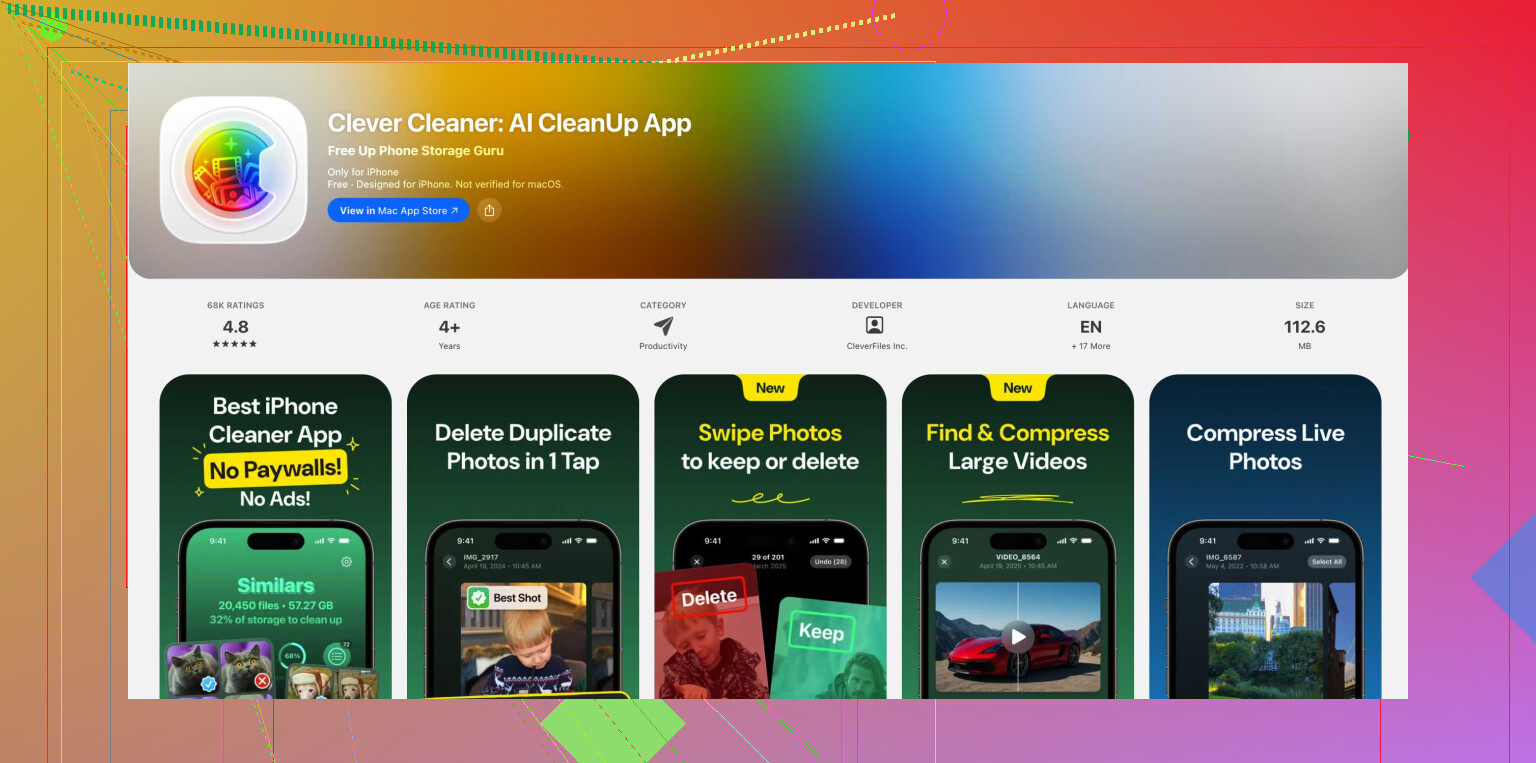
I tried the manual route first. It got old fast. If you want the shortest path, I’d go with an iPhone cleanup app, and Clever Cleaner is the one I had the least friction with. It’s free, no weird paywall popped up on me, and it has a section built for large files.
- Install Clever Cleaner from the App Store and open it.
- Give it access to your Photos library so it can scan your videos.
- At the bottom, open the Heavies section.
- Tap the sorting menu at the top and switch it to By Size.
- You’ll get a list of your biggest videos first, then the smaller ones after.
- Open any item to preview it, or select everything if you’re doing a full cleanup.
- The app shows how much storage you’re about to get back, which helped me avoid deleting random stuff blind.
- Tap Move to Trash.
- Then tap Empty Trash in the app to finish the removal step.
This is the only route I found where the job felt quick instead of annoying.
Method 2: Save Videos to Files, Then Sort There
Apple does have file-size sorting in one place, weirdly not in Photos. It’s in the Files app. The catch is you need to move or copy videos there first.
- Open Photos.
- Pick the videos you think are eating space.
- Tap Share, then Save to Files.
- Choose a folder, like On My iPhone.
- Open the Files app and go to the folder you picked.
- Tap the three-dot menu in the top right.
- Choose the sort option for Size.
- Now the videos show up ordered by file size, largest first.
It works. It’s also a bit clunky. One more thing, if you delete a copied file in Files, your original in Photos might still be sitting there. I messed this up once, thought I freed space, nope. Had to remove the original too.
Why Photos Still Doesn’t Do This
I looked for a built-in size sort in Photos more than once. It isn’t there. So if you stay inside Apple’s app, you’re left with two bad options.
- Check video length and guess. Longer clips often take more space, though resolution and frame rate mess with this, so the guess is rough.
- Open each video, tap or swipe up for the info panel, and read the file size one by one.
If you’ve got 20 videos, fine. If you’ve got 400, no shot. It turns into busywork fast.
Clear Recently Deleted Too
This part matters. When you delete videos on iPhone, they don’t leave right away. They go into Recently Deleted in Photos.
If you need storage back now, open Recently Deleted and remove them there too. If you don’t care about timing, iPhone wipes them on its own after 30 days.
So yeah, if you want the cleanest path, Clever Cleaner is the low-effort option. If you don’t want another app on your phone, the Files trick still gets the job done. Either way, once I cleared the giant videos out, the storage pressure dropped right away.
9 Likes
I’d skip the Files export trick unless you want duplicates and extra cleanup. @mikeappsreviewer covered it, but for me it’s more hassle than help.
Fastest built-in check is this:
Settings > General > iPhone Storage > Photos
This won’t list every video by exact size, which is dumb, but it does show whether Photos is the main problem. Then open Photos, tap Albums, scroll to Media Types, tap Videos. Sort by Date Modified if your recent recordings are the issue. Long 4K clips at 60 fps are often huge. A 10 minute 4K60 clip is often multiple GB, so start there.
Also check:
Settings > Camera > Record Video
If you see 4K at 60 fps or ProRes, that’s the storage killer.
If you want a size-based list, Clever Cleaner is easier. It surfaces large videos without moving stuff around. I found this useful too:
Reddit discussion on Clever Cleaner for finding large iPhone videos
One more thing, screen recordings get huge fast and people forget about them. Check those first. It sounds obvios, but they eat space like crazy.
I’d actually start with a Mac or PC if you have one nearby, not with the phone itself. Slight disagreement with @mikeappsreviewer and @waldgeist here: cleanup apps are faster, sure, but if you want the most accurate view of which videos are huge, a computer is less messy than guessing inside Photos.
What I do:
- Connect iPhone to a Mac
- Open Image Capture or Photos import view
- Switch to list view if available
- Check file sizes there before importing/deleting anything
On Windows, the DCIM folder method works too, although Apple makes it weird as usual.
Why I like this better:
- you see actual file sizes
- no exporting copies into Files
- easier to mass-review giant clips
- less chance of deleting the wrong thing half asleep at 1am
If you want to stay on iPhone only, then yeah, Clever Cleaner is probly the more practical option since it can surface large videos directly. It’s basically an easy iPhone storage cleaner for large videos and photo library clutter, which is why people keep mentioning it.
Also, check Cinematic, slo-mo, and screen recordings. Those are sneaky little storage goblins.
And if you want a visual walkthrough, this was decent:
see how to find and clear huge videos on iPhone
One last thing people miss: if “Optimize iPhone Storage” is on for Photos, sizes shown on-device can feel inconsistant because originals may be in iCloud. That trips ppl up a lot.

I’d split this into two questions: what is using storage vs which exact videos should I delete.
I slightly disagree with @waldgeist and @codecrafter on one thing: sorting by date or checking camera settings only tells you where to look, not what is actually biggest. Helpful, but still a lot of guessing.
A built-in trick that hasn’t been mentioned much is this:
Photos > Albums > Media Types > Screen Recordings / Slo-mo / Cinematic
Those categories are often the worst offenders. Not always the longest clips either. Slo-mo especially can be absurdly large for what feels like a short video. Open those albums first, then swipe up on a few suspects to see the actual file size in the info panel. It’s manual, but way more targeted than scrolling your whole Videos album.
Another sneaky place:
Messages > large video attachments
If you send/receive a lot of clips, old threads can quietly keep giant attachments around.
Go to Settings > General > iPhone Storage > Messages and review the large attachments section. People miss this constantly.
As for Clever Cleaner, I think @mikeappsreviewer is right that it’s the easiest on-device option if you want a size-focused view.
Pros
- surfaces large videos faster than Photos
- no need to poke one file at a time
- easier to review library clutter in one place
Cons
- you still have to trust a third-party app with photo library access
- app scans can take a while on huge libraries
- I’d still double-check before deleting anything important
So my order would be:
- Check iPhone Storage categories first
- Review Screen Recordings, Slo-mo, Cinematic, and Messages attachments
- If you want speed, use Clever Cleaner to sort out the real space hogs without the Files-copy mess @mikeappsreviewer mentioned