My USB device was working fine, then Windows suddenly showed a ‘USB device not recognized’ error when I plugged it in. I tried different ports and restarted my PC, but it still won’t detect the device. I need help figuring out whether this is a Windows driver problem, a USB port issue, or if the device itself is failing.
i ran into this on windows 11 a few days ago, same pop-up, “usb device not recognized,” and it came out of nowhere.
mine started with a flash drive i use all the time. plugged it in, got the error, pulled it out, tried another port, rebooted, swapped the cable, same mess. for a second i thought windows had decided to break one random thing and call it a day.
i went through a bunch of posts and this one was more useful than most: https://discussion.7datarecovery.com/forum/topic/usb-device-not-recognized-on-my-windows-11/
the device manager part helped me more than i expected. i checked the usb controllers section, removed the bad entry, then let windows reload it after restart. worth trying if you haven’t done it yet.
mine still isn’t fully stable either. sometimes the drive appears for a moment, then drops off again like the connection resets. when i saw that, i started leaning toward either a failing drive, a flaky port, or one of those dumb power settings messing with it.
if you want to narrow it down fast, this is what i’d test:
1. try the drive on another computer. if it fails there too, the drive is suspect.
2. check device manager and remove any unknown usb device entries, then restart.
3. turn off usb selective suspend in power settings.
4. see if the drive shows up in disk management even when file explorer ignores it.
5. if it connects for one second and vanishes, back up anything important fast if you still get access. i learned this one the hard way once.
so yeah, you’re not the only one. if it keeps connecting and dropping, i’d start treating the usb stick like it’s on borrowed time tbh.
130 Likes
If ports and reboot already failed, I’d look one layer above what @mikeappsreviewer suggested.
First, check if Windows broke the USB stack after an update. Open Settings, Windows Update, Update history. If this started right after an update, roll back the last driver or quality update. I’ve seen this more than once on Windows 10 and 11.
Next, open BIOS or UEFI and load default settings. Sounds odd, but fast boot, XHCI hand-off, or legacy USB options sometimes get flipped after firmware updates. A bad BIOS USB setting will make Windows look guilty when it isn’t.
Also test for power delivery, not only detection. If it’s an external drive, use a powered USB hub or a Y-cable if the device supports it. A port may still work for mice and fail for storage. This trips people up alot.
If the USB device shows no files, try this guide for fixing a USB drive detected but empty: watch how to fix a USB drive that shows up but has no files.
If the drive appears anywhere at all, even for a few seconds, I’d stop testing and pull data off with Disk Drill. Intermittent disconnects often point to failing flash storage or controller issues.
One small disagreement with the usual advice. Reinstalling the device in Device Manager helps sometimes, but if the same device fails on multiple PCs, don’t keep forcing it. That wastes time and risks more disconnects. Test on another system once, then switch to recovery or replacement. If you post what kind of USB device it is, flash drive, phone, SSD enclosure, printer, that narows it down fast.
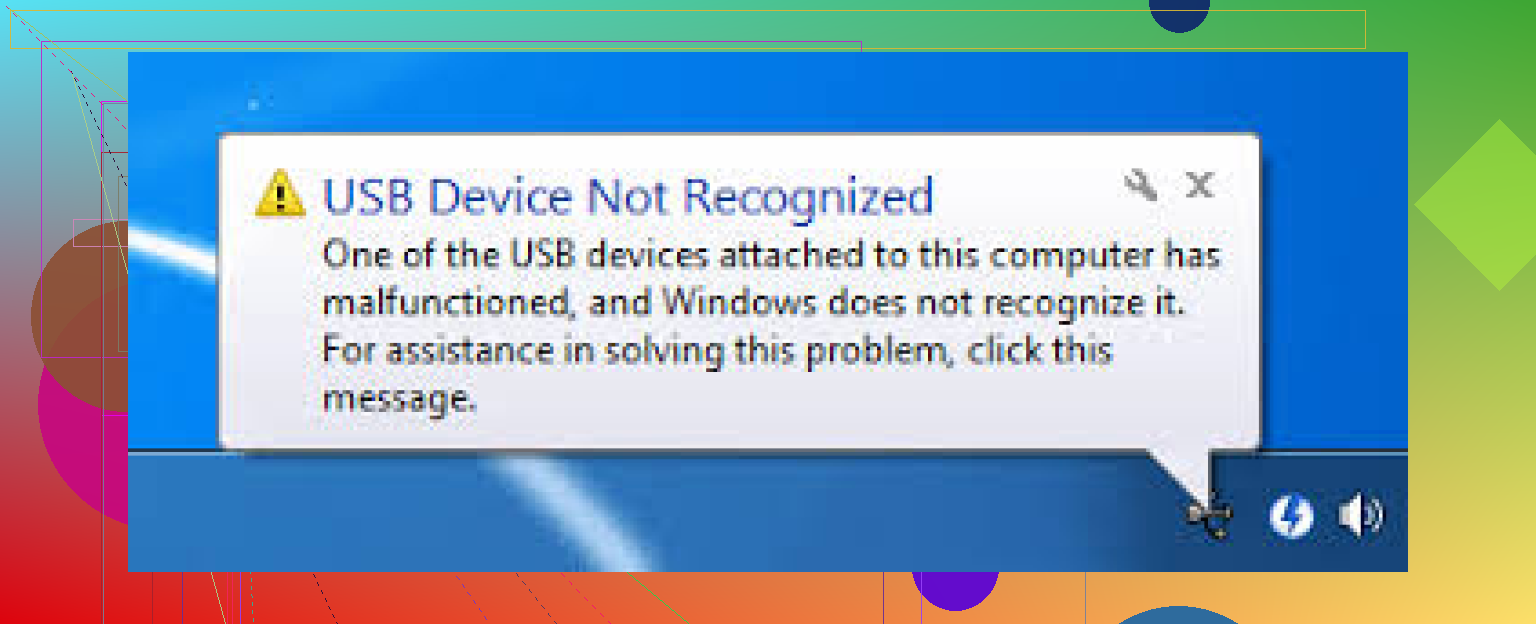
One thing I’d add to what @mikeappsreviewer and @nachtdromer said: check whether the problem is actually the USB root hub going weird, not the device itself.
In Device Manager, go to Universal Serial Bus controllers, open each USB Root Hub and Generic USB Hub, then uncheck Allow the computer to turn off this device to save power under Power Management. Windows loves pretending it’s being efficient while quietly breaking stuff. This fixes random disconnect and “not recognized” errors more often than people expect.
Also open Event Viewer and look under Windows Logs > System. Filter for Kernel-PnP or USB-related errors right after plugging it in. If you see repeated descriptor request failed messages, that usually points to either bad device firmware, bad cable, or failing hardware. Kinda boring step, but it tells you more than guessing.
I slightly disagree with doing too many rollback/BIOS tweaks right away unless multiple USB devices started failing. If it’s just one device, I’d suspect the hardware first.
If this is a portable USB flash storage device guide situation and the drive connects even once, use Disk Drill to copy files off asap. Intermittent recognition is a bad sign, esppecially if it worked fine yesterday and now acts dead. If you can, also test with a short known-good cable because those fail in dumb ways all the time.