My iPhone storage is completely full, and I keep getting warnings that I’m out of space. I don’t want to delete my photos, apps, or messages because I use all of them. I need help figuring out how to free up or increase iPhone storage without losing anything important.
I ran into the same mess. The “Storage Full” alert kept showing up at the worst time, like when I tried to snap a pic or install something I needed right then. I went through this pretty stubbornly because I did not want another monthly charge hanging around.
About paying once for extra iCloud space, Apple does not offer it that way. iCloud storage is billed monthly. The common plans are 50GB for $0.99 and 200GB for $2.99. There is no one-time upgrade for iCloud itself. If you want a one-and-done storage purchase, you are looking at hardware instead, either a higher-capacity iPhone or a plug-in drive for your phone. Stuff like a SanDisk iXpand drive fits here. You move photos and videos onto it, then clear them from the phone.
The part people mix up is iCloud storage versus iPhone storage. iCloud is online space. iPhone storage is the physical space inside the device. You do not add more internal gigabytes to the phone after purchase. What you do instead is recover space you already paid for.
A decent first step is Photos optimization. Open Settings > Photos, then switch on “Optimize iPhone Storage.” Your phone keeps smaller versions on the device, while the full files stay in the cloud. If your free 5GB iCloud limit is already full and you do not want a paid plan, move backups elsewhere first. Google Photos gives 15GB free. Dropbox gives 2GB free. Once your files are backed up there, you can remove the originals from the phone with less stress.
Another place where space disappears is cached data and system junk. Safari alone can pile up a dumb amount of website data over time. Go to Settings > Apps > Safari > Advanced > Website Data, then hit “Remove All Website Data.” I did this and got back more room than I expected. Also check iPhone Storage and use “Offload App” on stuff you rarely open. Offloading removes the app itself but keeps its documents and saved data, so reinstalling later puts you back where you left off.
I knew my storage problem had crossed into “fix this now” territory when the phone started dragging. The camera took longer to open. Apps crashed. Small tasks felt weirdly heavy. Low free space does this on iPhones. They get flaky when there is not enough room left for normal system work.
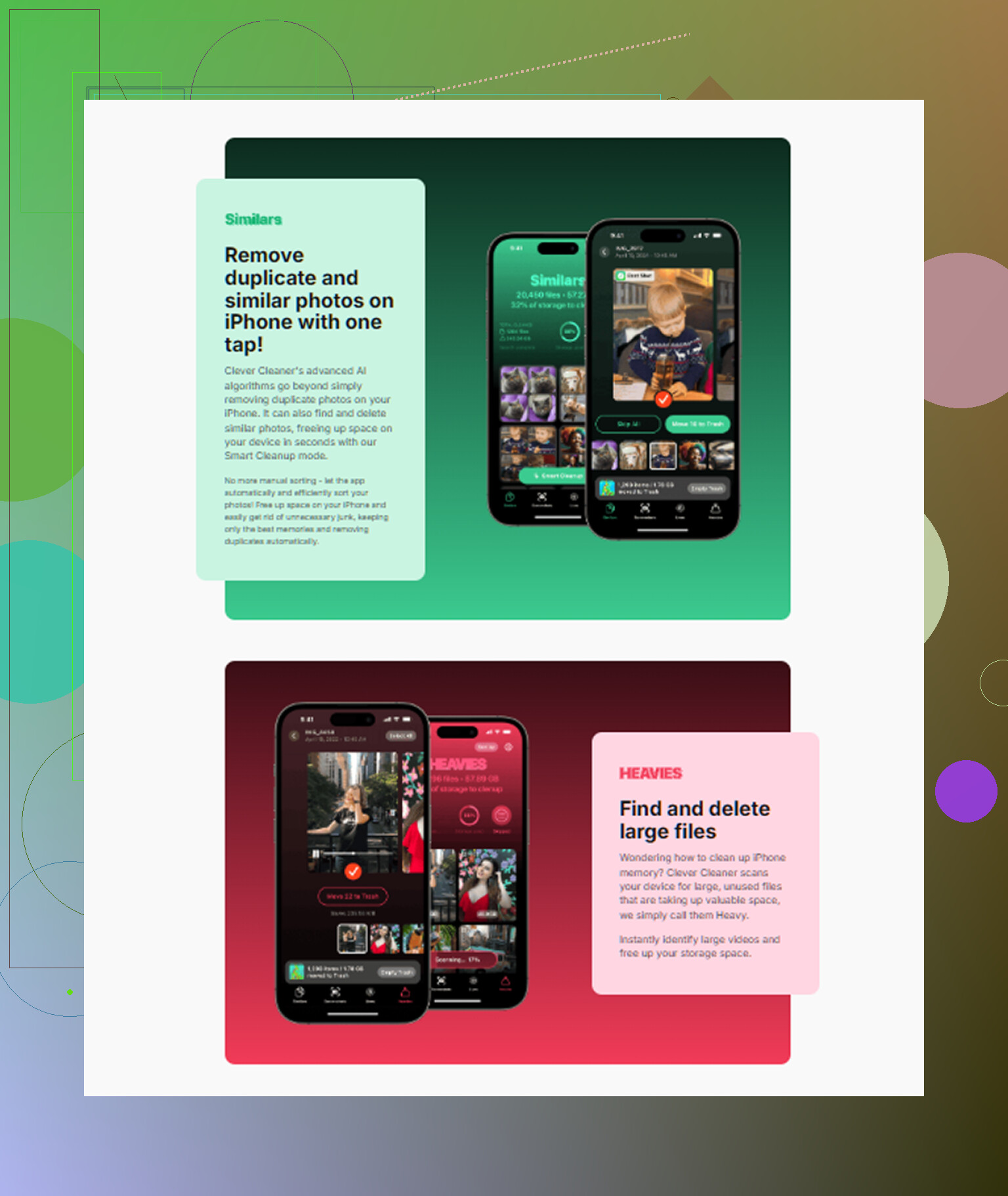
I tried the manual route first. Thousands of photos, duplicate shots, blurry screenshots, old videos I forgot existed. It was miserable. After a while I used an app called Clever Cleaner, and for me it solved the annoying part of the job.

I do not trust most cleaner apps, so I went in expecting nonsense. This one was free when I used it. No ads popping in my face, no subscription wall two taps later. The bit I found useful was the “Heavies” section. It sorts media by file size, which made the problem obvious fast. A few random 4K clips were eating gigabytes. One forgotten video took more space than a pile of photos combined.
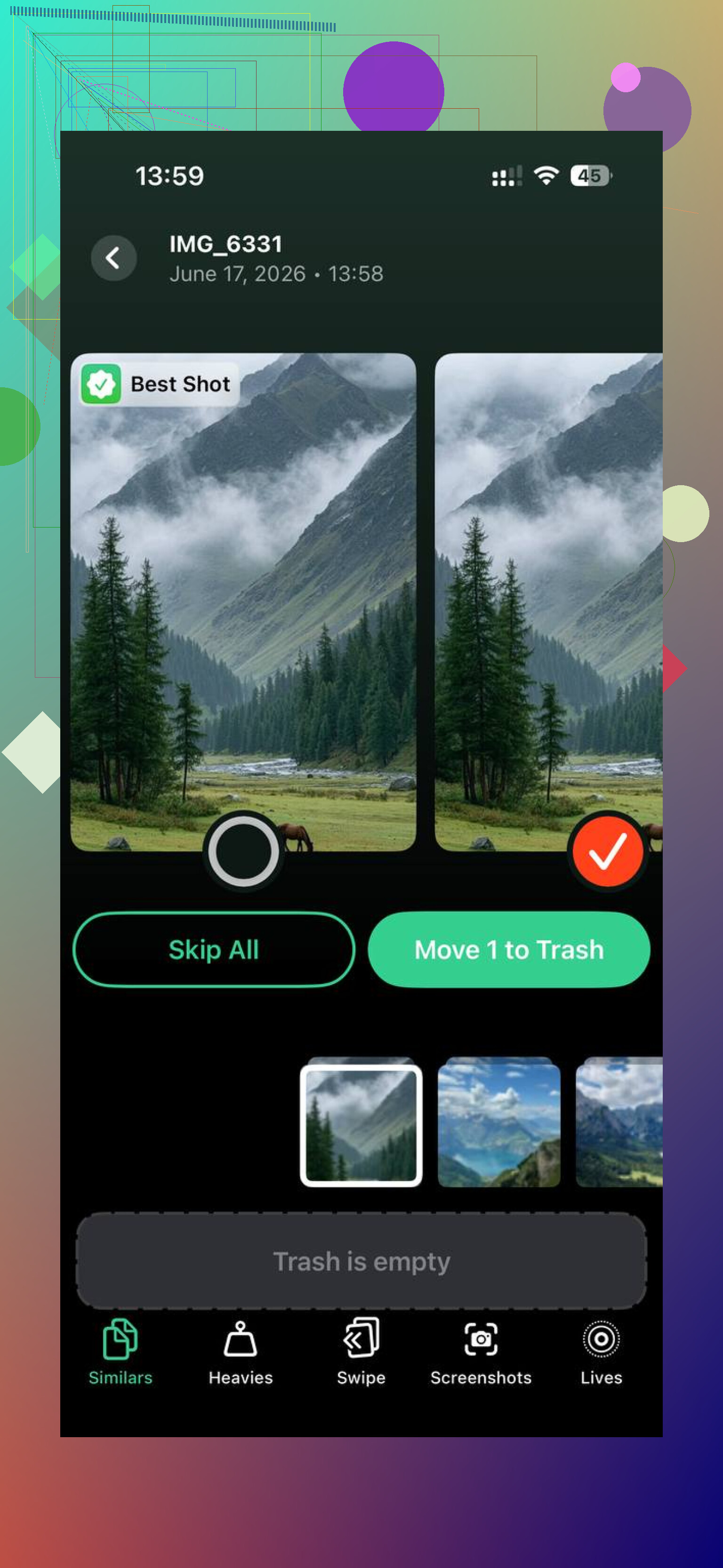
The similar-photo scan helped too. I take multiple shots of the same thing, then never clean them up. It grouped near-identical images well enough for me to move quicker without staring at my camera roll for hours. It also showed file sizes clearly, including screenshots, so I knew what I was deleting and what I was getting back.
The main reason I felt okay using it was simple. The processing stayed on the phone. My library was not being pushed off to some unknown server. After clearing around 15GB, the lag eased up right away on my device. If your phone feels slow and storage is redlined, I would start with the free cleanup steps first, then use a local cleaner if the photo library is too messy to sort by hand.
1 Like
You do not get more internal iPhone storage after you buy the phone. That part is fixed. So the only real options are 1, move data off the phone, 2, reduce how much space local copies use, or 3, add external storage.
I agree with @mikeappsreviewer on the iCloud point. Apple does not sell a one-time iCloud upgrade. I disagree a bit on leaning too hard on cloud plans first, though. Monthly storage fees add up fast if your phone is full mostly because of videos.
Try these less-mentioned moves first.
Check Messages. Go to Settings, General, iPhone Storage, Messages. Large attachments often eat 5GB to 20GB by themselfs. Save them elsewhere first if you need them.
Change message history to 1 Year instead of Forever if old threads are huge.
Remove downloaded music, podcasts, and offline video from Netflix, YouTube, Spotify, Disney+, and similar apps. People forget this stuff. I found 18GB in downloads once. No joke.
Delete old iPhone or iPad backups from your device settings if any local backup data is hanging around.
Use an external drive for photos and videos if you refuse to delete anything. That is the closest thing to ‘more storage’ without buying a new iPhone.
If your photo library is the main issue, Clever Cleaner is worth a look for finding duplicate pics, large videos, and junk screenshots fast. This short explainer is clearer than most app demos, see how Clever Cleaner frees up iPhone storage in 30 seconds.
If you want zero deletions on the phone itself, your only true path is cloud space, external storage, or a new iPhone. Kinda dumb, but taht’s how Apple set it up.
You can’t actually add internal iPhone storage after you buy it, so on that part @mikeappsreviewer and @reveurdenuit are right. Where I kinda disagree is the idea that your only meaningful fix is deleting stuff or paying Apple forever. There’s a middle ground.
Go to Settings > General > iPhone Storage and look for apps that are bloated by their own documents/data, not the app size itself. Some apps get ridiculous. Social apps, editing apps, even Mail can hoard gigabytes. In a lot of cases, deleting and reinstalling just that app keeps your account/content in the cloud but wipes the junk cache. Annoying, yes. Effective, also yes.
Also check Mail. If you have multiple accounts syncing years of attachments, that alone can be a sneaky storage hog. Same with Files app folders set to “On My iPhone.”
If photos are the main problem but you don’t want to manually sort forever, Clever Cleaner is probly the easiest route. It helps find duplicates, giant videos, and useless screenshots way faster than iOS does. I’d use that before paying for a bigger phone tbh. This guide on the best AI cleaner app for iPhone storage cleanup is a decent read too.
Realistically your options are: reduce local copies, clear app junk, use external/cloud storage, or upgrade devices. Apple doesn’t leave much wiggle room, which is very on-brand for them tbh.
One thing I’d push back on a bit from @reveurdenuit, @mike34, and @mikeappsreviewer is the phrase “without deleting anything.” If you mean literally nothing gets removed from the phone, then no, there’s no magic setting. But if you mean “without losing anything important,” you’ve got more room to work with than people make it sound like.
A less-talked-about fix is rebuilding bloated app storage. Some apps quietly accumulate garbage that doesn’t show up as obvious downloads. Messaging apps, browsers, maps, mail clients, and social apps can grow way beyond their real need. In Settings > General > iPhone Storage, if an app looks absurdly large compared to what it does, delete and reinstall that one app. Not elegant, but it often wipes caches while your account data comes back after login.
Also check voice memos, GarageBand, iMovie, and editing apps. These can keep project files, render caches, and exports long after you forgot about them. Same for the Files app with folders stored under On My iPhone. That stuff is easy to miss because it feels “invisible” compared to Photos.
Another angle is your system data behavior. If System Data is huge, sometimes a simple iPhone restart, iOS update, or syncing to a Mac/Finder can reduce temporary junk. Not guaranteed, but worth trying before paying for more cloud storage.
If your problem is mainly photo clutter, Clever Cleaner is useful for finding duplicates, similar shots, giant videos, and screenshot piles fast.
Pros of Clever Cleaner
- fast scan
- easy to spot large media
- helps avoid manual scrolling forever
- good for duplicate and near-duplicate cleanup
Cons of Clever Cleaner
- still requires you to review results
- not every “similar” photo is safe to remove
- won’t create new internal storage, only recover what’s wasted
- less helpful if your storage issue is mostly app data, not photos
So the real play is: trim hidden app bloat, check local Files/project caches, reduce system junk, then use Clever Cleaner if your camera roll is the main offender. That gets closer to “no real loss” than just mass deleting random stuff.