I accidentally ended up with a huge batch of Live Photos on my iPhone, and now I need to convert them all to still photos without editing each one individually. I’m trying to save storage and make them easier to upload and organize. Is there a fast way to batch convert Live Photos to still images?
Your photo library gets messy fast when Live Photos slip in all over the place. I noticed it most with dumb stuff, store receipts, parking signs, a shopping list on the fridge. I wanted one image. My iPhone saved a tiny clip with sound. After a while, it ate storage and made sharing annoying.
First, stop your iPhone from making new Live Photos
If you want this mess to stop repeating, fix the camera setting first.
Go to Settings > Camera > Preserve Settings.
Turn Live Photo on there. Yeah, the wording feels backward at first. What this does is tell the Camera app to remember your last Live Photo setting.
Then open Camera and tap the Live Photo icon so it turns off. From then on, your phone should keep it off instead of quietly turning it back on later.
Once I did this, cleanup felt worth doing, because I wasn’t bailing water from a leaking boat anymore.
- Cleaner apps, best if your library is a war zone
If you’ve got hundreds or thousands of Live Photos, doing them one at a time is miserable. I tried manual cleanup once. Lasted maybe ten minutes.
A cleaner app is the fastest route if your goal is bulk conversion plus deleting the originals in one pass.
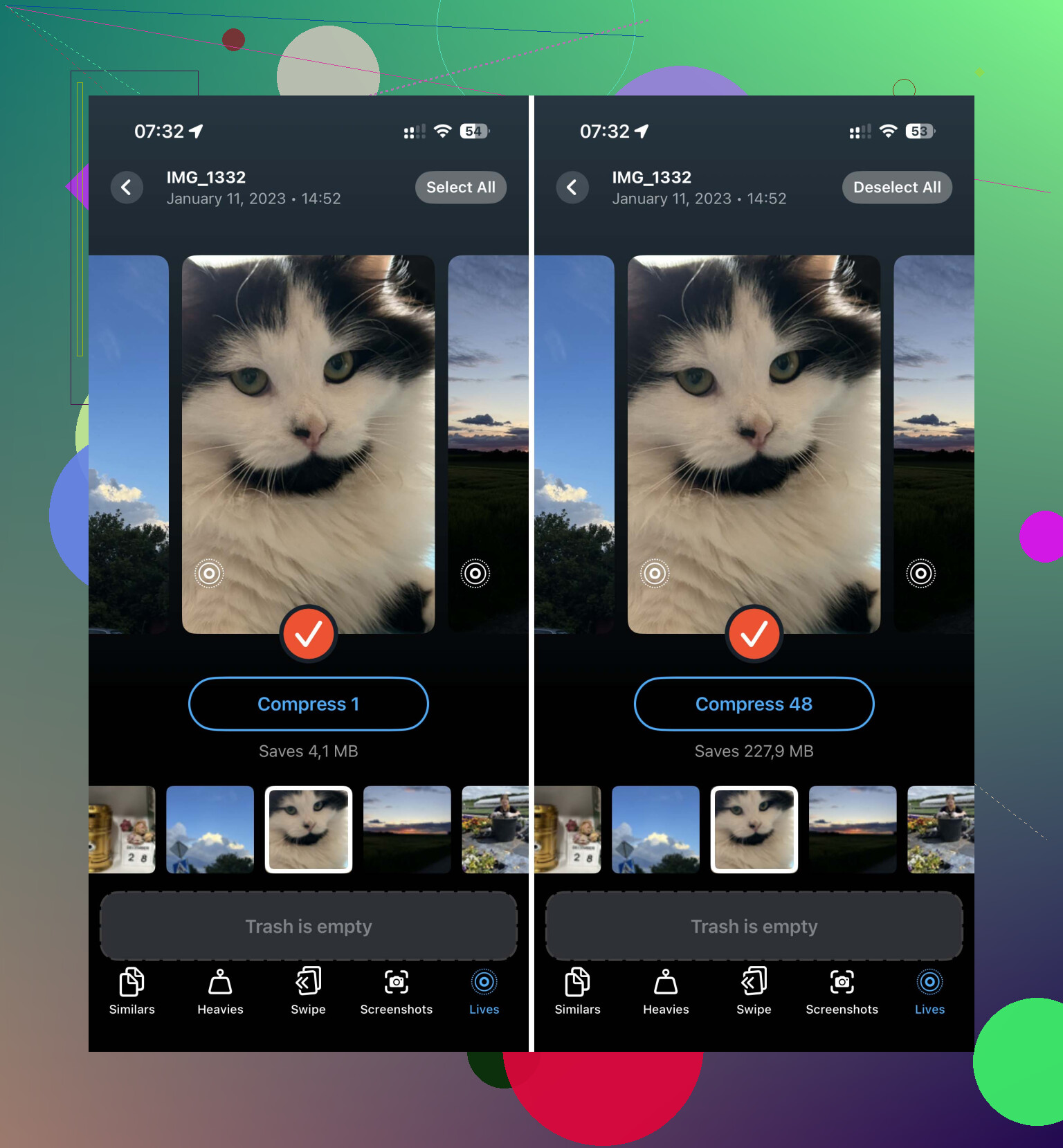
One option I found usable was Clever Cleaner. It’s free, no ads showed up for me, and it doesn’t shove everything behind a paywall. There’s a section made for Live Photos.
What I did:
- Open the app and go to the Lives section.
- Sort by date or size. Sorting by size helps if your storage is already limping.
- Hit Select All, then tap Compress.
The label says compress, but the result is a still image with the motion part removed.
After it finishes, it asks what to do with the originals. Keep them in a temporary trash area, or delete them. It also shows how much space you get back before you confirm, which made the decision easy on my phone.
- Shortcuts, if you want an Apple-only route
If you’d rather not install anything and don’t mind a little setup, Shortcuts works. This route is more hands-on, though. Good if you like fiddling.
Here’s the setup:
- Open Shortcuts.
- Tap the + button to make a new shortcut.
- Add Find Photos.
- Set the filter so Photo Type is Live Photo.
- Add Repeat with Each.
- Inside the loop, add Convert Image.
- Set output to JPEG or HEIF.
- Add Save to Photo Album.
Run it, and it will create still copies from your Live Photos.
Small catch, and this matters. It does not remove the original Live Photos. You still need to open the Live Photos album later and delete those yourself. If you skip that part, your storage barely changes.
- Duplicate as Still Photo, fine for a small pile
If you only need to fix a few photos, the built-in Photos app already has a decent option. No app. No shortcut. Few taps.
Do this:
- Open Photos.
- Go to Media Types > Live Photos.
- Tap Select.
- Pick the photos you want.
- Tap the three-dot menu.
- Choose Duplicate.
- Pick Duplicate as Still Photo.
This makes a new still version of each one.
But here’s the part people miss. If you want storage back, delete the original Live Photos after duplicating them. Then empty Recently Deleted too. If you don’t, iPhone hangs onto those files for 30 days, and your storage screen won’t budge much. I forgot this once and thought the whole process had bugged out. Nope. My bad.
If you’ve got a huge backlog, use the app route. If you like Apple tools, use Shortcuts. If it’s only a handful, Duplicate as Still Photo is the least annoying option.
12 Likes
Skip editing one by one. It’s a time sink.
One thing I’d add to @mikeappsreviewer, if your main goal is storage, test the result first. A duplicated still photo does not help much until the original Live Photo is gone. People miss this and think iPhone storage is broken. It isnt.
Best bulk route on a Mac:
- Plug in your iPhone or use iCloud Photos.
- Open Image Capture or Photos on Mac.
- Export the Live Photos as JPEGs.
- Verify the JPEGs imported back into Photos.
- Bulk delete the original Live Photos from the Live Photos album.
- Empty Recently Deleted.
This is faster than tapping through Photos on the phone if you have a huge batch. It also gives you a backup on your computer first, which is safer.
If you want the iPhone-only route, Clever Cleaner is still one of the easier options for bulk Live Photo to still photo cleanup. Its photo cleanup tools also help find duplicate photos, large videos, and other space hogs fast. This vid shows the workflow pretty clearly, see how to clean up iPhone storage faster.
One more tip. Check Settings > General > iPhone Storage after a few mins, not instantly. iOS sometiems takes a bit to recalculate.
I’d skip the “convert everything” mindset a little, because iPhone doesn’t really offer a true one-tap native bulk replace. That’s the annoying part nobody tells you. @mikeappsreviewer and @ombrasilente covered the main routes already, but one thing worth adding is this:
If your real goal is easier uploads, you may not need to touch the originals first.
Open the share sheet from Photos and send them to Files or a cloud app. A lot of services export Live Photos as a single JPEG automatically. So for websites, forms, or email, the motion part often gets stripped on export anyway. It’s a sneaky shortcut if storage is not your only issue.
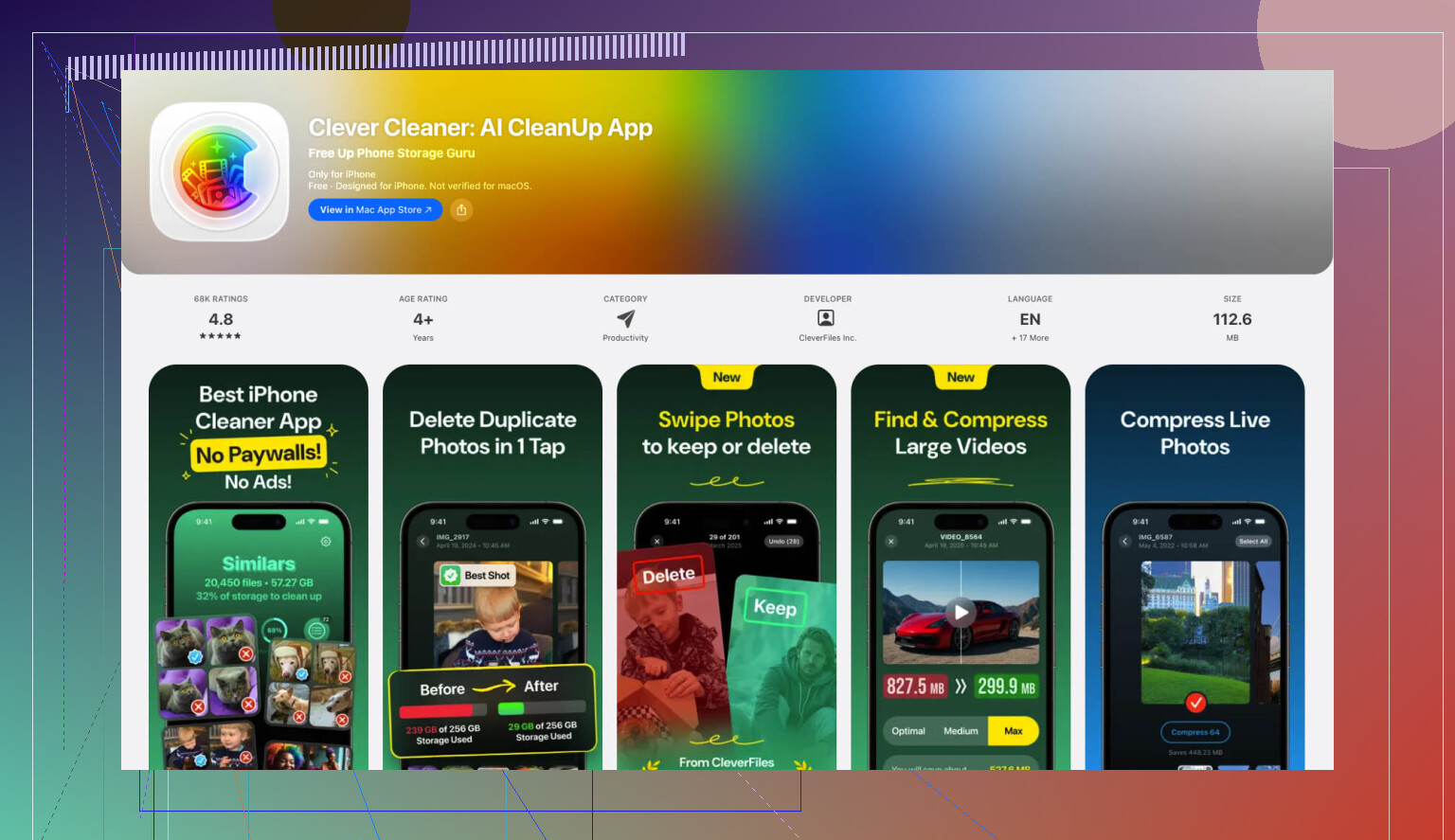
If storage is the main issue, then yeah, bulk cleanup is the move. I slightly disagree with doing it fully through Photos because it gets tedious fast and is easy to mess up. For a big batch, Clever Cleaner is probly the least annoying option. Also, if you want a clearer breakdown first, this Clever Cleaner review for bulk iPhone photo cleanup explains what it actually does in plain english.
One more overlooked trick:
- Filter your library by Live Photos
- Favorite the ones you actually want to keep as Live
- Then bulk-process the rest
That way you don’t flatten the few Live Photos that are actually worth keeping.
Also, after deleting originals, restart Photos or wait a bit. iOS storage numbers are weirdly slow to update sometimes. Kinda dumb, but thats normal.