My iPhone storage is almost full, and I found old files and documents that have been sitting there for years. I’m not sure where they’re all stored or the safest way to remove them without deleting anything important. I need help figuring out how to find and delete old files on my iPhone to free up space.
I ran into the same mess when I moved from desktop habits to an iPhone. On a PC, you know where stuff lives. On iPhone, deletion feels fuzzy. You toss a file, then storage barely moves, or the file pops up again later. I thought I was losing it the first time.
The first thing I’d check is Recently Deleted. Apple keeps deleted files and photos there for 30 days unless you wipe them out yourself. So yes, they still sit there eating storage.
For files, open the Files app, go to Browse, find Recently Deleted under Locations, tap the three dots, then Delete All. If you skip this part, your “deleted” stuff is still on the phone.
Photos work the same way. Delete them from Photos, then empty Recently Deleted there too. If you don’t, nothing meaningful gets freed.
If you’re trying to figure out what’s been clogging the phone for years, I’d start in Settings, not Files. Go to Settings > General > iPhone Storage. Wait a bit. That screen usually tells the truth faster than anything else on iOS.
When I checked mine, it wasn’t old PDFs doing damage. It was downloaded podcast episodes, bloated message attachments, Safari data, and random app junk I forgot existed. You’ll also see options like Offload App, which removes the app but keeps its data, plus Review Large Attachments for old videos and files sitting in Messages.
Your Downloads folder is inside the Files app. Open Files, tap Browse, and look for Downloads. If it’s missing, open On My iPhone first. To remove one file, long-press it and hit Delete. For a pile of them, tap the three dots, choose Select, mark what you want gone, then hit the trash icon. Kinda clunky, but it works.
For me, the biggest storage hog wasn’t documents. It was photos and videos. By a lot. Screenshots, duplicate shots, giant videos I forgot to trim, all of it. Sorting those by hand felt awful.
After messing with a few methods, I ended up using this:
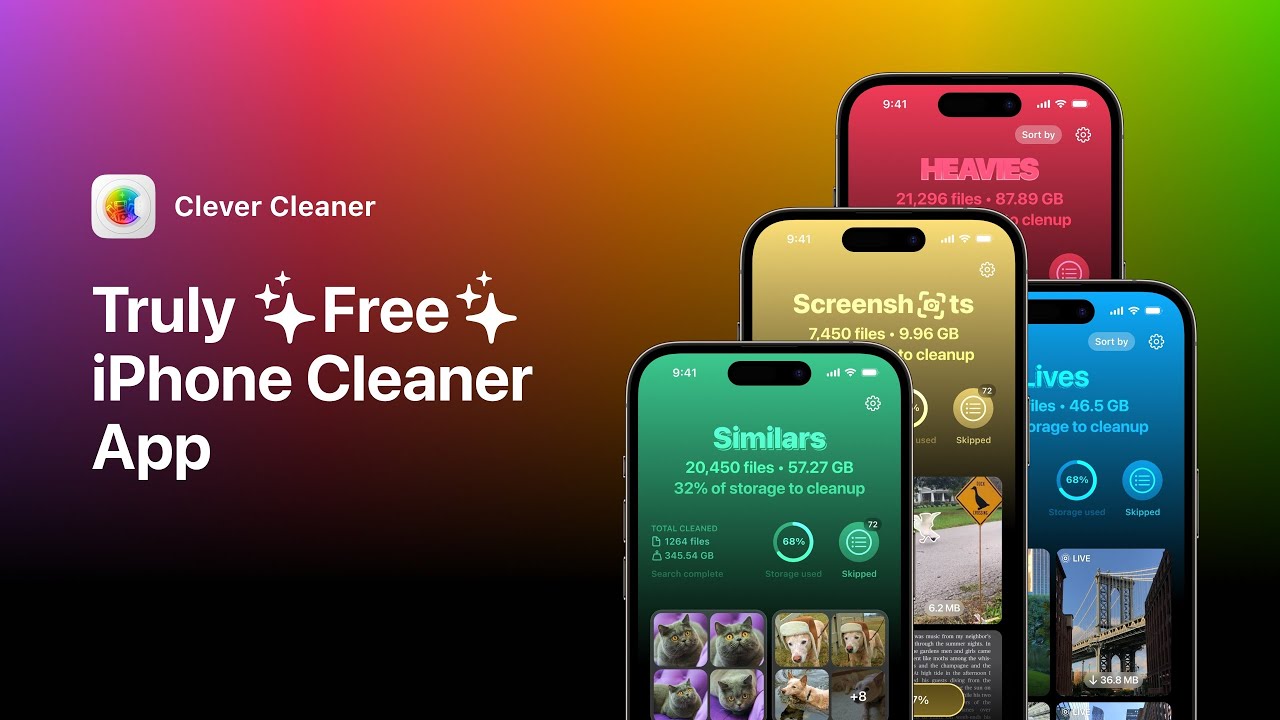
What helped most was how it surfaced the biggest media first. The Heavies section shows files by size, so you spot the 2 GB concert video or giant screen recording fast. The Similars section groups near-duplicate photos, which helped me cut down burst shots and five copies of the same pic with one slightly better angle.
I also liked the month-by-month swipe view. It made the cleanup job feel less miserable. I went through old screenshots, receipts, and junk albums way faster than I did in Photos. It also shows file sizes clearly, which was useful because I kept underestimating how much space screenshots were taking. Small mistake. Repeated 800 times.
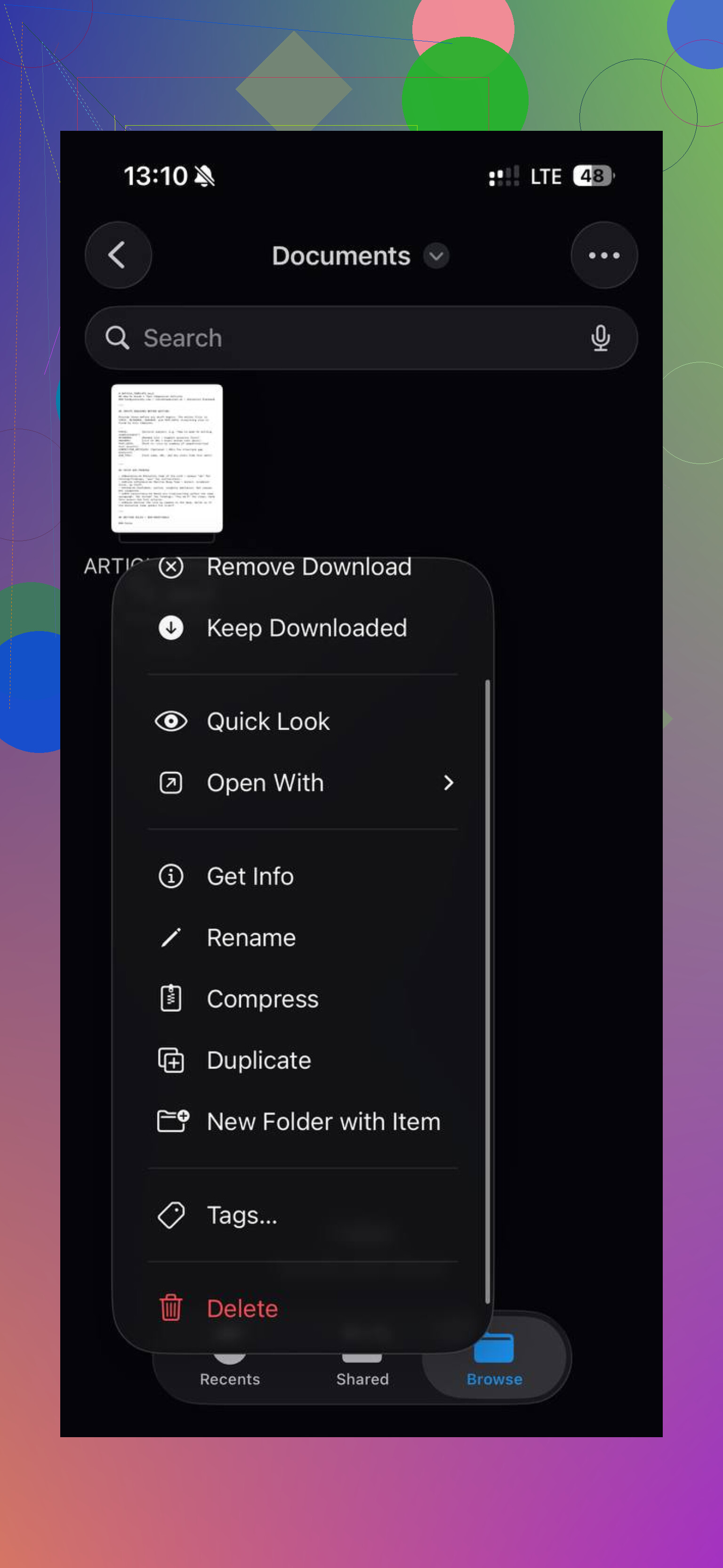
One more thing if you use iCloud. Deleting a synced file from the phone deletes it from iCloud too. If your goal is to keep it in the cloud but get it off local storage, use Remove Download instead of Delete. That keeps the file listed, but removes the copy stored on the phone.
If I were doing this from scratch, my order would be:
- Empty Recently Deleted in Files.
- Empty Recently Deleted in Photos.
- Check Settings > General > iPhone Storage.
- Clear large message attachments.
- Clean Downloads in Files.
- Go after photos and videos last, because that’s usually where the big wins are.
Once I did those steps, the storage number finally dropped for real. Before that, it felt like iPhone was gaslighting me tbh.
10 Likes
I’d do this a bit differently than @mikeappsreviewer. Starting in Files is fine, but if you want the safest cleanup, start by finding what is local to the phone and what is synced from iCloud. If you delete the wrong thing from Files, it’s gone everywhere.
Open Files, tap Browse, then check these two spots separately:
On My iPhone, this is local stuff, safer to remove.
iCloud Drive, this is synced stuff, deleting here removes it from iCloud too.
For old documents, sort by Date or Size. Tap the three dots, Sort by, then Date. Old PDFs, ZIPs, scans, and downloads stand out fast. I’d move anything important into a folder named Archive first. That extra step saved me from deleting tax docs once, lol.
Also check inside apps. A lot of file junk hides in:
GarageBand
Pages, Numbers, Keynote
CapCut, iMovie
Voice Memos
Books, for old PDFs and audiobooks
Those apps store files outside the obvious Downloads folder. Deleting the app often removes its local files too, so look before you nuke it.
If you want a step-by-step guide for clearing old iPhone files and documents, this helps:
best ways to delete files on iPhone and free up storage
For photos, I agree with him less on doing it last. For most people, photos and videos are the first place to check because one 4K video eats more space than years of PDFs. Clever Cleaner is useful if your library is messy. It groups duplicates, similar shots, and big videos faster than the stock Photos app.
Last tip. Restart the phone after cleanup. iOS storage totals sometiems lag, and a reboot forces it to recalc. Annoying, but true.
I’d actually start with backups before deleting anything, which neither @mikeappsreviewer nor @waldgeist really emphasized enough. If you’ve got years-old docs, scans, voice notes, or random app files, do a quick safety pass first:
- In Files, make a folder called “Keep Before Deleting”
- Move anything questionable there
- Then copy that folder to iCloud Drive, Dropbox, Google Drive, or a computer
That way you’re not doing panic-recovery later. iPhone cleanup gets real dumb real fast if you delete first and think second.
Also, don’t trust “Documents & Data” labels too much. A lot of that space is app caches, offline content, and temp junk, not actual files you manually saved. If an app is huge and you barely use it, deleting and reinstalling it often clears way more storage than hunting for one ancient PDF. Especially with apps like WhatsApp, Telegram, Spotify, Netflix, Kindle, and editing apps. Those hoard data like little gremlins.
One thing I disagree on a bit: sorting by age alone is not always the best move. Old files are often tiny. A 12 KB note from 2018 is not your problem. I’d focus on file type plus size:
- videos
- screen recordings
- ZIP files
- downloaded PDFs
- offline maps
- old audio recordings
If your Photos library is the real monster, Clever Cleaner is honestly one of the faster ways to sort through big videos, duplicate pics, and screenshot clutter without doing it all manually in the Photos app. That’s where most people win back space way faster.
Also worth checking:
- Mail app downloads and attachments
- Books app for old PDFs/epubs
- Voice Memos
- Safari Downloads list
- Files app tags/folders you forgot existed
And if you want to see how other iPhone users handle clearing old Files app junk, this thread is actually useful: real Reddit tips for deleting files from the iPhone Files app
My method is basically:
- Back up questionable stuff
- Remove giant app data hogs
- Kill old local files
- Then clean photos/videos last or first, depending on what Storage shows
Kinda boring answer, but safer. And safer matters when your phone has been accumulating digital attic junk for yrs.
I’d add one thing the replies from @waldgeist, @techchizkid, and @mikeappsreviewer only touched indirectly: look for files that are being kept alive by apps, not just sitting in Files.
A few sneaky spots:
- Messages: old voice notes, videos, PDFs inside conversations
- Mail: downloaded attachments can linger
- Notes: scanned docs and embedded PDFs
- Podcasts/Music/TV: offline downloads
- WhatsApp/Telegram: media caches can get absurd
I actually disagree a bit with the “hunt old files first” approach. Age is not the best filter. Size and source matter more. A 7-year-old text file is nothing. A forgotten offline video library is everything.
My approach:
- Check iPhone Storage and identify the top 3 space hogs.
- In Files, focus only on On My iPhone and sort by Size first.
- In each large app, look for its own Downloads / Storage / Offline files section.
- Only then start deleting ancient documents.
Also, if storage still looks full after cleanup, some apps need the classic delete + reinstall treatment to flush caches.
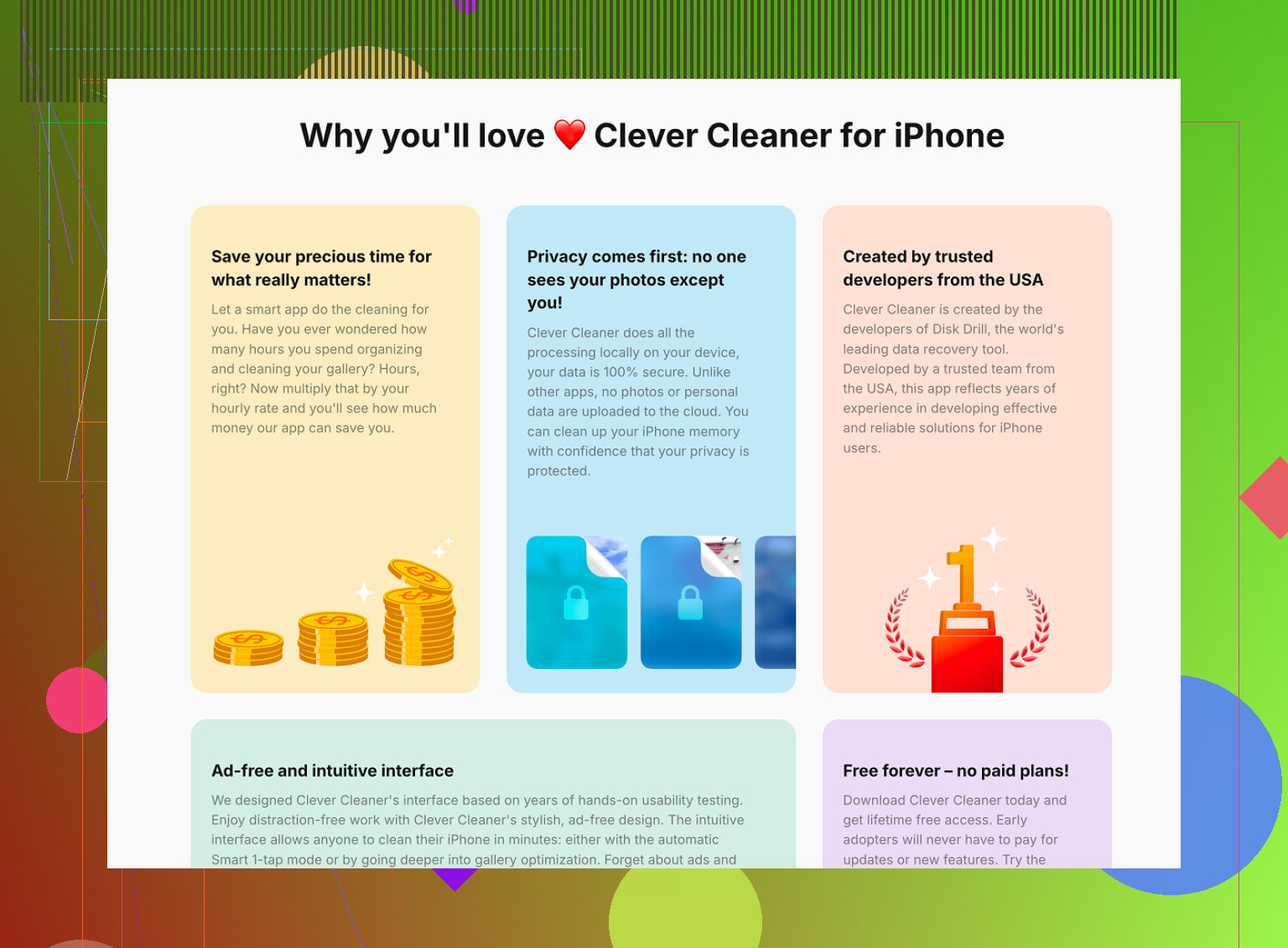
For photos, Clever Cleaner is actually useful if your library is the real problem.
Pros:
- fast at spotting duplicates/similar pics
- surfaces large videos quickly
- easier than manual scrolling
Cons:
- mostly helps with photo/video clutter, not app caches
- you still need to double-check before deleting
- less useful if your storage issue is documents or Messages
So yeah, don’t think of this as “delete old files.” Think of it as find what is truly stored locally and what is actually big. That mindset usually frees way more space.