I’m trying to clean up storage on my iPhone and realized my Hidden album has a lot of old photos. I can delete them one by one, but I need a faster way to remove multiple hidden photos at once without missing anything. Is there a bulk delete option in the iPhone Photos app?
The Hidden album on an iPhone is a little more confusing than it looks. If Face ID will not trigger, the album seems to be gone, or deleted photos keep taking up space, those are usually separate issues with separate fixes.
First, check the two Photos settings
Go to Settings - Photos and look for the Hidden album options. There are two different controls there, and they do different things.
Show Hidden Album only controls whether the Hidden folder shows up in Photos under Utilities. If you turn that off, the album disappears from the Photos app, but the photos inside are still there.
Use Face ID controls whether the album is locked. If that is turned off, Hidden opens like a normal folder without asking for a face scan.
If you tap Hidden and Face ID does nothing, iOS should eventually offer the passcode instead. If it never gets that far, restart the iPhone. That fixes this kind of stuck prompt most of the time.
Deleting everything from Hidden
Open Photos, go to the Albums tab, scroll down to Utilities, then open Hidden. From there:
- Tap Select in the top right
- Drag across rows to select a bunch of photos quickly
- Tap the trash icon
That only moves the photos to Recently Deleted. They are still on the phone and still using storage for 30 days unless you remove them from there too.
So after clearing Hidden, go back to Utilities, open Recently Deleted, and tap Delete All if you are sure you do not need them. That is the step that actually frees up the space.
If you deleted something by mistake, Recently Deleted is where you recover it. Open the item and tap Recover before the 30-day window runs out.
iCloud matters here
The Hidden album is not a separate private storage area. It is still part of your normal photo library, just filtered into a different view.
So if iCloud Photos is turned on, deleting something from Hidden on your iPhone also deletes it from iCloud, your iPad, your Mac, and anywhere else using that same library. This method does not let you delete only the local copy while keeping the cloud version.
The bigger storage problem is usually outside Hidden
Cleaning out Hidden can help, but it often does not make a huge dent by itself. Most of the wasted space is usually in the regular library: duplicate-looking shots, burst photos, old screenshots, and large videos that were never trimmed or removed.
Once iPhone storage gets tight, iOS starts acting sluggish. The camera may open slower, apps can stutter when switching, and background tasks take longer. Hidden cleanup is a good first step, but it is rarely the whole fix.
After Hidden is cleared
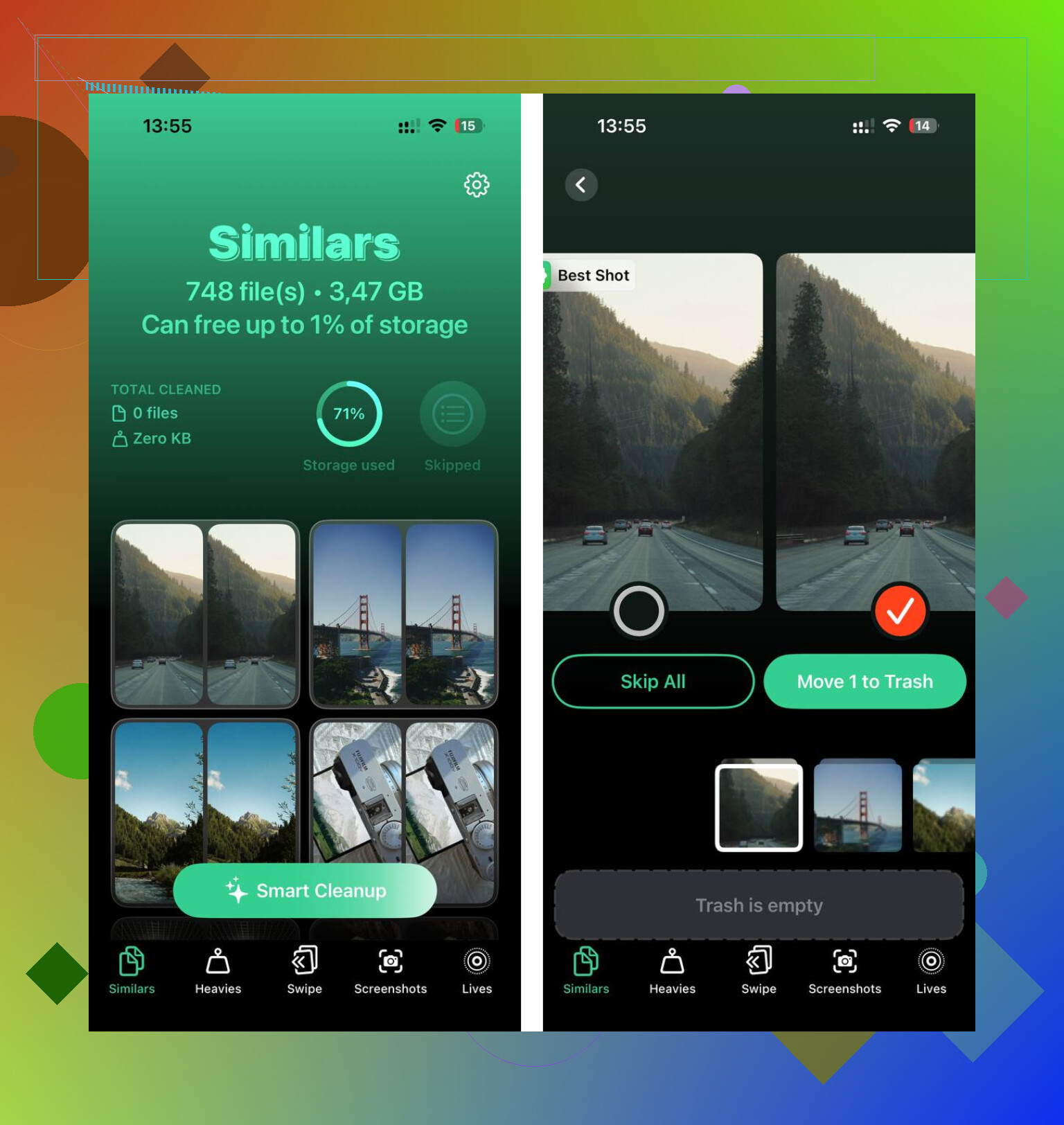
Clever Cleaner cannot scan or clean the Hidden album. Apple blocks third-party apps from accessing that folder, so the manual steps above are still required for Hidden.
For the regular photo library, though, it is free, with no ads and no subscription.
The Similars tab scans the library and groups photos that look almost the same. It suggests a Best Shot, usually the sharpest one in the set, and lets you clear the rest without tapping through every single photo.
The Heavies tab sorts files by size, largest first. This is usually where the biggest wins are, because a few large videos can take up more space than thousands of normal photos.
Screenshot sizes are shown before you delete anything too, which makes it easier to decide what is actually worth keeping.
The scan and cleanup happen on the iPhone itself. Nothing gets uploaded or sent out during the process.
2 Likes
There isn’t a separate “clear hidden storage” button, so the quickest route is to open Hidden, tap Select, and use Select All if your iOS version shows it. Just check the selection first, because deleting from Hidden deletes the actual photos, not just the hidden label.
Don’t start by tapping every thumbnail individually. In the Hidden album, tap Select, then drag across the first row and keep dragging downward toward the bottom of the screen. Photos should keep selecting as it scrolls, so you can grab a large chunk pretty quickly without tapping each photo.
The annoying part is that this is easy to overshoot, especially if there are videos mixed in with small screenshots. Before hitting the trash icon, pause and skim the selected checkmarks. If your iOS version gives you Select All, use that, but if it does not, the drag-scroll method is usually the next fastest built-in option.
After deleting, I agree with the earlier point about Recently Deleted. Hidden is not a separate trash bin. The photos are only moved out of Hidden and into Recently Deleted, so storage will not really come back until you delete them there too. I would empty that only after checking once, because once you clear Recently Deleted, there is no normal undo.
You probably won’t get a perfect one-tap cleanup unless your Photos app shows Select All. If it doesn’t, the best speed trick is to make the grid smaller before selecting. In the Hidden album, pinch inward so you see more thumbnails on the screen, then tap Select and drag through the grid. Fewer giant thumbnails means less scrolling and fewer chances to miss a row.
I’d be a little careful with the drag-to-select method people mentioned, because it is fast but sloppy. If you have a mix of screenshots, short clips, and older saved images, it is easy to accidentally leave gaps while the screen auto-scrolls. I’d do it in batches by month or by visible screen, delete, then come back and do the next chunk. It feels slower, but it is usually cleaner than selecting hundreds at once and trying to audit tiny blue checkmarks afterward.
And yes, deleting from Hidden is real deletion from the library. It is not just “unhiding” them. If storage is the reason you’re doing this, finish in Recently Deleted, but only after you are sure. That second delete is the point where you stop having a safety net.
Worth knowing before you start: emptying the Hidden album rarely returns much storage, because most people only have a few dozen images tucked in there and half of them are tiny screenshots. If your real goal is space, the Hidden cleanup is almost a side quest. You’ll do all this careful selecting and watch the storage number barely move.
The workflow nobody mentioned is going the other direction. Instead of fighting the drag-select inside a locked album, unhide the photos first (Select, then the menu with the three dots, Unhide). Now they sit in your main library where selection is less painful, and more importantly where a cleaner can actually reach them. Like @mikeappsreviewer said, Clever Cleaner can’t touch anything while it’s hidden, so if you want its Similars or Heavies sorting to help thin the batch, unhiding is the only way to hand those photos over to it. Then delete the ones you don’t want from the regular grid.
The one bit I’d push back on is the drag-scroll enthusiasm from @mike34 and @stellacadente. It’s fine, but the auto-scroll speed is inconsistent, and on a locked album Face ID sometimes wants to re-authenticate after the screen dims, which can dump your selection. Do it in smaller passes and you avoid that whole headache. And yes, don’t forget Recently Deleted is also behind Face ID, so people occasionally think their photos vanished when they’re just sitting in that locked folder still eating space.