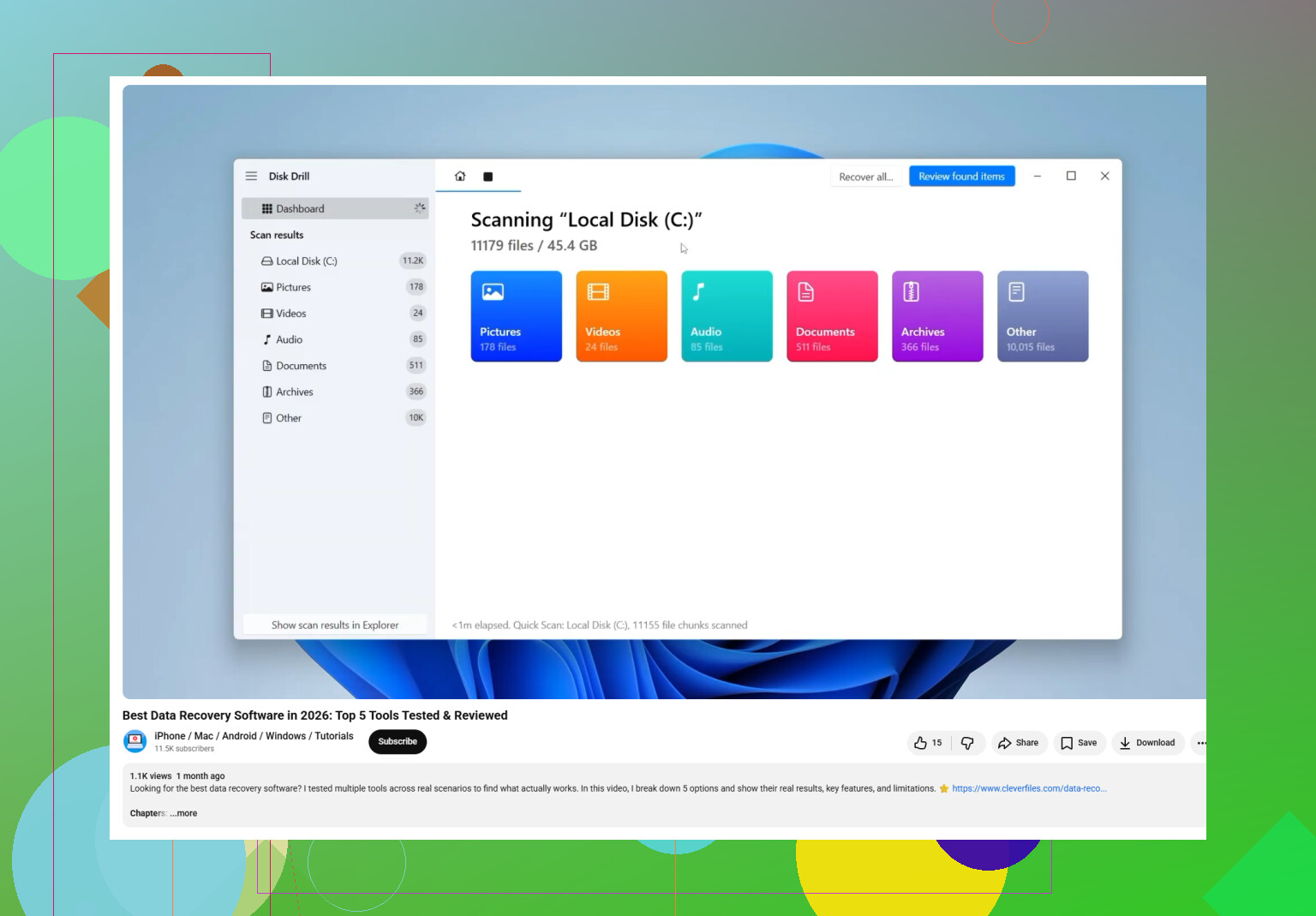
I pulled an old hard drive from a dead PC and found what should be my Outlook PST file, but I can’t get it to open or import. It has important old emails, contacts, and attachments I need for work records. Looking for the best way to recover a PST file from an old hard drive without damaging the data.
I had this happen once after cleaning up Documents and the Outlook Files folder. It felt bad for about ten minutes, then I stopped touching the PC and worked the problem in order. If your PST got deleted, do the same. The less you write to the drive, the better your odds.
Windows usually does not wipe the file right away. It marks the space as free. If you keep downloading stuff, installing apps, or saving random files, you raise the chance your old PST gets overwritten. So first step, hands off as much as you can.
Start with the easy places
Check the Recycle Bin. A normal delete often lands there. Shift+Delete skips it, so do not expect miracles if you used that.
Then check any cloud sync tied to the folder. OneDrive, Dropbox, and similar services often keep deleted items or older versions for a while. Use the web portal, not only the synced folder on your computer. I have seen files missing locally but still sitting in the service trash online.
Try Windows previous versions
This one gets missed a lot. If File History or restore points were active, you might have an older copy sitting there.
Go to the folder where the PST lived. A common path is:
C:\Users\YourName\Documents\Outlook Files
Right-click the folder, pick “Restore previous versions,” then look for a version dated before the deletion. Open it and copy the PST out somewhere else. Do not restore over the same folder if you have other files in there you care about.
If that fails, scan the drive
At this point I would move to recovery software. The main thing is still the same, do not write new data to the drive where the PST was deleted.
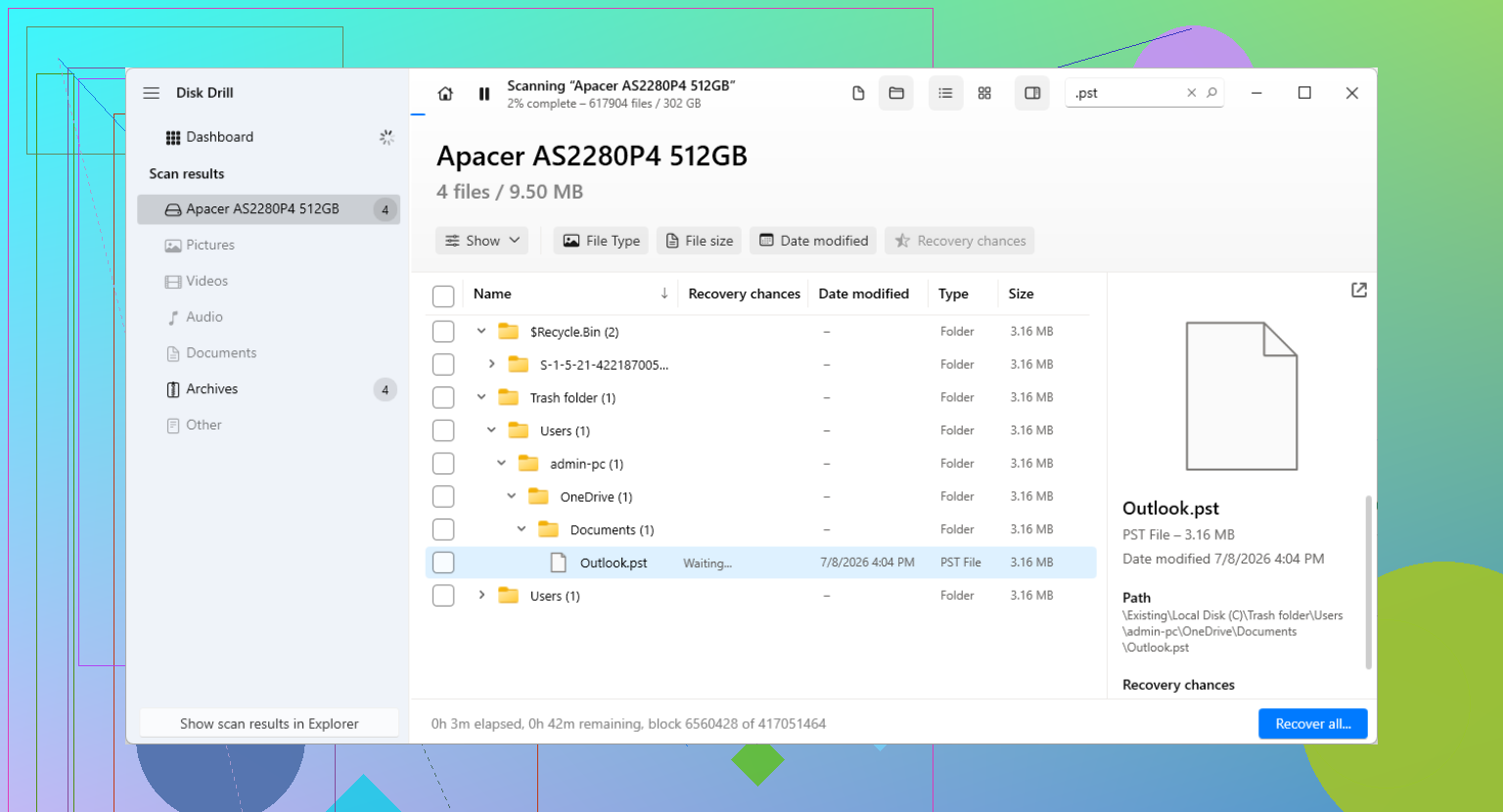
Disk Drill is one option I would try for a deleted PST because it looks past what Windows is showing you now.
The safest flow looks like this:
Install the recovery app on another drive if you have one. External storage is even better.
Scan the drive where the PST used to be, often C:.
Filter or search the results for .pst.
Look at file sizes with some care. Outlook likes to make a fresh tiny PST when the old one is gone. Your missing file is often much larger.
Recover the file to a different location. Do not put it back into the same folder first.
Open the recovered PST the right way
This trips people up. Outlook may already have made a new empty data file, so when you open Outlook it looks like all your mail vanished. That blank file is often a replacement, not your old mailbox.
Open Outlook, then go to:
File > Open & Export > Open Outlook Data File
Select the recovered PST. If the recovery worked, your old folders should appear in the left pane. Once you confirm your mail is there, go into Account Settings and set the recovered PST as the default data file if needed.
IMAP helps, but only up to a point
If your account is IMAP, like Gmail, Comcast, Yahoo, and a lot of others, the inbox and synced folders are often still on the server. Re-adding the account often rebuilds the mailbox through a new OST.
What does not reliably come back are local-only folders. Archives, old imports, custom folders, stuff stored outside the synced mailbox, all of that might have lived only inside the PST. I learned this the hard way. The inbox came back. The old archive did not. So if the PST had local data, keep chasing the original file.
After you get it back
Once the PST is safe again, set up backups. Put it in a folder your backup job includes. Copy it to an external drive now and then. Export on a schedule if you need a manual routine. A PST often holds years of mail, and keeping one copy on one drive is asking for trouble. I did ths once. Not doing it again.
If your recovery scan shows a large PST, recover that one first and test it in Outlook before spending time on smaller ones.
11 Likes
If the PST is sitting on an old hard disk and Outlook refuses to open it, I would treat this as file damage first, not deletion. That is where I differ a bit from @mikeappsreviewer. Recovery apps help most when the file is missing. If you already found the PST, the next step is to verify it and repair it.
Do this in order:
-
Copy the PST off the old drive first.
Put it on a healthy SSD or internal drive. Do not work from the old disk over USB if you can avoid it. Old SATA drives throw read errors and Outlook hates flaky storage. -
Check the file size.
If it is 0 KB, or tiny like a few hundred KB, it is not your real mailbox. Old PSTs with years of mail are often hundreds of MB, sometimes 2 GB to 20 GB+. -
Remove read-only and unblock it.
Right click, Properties. Clear Read-only if set. If you see an Unblock option, tick it. Small thing, but I have seen this fix wierd import failures. -
Run ScanPST.exe.
This is Microsoft’s Inbox Repair Tool. It ships with Outlook.
Common paths:
C:\Program Files\Microsoft Office\root\Office16\SCANPST.EXE
C:\Program Files (x86)\Microsoft Office\root\Office16\SCANPST.EXE
Point it at the copied PST. Let it make a backup. Run repair. Then run it again until it reports no errors. Sometimes it takes 2 or 3 passes.
-
Open it in Outlook, do not import it.
Use File, Open and Export, Open Outlook Data File.
Import is where people get tripped up. Opening the PST mounts it directly and skips a lot of nonsense. -
If Outlook still rejects it, try a different Outlook version.
Old ANSI PST files from Outlook 2002 era and older can be finicky. Newer Outlook desktop usually reads them, but I have seen cases where Outlook 2016 opened a file Outlook 365 kept choking on, and vice versa. Annoying, yep. -
Check for encryption or corruption from the old disk.
If the source PC used BitLocker or EFS, you might have copied out an unreadable file shell. Also run chkdsk on the old drive if it is still stable enough to read. A bad sector in the middle of a PST is enough to break import.
If the file itself is incomplete or damaged from the failing drive, then Disk Drill makes sense. In that case, scan the old disk for other PST copies, temp versions, or older larger matches. Outlook users often had more than one PST, archive.pst, outlook.pst, backup.pst, etc. Recover the largest intact one to a different drive and test that copy.
For extra reading, here’s a useful Outlook PST recovery discussion:
Outlook PST recovery tips from real users
Short version, copy first, repair second, open instead of import, then fall back to Disk Drill if the file is damaged or incomplete. That flow saves time and avoids making it worse.
I’d add one thing neither @mikeappsreviewer nor @viajeroceleste really leaned on enough: make sure the PST actually came from a complete user profile and not from a half-broken copy job off the old disk.
A lot of times the file opens nowhere because it was copied through a flaky USB adapter and is silently truncated. Compare the file size against what you’d expect, then generate a checksum after copying it again to a diff drive. If copy A and copy B have different hashes, the old disk is feeding bad data.
Also, don’t use Outlook Import unless you absolutley have to. If Outlook refuses to mount it, try a third-party viewer first just to confirm the mailbox structure is there. That tells you whether you have an Outlook problem or a PST integrity problem. Sometimes LibreOffice mail tools and dedicated PST viewers can at least enumerate folders even when Outlook acts dramatic.
If the drive is clicking, slow, or throwing I/O errors, I’d actually image the whole disk first with something like ddrescue before poking at files one by one. Thats the safer move for aging drives. Then work from the image, not the original. If the PST turns out incomplete, Disk Drill is worth using to scan the old hard disk image or the source drive for older PST versions, auto-archives, and deleted copies.
For anyone searching this later, a decent way to frame it is: choose the best software to recover and repair an Outlook PST file from an old hard drive. If you want a walkthrough, this video on recovering Outlook PST files from an old hard drive may help too.
One more obscure thing: if that old PC used POP3, your mail may exist only in that PST. If it used Exchange/IMAP, some folders may be server-side, but Contacts, old Archives, and local folders often are not. So don’t assume “the account still exists” means the data is safe.