My older iPhone has gotten really slow, but the battery health is still decent so I’d rather not replace it yet. Apps take a long time to open, switching between screens lags, and even basic tasks feel sluggish. What settings, clean-up steps, or performance tweaks can I try to make it faster without having to replace the battery or buy a new phone?
On older iPhones, speed issues usually come from storage, background junk, and heavier apps, not only the battery. Here is what helps most, in order of impact.
-
Check storage and free up space
• Go to Settings > General > iPhone Storage.
• If you are over 85 percent full, the system slows down a lot.
• Delete big apps you rarely use, old games, offline maps, old Podcasts, etc.
• Offload unused apps instead of fully deleting them if you might need them later. -
Clean photos, videos, and duplicates
• Photos and videos eat storage and create a heavy library.
• In Photos, sort by “Videos” and remove long clips first.
• Empty “Recently Deleted” so space is really freed.
• Remove Live Photos from stuff you do not care about.If you have tons of junk screenshots, duplicates, or blurry pics, use a cleaner app.
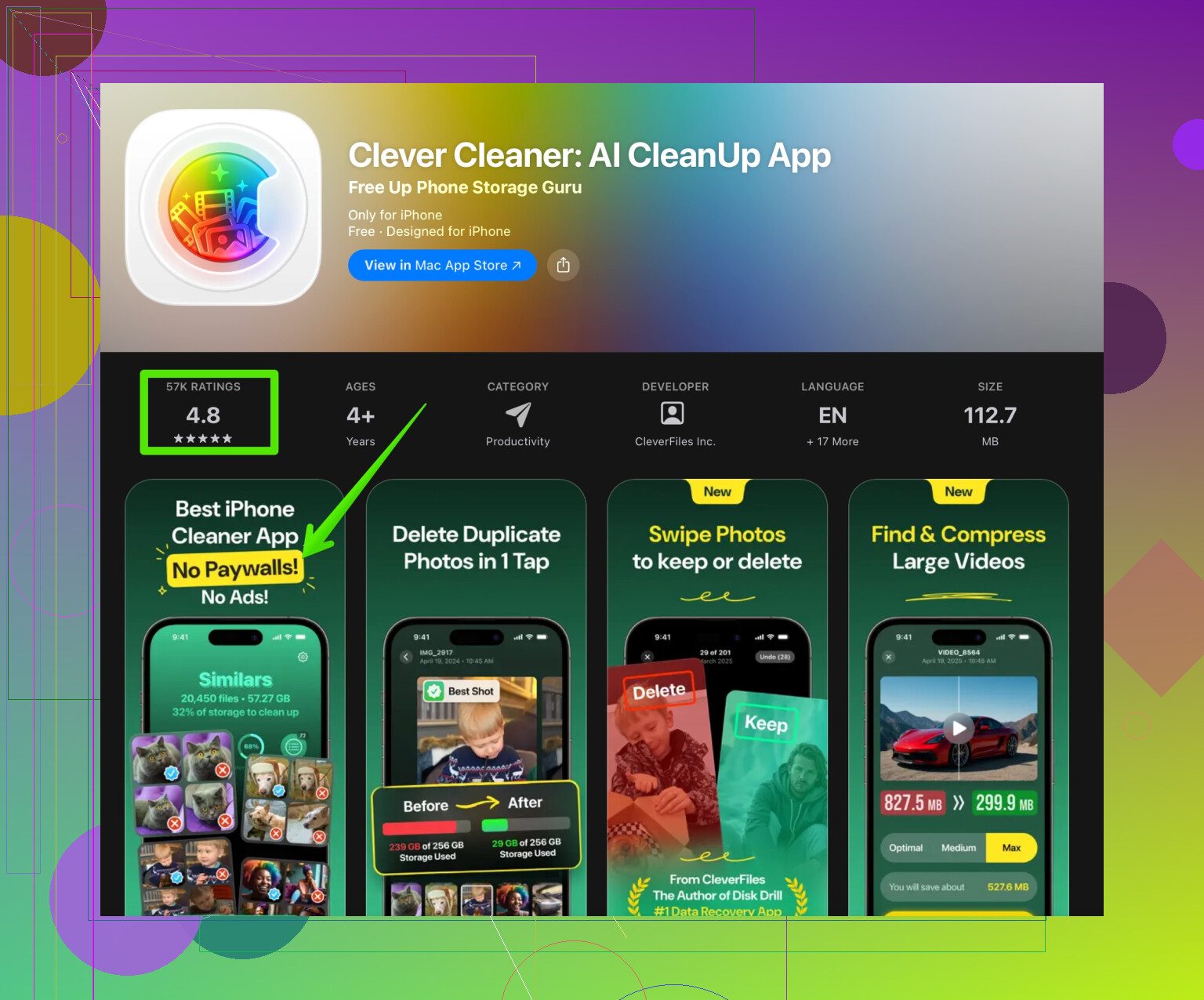
Something like the Clever Cleaner App helps remove duplicate photos, large videos, and other trash so the phone feels lighter and faster.
Here is a direct link with more info:
clean up your iPhone storage with Clever Cleaner App -
Reduce background stuff
• Settings > General > Background App Refresh > turn it off for most apps.
• Settings > Privacy & Security > Location Services > set most apps to “While Using” or “Never”.
• Turn off automatic downloads for apps and updates in App Store settings. -
Tweak visual settings
These changes free CPU and GPU.
• Settings > Accessibility > Motion > Reduce Motion ON.
• Settings > Accessibility > Display & Text Size > Reduce Transparency ON.
• Turn off “Auto play video previews” in App Store and some social apps. -
Check Safari and app cache
• Settings > Safari > Clear History and Website Data.
• In apps like Facebook, Instagram, TikTok, look in their settings for cache or media storage and clear it.
Heavy cached data slows scrolling and loading. -
Restart and avoid low storage conditions
• Do a full restart once per week. It clears temporary junk and stuck processes.
• Try to keep at least 10 to 15 GB free if your model is 64 or 128 GB. -
Turn off some system features
• Settings > Siri & Search > turn off “Listen for Hey Siri” if you do not use it much.
• Turn off unnecessary widgets on the Home and Today screens.
• Reduce the number of active keyboards, including third party ones. They add lag. -
Update iOS, but not always to the newest on very old phones
• If your iPhone is right at the bottom of the supported list, the latest iOS version sometimes feels heavier.
• Check YouTube for “iOS X performance on iPhone Y” before you update. There are speed tests with app launch times and frame drops. -
Check for problem apps
• If one app lags like crazy while others feel ok, it is likely the app, not the phone.
• Delete and reinstall heavy social apps. This resets internal caches.
• If your home screen stutters, try removing heavy widgets like large Photos or News. -
Last resort system refresh
If nothing helps and you have enough time:
• Backup with iCloud or iTunes/Finder.
• Settings > General > Transfer or Reset iPhone > Erase All Content and Settings.
• Set up as new instead of restoring the whole backup.
• Manually reinstall only the apps you actually use.
This “set up as new” step has fixed nasty lag on multiple older iPhones in my family. It takes a bit of work, but performance after that feels much closer to fresh-out-of-box, even with the same battery.
My older iPhone has gotten really slow, but the battery health is still decent so I’d rather not replace it yet. Apps take a long time to open, switching between screens lags, and even basic tasks feel sluggish. What settings, clean up tricks, or hidden iOS tweaks can speed up an old iPhone without changing the battery?
@chasseurdetoiles already covered the classic stuff like storage, visuals, and general cleanup. I’d actually argue that, on very old iPhones, software cruft and age of the install are a bigger problem than storage alone, so here are some other angles that don’t just repeat their list:
- Check if iOS is throttling your CPU
Apple still quietly slows phones when it thinks the battery can’t deliver peak power, even when “Battery Health” looks ok.
- Go to Settings > Battery > Battery Health & Charging.
- If you see “Performance management has been applied,” that means the phone is deliberately slowing itself down.
- You can disable it there, but if it keeps shutting down randomly after that, then yeah, battery is actually the issue. Still, it’s worth toggling to see if speed improves.
- Kill unneeded keyboard & language junk
Not just extra keyboards, but also:
- Settings > General > Keyboard
- Turn off “Smart punctuation,” “Predictive,” and “Check Spelling” if you don’t care about them. Each one hooks into typing across the system.
- Remove extra languages in Settings > General > Language & Region. Having multiple language environments can add a bit of lag in some apps, esp. old hardware.
- Disable analytics and background sniffing
These are sneaky performance leeches that most people never touch:
- Settings > Privacy & Security > Analytics & Improvements
- Turn off “Share iPhone Analytics” and all the other reporting toggles.
- Settings > Privacy & Security > Tracking
- Turn off “Allow Apps to Request to Track.”
Less tracking and analytics equals fewer background tasks and spikes.
- Turn off “Allow Apps to Request to Track.”
- Tame notifications aggressively
Constant notifications wake your CPU and GPU all day. On an older device it adds up.
- Settings > Notifications
- Turn off notifications entirely for anything that is not messages, calls, calendar, or truly essential.
- Avoid “Banner style: Persistent” and fancy preview stuff when you can.
You’d be surprised how much snappier the phone feels when it is not constantly waking to show useless alerts.
- Spotlight search pruning
Spotlight indexing can slow old iPhones, esp. if you have years of messages and mail.
- Settings > Siri & Search
- Scroll through and turn off “Show in Search,” “Show Content in Search” and “Show on Home Screen” for apps you never search in.
Message-heavy apps (Mail, Messages, WhatsApp) are big culprits.
- Scroll through and turn off “Show in Search,” “Show Content in Search” and “Show on Home Screen” for apps you never search in.
- Free RAM the sane way
I don’t mean those fake “RAM cleaner” apps. But you can force iOS to clear a lot of stuff with a trick:
- Press and release Volume Up, then Volume Down, then hold the Side button until the power slider shows.
- Ignore the slider and hold the Side button until the screen goes black and the Apple logo appears.
This is a forced restart that can help more than a normal power off if the UI has gotten sluggish because of long running processes.
- Control widgets and “live” stuff more tightly
I think @chasseurdetoiles is slightly underestimating how bad some widgets can be.
- Remove the Photos, News, Weather, and big third party widgets from the Home Screen and Lock Screen.
- Disable Live Activities (like Uber progress, food delivery tracking) in Settings > Face ID & Passcode > “Allow Access When Locked” and app specific settings.
Static icons are always lighter than animated cards.
- Make iCloud and syncing less aggressive
Heavy syncing can make older phones feel like they’re in molasses, especially on weak Wi Fi:
- Settings > Your Name > iCloud > iCloud Drive
- Turn off apps you do not need syncing documents constantly.
- In Photos, if you use iCloud Photos, avoid “Download and Keep Originals” on tiny storage models. That can choke performance when the phone is juggling local vs cloud copies.
- Use a proper cleaner for deep media junk
If you have years worth of photos, videos, WhatsApp media, screenshots, and random junk, the photo library itself can feel heavy for the system to handle. That’s where a dedicated cleaner actually earns its keep.
Instead of manually hunting all of that:
- A tool like Clever Cleaner App can scan for duplicate photos, large videos, burst shots, and other space hogs in one go.
- On devices with tiny storage, trimming that cruft not only frees GBs but can also make Photos, camera roll opening, and media heavy apps respond faster.
If you want to try it, check this out:
clean up your iPhone storage and boost performance
- Use “Set up as new” smarter, not just nuking everything
I agree with @chasseurdetoiles that setting up as new is powerful, but it’s overkill to completely ditch your digital life. A more surgical approach:
- Backup to iCloud.
- Reset the phone.
- On setup, restore only Messages and Photos from iCloud, then manually reinstall apps one by one, not from the “Restore all” list.
Skip old games, banking apps you never use, and every “I’ll need this someday” service. Fewer installed apps means fewer background processes, even if they seem idle.
- Know when iOS is actually the bottleneck
Sometimes the brutal truth: even with all of this, Apple’s latest iOS is just too heavy on the oldest supported device.
- If you updated and it got way slower compared to the previous iOS, there is no easy software fix. Apple does not let you downgrade officially.
At that point, the best you can do is: keep the phone lean, disable as much fluff as possible, and use it mainly for light apps. Treat it like a “lite” device instead of expecting it to behave like a new model.
If you try anything first, I’d start with:
- Disabling performance management (if it shows up).
- Pruning Spotlight and notifications.
- Deep cleaning media with something like Clever Cleaner App.
- Then, if still awful, do the semi “set up as new” approach and be ruthless with which apps you bring back.
You can avoid a battery swap for a while, but at some point the combo of aging chip plus heavier iOS is the real limiter, not the battery health number.
45 Likes
Good extra angle from @chasseurdetoiles and from @chasseurdetoiles again in the follow up. Both focus a lot on system tweaks and a cleaner install. I’ll go at it from a slightly different angle: treat the phone like a constrained hardware device and make your usage fit the hardware, instead of just toggling more settings.
1. Pick “lite” versions of apps
On older iPhones, app choice matters more than people think.
- Prefer web versions in Safari for heavy apps (Facebook, Reddit, LinkedIn, some banking) instead of their native apps.
- For email, try the built in Mail over heavier third party clients.
- For notes, Apple Notes is usually lighter than cross platform “all in one” note apps.
- Avoid browsers with lots of extensions or built in VPNs. Safari is usually the most efficient.
This is where I slightly disagree with the idea that a cleaner system alone is enough. If you reinstall the same bloated apps, you drag the phone right back down.
2. Change how you multitask
Old iPhones do not like being treated like a desktop.
- Avoid hopping between 4 or 5 heavy apps in quick succession. Do one thing, finish, home screen, then open the next app.
- Don’t force close everything all the time. iOS is actually optimized for keeping a few apps in memory. Constantly swiping them all away can increase CPU work as each relaunch is cold.
- What is worth force closing: any app that stutters audio, lags badly, or keeps refreshing content. Kill just those.
3. Keep the home screen brutally simple
Widgets were already called out, but take it further:
- Use one or two home screen pages max.
- Keep only your most used 10 to 15 apps on page one.
- Throw everything else in a couple of folders on page two or in the App Library.
- The goal: fewer icons and visual “decisions” so you spend less time jumping around and more time staying in one app.
You do not gain raw CPU power here, but you reduce how often you trigger slow transitions and background loads.
4. Camera and photos habits
The camera pipeline is heavy on old chips.
- Avoid HDR and Live Photos unless you really need them. In Camera, tap the Live Photos icon to off and consider disabling Smart HDR if your model or iOS version allows it.
- Record video at 1080p 30 fps, not 4K or 60 fps.
- Do periodic photo cleanups so Photos opens faster and indexing is lighter.
This is a good place where a tool like Clever Cleaner App can help, especially if you have thousands of photos and videos.
Pros of Clever Cleaner App:
- Finds duplicate photos, nearly identical shots, and huge videos quickly.
- UI is usually simpler than rummaging through “Recents” and albums yourself.
- Freeing several GB can make the Photos app and camera roll noticeably snappier on low storage devices.
Cons of Clever Cleaner App:
- You still need to manually review suggested deletions or you might lose pictures you care about.
- Any cleaner app that scans media will use CPU and battery when running, so run it when the phone is plugged in.
- It solves storage and media bloat, not fundamental chip limitations, so do not expect miracles if your iPhone is already very old.
Used right, it is a one time or occasional deep scrub, not something you run every day.
5. Network and “online slowness”
A lot of what feels like “phone is slow” on old hardware is actually “network + modern web is slow.”
- In heavy apps, pre disable auto playing video or autoplay feeds if the app offers that.
- Use “Low Data Mode” in Wi Fi and Cellular settings if your connection is poor. That can reduce background syncing and heavy media fetching that choke weak CPUs.
- If Safari feels laggy, periodically clear website data for bloated sites, not your entire history.
6. Be strategic with updates
Here I partly differ from the “always update to the latest” instinct.
- If your old iPhone is already on a stable iOS version and usable, be cautious about jumping to a major new release the moment it drops.
- For very old models at the bottom of the support list, each major iOS can bring small features but also more weight.
- If you have already updated and performance tanked, your best bet is to keep it ultra light (minimal apps, few widgets, tamed notifications) rather than trying to “tune” the new OS into feeling like the old one.
7. Accept a “role change” for the phone
At some point, no amount of clever cleaning, including the Clever Cleaner App or all the tricks from @chasseurdetoiles, will give you “new phone” speed. When you hit that wall:
- Repurpose it as a dedicated music player, podcast device, smart home remote, or car phone.
- Offload your heaviest apps and keep only a small, fast core.
This mindset shift helps more than endlessly chasing tiny performance wins.
If you combine: lighter apps, simpler workflows, minimal home screens, media cleanup with something like Clever Cleaner App, and a realistic OS version strategy, you can usually squeeze another 6 to 18 months of decent use out of an old iPhone without touching the battery.
Try one goal, hit 20 percent free storage. iOS slows hard when storage gets tight. On 64 GB, target at least 12 GB free. On 128 GB, target 24 GB. Go Settings, General, iPhone Storage. Enable Offload Unused Apps. Photos, turn on Optimize iPhone Storage, empty Recently Deleted. Messages, set Keep Messages to 30 Days, review Large Attachments. Files, clear Downloads and old iOS updates. Reboot. This reduces swap and indexing, apps open faster. If you drop below target later, repeat. It works. Dont forget to keep a cushion, 10 to 15 percent, for teh system.