One folder is missing after I moved some files around and deleted folders I thought were empty. Can I recover a deleted folder if I accidentally removed it during that cleanup? I’m not completely sure it was deleted rather than moved, but searching for its name hasn’t turned it up.
It had personal documents mixed with files I was sorting, and I don’t remember every filename. I haven’t moved or deleted anything else since noticing it was gone. Does it matter whether I deleted the folder itself or the folder containing it? I’m a little unclear on that distinction.
I’d check backups and the Recycle Bin before paying for recovery. If neither has the folder, I’d use the Disk Drill scan and free previews to see what’s recoverable before spending anything.
The part I’d be careful about is writing anything else to that drive. Deleted files can remain until their space gets overwritten, so I’d stop downloads, saves, and installs there. An SSD makes this less predictable: TRIM can clear deleted blocks quickly, which means recovery chances are lower than on a regular hard drive.
I’d look for an existing backup first. In Control Panel, File History > Restore personal files lets you browse earlier backups with the arrows. If it was enabled and the folder’s there, select it and use the green Restore button. There’s also Control Panel > System and Security > Backup and Restore (Windows 7) > Restore my files, if that backup tool was set up.
For the Recycle Bin, the detail that matters is whether Windows warned that the folder was too big and asked to delete it permanently. Clicking Yes bypassed the bin. Without that warning, it’s probably worth checking: sort by Date Deleted, right-click the folder, and choose Restore. That returns it and its subfolders to their original location.
If those checks don’t turn anything up, I’d scan the drive where the folder was stored. Keep the recovery download off that drive; if the folder was on C:, save the installer to a USB stick or another drive. Choose Search for lost data, then search the results by folder or file name. The Recovery chances filter helps narrow things down, but I’d still preview files to check that they open. Save recovered files to a different drive.
Scanning and previews are free. On Windows, free recovery is limited to 100 MB, so a large folder will probably require the paid version.
16 Likes
Search for files that you know should be in the folder. Search the main folder you were cleaning up, and also the drive itself. Look in any folders directly next to the original location too to make sure the file was accidentally dragged into a nearby folder.
Whilst this is good advice for backing up, you may want to avoid using Disk Drill just yet. If you do find a matching file, look inside the folder it is in to see if your other files are there. If you’re not sure which copy you’ve found, don’t move them all back just yet.
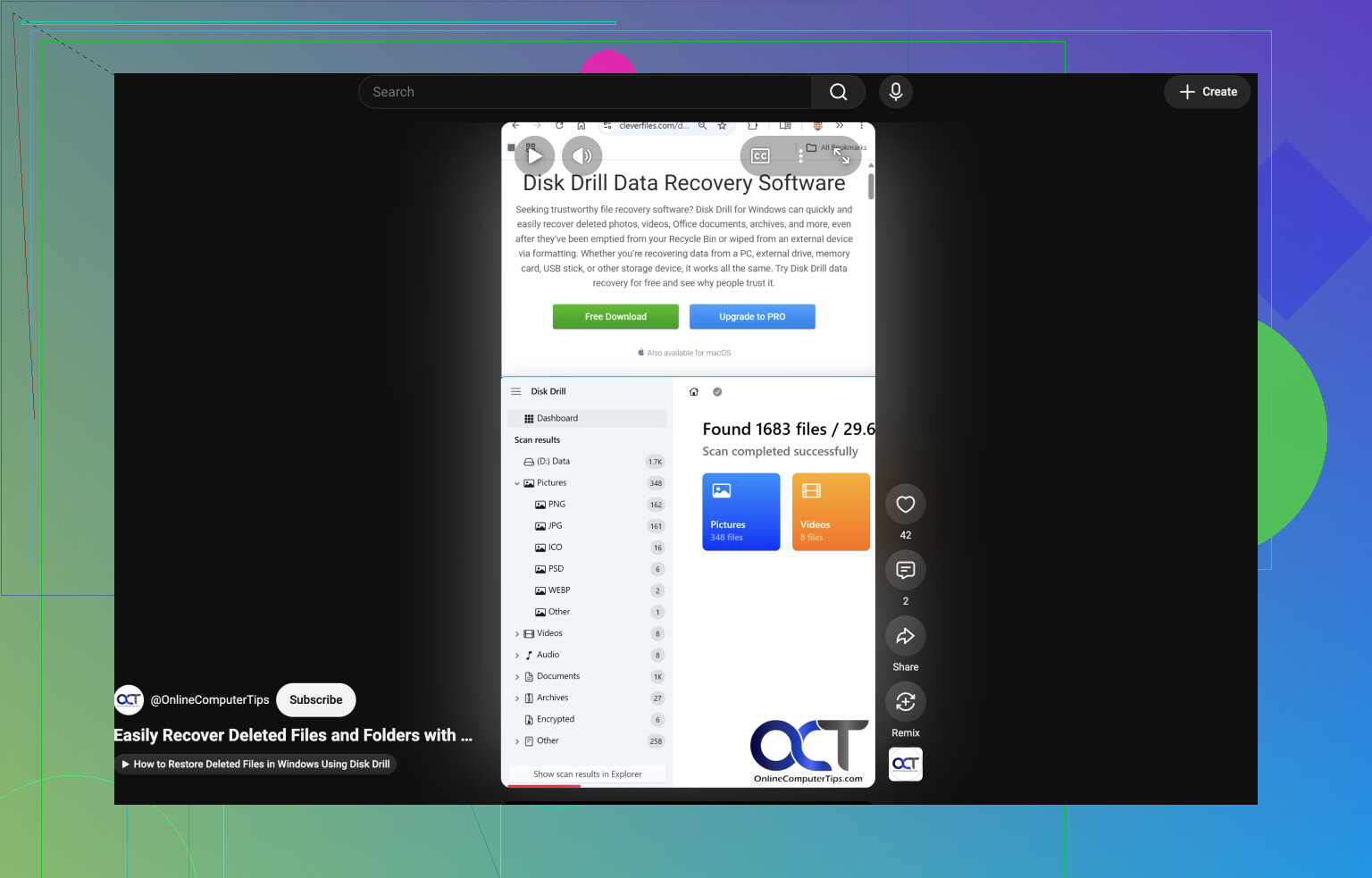
If those checks turn up nothing, recovery becomes the next step. I came across a Shorts video on YouTube that briefly explains how to recover a folder, though your uncertainty about whether you deleted it is the detail I’d sort out first. Was it stored on your computer, an external drive, or in a synced folder?
Saving the installer to a USB stick doesn’t keep the installation off your affected drive. That’s the detail I’d correct in @novapanda’s instructions: the download location and the installation location are separate choices. If the missing folder was on your system drive, downloading elsewhere and then installing normally can still write to the drive you’re trying to recover from.
Yes, you may be able to recover your folder if it was accidentally deleted. But since you’re not 100% sure that it has been deleted you should not start installing anything. First search and backup. Then when you’ve done that and the folder is still missing, the next thing you should do is decide where to perform the recovery.
For a recovery attempt, I’d use Disk Drill. You can get it through the Download Disk Drill Data Recovery for Windows from the Microsoft Store listing, but don’t treat that as a reason to install it immediately on the computer with the missing folder. If the folder was on a separate external drive, installing the program on your computer keeps that installation off the external drive. If it was on the computer’s internal drive, the setup needs more care.
This would give us a clear distinction. If the folder is on your desktop then it is different to if it was on the USB drive. You can tell which drive the original folder was on by looking at File Explorer.
Recovering some of your files may not get you your folder as it was. Whilst the tips on viewing your files in preview mode are helpful, simply opening a couple of files won’t show you if they were all the files that were in that folder. If you had a project with linked files and sub-folders then this will matter. You may have a bunch of files you can open.
Even if you have ruled out accidental movement, checked your bin and backups I would still go for Disk Drill. The issue with this is organising your recovered files. It is unlikely that your recovered files will be organised as they were. Recover them onto a different drive and check if they are the correct files and if the folder structure remains. Leave your recovered files as they are and organise your second copy. This means you won’t be having to make decisions on what to do with your only recovered set if you find duplicates or strange file names.
However, if it was a shortcut that is missing, then we should note that simply deleting a normal shortcut won’t delete the folder itself, just the pointer. Before jumping into recovery software, we should check whether you actually deleted the folder or just the shortcut.
If you were using a shortcut to open it from your desktop and the shortcut has been placed in your Recycle Bin, restore it and attempt to open it. If the shortcut works then you know it wasn’t deleted. However if it shows that the target is missing then again we don’t know for sure. Shortcuts can become broken by moving or renaming the target.
If you do have a broken shortcut, right click on it and select Properties. Check out the Target section. This will show you exactly where to look. Open the parent location within File Explorer and check what is there. Don’t alter any of the settings for the shortcut as we can use the previous path to find out what we need.
That’s the extra check I’d put before @bytebuilder2893studi’s recovery setup. Yes, an accidentally deleted folder may be recoverable, but a missing access point doesn’t need disk recovery at all. If you were working directly with the actual folder rather than a shortcut, skip this detour. The useful distinction is whether the stored files disappeared or only the item you clicked to reach them.
It depends on whether you deleted an empty folder (i.e. you have moved the contents somewhere else). In this case there may be nothing to recover other than structure. If you still had your files inside then it may be possible to recover them. From the way you have described it I’m not convinced a recovery scan would be the next useful step.
@tom1999’s suggestion to search for known files gets at this, but I’d check the destinations you deliberately moved things into before treating the missing folder as lost data. Pick a few recognizable files from different parts of that folder, rather than stopping when you find a single match. You might have split its contents across several locations during cleanup. Finding some would narrow down what’s actually missing, though it wouldn’t prove you have everything.
If the items have been recovered you’ll need to re-establish the structure of your folders. Don’t waste your money on software that will only produce an empty box. If you are unable to recover all of the items then take note of the missing items. You can leave the recovered items in place whilst you have a clear goal in mind to recover specific items.
Moves go wrong much more frequently than deletes. So there is a good likelihood that the folder is just hiding somewhere. In a major tidy up you can easily mis-place a folder into another by moving half a pixel too far. First check the view menu in File Explorer and change it to show hidden items. It is possible to accidentally give your folder a hidden attribute when dragging it around and this will cause it to disappear completely. Finally search from the root of the drive for the file name. If you search from within a sub-folder sometimes the index doesn’t update immediately after moving.
@solar_cipher’s shortcut check is worth doing, but I’d rank the hidden-folder and misplacement checks ahead of it since you described moving files, not clicking a desktop icon.
If all else fails, then I’d go with Disk Drill. The only issue I saw was that the deep scan can take quite a while to run through a large drive. So if you’re going to use it start it and then walk away and don’t touch it whilst it is running.
If the folder disappeared during a drag-and-drop move, I wouldn’t assume it was deleted, but I’d question @mikeappsreviewer’s explanation: dragging a folder doesn’t automatically give it the Hidden attribute. Checking hidden items won’t hurt, but a missing folder by itself isn’t evidence that you need recovery software. An accidental deletion may be recoverable; we haven’t established that a deletion happened here.
It isn’t certain where this folder was stored. If it was stored within a syncing service (OneDrive, Google Drive, Dropbox etc.) you should not use Disk Drill or Recycle Bin as any deleted files would be placed in an online Recycle Bin. These will be available for around a month. When you delete a file from a synced folder it will be removed from all of your devices however will remain in the online recycling bin. To recover this, log into the service using your browser.
@tom1999 did ask where it was stored and then the thread mostly moved on. That question is the one that actually sorts you into a path. Local internal drive, external, or synced folder each have a different answer, and running a deep scan on an internal drive makes no sense if your files are really waiting in a cloud trash can.
On the hidden-attribute debate between @mikeappsreviewer and @m3g4_shell, I lean toward @m3g4_shell here. A plain drag doesn’t flip the hidden bit. What it does do is drop the folder into whatever folder your cursor happened to be hovering over, and that’s the far more common outcome of a messy cleanup. Turn on hidden items anyway since it costs nothing, but don’t expect it to explain a vanished folder.
If your search results and trash aren’t showing any data, that’s where Disk Drill comes into play. However, it is best that if this was a cloud folder that you stop the sync before doing anything. This will stop the folder from being synced again and wiping out any data you may have saved locally. The following tips will help you scan and reconstruct your data.