My iPhone storage keeps going up every day even when I delete photos, apps, and old messages. I’m trying to figure out what’s causing the storage to fill so fast, whether it’s system data, cached files, or iCloud syncing. I need help finding the real reason and how to stop my iPhone storage from filling up daily.
I had this happen on my iPhone too. Storage kept shrinking on days when I barely touched the thing. It wasn’t one bug or one giant file. iOS keeps stacking background junk over time, and the total sneaks up on you.
Check what is eating space first
Don’t start deleting random stuff.
Open Settings > General > iPhone Storage and give it a minute to load. You’ll get the split between apps, photos, messages, iOS, and system data. Once I looked there, the problem got a lot less vague. You need the biggest category first, or you end up wasting time.
Photos are usually the main culprit
For most people, it’s the camera roll. Mine was full of stuff I forgot existed.
Common space hogs:
- Near-identical shots from taking the same pic five times
- Old screenshots
- Live Photos
- Burst shots
- Big video files
The Duplicates album in Photos helps a little, but it only catches exact matches. Mine had way more lookalike photos than true duplicates, so Apple’s built-in cleanup didn’t get me far.
What I used first
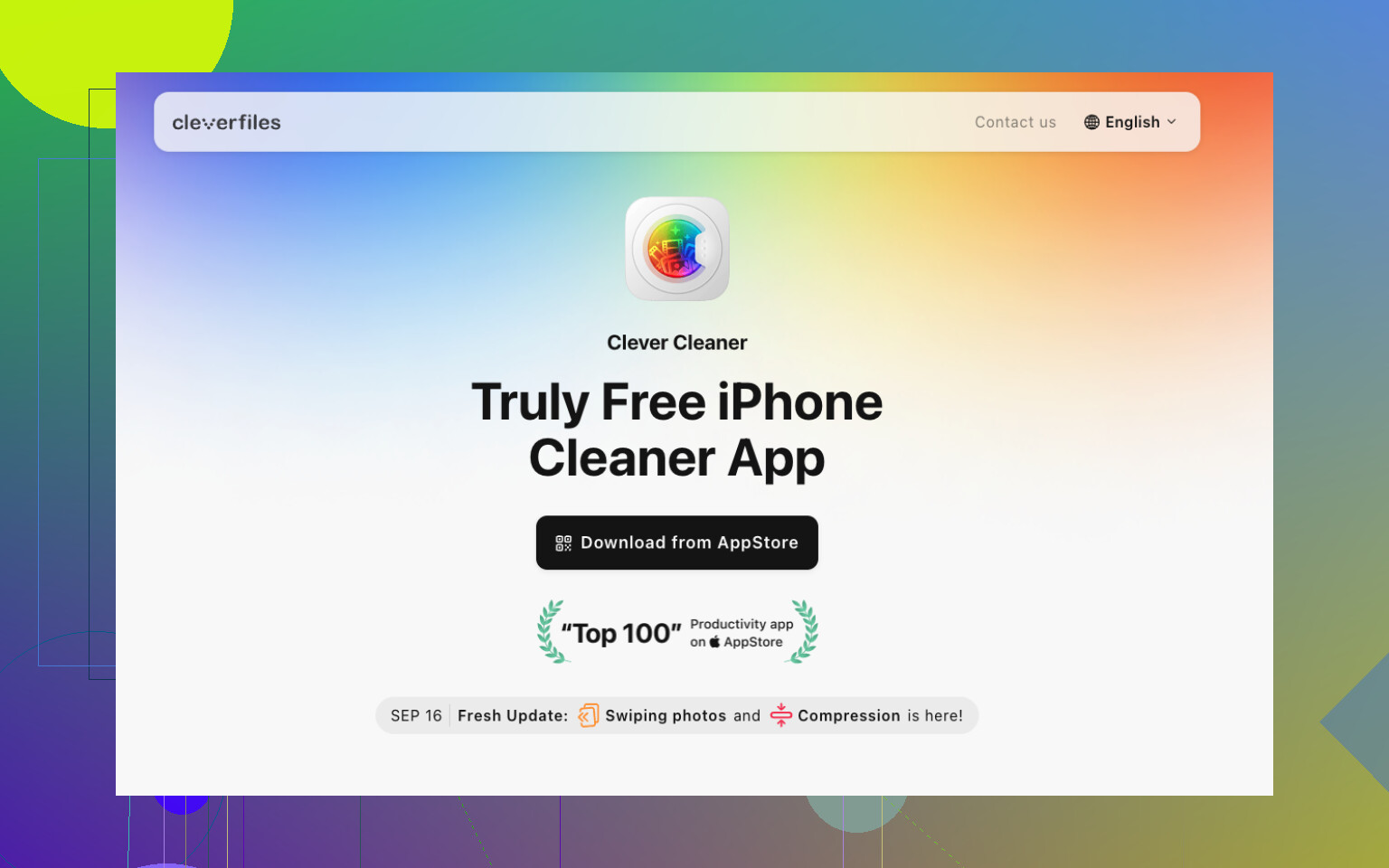
If Photos is your top category, I’d start with Clever Cleaner before trying to sort thousands of images by hand.
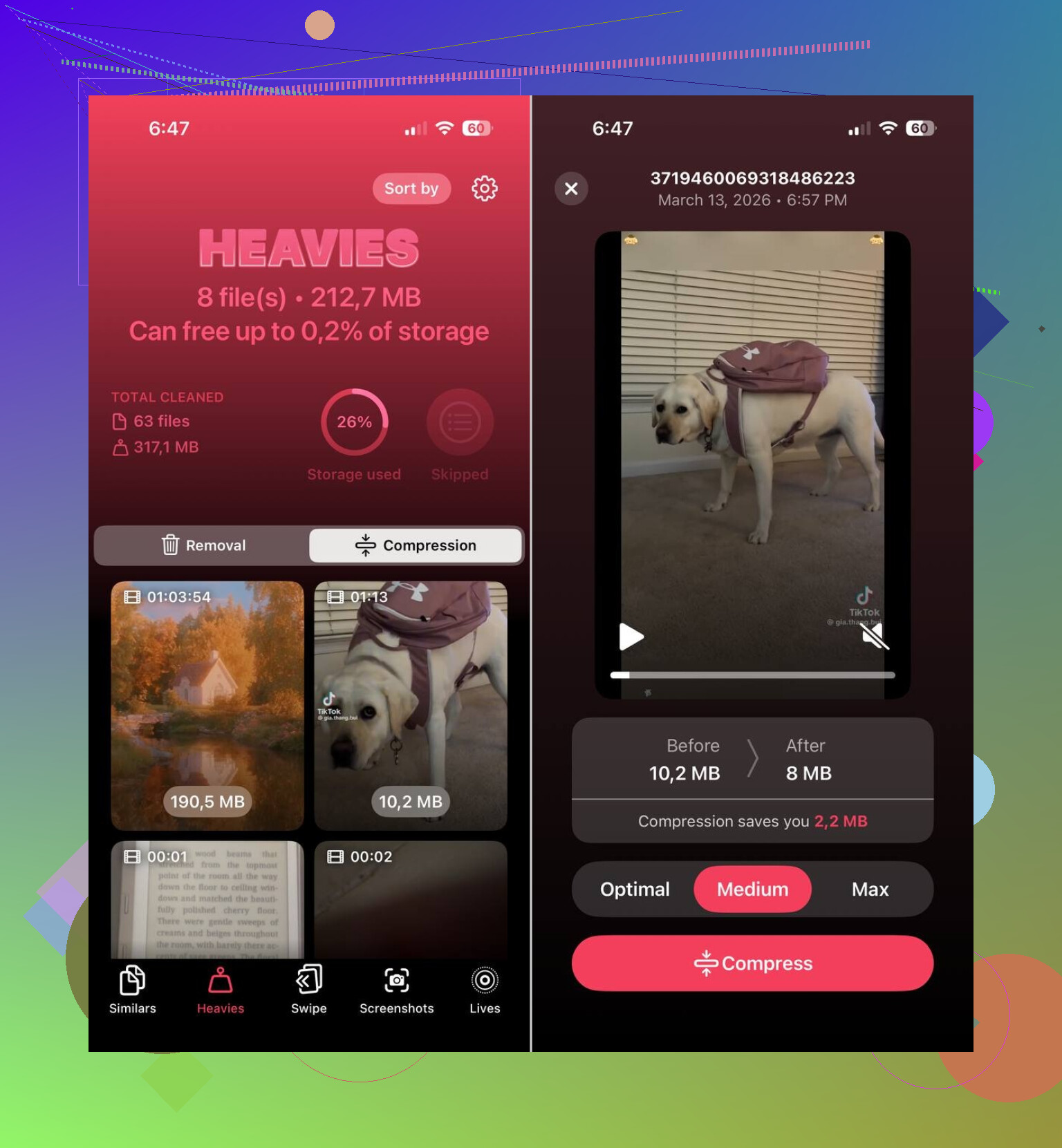
What stood out for me was the kind of junk it targets:
- Similar photos
- Duplicate photos
- Screenshots
- Live Photos
- Large media files
The similar-photo grouping was the useful part. It put near-matching shots together and suggested which one looked best to keep. Apple doesn’t do much with those.
I also liked having to approve deletions myself. Nothing got wiped on its own, which matters if you’ve got receipts, work pics, or random family stuff mixed in.
Live Photos were another big one. People forget each one includes a still image plus a short clip. If you’ve got years of those, changing old ones to regular photos frees up more space than you’d think. I did this and got back a decent chunk.
Apps bloat more than people expect
Photos get all the blame, but apps were second place on my phone.
Streaming apps, social apps, and chat apps hang onto downloads, cache, and leftovers. A small app on the Home Screen can turn into several GB after months.
Go through the biggest apps in iPhone Storage first. If one looks inflated, I’d try one of these:
- Offload it
- Delete it
- Reinstall it to clear built-up app data
Apple’s Offload Unused Apps option helps too if you’ve got a bunch of stuff installed “for later” and never open it.
Messages gets ignored way too often
This one surprised me a bit.
Old chats keep photos, videos, GIFs, voice clips, and attachments forever unless you clear them. I found huge attachments buried in dead conversations from years ago. Removing those gave me space back fast.
System Data is messy, and not always fixable
If photos and apps look normal but storage still seems too full, look at System Data.
This section covers logs, cache files, temp files, and other iOS leftovers. You don’t get much control over it. Sometimes it swells for no obvious reason. Annoying, yep. Easy to clean manually, not so much.
The order I’d follow
This is the sequence I’d use:
- Open iPhone Storage
- If Photos is huge, clean it up with Clever Cleaner
- Remove big videos and old screenshots
- Check the largest apps
- Clear heavy message attachments
- Restart the phone and check storage again
Most of the time, your iPhone isn’t filling itself out of nowhere. It’s usually months of buildup, photos, app cache, message media, and background files, then one day you get the storage warning and it feels sudden.
8 Likes
If your storage grows daily, I’d look at sync and cache first, not photos first. Small disagree with @mikeappsreviewer there. Photos are huge for lots of people, sure, but daily growth usually points to background activity.
Check these:
- Settings, your Apple ID, iCloud, Photos. If Optimize iPhone Storage is off, full originals stay on the phone.
- Podcasts, Spotify, Netflix, YouTube. Auto-downloads eat space fast.
- Safari. Website data piles up. Settings, Safari, Clear History and Website Data.
- Mail. Big attachments and offline mailboxes grow in the background.
- Files app. Downloads folder gets ignored all the tiem.
- Voice Memos. Long recordings are sneaky storage killers.
Also look at Messages in iCloud. Syncing sometimes leaves local copies around for a while, especcially after large video threads.
One fix people skip is this: update iOS, then force restart. Old iOS builds sometimes report System Data badly. If System Data stays huge, do an encrypted backup to Mac or PC, erase the iPhone, restore backup. Annoying, but it often cuts tens of GB.
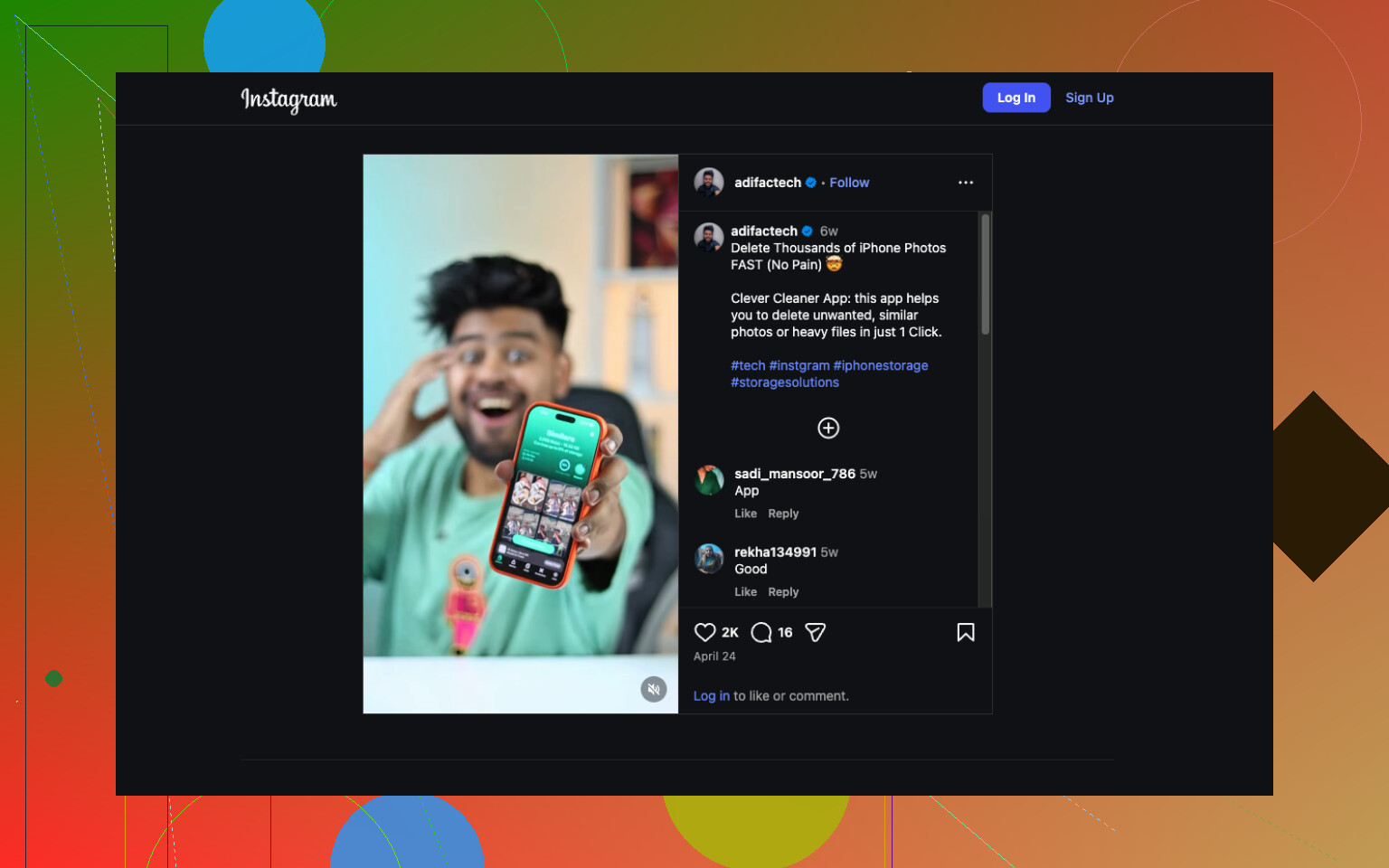
If Photos is still the main issue, Clever Cleaner is worth a look for cleaning iPhone storage and removing duplicate photos without sorting everything by hand. This clip shows a quick way to free up iPhone space and clean photo clutter, see how to clean up iPhone storage fast.
My bet is auto-downloads or iCloud photo behavior, not some mystery file.
I’d actually split the problem into 2 buckets: storage that is truly growing, and storage that iOS is reporting badly. @mikeappsreviewer covered photo clutter well, and @suenodelbosque is probly right that sync/cache is often the “daily growth” pattern, but I would not assume iCloud is the villain every time.
A few things people miss:
-
Deleted photos are not gone yet
They sit in Recently Deleted for 30 days. So people delete 8 GB of pics, then wonder why storage barely moves. Empty that album manually. -
App documents can survive reinstall weirdly
Some apps, especially messengers and cloud apps, keep local files or re-download them after reinstall. Watch WhatsApp, Telegram, Instagram, TikTok, Dropbox, Google Drive. -
Streaming apps prefetch in the background
Not just offline downloads. Some cache aggressively even when you didn’t hit “download.” -
Logs from crashes / beta builds
If you’re on iOS beta or an app is crashing a lot, logs can stack up. Same with analytics files. -
Mail indexes and attachments
The stock Mail app can balloon if you have multiple accounts with large attachments.
What I’d do differently from the usual advice:
- Check Settings > Privacy & Security > Analytics & Improvements > Analytics Data. If that list is enormous, something is looping or crashing.
- In Files, sort by size and check On My iPhone plus Downloads. Hidden junk lives there all the time.
- Toggle off app-specific auto-downloads for music, podcasts, and messaging apps.
- Compare storage right after a restart vs 12 hours later. If it jumps fast, it’s background activity, not old clutter.
If Photos is still one of the biggest categories, then yeah, Clever Cleaner makes sense because the built-in Photos cleanup is kinda half-baked for similar shots and bulky Live Photos.
Also, this guide on easy ways to free up iPhone storage fast is a decent extra checklist.
If your System Data alone keeps growing by gigs every day, honestly, that’s when I stop “cleaning” and do the annoying fix: encrypted backup, erase, restore. It’s not elegant, but it works way more often than Apple wants to admit lol.
I’d check one thing nobody has really stressed enough: podcast and voicemail retention. I disagree a bit with the “it’s probably photos first” angle from @mikeappsreviewer. Daily growth often comes from stuff that keeps arriving automatically.
A few sneaky culprits:
- Phone app voicemail can keep old audio forever
- Podcasts can download new episodes daily
- WhatsApp/Telegram media auto-save can silently dump images into Photos
- Notes with scans/PDFs can get huge
- Safari Reading List offline saves can also grow
Also look at Settings > Cellular and see which apps have background usage spikes. If one app is constantly active, it often matches the storage creep.
Another thing: if you use iCloud Drive heavily, open Files and check whether big folders are marked for offline use. That can snowball.
On the suggestions from @suenodelbosque and @viajeroceleste, I do agree that comparing storage right after reboot versus later is smart. That tells you whether this is real growth or junk cache rebuilding.
If Photos still turns out to be the big bucket, Clever Cleaner is a decent option.
Pros:
- good for similar photos, duplicates, screenshots
- faster than manual cleanup
- can surface bulky media you forgot about
Cons:
- not helpful if System Data is the real issue
- you still need to review before deleting
- less useful if your library is already tidy
So my order would be: voicemail, Podcasts, messaging auto-save, Files offline folders, then Photos cleanup if needed. If storage still climbs every single day, I’d start suspecting one bad app loop rather than normal iPhone behavior.