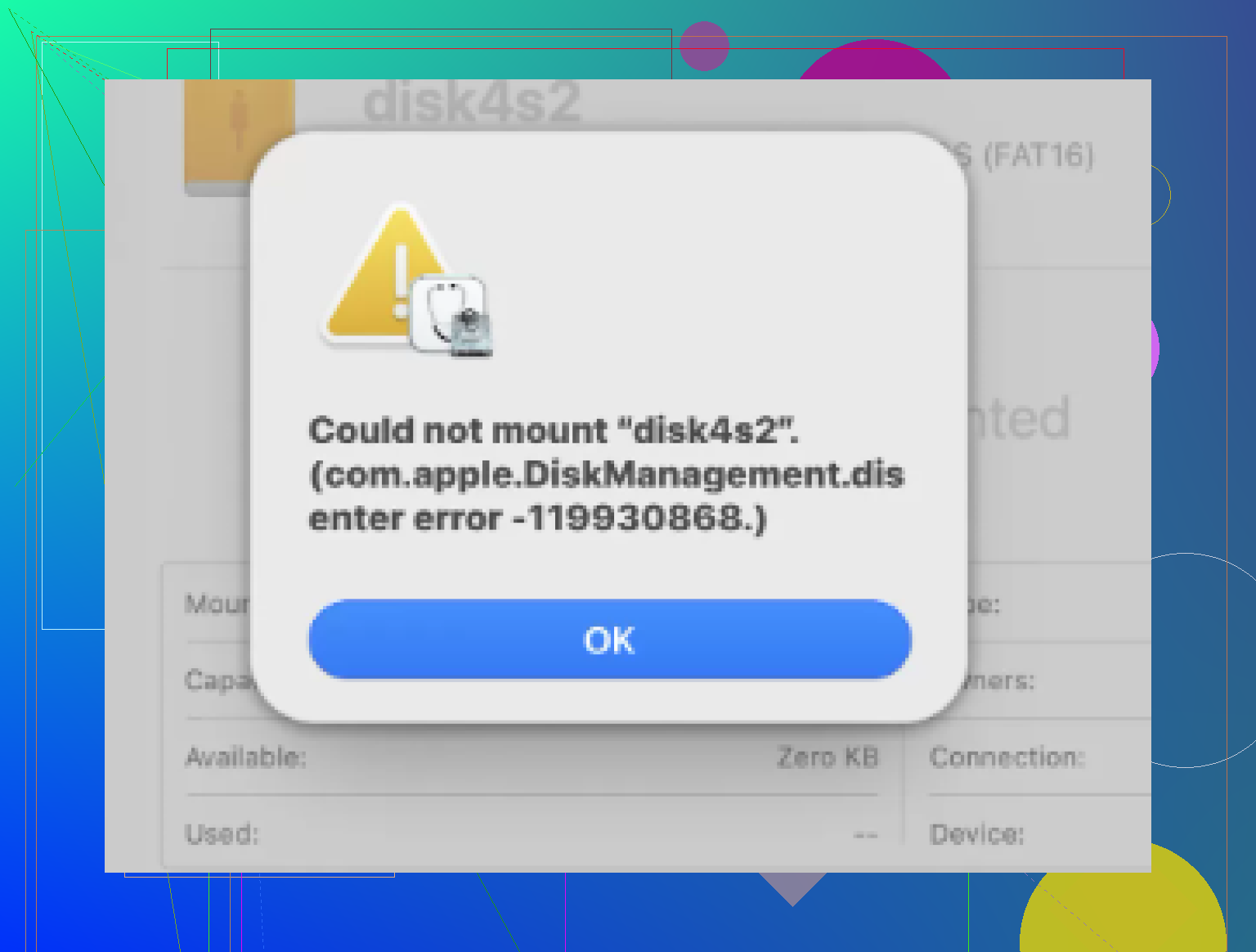
My external drive suddenly stopped mounting on my Mac, and Disk Utility shows com.apple.diskmanagement.disenter error 49227 when I try to open it. I need help figuring out if this is a file system issue, a macOS disk management problem, or a sign the drive is failing, because I have important files on it and don’t want to make things worse.
Your Mac seeing the external drive in Disk Utility but refusing to mount it is one of those dumb problems that eats an hour fast. The “com.apple.DiskManagement.disenter” error usually means macOS sees the hardware, but it chokes when it tries to attach the file system.
I’ve seen this after a bad unplug, a corrupted exFAT partition, and once after a background repair got stuck for no obvious reason. If you want a clean order to try stuff, this is how I’d do it.
Start with the thing macOS gets hung up on
When a drive was unplugged wrong, macOS often kicks off fsck in the background. Sometimes it finishes. Sometimes it sits there and blocks the disk from mounting, especilly on bigger external drives and exFAT volumes.
Open Terminal and run:
sudo pkill -f fsck
Enter your password. You won’t see the characters while typing. That part is normal.
If the drive pops up right after, don’t trust it yet. I’d copy the important files off first and deal with repairs later. When a drive mounts only after killing a stuck process, I treat it like borrowed time.
Use Disk Utility the way Apple hides from you
Disk Utility defaults to a stripped view, which is annoying. Open it, click View, then choose Show All Devices. Now you should see the full stack, physical disk, maybe a container, then the volume itself.
Run First Aid in order from top to bottom:
1. Physical disk
2. Container, if one exists
3. Volume
I wouldn’t stop after one failed pass. I’ve had First Aid do nothing on the first run, then clear a directory issue on the second. Not common, but it happens.
Reset the session before you assume the drive is dead
Sometimes the disk service in your login session goes weird. Logging out and back in has fixed this for me more than once. If you want a quick A/B test, try another user account on the same Mac.
If the drive mounts fine there, the issue is often tied to your user environment, cached settings, permissions weirdness, or some stale preference file.
Turn off Time Machine for a minute
This one sounds random, but I’ve seen it matter. If the drive used to be a Time Machine disk, macOS might still try to poke at it like a backup target.
Disable automatic backups in System Settings, then try mounting the drive again. Sometimes removing that background claim is enough.
When repair keeps failing, stop pushing it
If First Aid keeps spitting errors and the disk still won’t mount, I would stop trying to force repairs. Repeated repair attempts on a damaged file system don’t always help. In some cases, they make recovery messier.
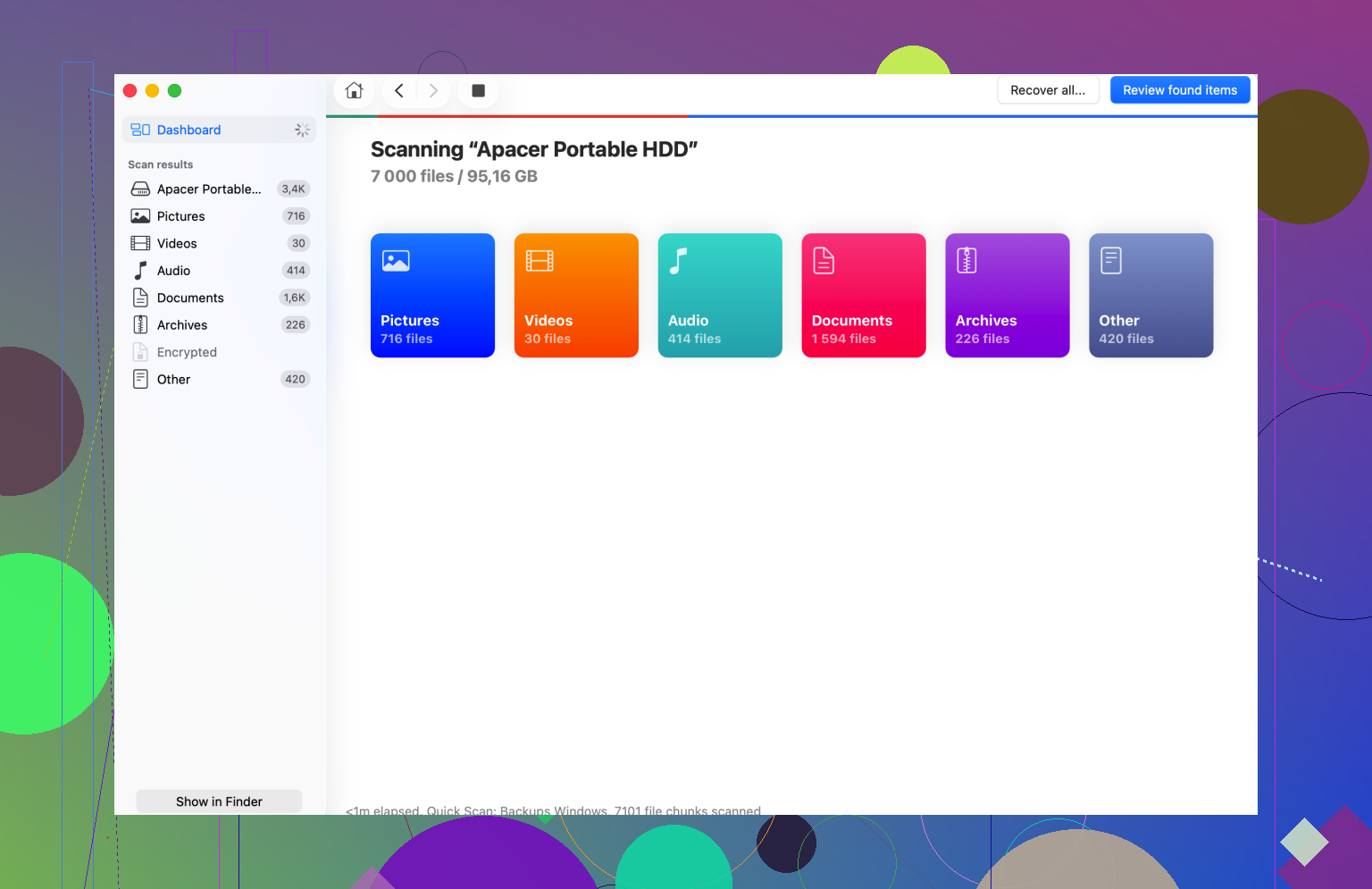
At that point I’d move to file recovery and get the data off before doing anything destructive. Disk Drill is one option. It scans the raw disk contents, so it can sometimes pull files even when Finder refuses to mount the volume.
Save recovered files to another drive. Don’t write them back onto the broken one. I did this wrong once years ago, and yeah, it made things worse.
Erase only after the files are safe
Once your important stuff is off, go back to Disk Utility, select the physical drive, and erase it.
For format choice:
Mac only, use APFS or Mac OS Extended Journaled.
Mac and Windows, use exFAT.
I’d format exFAT on the Mac itself if this disk is mainly used there. I’ve had fewer weird mount issues doing it that way than using whatever formatting tool came from another machine.
The order matters. Get the data first. Reformat after. If the drive survives, great. If not, at least your files aren’t trapped on it.
And yeah, eject external drives before unplugging them. People roll their eyes at that advice until one bad disconnect turns into a half-day recovery job.
7 Likes
Error 49227 is often recoverable, but the key detail is this. Recoverable for data is not the same as recoverable for the file system.
I mostly agree with @mikeappsreviewer on treating the drive carefully, but I would check the disk map first before doing more repair passes. If the partition table is damaged, First Aid tends to go in cirlces.
Do this in Terminal:
diskutil list
Find the external disk, usually /dev/disk2 or /dev/disk3. Then run:
diskutil info /dev/disk2
diskutil verifyDisk /dev/disk2
If verifyDisk fails at the disk level, you are dealing with partition map or hardware trouble, not only a bad volume. If the disk looks fine but the volume fails, it points more to file system damage.
Next, look at SMART if it is a USB SSD or HDD with bridge support:
diskutil info disk2 | grep SMART
If you see failing hardware signs, stop repair attempts. Get data off. Disk Drill is a solid option for Mac data recovery when a drive shows in Disk Utility but will not mount. Save recovered files to a different disk.
One more check people skip. Test the drive with a diffrent cable, different port, and if possible a powered hub. I have seen weak USB power throw disenter errors on 2.5-inch drives.
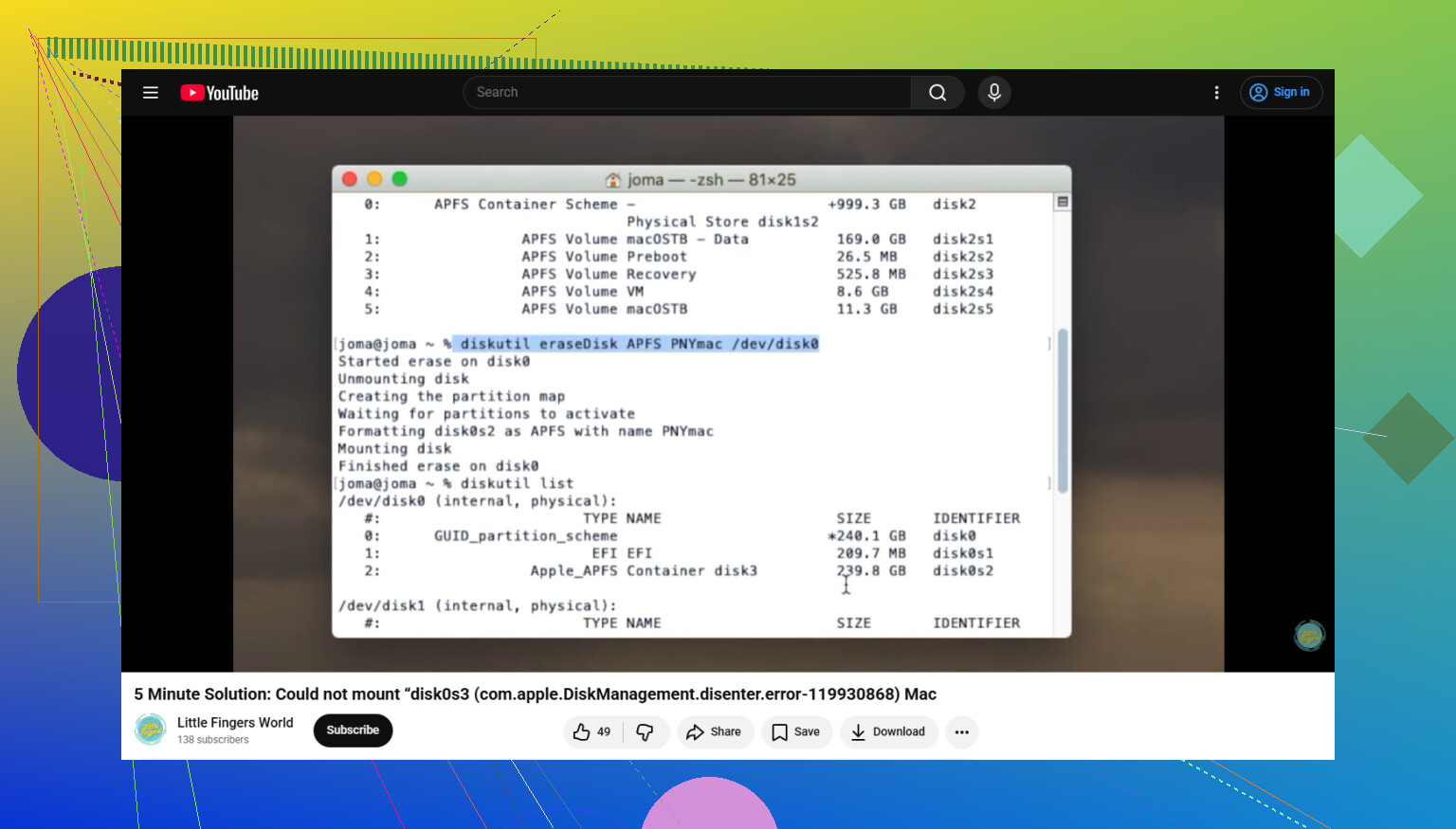
If you need to erase after recovery, this guide on formatting a problem drive in Terminal on Mac is a decent walkthrough.
If the drive mounts on another Mac or PC, copy your files first. Don’t repair first, copy first. That order matters.
49227 is often recoverable for data, but not always recoverable as a clean, mountable volume. That distinction matters more than the error code itself.
I’d actually push back a little on doing too many repair attempts early. @mikeappsreviewer and @sterrenkijker covered the usual repair path pretty well, but if the drive is clicking, disconnecting, taking forever to appear, or showing the wrong size, I would stop treating this like a simple file system issue. That starts looking more like failing hardware or a flaky USB bridge.
A couple things I’d check that weren’t really emphasized:
- Try mounting it in Safe Mode on the Mac. That rules out third-party kernel/system extensions and some background disk hooks.
- Check Console logs right after a failed mount attempt. Search for
diskmanagementd,kernel,I/O error, or the disk identifier likedisk2s1. If you see repeated I/O errors, that’s bad news. - If it is an enclosure, remove the bare drive and test it in another enclosure or SATA-to-USB adapter. I’ve seen the enclosure be the whole problem more than once.
- If the drive is exFAT, test on a Windows PC too. Sometimes macOS throws a fit while Windows will still read enough to let you copy stuff off.
If the disk is visible but refuses to mount, Disk Drill makes sense at that stage because it can scan the device directly without needing Finder to cooperate. I would recover the important files first, then worry about repairs or reformatting later. That order saves headaches.
Also, if you want a cleaner step-by-step page on fixing this kind of mount failure, this is decent: fix Mac DiskManagement disenter errors and get external drives mounting again
Short version:
- If the drive is detected normally and no I/O errors show up, yes, probably recoverable.
- If it keeps dropping, hangs the system, or logs hardware errors, recover the data now and don’t keep poking it.
That error code by itself is annoyingly vague, which is very Apple tbh.
Yes, often recoverable, but I would not assume the volume itself is salvageable just because the data probably is.
Small disagreement with @codecrafter: killing fsck is not my first move unless Activity Monitor or ps actually shows it stuck for a long time. Interrupting a legit repair can muddy the picture. I’m more in line with @sterrenkijker on separating disk-level problems from volume-level problems, and @mikeappsreviewer is right that repeated repair passes can become counterproductive.
What I’d add is this:
- Check System Information > USB / Thunderbolt and confirm the Mac sees the enclosure correctly.
- Compare the drive’s reported capacity there versus Disk Utility. Wrong size usually hints at enclosure or hardware issues.
- If the drive is spinning, listen for retries, spin-downs, or pauses. Those are stronger clues than error 49227 itself.
- Try a read-only mount from Terminal if macOS is choking on normal mount behavior. Sometimes that tells you whether writes/journaling are the trigger.
If your files matter, the safest path is usually:
- Stop mounting attempts if the drive is unstable.
- Recover data to another disk.
- Then test erase/reformat.
For recovery, Disk Drill is reasonable here because it can scan a visible but unmountable device.
Pros of Disk Drill
- Good at scanning drives that Finder will not mount
- Simple UI on Mac
- Can preview and recover many common file types
Cons
- Recovery quality still depends on the drive’s physical health
- Deep scans can take a long time
- Not magic if the enclosure or hardware is failing badly
If the disk keeps disconnecting, skip software troubleshooting and suspect cable, enclosure, bridge board, or the drive itself before blaming macOS. Error 49227 is vague enough that the real cause is often underneath it.