I accidentally permanently deleted important files on my Windows 11 PC, and they’re not in the Recycle Bin. I’m trying to find out if there’s any way to recover them using built-in tools or reliable file recovery software. These documents and photos are really important, and I need help figuring out the safest way to restore permanently deleted files in Windows 11 before they’re gone for good.
I had this happen once, and yeah, it hits fast when a file vanishes. A permanently deleted file in Windows 11 is not always gone for good. If Windows has not reused the space yet, you still have a shot.
First thing I’d do
Stop using the drive, or keep it to an absolute minimum. Don’t install apps on it. Don’t copy movies to it. Don’t move folders around thinking you’re being careful. Every write gives Windows another chance to reuse the blocks where your file used to live.
If the drive is an SSD, I’d move even faster. TRIM sometimes wipes deleted data in the background, and once that happens, recovery gets a lot uglier.
Check the boring places first
Before running recovery tools, I’d spend five minutes checking stuff people forget exists:
- OneDrive
- File History
- Previous Versions
- cloud backups
- an old external drive sitting in a drawer
I’ve seen people panic, then find the file in OneDrive version history or on a backup disk they forgot they plugged in last month. Safer. Faster too.
If backups fail
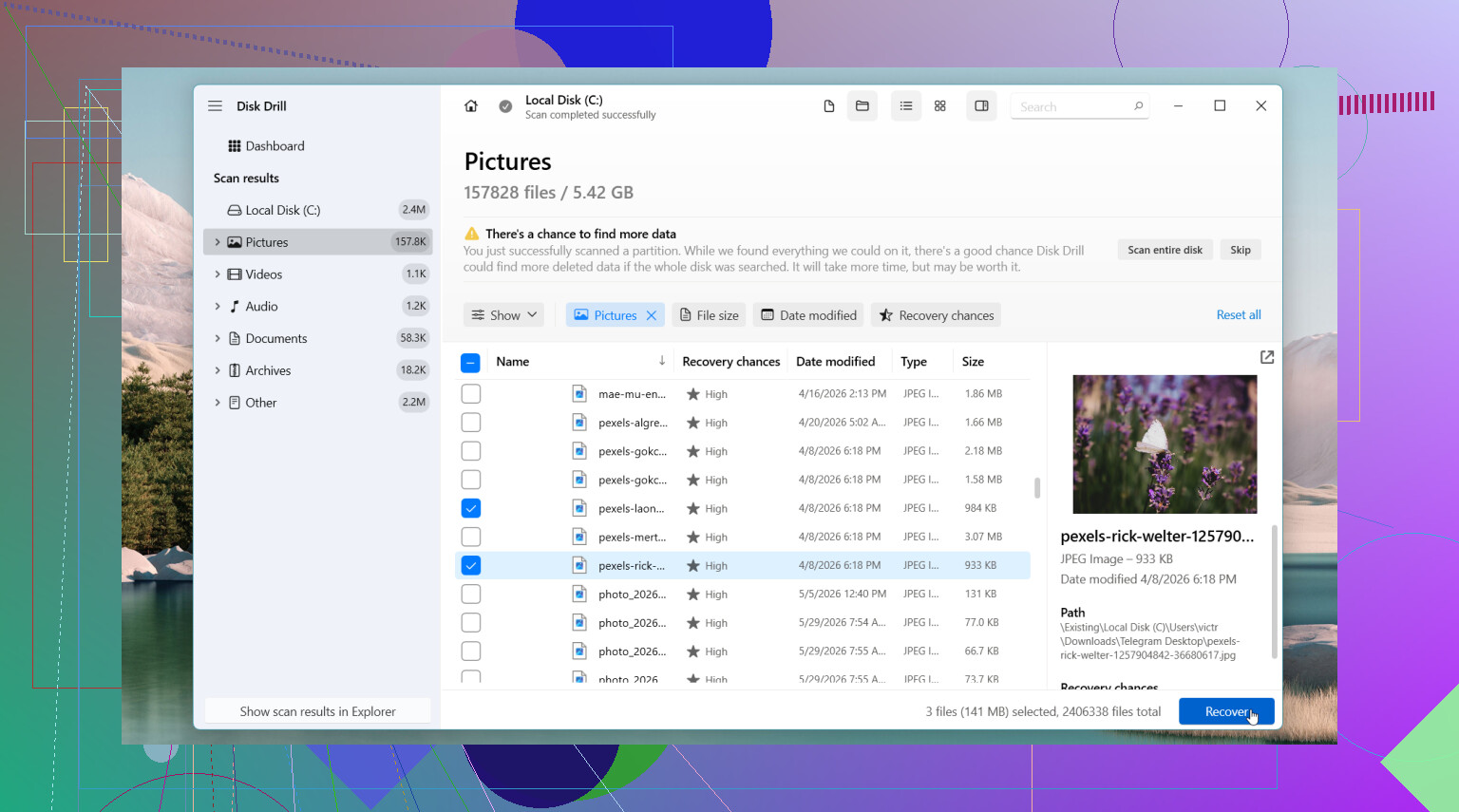
When none of those turn up anything, I’d move to recovery software. The first one I’d try is Disk Drill. I liked it because it was easy to work through without fighting the interface, and it often pulls back deleted files with the original file names and folders still there. That matters more than people think. Sorting 4,000 files named file0001, file0002, file0003 gets old fast.
How I’d handle it
- Install Disk Drill to a different drive if you have one.
- Scan the drive where the deletion happened.
- Use search and filters to narrow the mess down.
- Preview the files you care about.
- Recover them to another drive, never back onto the same one.
On Windows, it lets you scan and preview without limits, and the free recovery cap is 100 MB.
Other tools people bring up
If the issue is bigger than a normal delete, I’d look at DiskGenius. It helps more when you’re dealing with a lost partition, a RAW partition, or file system damage.
Windows File Recovery is another route. It’s Microsoft’s own tool, and it’s free. I tried it once. It worked, but the command line part is a pain if you want something simple.
When I would stop and not mess with it
If the drive starts clicking, drops connection at random, vanishes from Windows, or holds stuff you cannot afford to lose, I wouldn’t keep poking at it. At that point I’d look at a professional data recovery service before making it worse.
Most of this comes down to speed and restraint. Use the drive less. Start sooner. Your odds are usually better that way.

8 Likes
Yes, sometimes.
If the files were deleted with Shift+Delete, or the Recycle Bin was emptied, Windows usually removes the file entry, not the data right away. Recovery works best if you stop writing to the drive fast. On SSDs, the odds drop sooner because TRIM clears deleted blocks.
I agree with @mikeappsreviewer on one point, stop using the affected drive. I disagree a bit on built-in options though. Windows File Recovery is free, but for most people it is slow and annoyng to use unless you already know command syntax.
A few checks people skip:
- Search by file extension in File Explorer, like .docx or .jpg.
- Check hidden temp folders used by apps, especially Office, Photoshop, and video editors.
- If it was on OneDrive, check the web recycle bin, not only the local folder.
- If you use Windows Backup or system image backups, mount the backup and browse it.
If no backup exists, use recovery software from another drive or a USB stick. Disk Drill is one of the easier options on Windows 11 because you preview files before recovery and sort by type or folder. Recuva still exists, but in my tests it misses more files on newer systems. PhotoRec finds a lot, but filenames are often gone, which is a pain.
One more thing, recover to a different drive. Same drive recovery is how people overwrite the stuff they are trying to save.
This is a solid Windows 11 file recovery walkthrough if you want a quick visual guide.

Yes, it’s possible, but I’d push back a little on the idea that recovery software should be your first move every time.
If the deleted files were documents, spreadsheets, or project files, check the app itself before scanning the whole drive. Word, Excel, Adobe apps, even some coding editors keep autosave, temp, or recovery copies in weird places. Sometimes the “deleted” file is gone, but an autosaved version is still sittng there. Also check Recent files in the app, not just File Explorer.
I agree with @mikeappsreviewer and @chasseurdetoiles about one big thing: don’t keep using the drive. But if this happened on your main Windows 11 SSD, I honestly think built-in recovery is kinda hit-or-miss unless you already had File History or backups enabled before the accident. Previous Versions sounds nice in theory, but on a lot of home PCs it’s basically empty.
What I’d do:
- check app autosave/temp folders
- check OneDrive web version history if sync was on
- look in C:\Users\YourName\AppData paths for temp copies
- if nothing turns up, use Disk Drill from another drive or USB
- restore recovered files somewhere else
Disk Drill is usually easier than Microsoft’s command line tool, and less annoyng when you need previews and folder structure. If the deleted files were photos/videos, file carving can still work even when names are lost.
Also worth reading: Windows 11 SSD deleted file recovery discussion
If the drive is making noises, disappearing, or acting flaky, stop messing with it. Software recovery can make a bad situation worse.
One small disagreement with @chasseurdetoiles, @jeff, and @mikeappsreviewer: before jumping into a full recovery scan, I’d check whether the files were only “logically” removed from a library or synced folder. In Windows 11, files can seem deleted when they were actually moved, renamed, filtered out by Explorer search, or rolled into a sync conflict.
A few things not mentioned yet:
- Check
C:\$Recycle.Binpermissions aside, sometimes another user account’s bin had it - Look at OneDrive “Personal Vault” or sync conflict copies
- If it was on an external drive, reconnect it with the same drive letter
- Check Windows Security protection history if Controlled Folder Access blocked or relocated app saves
- For photos/docs, inspect thumbnail cache and Recent Items to find the original path
If you do need recovery software, Disk Drill is a reasonable pick.
Pros:
- easy preview
- good file-type sorting
- friendlier than command line tools
Cons:
- free recovery is limited on Windows
- deep scans can return lots of junk
- SSD TRIM still ruins chances regardless of software
Best rule: recover to another drive, and if this was business-critical data, skip DIY and use a lab fast.