I’m not super technical, but I need something to connect to cloud storage and maybe SFTP. Is Mountain Duck straightforward to set up, or does it take some trial and error?
Mountain Duck - Review
Mountain Duck is a tool that allows users to mount various cloud storage services and remote servers as local drives on their computer. Rather than acting as a traditional file transfer client where files must be manually moved back and forth, it integrates directly with the operating system, making remote storage appear as a standard volume in macOS Finder or Windows File Explorer. This approach is designed to simplify the management of files across different platforms, removing the need to juggle multiple native cloud applications.
One of the things that sets it apart from traditional server browsers is its use of smart synchronization. This means that files remain on the remote server until a user attempts to open them, at which point the software automatically caches the file locally. This provides a way to access massive amounts of data without actually filling up a local hard drive, acting as a modern bridge between a user’s desktop and the cloud.
For those who prioritize security, the software is notable for its built-in Cryptomator integration. This allows users to encrypt data on the fly before it is uploaded to any provider. Because the encryption happens locally, sensitive information is secured before it ever reaches a third-party server, adding a layer of privacy that many standard cloud clients lack.
What Works Well
There are several reasons why many users keep Mountain Duck in their rotation:
- The protocol support is massive. It handles a wide range of services, from standard SMB, FTP, and WebDAV to modern cloud platforms like Amazon S3, Microsoft Azure, Google Drive, Dropbox, and OneDrive.
- It offers extreme convenience. By consolidating various cloud services into a single interface, it reduces the need to have several different background applications running at once.
- Smart synchronization saves space. Because files are only downloaded when they are needed, users can browse large remote libraries without consuming significant local storage.
- It integrates seamlessly with the OS. On a Mac, the software supports Finder context menu actions, link sharing, and clear sync status icons, making remote files feel natively integrated.
- Active maintenance is a priority. The developers provide frequent updates and bug fixes, which helps ensure that the software remains reliable as cloud APIs and operating systems evolve.
What Didn’t Work for Me
While Mountain Duck is a capable tool, it isn’t without its frustrations. The most persistent issue reported by users is slow performance with large file collections. When dealing with a folder containing hundreds or thousands of files, the interface can become quite sluggish. Because the software must fetch directory listings from the remote server to display them in the file browser, navigating through big folder structures often feels tedious and can lead to significant loading delays.
There are also concerns regarding its impact on computer hardware. The application can be resource intensive, particularly on Mac models where users have noted high CPU and RAM usage during heavy syncing tasks. For those working on older machines or multitasking with demanding creative software, this overhead can be a noticeable drawback.
A Solid Alternative for Performance
If you find the performance lags or the high resource usage to be a dealbreaker, CloudMounter is a solid alternative. It is perhaps the closest competitor for GUI-based Finder integration and is often preferred by users who require a more responsive experience when handling large datasets.
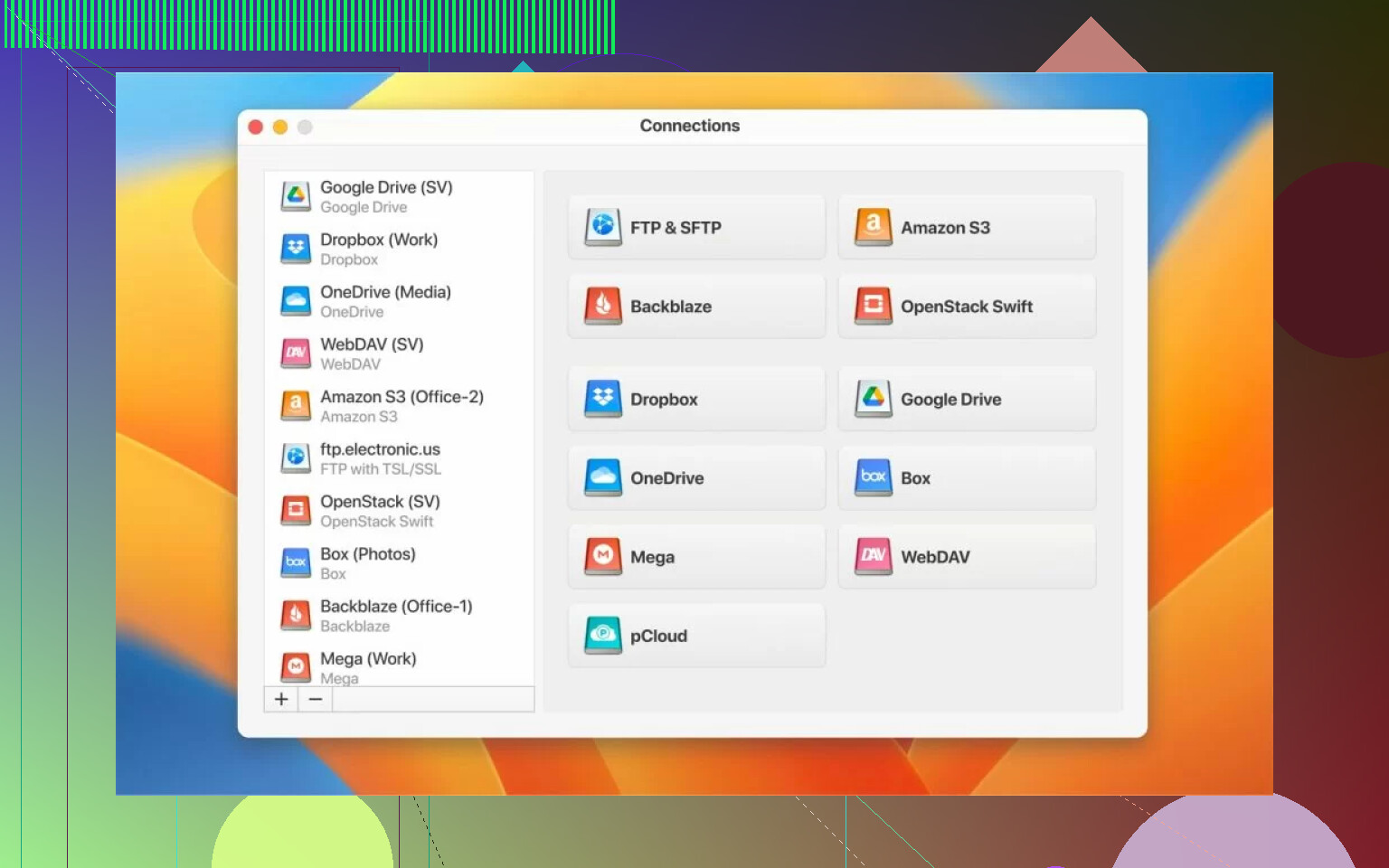
Designed to be a streamlined file transfer solution, CloudMounter supports all major cloud services, including Amazon S3, Dropbox, Google Drive, and MEGA. The login process is very straightforward, allowing users to access their files from Finder with minimal configuration. It also addresses the performance gap, generally offering a smoother experience when browsing through massive file collections compared to the slowdowns sometimes found in Mountain Duck.
CloudMounter also includes a robust offline mode, which allows users to continue working on files even when an internet connection is unavailable. Edits are saved locally and then synchronized automatically once the connection is restored. Like its competitor, it offers strong encryption to secure files before they are uploaded, and it maintains a consistent feature set across both macOS and Windows.
Final Thought
Mountain Duck is a versatile and convenient tool that works well for users who need a unified way to manage various cloud services without the clutter of multiple apps. Its broad protocol support and integrated encryption through Cryptomator are its biggest strengths. However, if you are a professional who frequently deals with massive directory structures or needs to keep system resource usage to a minimum, you might find its performance limitations frustrating. In those cases, moving to a tool like CloudMounter can provide a more stable and efficient experience for heavy workloads.
18 Likes
Start with the simplest path. Most first-time Mountain Duck problems come from picking the wrong connection type or entering the wrong server path.
Do this.
- Install Mountain Duck.
- Open it and click New Bookmark.
- Pick the exact protocol your storage uses. This matters a lot.
SFTP for most Linux servers.
WebDAV for many NAS and hosted file spaces.
Amazon S3 for S3 buckets.
SMB for local network shares. - Enter the server name only, not the full URL, unless your provider tells you to use one.
Example for SFTP, host.example.com
Example for WebDAV, cloud.example.com with the remote path set after - Check the port.
SFTP, 22
FTP, 21
FTPS, 21 or 990
WebDAV, 80 or 443
SMB, 445
S3 does not use the same host and port flow, so follow your provider details. - Add your username and password, or SSH key if you use SFTP.
- For your first test, turn OFF anything extra like Cryptomator, proxy, custom cache rules. Keep it plain.
- Save the bookmark, then mount it.
If it fails, look at the exact error. It tells you a lot.
‘Connection refused’ means wrong host or port.
‘Authentication failed’ means wrong login, key, or token.
‘Path not found’ means the remote directory is wrong.
One small disagreement with @mikeappsreviewer, I would not start by comparing speed or swapping apps yet. First get a clean mount working. Then judge it.
Best beginner settings:
- Connect on demand, on
- Finder or Explorer integration, on
- Read only, off unless you want safety first
- Timeout, leave default
- Cache, leave default at first
If Mountain Duck keeps being fussy, CloudMounter is easier for some people on day one, esp if you’re mounting common cloud accounts and dont want to mess with protocol details. For plain cloud storage, it feels less nerdy to set up.
What helped me the first time was treating Mountain Duck like a network mount tool first, not a cloud sync app. That mindset clears up a lot of confusion.
I mostly agree with @himmelsjager about keeping the first setup plain, but I’d slightly disagree on one thing: don’t just accept every default blindly. The one setting I’d actually check early is login method. A lot of failed SFTP setups happen because people use password auth when the server expects an SSH key, or vice versa.
My beginner checklist would be:
- make one test bookmark only
- use the shortest possible remote path
- if SFTP, verify whether your host wants:
- username + password
- username + private key
- both
- if WebDAV, make sure you know whether the provider needs a specific path like
/remote.php/dav/files/NAME - if S3, double check region, because that trips people up constantly
Also, if the mount connects but feels weirdly slow, that does not always mean it’s broken. Mountain Duck can pause while listing folders, especially larger ones. @mikeappsreviewer wasn’t wrong there. For basic file access it’s fine, but for beginners it can feel a bit less intuitive than expected.
One practical tip nobody mentions enough: test with a brand new empty folder on the remote side. Upload one tiny text file, rename it, delete it. If that works, your connection is basically fine and the issue is probably path/permissions, not setup.
If you want the least fiddly option for common cloud drives, CloudMounter is honestly easier to wrap your head around. Mountain Duck is solid, just a little more picky at first and kinda less forgiving when you misstype one tiny setting.
I’d add one beginner check that @himmelsjager and @jeff only touched indirectly: make sure your server works outside Mountain Duck first. If possible, test the same login with another basic client or with the provider’s web interface. If that fails too, Mountain Duck is not the real problem.
My simple rule:
- If you are connecting to a server, focus on protocol + host + auth
- If you are connecting to a cloud provider, focus on account permissions + region + path/container
I slightly disagree with @mikeappsreviewer on one point: if you are totally new, I would not enable too much Finder/Explorer integration right away. First get a stable mount. Then turn on convenience features after you know the connection itself is good.
A good beginner workflow is:
- connect to the root first
- do not target a deep subfolder yet
- create one test folder
- upload one tiny file
- rename it
- delete it
If browsing works but uploads fail, that usually means permissions, not bad setup.
Also check your system clock. Sounds dumb, but wrong time/date can mess with secure connections and tokens.
If Mountain Duck still feels too picky, CloudMounter is easier for many first-timers.
Pros: quicker setup, simpler UI, good for common cloud accounts, usually less fiddly.
Cons: not as “network-tool-first” in feel, may expose fewer low-level options for edge cases.
So: verify the server independently, connect to root, test basic file actions, then add extras. That tends to save more time than tweaking random settings.