My iPhone storage is almost full, and I noticed some apps are using a lot of space, but I can’t tell what files or data are actually inside them. I’m trying to free up storage without deleting something important, and I need help figuring out if there’s a way to view what’s taking up space inside each app.
Why the ‘Applications’ storage number gets weird on iPhone
I ran into this too. The part labeled ‘Applications’ is wider than it sounds. It is not only the apps you installed.
What I saw in there was a mix of a few things:
What counts as ‘Applications’
- The app itself, meaning the installed program files.
- Your app data, like logins, saved settings, downloads, and local files.
- Extra support stuff, like language files and bundled assets.
- Cache, which is often the part that grows fast and makes no sense at first glance.
That last one is where the surprise comes from.
Why it jumps overnight
I noticed the number would sometimes spike after a day of video apps, social feeds, or maps. A lot of apps stash temporary files so they load faster later. iPhone storage reporting also takes its time. So you use the phone all day, nothing looks too bad, then later the system finishes counting and the bar suddenly looks bloated.
It feels random. I do not think it is random.
Photos sit there as fixed files. Apps keep pulling in more junk as you use them. Different behavior, different growth.
Offloading does less than most people expect
This part got me once.
If you choose Offload App, iPhone removes the installed app package, but keeps your documents, saved data, and a lot of the leftover app storage. So if a game uses 4.2 GB total, and only 200 MB of that is the app itself, offloading saves around 200 MB. The big pile stays.
If you want all of it gone, use Delete App. That wipes the app and its attached data.
If you already deleted stuff and the storage graph still looks wrong, I saw two common reasons:
How to check which apps are the problem
Go here:
Settings > General > iPhone Storage
Wait a bit. It needs time to populate.
Then tap an app. You should see a split between:
- App Size
- Documents & Data
This is the useful screen. If App Size is small and Documents & Data is huge, the app itself is not the problem. Your stored content and cache are.
Why low storage makes the phone feel bad
Once my phone got close to full, it turned sluggish in dumb little ways. Camera took longer to open. Apps relaunched more often. A few crashed. Keyboard lag showed up too, which was extra annoying.
iPhones need free space for temp files, updates, background tasks, and general system housekeeping. When storage gets squeezed, performance drops. I felt it before I even looked at the numbers.
What I tried first
I did the usual cleanup loop:
- deleted message attachments
- cleared Safari data
- removed downloads
- checked Files
- deleted old screenshots
It helped, but not much. It was slow work and the gains were small.
The tool I ended up using
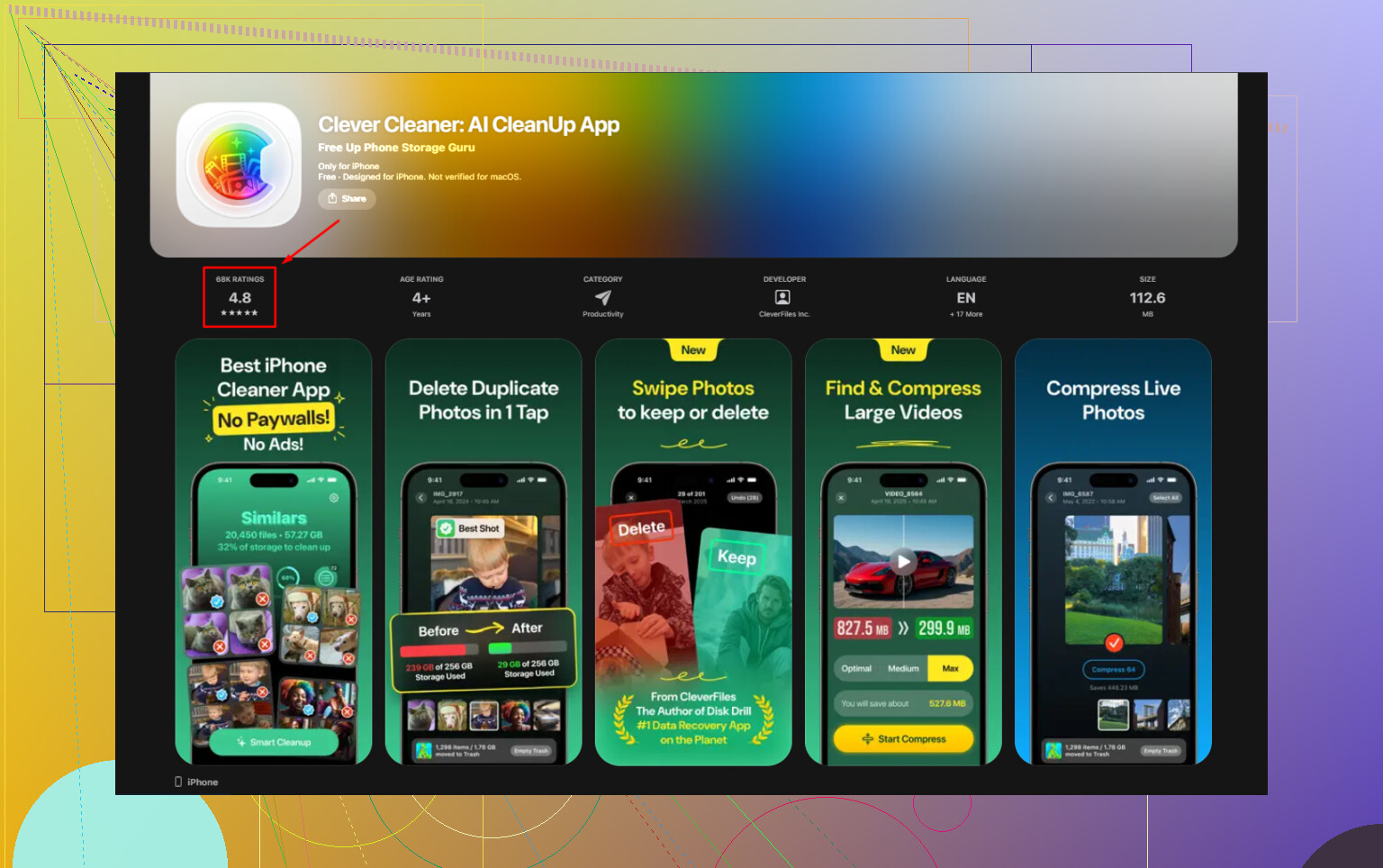
I ended up trying Clever Cleaner after I got tired of digging through everything by hand.
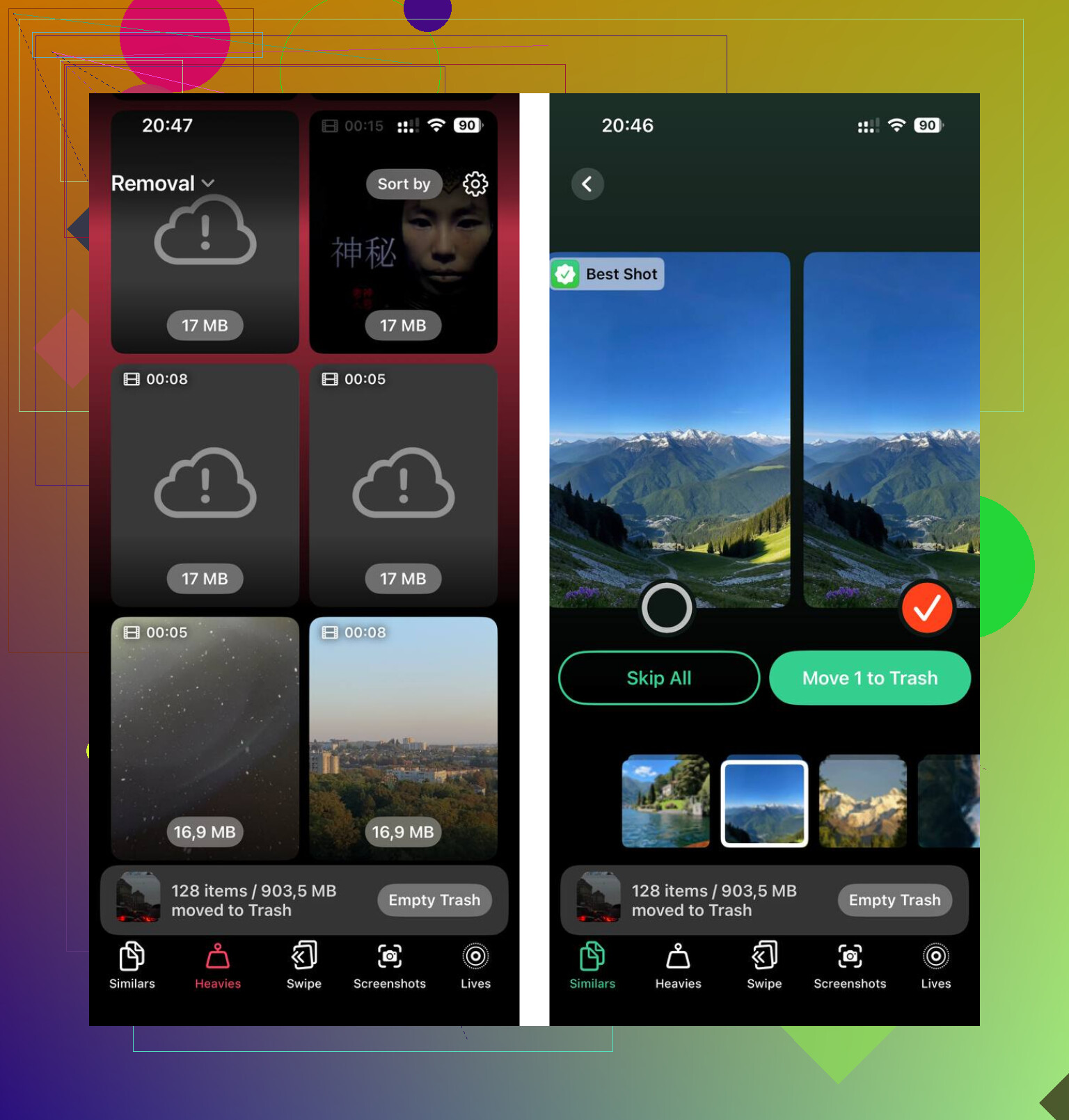
What helped me most was the file sorting. There is a ‘Heavies’ section, so I found big videos fast, including a few 4K clips I forgot were still sitting on the phone. There is also a ‘Similars’ section for duplicate-ish photos and burst shots. I liked seeing file sizes listed clearly, since I wanted to know what deleting something would save before I touched it.
I also checked how it handles privacy, since I do not like random uploads. From what I saw, it processes on-device.
What to do first if your storage bar looks wrong
If you want the shortest path:
- Open iPhone Storage and wait for it to load fully.
- Tap the top space-hog apps.
- Compare App Size to Documents & Data.
- Offload only if the app file is the big part.
- Delete and reinstall if Documents & Data is massive and you do not need it.
- Clear out large media files next.
If your iPhone feels slow and the ‘Applications’ section looks huge, I would start there. For me, the slowdown and the storage mess were tied together. Once I freed space, the phone felt normal again.
2 Likes
No, not in the way most people want.
iPhone does not give you a full file-by-file view inside each app’s storage. Apple keeps app sandboxes closed off, so in Settings you usually only see totals, not the contents. You get size info, not a proper breakdown of every cache file, download, or database.
Where you do get some visibility:
Settings > General > iPhone Storage
Tap an app. Some apps show extra options like:
• Delete App
• Offload App
• Review Downloads
• Reset cache, if the developer added it
A lot of apps show almost nothing useful, which is the annoying part. I slightly disagree with @mikeappsreviewer on one thing, though. Reinstalling is not always the best move first, because some apps re-download the same junk after sign-in, and a few keep server-side data you forgot about. I’d check inside the app before deleting it.
Best places to look manually:
• Spotify, Netflix, YouTube, Podcasts, check downloads
• Safari, clear website data
• Messages, review large attachments
• Files app, On My iPhone folder
• Photos, sort videos first, they eat space fast
• WhatsApp, Telegram, check storage managers inside the apps
If you want a cleaner way to spot big files outside app sandboxes, Clever Cleaner is useful. It helps surface large videos, duplicate photos, and similar images, which is often where the missing space went. I found it more helpful for media cleanup than for peeking inside app internals, becuase iOS does not expose much there anyway. If you want a comparison list, this roundup of top free iPhone cleaning apps mentions Clever Cleaner near the top.
Short version:
• You won’t see a true internal file list for most apps
• You need to check each app’s own settings for downloads and cache
• Use iPhone Storage for totals
• Use Files, Photos, and a cleaner app for the stuff Apple does expose
Apple made this way more opaque than it shoud be.
Nope, not really in the way people want. iPhone does not give you a folder-style view of what is inside most app storage. Apple walls that stuff off, so “Applications” is mostly a black box with a size number slapped on it.
I mostly agree with @mikeappsreviewer and @boswandelaar, but I’d push one point further: sometimes the storage number is just plain misleading for a while. iOS recalculates slooowly, and after deleting stuff it can still look full until a restart or some time passes.
What you can do that they didn’t really stress:
- Check Settings > Privacy & Security > Analytics & Improvements > Analytics Data if you suspect logs are bloating weirdly
- Look at Mail. The Apple Mail app can hoard downloaded attachments and synced message data without making it obvious
- For streaming apps, signing out can sometimes flush local junk better than offloading
- In Files, check not just “On My iPhone” but also app-connected folders and the Recently Deleted section
Also, some apps have their own hidden storage tools buried inside settings. Telegram, WhatsApp, podcast apps, and some ebook apps are notorious for this.
If you want the practical route, use Clever Cleaner for what iOS actually exposes well: large videos, duplicate photos, similar shots, screenshots, that kind of stuff. It won’t magically open app internals, because nothing can really do that on iPhone, but it’s useful for finding the big visible junk fast.
Also, this might help if you want a visual walkthrough on freeing space: watch how to clear iPhone storage for free
So, short answer:
Can you see exactly what’s inside Applications storage? Usually no.
Can you still reduce it? Yeah, but mostly by checking each app itself, deleting downloads, reinstalling problem apps, and cleaning media outside the sandbox. Apple made it way more annoying than it should be, tbh.
You basically cannot browse inside an iPhone app like you would on a Mac or PC. On that part, @boswandelaar, @jeff, and @mikeappsreviewer are right. But I’d push back a little on the idea that reinstalling is the main fix. Sometimes the real hog is not the app cache at all, it is synced content that comes right back.
What is worth checking that they barely touched:
- Voice memos and GarageBand sound libraries
- Downloaded Siri voices and dictionaries
- Books app downloads and PDFs
- Offline maps in Apple Maps or Google Maps
- iOS update files sitting in storage temporarily
One trick: connect the iPhone to a Mac and look in Finder storage categories. It still will not show true app internals, but sometimes the category split is clearer than on-device.
If your goal is practical cleanup, attack media first, not app mystery data. That usually gets better results faster. Clever Cleaner is decent for that.
Pros of Clever Cleaner
- fast at surfacing large videos
- useful for duplicate and similar photos
- simpler than digging through albums manually
Cons
- cannot open protected app sandboxes
- may suggest photos you actually want to keep
- less useful if your storage problem is mostly message databases or app-specific downloads
So no, there is not a hidden master view for “Applications” storage. Apple keeps that locked down. The closest thing to real control is checking each app’s own settings, then cleaning visible media separately.